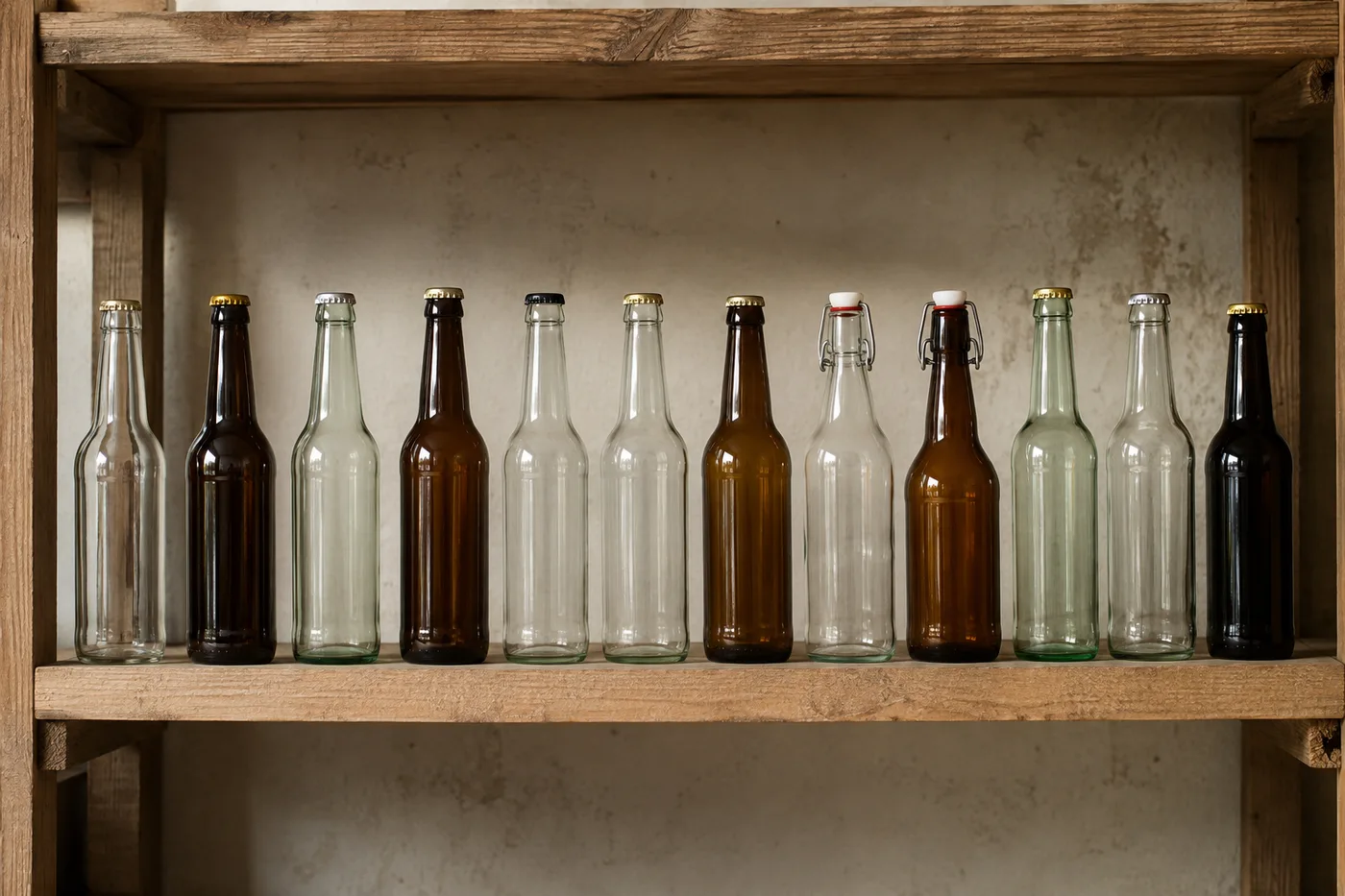
Räkna flaskor i ett foto — AI-flaskräknare
Fungerar med JPG, PNG, WEBP · Frigör upp till 20 MB, Premium 50 MB
Photograph the shelf, crate or cold room, upload the photo and review the tally markers against the photo. Built for stock-takes in shops, bars and beverage distribution.
- Granska fotot och räkna sedan synliga flaskor
- Upload a photo and get an automatic count
- Review the markers to catch bottles counted twice or missed
- Gratis att använda · Ingen registrering krävs · Utan vattenstämpel
Ladda upp bild
Tips för en korrekt räkning
• Använd ett jämnt belyst foto där hela flaskor syns i bild
• Keep your bottles visible and avoid overlapping items
• Prickar och värmekarta visar bibehållna detekteringar — granska och korrigera räkningen
Om Flaskräknare
The bottle counter counts visible bottles from your photo and marks detections for review. Counting starts automatically once the photo and item are ready. Visibility, overlap and similar-looking items can affect the total. Built for shops, bars, beverage distributors and stockrooms.
Så fungerar det
1. Fotografera din flaskor
2. Upload your photo to count bottles automatically
3. Review the markers and correct the tally if needed
4. Lägg till i räkningslistan och exportera ditt antal som CSV
Perfekt för
• Lagerinventeringar i butik och bar
• Leveranser från dryckesdistributörer
• Kontroller i kylrum och lager
• Räkning av returer och tomglas
Vad du kan göra med Flaskräknare
Granska de viktigaste funktionerna innan du börjar.
- Räkna flaskor på hyllor, i backar och kylrum
- Tally lager för bar och dryck inventering
- Granska varje räknad flaskmarkering innan du använder totalsumman
- Granska många foton i en massgranskning
- Håll en löpande summa över märkta bunter
- Hoppa över små falska detekteringar för en renare räkning
Inställningsreferens
14 inställningar
Tillgängliga kontroller för Flaskräknare.
Ladda upp
- Enskilt foto / MassrevisionFörinställningar
- Välj ett enstaka foto eller en Premium-massagranskning. Granska varje resultat.Alternativ: Enskilt fotoMassrevision
Antal
- Inkluderade markörerReglageIntervall: 0–1 · Standard: 0.21
- Starts at 21%; slide toward Show more to include weaker markers or Only strongest to hide them.
- ÖverläggsstilFörinställningar
- Välj punkter, en värmekarta, båda eller en ren förhandsvisning.Alternativ: BådaPunkterVärmeIngen
Avancerat
- ResultatöverläggRullgardinsmeny
- Choose how count markers appear in the on-screen preview; the download keeps its own markers.Alternativ: Punkter + värmekartaEndast punkterEndast värmekarta
Räkning
- Lägg till i räkningslistanEtt klick
- Add this count to the tally sheet under the name of the object that was counted. Signed-in accounts add finished counts automatically unless that is turned off under Account settings; in bulk mode every photo also has its own Add to tally button.
- EtikettTextinmatning
- Rename a tally row. Edits and removals wait until you choose Save changes, so you can fix several rows at once.
- AntalSifferfält
- Correct a row's count; totals, the chart and exports follow once the change is saved.
- Save changesEtt klick
- Apply every edited or removed tally row in one step, or choose Discard changes to leave the sheet as it was.
Chart
- By objectFörinställningar
- The chart is the same in every counting tool and covers the tallies of all of them. By object draws a separate line chart for each tally name, such as pipes and people. By tool draws a chart for each counting tool.Alternativ: By objectBy tool
- PunktFörinställningar
- Choose how far back the chart looks. Days without a count appear as zero.Alternativ: 7 days30 days90 days12 months
History
- Counting setupGalleri
- Keep comparable counts together. A first setup is created for you, so the first count can be saved straight away.
- Observed atTextinmatning
- The date and time of the count, shown as a date and a time field.
- NoterTextinmatning
- Starts with every detected object and its count, one per line, such as Pipes - 11. Edit it before saving.
- Save countEtt klick
- Save the count to your account history. Open a saved count later to correct it or download its source photo.
Relaterade verktyg för Flaskräknare
Verktyg för vanliga nästa steg efter Flaskräknare.
Räkning & inventering
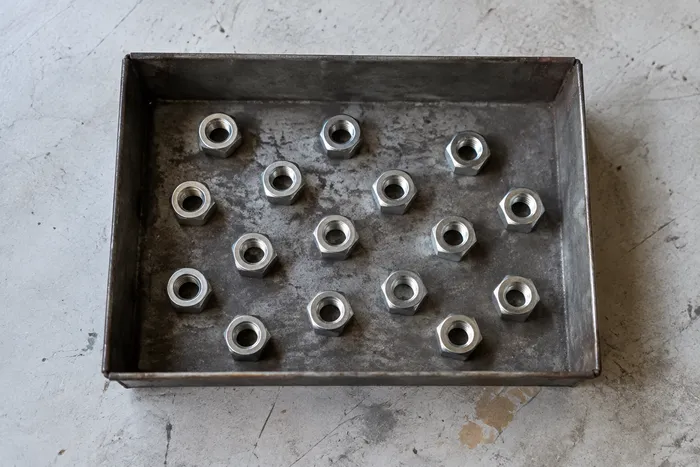
Objekträknare
Uppskatta hur många objekt som finns på ett foto. Granska och korrigera de numrerade markörerna innan du använder antalet.
Prova nu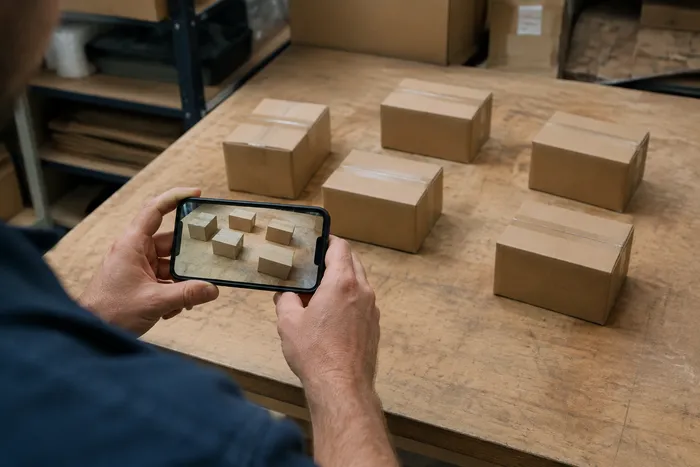
Räkning & inventering
Objekträknare i realtid
Rikta din telefon mot separerade, fullt synliga föremål och granska detektormarkörerna när räkningen uppdateras i realtid.
Prova nu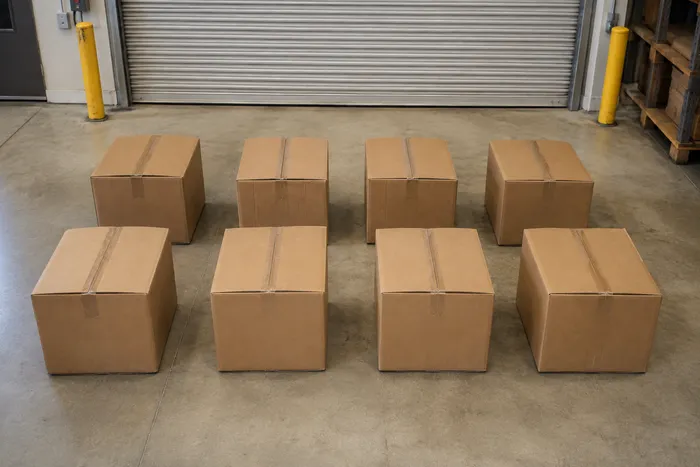
Räkning & inventering
Låd- & kartongräknare
Räkna lådor på pallar, i staplar eller i lastbilar från ett foto, med räknade detekteringar markerade för granskning.
Prova nuVanliga frågor
Så hjälper Flaskräknare dig att få det gjort
Verkliga problem den löser varje dag - för företag, kreatörer och vardagliga uppgifter. Hitta det användningsfall som passar dig och börja.
Granska en leverans mot FAKTURA
Fotografera pallen eller lådorna för ett AI-assisterat utkast, kontrollera sedan den fysiska leveransen, korrigera antalet och följ den vanliga mottagningsrutinen innan du signerar. Lita inte enbart på bilden.
Gör en barinventering från din mobil
Fotografera varje hylla och kylrumsrad med din mobilkamera, lägg till varje bild i Räkningsbladet och exportera hela inventeringen som en CSV eller en varumärkt PDF-rapport till chefen.
Revidera flera lager vid ett och samma tillfälle
Öppna Massgranskning för att köra läget Distinkta objekt över varje hyllfoto, granska sedan varje resultat innan du använder totalsumman.
Isolera en produkt på en blandad hylla
För ett märke eller SKU, markera en komplett flaska i inställningen Exempel innan du räknar, granska sedan varje markör för liknande produkter innan du använder räkningen.
Dela en granskad räkning med ditt team
När du har kontrollerat och korrigerat markeringarna mot det fysiska lagret, spara räkningen och kopiera en skrivskyddad teamlänk så att en chef kan granska resultatet. Den delade bilden är inte i sig ett bevis på kvantitet.
Räkna returer av tomflaskor för pantåterbetalning
Fotografera en back eller vagn med tomma flaskor för ett preliminärt utkast till räkning, granska och korrigera det sedan fysiskt innan du stämmer av en pantåterbetalning eller ett byte.
Titta på varje transformationsland
Varje foto korsar snedstrecket orört och kommer ut på andra sidan färdigt.