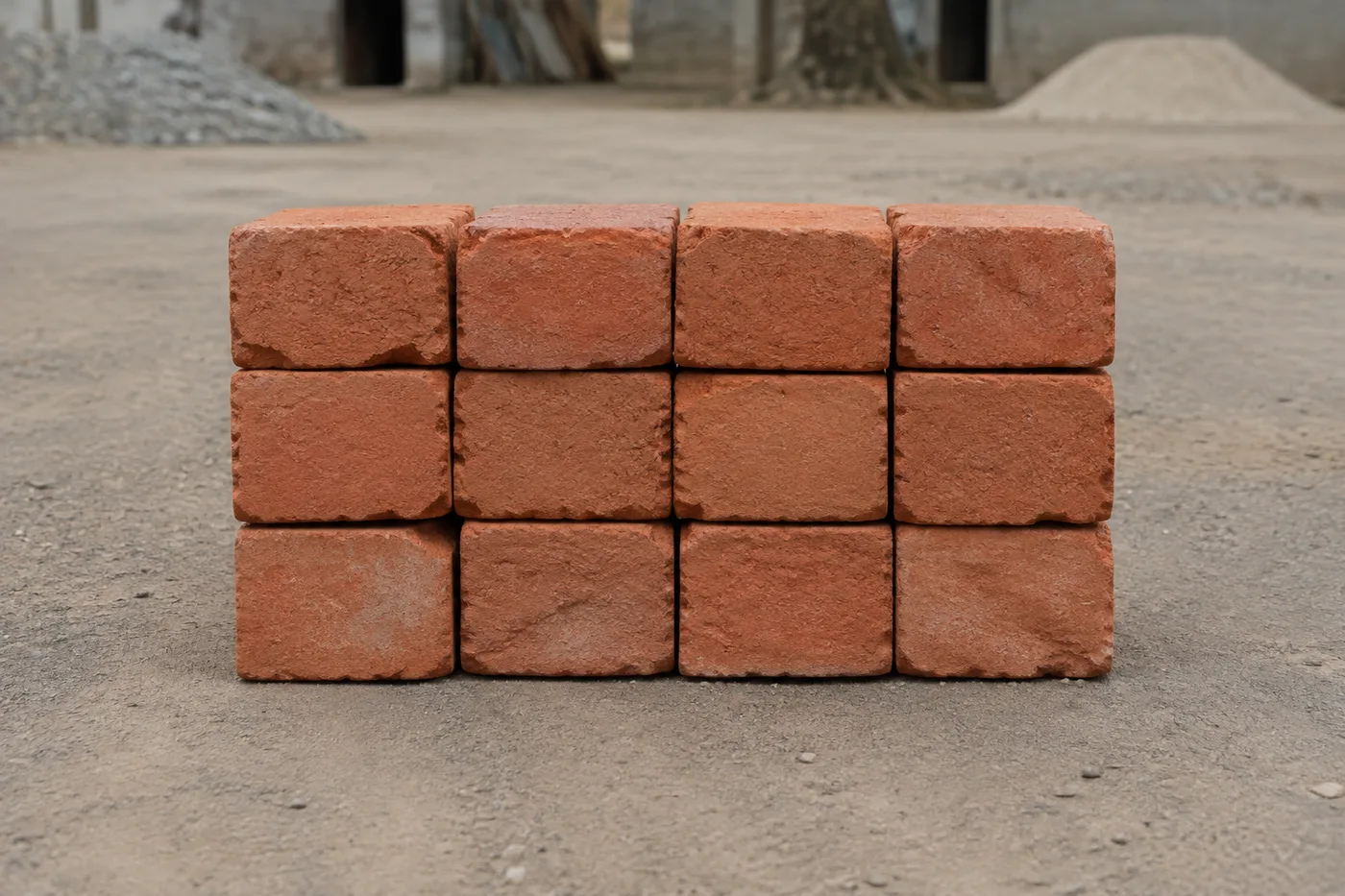
写真内のレンガを数える — AI Brick and Block Counter
JPG、PNG、WEBP の各画像形式に対応 · 無料プランは 20 MB まで、Premium プランは 50メガバイト まで処理できます
Photograph the stack, pallet or delivery, upload the photo and review the tally markers against the photo. Built for delivery checks, site stock counts and yard audits.
- 写真を確認して、見えているレンガを数えてください
- Upload a photo and get an automatic count
- Review the markers to catch bricks counted twice or missed
- 無料で利用可能 · 登録不要 · 透かしなし
画像をアップロード
正確にカウントするためのコツ
• レンガ全体がフレーム内に収まる、明るさが均一な写真を使用してください
• Keep your bricks visible and avoid overlapping items
• ドットとヒートマップで採用された検出結果を表示 — 集計を確認・修正してください
レンガカウンターについて
The brick counter counts visible bricks from your photo and marks detections for review. Counting starts automatically once the photo and item are ready. Visibility, overlap and similar-looking items can affect the total. Built for builders, site managers and building-material suppliers.
使い方
1. レンガを撮影します
2. Upload your photo to count bricks automatically
3. Review the markers and correct the tally if needed
4. 集計シートに追加し、カウント結果を CSV でエクスポート
こんな用途に最適
• レンガ・ブロックの納品ドラフトの確認
• 工程間の現場在庫カウント
• 建材商のヤード監査
• 残りの材料の見積もり
レンガカウンター でできること
始める前に、主な機能を確認してください。
- スタックやパレットのレンガ・ブロックを数える
- 納品や現場の在庫の推定をすばやく確認
- カウントされたレンガの各マーカーを確認し、合計を修正
- 複数のパレットを一度にまとめて確認
- ラベル付けした荷ごとに累計を管理
- 密集した列で、見落としや重複したレンガがないか確認
設定リファレンス
14 設定
レンガカウンター で使用可能なコントロール。
アップロード
- 写真1枚 / 一括集計プリセット
- 写真の枚数を 1 枚にするか、プレミアム一括監査を選択します。すべての結果を確認します。オプション: 単一の写真一括監査
数
- 含まれるマーカースライダーレンジ: 0–1 · デフォルト: 0.21
- 21%から開始します。「さらに表示」側にスライドすると弱いマーカーも含め、「最も強いもののみ」側にスライドすると非表示にできます。
- オーバーレイスタイルプリセット
- ドット、ヒートマップ、その両方、またはクリーンなプレビューを選択します。オプション: 両方ドット熱なし
詳細設定
- 結果オーバーレイドロップダウン
- Choose how count markers appear in the on-screen preview; the download keeps its own markers.オプション: ドット+ヒートマップドットのみヒートマップのみ
集計
- 集計に追加ワンクリック
- Add this count to the tally sheet under the name of the object that was counted. Signed-in accounts add finished counts automatically unless that is turned off under Account settings; in bulk mode every photo also has its own Add to tally button.
- ラベルテキスト入力
- Rename a tally row. Edits and removals wait until you choose Save changes, so you can fix several rows at once.
- 数数値入力
- Correct a row's count; totals, the chart and exports follow once the change is saved.
- Save changesワンクリック
- Apply every edited or removed tally row in one step, or choose Discard changes to leave the sheet as it was.
Chart
- By objectプリセット
- The chart is the same in every counting tool and covers the tallies of all of them. By object draws a separate line chart for each tally name, such as pipes and people. By tool draws a chart for each counting tool.オプション: By objectBy tool
- 期間プリセット
- Choose how far back the chart looks. Days without a count appear as zero.オプション: 7 days30 days90 days12 months
History
- Counting setupギャラリー
- Keep comparable counts together. A first setup is created for you, so the first count can be saved straight away.
- Observed atテキスト入力
- The date and time of the count, shown as a date and a time field.
- 音符テキスト入力
- Starts with every detected object and its count, one per line, such as Pipes - 11. Edit it before saving.
- Save countワンクリック
- Save the count to your account history. Open a saved count later to correct it or download its source photo.
レンガカウンター の関連ツール
レンガカウンター の後の一般的な次のステップのためのツール。

よくある質問
レンガカウンターでできること
ビジネス、クリエイター、日常業務など、実際の問題を毎日解決します。自分に合ったユースケースを見つけて始めましょう。
荷下ろし前にレンガの納品を確認
パレットを撮影するとレンガの集計案が作成されます。実際の納品物を確認し、マーカーを修正したうえで、トラックが出発する前に通常の納品書チェックを完了してください。
工程間で残りの資材を管理
残った積み重ねを撮影すると、AIが概算を推定します。次の施工段階を計画する前に、実際の在庫と照らし合わせて確認・修正してください。
ヤード全体を一括で棚卸し
「一括監査」を開いてすべての積み重ねの写真に「個別の対象物」モードを実行し、資材置き場全体の合計を使う前にすべての結果を確認してください。
現場の在庫をスマホから数える
スマートフォンのカメラで各資材の山を撮影しながら現場を歩き、すべての結果をタリーシートに追加し、その日の現場在庫をCSVまたはPDFレポートとして現場責任者向けに書き出せます。
混在した現場のがれきからレンガを分別
ブロックや瓦礫がレンガと間違われないように、カウントを実行する前にサンプル設定で完全なレンガを 1 つマークし、合計を使用する前にすべてのマーカーを確認します。
1 面の写真からパレット全体の合計を推定
直方体に積んだレンガの1面に見えるレンガを数え、既知の奥行きを掛ければ、パレット全体をすばやく概算できます。忙しい現場で、山をよじ登って全面を撮影するのが現実的でないときに便利です。
変換結果を一つずつ確認
すべての写真はスラッシュをそのまま通過し、反対側が完成して出てきます。