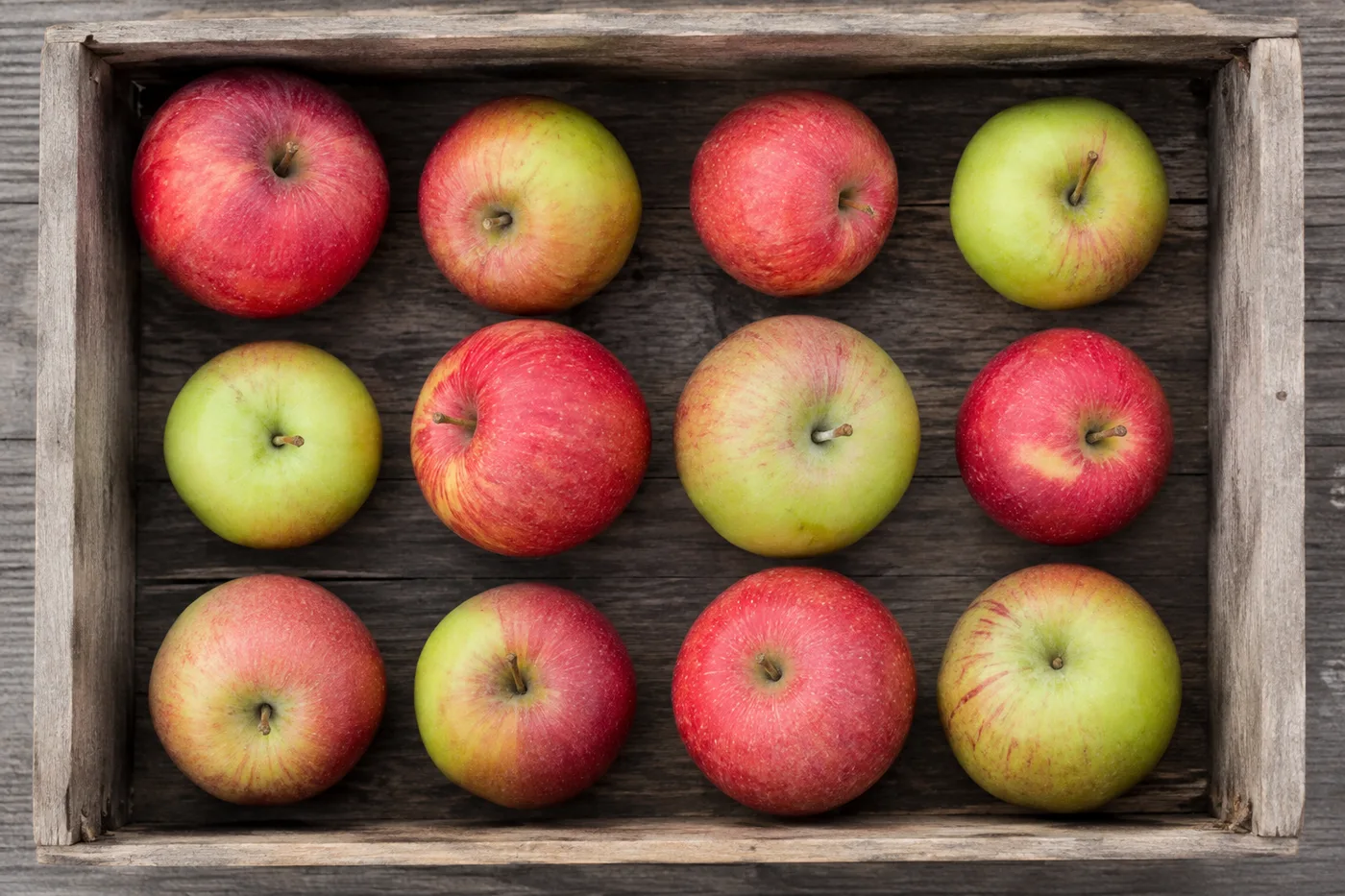
사진 속 과일 개수 세기 — AI 과일 카운터
이미지 형식 JPG, PNG, WEBP 지원 · 무료 플랜에서는 최대 20 MB, 프리미엄 플랜에서는 최대 50 MB까지 처리할 수 있어요
Photograph the crate, tray or conveyor, upload the photo and review the tally markers against the photo. Built for harvest tallies, packhouse checks and market stock counts.
- 사진을 검토한 다음 보이는 과일을 세어 보세요
- Upload a photo and get an automatic count
- Review the markers to catch fruits counted twice or missed
- 무료 이용 · 회원가입 불필요 · 워터마크 없음
이미지 업로드
정확하게 세기 위한 팁
• 과일 전체가 프레임 안에 들어오도록 밝기가 고른 사진을 사용하세요
• Keep your fruits visible and avoid overlapping items
• 점과 히트맵으로 유지된 감지 결과를 표시 — 집계를 검토하고 수정하세요
과일 카운터 기능에 대한 정보
The fruit counter counts visible fruits from your photo and marks detections for review. Counting starts automatically once the photo and item are ready. Visibility, overlap and similar-looking items can affect the total. Built for farms, packhouses and produce wholesalers.
작동 방식
1. 과일 사진을 촬영하세요
2. Upload your photo to count fruits automatically
3. Review the markers and correct the tally if needed
4. 집계 시트에 추가하고 개수를 CSV로 내보내세요
이런 분께 안성맞춤
• 수확 및 수확량 집계
• 포장 창고 크레이트 검토 초안
• 도매 시장 재고 실사
• 과수원 표본 조사 및 추정
과일 카운터로 할 수 있는 일
시작하기 전에 주요 기능을 검토하세요.
- 상자, 쟁반, 수확통에 담긴 과일 수 세기
- 사과, 오렌지, 망고 등을 집계하세요
- 수확량을 추정하기 전에 집계된 과일 마커를 하나하나 검토하세요
- 라벨이 붙은 용기 전체에서 수확량 총 추적
- 대량 감사에서 많은 상자를 일괄 계산합니다.
- 뭉쳐 있는 더미를 더 정확히 집계하려면 선택 사항으로 과일을 표시하세요
설정 참고
14 설정
과일 카운터에 사용 가능한 제어 기능입니다.
업로드
- 단일 사진 / 일괄 감사프리셋
- 단일 사진 수 또는 프리미엄 대량 감사를 선택하세요. 모든 결과를 검토하세요.옵션: 단일 사진일괄 감사
개수
- 포함된 마커슬라이더범위: 0–1 · 기본값: 0.21
- 21%부터 시작합니다. 약한 표시까지 포함하려면 더 많이 표시 쪽으로, 강한 표시만 보려면 가장 강한 표시만 쪽으로 슬라이드하세요.
- 오버레이 스타일프리셋
- 점, 히트맵, 둘 다 또는 깨끗한 미리보기를 선택하세요.옵션: 둘 다도트열없음
고급
- 결과 오버레이드롭다운
- Choose how count markers appear in the on-screen preview; the download keeps its own markers.옵션: 점 + 히트맵점만히트맵만
집계
- 집계에 추가원클릭
- Add this count to the tally sheet under the name of the object that was counted. Signed-in accounts add finished counts automatically unless that is turned off under Account settings; in bulk mode every photo also has its own Add to tally button.
- 라벨텍스트 입력
- Rename a tally row. Edits and removals wait until you choose Save changes, so you can fix several rows at once.
- 개수숫자입력
- Correct a row's count; totals, the chart and exports follow once the change is saved.
- Save changes원클릭
- Apply every edited or removed tally row in one step, or choose Discard changes to leave the sheet as it was.
Chart
- By object프리셋
- The chart is the same in every counting tool and covers the tallies of all of them. By object draws a separate line chart for each tally name, such as pipes and people. By tool draws a chart for each counting tool.옵션: By objectBy tool
- 기간프리셋
- Choose how far back the chart looks. Days without a count appear as zero.옵션: 7 days30 days90 days12 months
History
- Counting setup갤러리
- Keep comparable counts together. A first setup is created for you, so the first count can be saved straight away.
- Observed at텍스트 입력
- The date and time of the count, shown as a date and a time field.
- 음표텍스트 입력
- Starts with every detected object and its count, one per line, such as Pipes - 11. Edit it before saving.
- Save count원클릭
- Save the count to your account history. Open a saved count later to correct it or download its source photo.
과일 카운터 관련 도구
과일 카운터 이후 일반적인 다음 단계를 위한 도구입니다.
자주 묻는 질문
과일 카운터가 작업을 완수하도록 돕는 방법
비즈니스, 크리에이터, 일상 업무의 실제 문제를 매일 해결합니다. 귀하에게 적합한 사용 사례를 찾아 시작해보세요.
수확일 수확량 추적
Bulk audit를 열어 모든 crate 사진에서 Distinct objects 모드를 실행한 뒤 각 결과를 검토하고, 필요한 경우 집계를 수정하세요.
농산물 직거래 장터 및 노변 판매대 재고
개장 전과 마감 후에 각각 한 가지 과일 종류에 유사 항목 모드를 실행하세요. 두 집계를 모두 검토하고 수정한 후, 그 차이를 판매량 추정치로 활용하세요.
수확량 추정을 위한 과수원 샘플링
조명이 잘 든 나무 윗부분 구역을 촬영해 AI가 보이는 과일을 표본 조사 방식으로 세도록 하고, 과수원 전체 수확량을 추정할 때 '감지 민감도' 슬라이더로 일부 가려진 과일에 맞춰 조정하세요.
선과장 등급 선별 및 상자 검수
'예시' 설정에서 상자에 담긴 품종마다 하나씩 예시 과일을 1~3개 표시하고, 상자를 봉하기 전에는 '유사 항목' 결과를 초안으로 활용하세요. 그런 다음 실제 상자를 직접 확인해 빠지거나 중복된 항목을 바로잡은 뒤 선과장 최종 승인을 진행하세요.
도매 배송 수량 검수
표시된 이미지로 AI 지원 배송 초안을 검토하고, 자격을 갖춘 수동 집계 또는 실물 집계와 비교한 뒤 수정된 집계를 일반 배송 기록과 함께 저장하세요. 이미지 자체는 수량을 증명하지 않습니다.
가정 텃밭 수확량 세기
직접 기른 토마토, 사과, 베리류를 수확할 때 바구니째 촬영해 수확량을 추정하고, 이번 시즌의 집계 행을 추가하기 전에 마커를 검토하고 수정하세요.
각 변화를 확인하세요
모든 사진이 원본 그대로 슬래시를 지나 반대편에서 완성된 결과물로 나옵니다.