Two-person podcast clips
Keep both speakers and microphones visible when they sit at opposite sides of a wide shot. No fixed crop has to choose one speaker over the other.
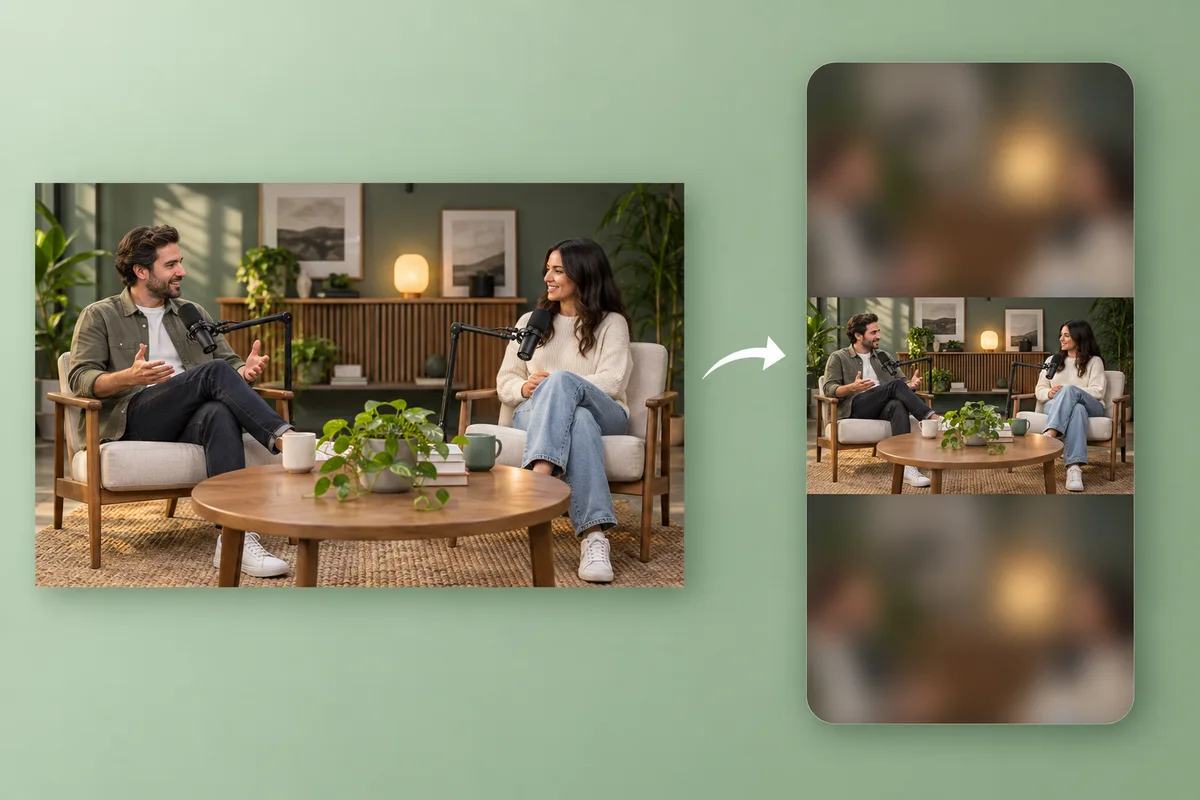
1080 × 1920 · 9:16 · Keep whole video · Blur
Keep both speakers, the full view, and every edge of your original video. Fit a horizontal clip into a vertical canvas and fill the extra space with a background.
MP4, MOV, WebM · Trim before exporting · Checking your upload limit…
Files are uploaded for conversion. Your upload is removed as soon as it is converted, and converted videos are automatically deleted within 24 hours.
Choose a horizontal video and trim it if you only need part of the recording. Keep whole video and a 9:16 output are already selected, so the full width stays visible.
A 16:9 clip fitted into a 1080 × 1920 canvas is roughly 1080 × 608 pixels high within that canvas. The rest is background above and below. Keeping the entire picture means the original scene occupies a smaller area.
Blur uses a moving copy of your video behind the sharp full frame. A solid color is quieter for presentations; gradients, designs, and uploaded photos offer other looks. Edge softening blends the boundary into the fill.
Check that small text remains legible and that the background feels comfortable in motion. Convert and download your watermark-free MP4. You can change the output ratio while keeping fit mode selected.
Keep both speakers and microphones visible when they sit at opposite sides of a wide shot. No fixed crop has to choose one speaker over the other.
Retain the edges of a room and the relationship between doors, windows, and furniture. The vertical canvas presents the full wide view with a background.
Keep people near both edges of a stage or group shot. Review faces at phone size because preserving the complete scene makes them smaller.
Yes. Fit the full picture inside a vertical canvas using Keep whole video. Extra space remains above and below the wide picture and is filled with your selected background.
Only if the source already has the same aspect ratio. When the ratios differ, preserving the whole frame and its proportions requires extra space. Crop removes content; stretch changes proportions.
No. Blur repeats and blurs the existing video, while colors, gradients, designs, and photos fill the unused canvas. These options do not invent scenery outside the original frame or remove a moving background.
The video is scaled to fit within the narrow width of the portrait canvas. The complete scene remains, but it takes up less of the screen. Use a crop if a larger subject is more important than keeping every edge.
Explore every ratio in the portrait and landscape video converter, or resize a still image with the landscape to portrait photo converter.
Review the main capabilities before you begin.
Available controls for Portrait & Landscape Video Converter.
Tools for common next steps after Portrait & Landscape Video Converter.
Photo Editing & Utilities
Convert landscape to portrait or portrait to landscape with fast background fills or AI-generated scenery, without cropping the original photo.
Try it nowPhoto Editing & Utilities
Resize an image to exact dimensions or by percentage. Preview and download the result.
Try it nowPhoto Editing & Utilities
Drag to crop an image. Choose a preset ratio or enter exact dimensions.
Try it nowEvery photo crosses the slash untouched and comes out the other side finished.