
AI Product Photography
Generative output can vary; review the full result before publishing
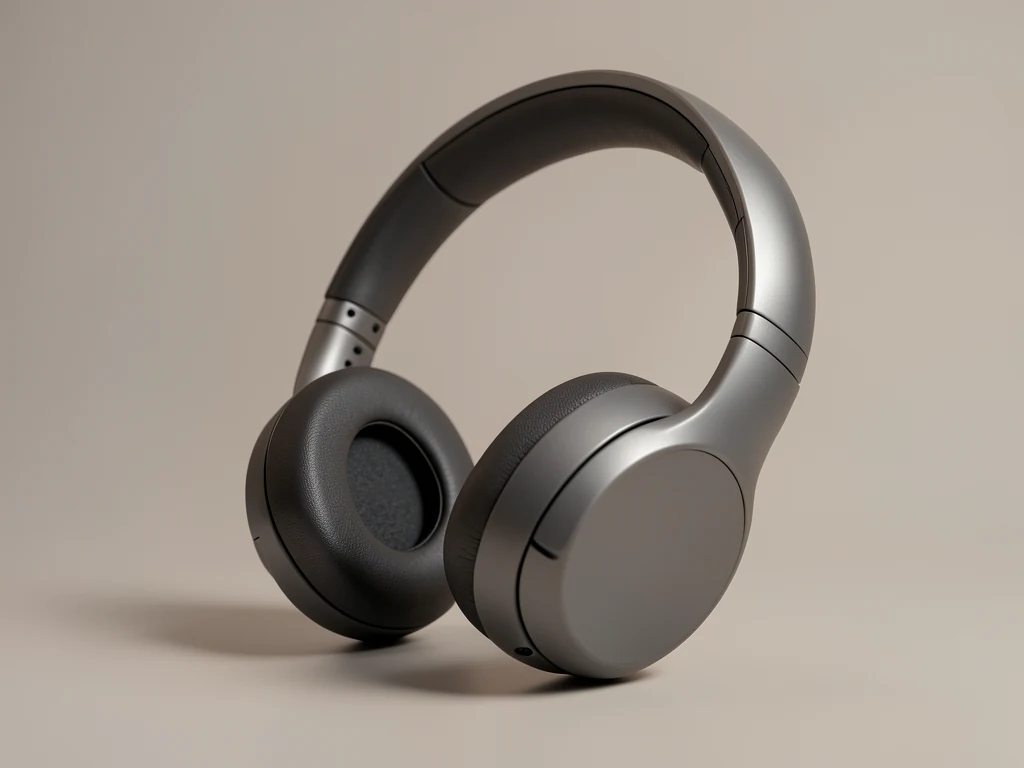
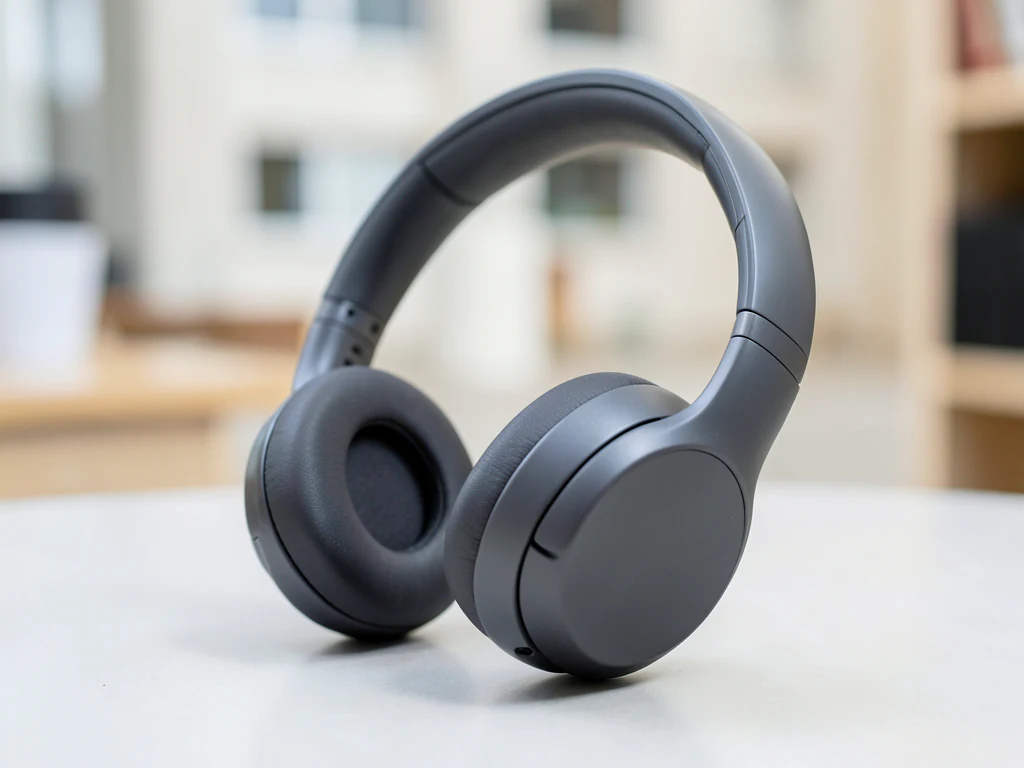
A product photo taken on a kitchen table sells like a product photo taken on a kitchen table. This direction rebuilds everything around the item — backdrop, surface, shadow — while the AI is asked to keep the product as you shot it and to match the scene to the light in your photo. The whole frame is re-rendered, so check logos, labels, text and colors against the original: they are the part buyers zoom into and the part a marketplace will hold you to.
- Prepared AI Product Photography direction
- Editable prompt
- Source-detail review required
Choose a source image for AI Product Photography
JPG, PNG, WebP, HEIC, and other supported formats. Free up to 20 MB; Premium and higher up to 50 MB for this tool.
How the scene around the product changes, and what to check
When you upload a photo, the AI re-renders the whole frame: backdrop, surface, light and shadow are generated fresh, and the product is asked to stay as you photographed it, with the scene matched to the light direction and softness of your photo. Nothing is cut out and pasted back, so the label, color, scratches and reflections should follow what your camera recorded but can drift. That is why the source photo carries so much weight: a blurry or dimly lit product stays blurry or dim. It is also why every result needs a side-by-side check of labels, small type and edges.
Under the prompt box sit four looks: Plain white, Warm wood, Stone and sun, and Color sweep. Pick one, or replace the text with your own scene. Name the surface, the backdrop, where the light comes from and what the shadow does; a vague request such as 'make it look professional' gives the AI almost nothing to build. The finished image keeps the shape of your upload, and the product is asked to stay where it sat in the frame.
Free results download at web size with no watermark; Premium or one credit unlocks the original resolution. If the frame feels too tight around the item, add empty canvas around the photo first, and when a listing needs a plain cut-out rather than a scene, lift the product onto a clean background.
Before you upload
- Leave clear space around the product on every side
- Shoot in soft, even light, because the scene is matched to the light in your photo
- Wipe off dust and fingerprints; they are likely to carry into the result
- Move hands, clamps and tape out of the shot unless you want them kept
AI product photography: ecommerce product photography from one phone photo
This AI product photography page takes one photo of your product, such as a phone shot, and builds a new setting around it: a backdrop, a surface and a soft shadow, from 4 ready looks or your own wording. It is for sellers, makers and small brands that need clean pictures for a store, a listing or a social post without booking a studio. The result keeps the frame of the photo you upload.
Make ecommerce product photos for an online store in 6 steps
Each run takes one photo and returns one image, so a set of store photos is built the same way every time. Start with the item sharp and fully in frame, then let the page build the setting around it.
- Upload one photo of the product, with a margin of empty space around it.
- Under Styles, choose Plain white, Warm wood, Stone and sun or Color sweep.
- Open Custom instructions (optional) to rewrite the surface, backdrop or light in your own words.
- Select Generate Product scene.
- Drag the before-and-after slider and compare labels, edges and shadows with your photo.
- Download the PNG, or select Edit again to try another look on the same photo.
Designing a product picture: white background or styled scene
Plain white is a white product background: a seamless white sweep with soft front light and a light contact shadow, which suits catalog grids and many store themes. The other 3 product backgrounds add a surface and a mood. Warm wood is an oak tabletop with daylight from one side, Stone and sun is a pale stone slab with a crisp shadow, and Color sweep is a pastel backdrop with a faint floor reflection. When a marketplace insists on a strictly pure white main image, put the product on pure white with the dedicated tool and keep the scenes for secondary images.
DIY product photography setup at home with a phone and a window
A phone, a window and a table are a workable set up, and you need nothing beyond a sheet of white card. Put the product a few feet from the window so the light comes from the side, and prop the card opposite to soften the shaded side. Turn off the ceiling lights, because mixed bulbs leave color casts that can carry into the result. Hold the phone at the height of the product, steady it on a stack of books, and take the same shot from 2 or 3 angles for a matching set.
Creative product photography ideas and examples to type in
These product photography examples need one sentence each. A matte speaker on dark slate with one soft light from the right and a long shadow to the left. A ceramic mug on folded linen beside a bright window. A glass bottle raised on a stone podium in hard sunlight. Keep props to 1 or 2 words and away from the label, since anything you add can cover printed text or imitate it.
Studio background pictures and backdrops for product photos
This page builds the backdrop for your product around your own photo, so there is no blank backdrop file to download from it. For studio background pictures you can place behind a cutout yourself, browse the studio backdrops. To lift the product off its old background first, cut it out with the background remover, then add the cutout to a backdrop of your choice.
Automated product photography: run a whole catalog through one look
Switch to Batch images, a Premium option, add the photos and pick one look; the page applies it to every file and returns the results in a single ZIP of PNG files. Without Premium you work one photo at a time. Shoot every product the same way first, then open each finished image at full size, because a fast batch still needs a person to check the labels. For a listing set built around Amazon's rules, the Amazon listing studio opens on marketplace looks.
Set up for AI Product Photography
Prepared settings
- Starting point
- Upload one source image
- The page opens on the correct edit workflow; upload is the only required setup step.
- Prepared workflow
- Prepared AI Product Photography scene direction
- AI Product Photography opens with the AI Product Photography direction preselected, so there is no need to find the operation manually.
- Output shape
- Same as your upload
- The result keeps the shape of the image you upload.
- Review rule
- Preserve the source subject and verify factual details
- Generated imagery can vary; the final result stays under the user's approval before download.
Best-fit uses
- First catalog images for a launch before a shoot is booked
- Rescuing usable product shots from phone photos
- Testing several backdrop directions before paying for studio time
Frequently asked questions
- How do I get professional product photos without a studio?
- Shoot the product sharp, evenly lit and fully in frame — a window and a plain surface are enough. The generated scene supplies the studio part: seamless backdrop, surface and a contact shadow. The scene is asked to match the light in your photo, so soft, even light suits the most scenes. What it cannot fix is a blurry or badly cropped source, because the detail in your photo is all the AI has to keep the product accurate.
- Does it change the product itself?
- Not on purpose. The AI is asked to keep the product's shape, color, texture, labels and logos and to generate only the environment around it, but the whole frame is re-rendered, so details can still drift. Compare logos, labels, text and colors with your photo, and check the edges, thin parts such as straps, cables and stems, and any shadow the AI added. That check is what keeps the result matching what ships to the customer.
- What resolution should I upload for catalog use?
- Upload the largest sharp version you have. Detail in the source carries straight through to the result, so a cramped thumbnail stays a cramped thumbnail. Square or slightly portrait framing with a little space around the product gives the scene room to build without crowding the edges.
- Can I use these images on my own store and ads?
- You are responsible for the rights to what you upload and for the claims the finished image implies. Since the scene is generated rather than photographed, check that nothing in it suggests a feature, material, accessory or certification the product does not actually have before it goes live.
- Can AI replace professional product photography?
- For catalog and social images it can: the page builds a backdrop, surface and shadow around a real photo, so a phone shot looks styled without a studio. It cannot add new angles, show what is inside a package or replace a shoot with people. Hire a photographer for work that needs those, and review each generated image against the item.
- What can photography AI do for product images?
- It builds the setting around a product photo you took: a backdrop, a surface and a soft shadow, with 4 looks to try on the same image. It starts from your photo instead of inventing the product, and it does not add new angles or repair a blurry source, so the photo you upload still decides the result. Check labels and edges before you publish.
- Can I make product photos without uploading a photo of the item?
- No. This page starts from a photo of your real product and builds the setting around it, so it does not invent a product from a description. To create a concept image from text, use the AI Image Generator, and do not present that image as a photo of an item you sell.
- Is this an AI clothes editor, and can I use it for apparel photography?
- It builds a new setting around the garment rather than changing the clothing, and the page asks the AI to keep the product as photographed. It works on any product photo, including a garment laid flat or on a hanger. For apparel specifically, the Clothing Photoshoot AI page opens on looks written for garments, such as a plain backdrop and a linen flat lay.
- Is this an AI clothing design tool that creates outfits?
- No. This page does not create garments, dresses or outfits from a description. It starts from a photo of a real item and builds the backdrop and surface around it. For a garment you already own, the Clothing Photoshoot AI page opens on looks written for hangers and flat lays.
- Can I use these product photos as a marketplace main image?
- Many marketplaces ask for a plain, uncluttered main image and publish their own current rules, which vary by category. Use Plain white for main-image candidates and keep styled scenes for secondary images. The Listing Image Checker measures a file against the rules for Amazon, Google Shopping, Walmart, eBay, Etsy and Shopify before you upload.
- Can I add my logo, price or text to a product photo?
- Add it after generating. The prepared direction asks for no readable text or logos, so the scene should come back without lettering, and anything the AI writes into a picture is unreliable. Place your own words with Add Text to Image and stamp a logo with Watermark Image, where the spelling and colors stay exact.
- How do I photograph shiny, glass or transparent products?
- Shiny and clear items show whatever surrounds them, and that reflection can travel into the result. Shoot beside a large window with a sheet of white card on the other side, keep dark objects out of view, and zoom into rims and edges in the finished image to catch any trace of the old background.
What you can do with AI Product Background Generator
Review the main capabilities before you begin.
- Build a backdrop around your product from a single photo
- Generate studio sweeps, podiums, gradients, and natural scenes
- Ask the AI to keep the product and label as photographed
- Prepare product concepts for listings and campaigns
Settings reference
4 settings
Available controls for AI Product Background Generator.
Workflow
- Single image or Batch imagesPresets
- Process one image, or use Premium Batch images to apply the same automatic recipe to a set and download one ZIP.Options: Single imageBatch images
Backdrops
- One-tap presetsPresets
- Pick a ready-made direction with one tap; generation uses the selected preset automatically.Options: White studioWarm beigeColor gradientStone podiumBotanical
- Custom instructions (optional)Text input
- Describe the requested change, relevant materials, lighting, perspective, and details that must remain unchanged.
Selection
- Selection brush sizeSliderRange: 4–160px · Default: 32px
- The subject area is found automatically. This brush appears only if that automatic area could not be found; paint the area to edit, then generate again.
Related tools for AI Product Photography
Tools for common next steps after AI Product Photography.

Background Studio
Remove Background
Remove a photo background and download a transparent PNG. Review hair and edges before use.
Try it now
Background Studio
White Background Maker
Replace a photo background with white for product listings.
Try it now
Product Photography Studio
AI Product Photos
Generate a background scene around your product. Describe the setting and review the result.
Try it nowGuides for this tool
- The Seasonal Campaign That Never Launched: When Product Photography Slows MarketingSeasonal campaigns can stall when every image needs a new photoshoot. Explore how Pixoate helps adapt existing product photos into useful campaign assets.
- How to Create AI Lifestyle Product Photos Without a Studio PhotoshootCreate AI lifestyle product photos with Pixoate. Explore settings for small business campaigns and review product shape, colour and scale before use.
Watch each transformation land
Every photo crosses the slash untouched and comes out the other side finished.























