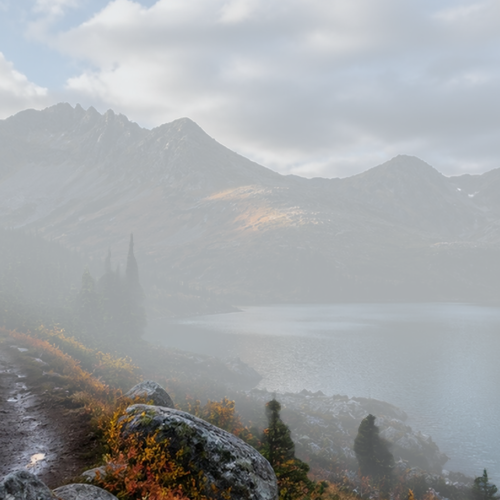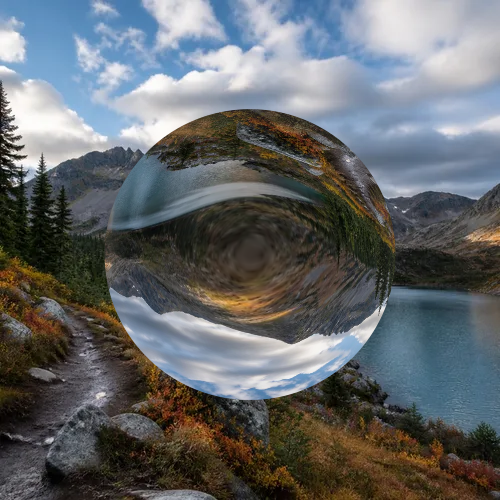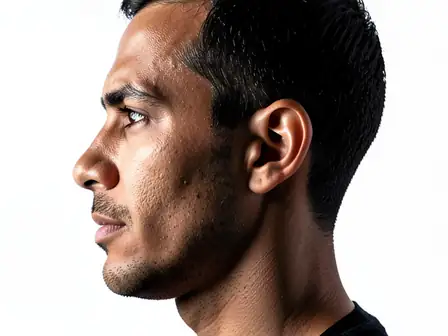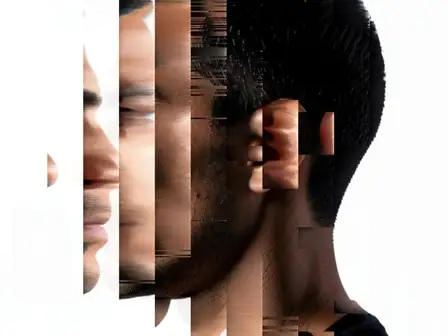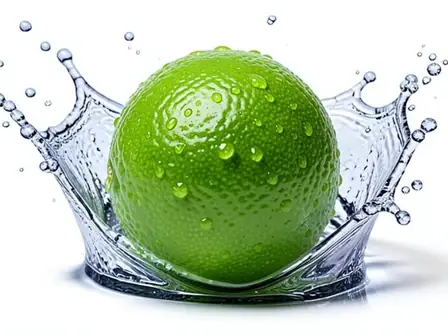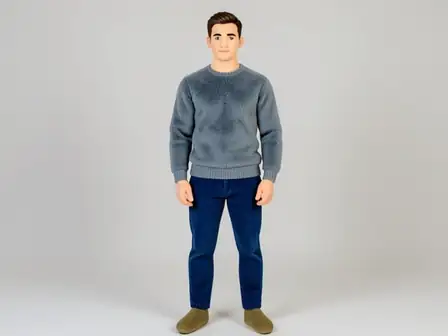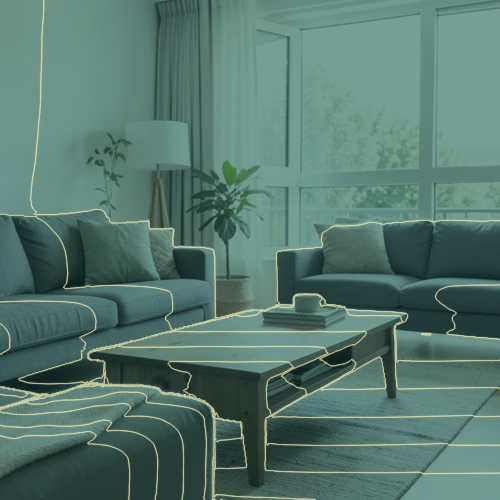

The same source image before and after applying 지형 깊이 선.
지형 깊이 선 photo effect applied to the same source image
Original source image before the 지형 깊이 선 photo effect

지형학적 깊이선 사진 필터 온라인

Trace 18 clean depth contour bands over your photo without moving people or objects. Control the strength, compare the result, and download a finished image from your browser.

지형 깊이 선 효과를 위한 사진 업로드

지형 깊이 선 효과로 수행할 수 있는 작업

시작하기 전에 사용 가능한 효과 기능을 검토하세요.

  • Apply the 지형 깊이 선 effect to any photo
  • Fine-tune the effect strength to taste
  • Preview your photo live as you edit
  • Download your edited photo in high quality
  • Apply 지형 깊이 선 to many photos at once

이용 방법

Topographic Depth Lines estimates how far each part of your photo is from the camera and divides that near-to-far range into 18 evenly spaced bands. Tiny isolated specks are cleaned up first, then a thin, smooth cream contour line is drawn exactly where one band meets the next, over a teal map that keeps the light and dark detail of your photo. Intensity changes how strongly the map and lines show, while every contour stays lined up with the original photo. Nothing in your photo is moved, stretched, repainted, or generated, so people, faces, arms, objects, framing, and transparency all stay in place. Larger uploads may be resized proportionally before depth analysis: free results are delivered at web size, and very large photos are scaled down first. The result is a lossless PNG.

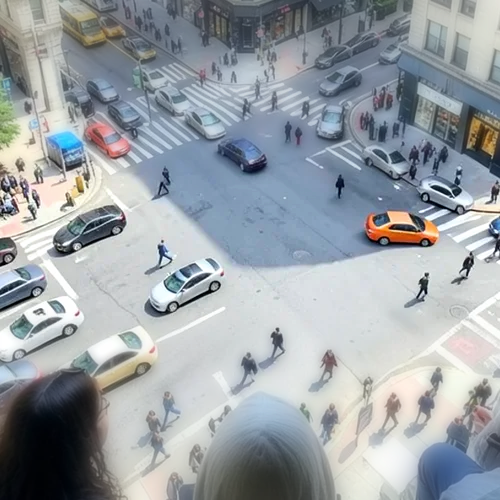
처리 중

지형 깊이 선는 AI 액션을 사용합니다. 이 효과가 처리되기 전에 별도의 허용량이 표시됩니다.

다음에 가장 적합

데이터 스타일 아트워크, 기술·건축 프레젠테이션, 실내, 풍경, 앨범 커버, 근경과 원경이 명확히 분리된 추상 인물 사진.

다음과 같은 경우에는 덜 적합합니다. flat scenes, glass, mirrors, reflections, smoke, fine hair or foliage, and images where depth is hard to judge from a single photo; contours intentionally cross faces, clothing, and objects when their estimated depth reaches a band edge.

지형 깊이 선 사용 방법

    지형 깊이 선 효과에 관해 자주 묻는 질문

    등고선은 무엇을 나타냅니까?
    They show estimated relative distance within this photo, not surveyed or measured depth. Tightly spaced contours mean the depth changes quickly, such as along a profile or object edge; wide spacing means it changes gradually. The 17 lines between the 18 bands are evenly spaced across the full near-to-far range.
    그래도 주제를 알아볼 수 있나요?
    Yes. The map keeps the light and dark detail of your photo and does not reshape anything, so silhouette, facial structure, clothing, and scene layout stay lined up. Contours can legitimately pass across a forehead, nose, arm, or shirt because those areas reach a band edge; they are graphic lines drawn on top, not a distorted face or body. Lower intensity preserves more original color and detail.

    더 많은 깊이 및 치수 효과

    스마트 재초점

    깊이 및 치수고급 AI

    자동 감지된 주 피사체 하나는 선명하게 유지하고 깔끔한 깊이 인식 배경 흐림을 적용합니다

    페이지 열기

    틸트시프트 디오라마

    깊이 및 치수고급 AI

    높은 곳에서 촬영한 거리와 풍경을 깔끔한 깊이 보조 초점 대역으로 미니어처 장면처럼 바꿉니다

    페이지 열기

    위글그램 3D

    깊이 및 치수고급 AI

    Create a clean eight-frame depth loop where nearer and farther parts move by different amounts

    페이지 열기

    깊이 애너글리프 3D

    깊이 및 치수고급 AI

    Create a comfortable red-cyan 3D view for standard glasses from the estimated depth of your photo

    페이지 열기

    크리스털 Refraction

    깊이 및 치수고급 AI

    Refract only the background through bounded crystal facets while keeping the detected subject fixed

    페이지 열기

    Parallax Cutout 포스터

    깊이 및 치수고급 AI

    사람이나 물체를 복제하지 않고 원본에 정렬된 다섯 개의 넓은 종이 평면을 만듭니다

    페이지 열기

    종이 깊이 디오라마

    깊이 및 치수고급 AI

    Style the frame as up to seven layered paper sheets without duplicating people or objects

    페이지 열기

    대기 깊이 안개

    깊이 및 치수고급 AI

    Add soft atmospheric haze that grows with the estimated distance in your photo

    페이지 열기

    Near–Far 분할 Tone

    깊이 및 치수고급 AI

    Apply cool-far and warm-near color grading from the estimated depth of your photo

    페이지 열기

    렌즈볼월드

    깊이 및 치수

    경계가 제한된 유리 구 안에서 장면을 압축하고 반전하며, 구 밖의 모든 픽셀은 그대로 유지합니다

    페이지 열기

    렌티큘러 깊이 인화

    깊이 및 치수고급 AI

    Interlace depth-shifted strips only across the background while keeping the detected subject fixed

    페이지 열기

    추천 효과를 움직이는 모습으로 보기

    가장 추천하는 효과가 이 줄 맨 앞에 먼저 표시되고, 나머지 효과는 그 뒤에 이어집니다.