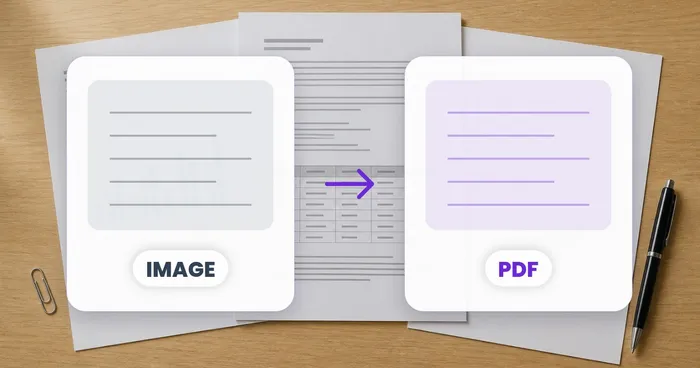
Din PNG-tabell är tydlig, men cellerna är fortfarande låsta i en bild
PNG-exporter bevarar ofta skarp text i tabeller, men cellerna består fortfarande av pixlar. Läs in en sparad PNG-tabell i ett kalkylblad och granska de extraherade kolumnerna innan du öppnar det i Excel för sortering, filtrering eller ytterligare bearbetning.
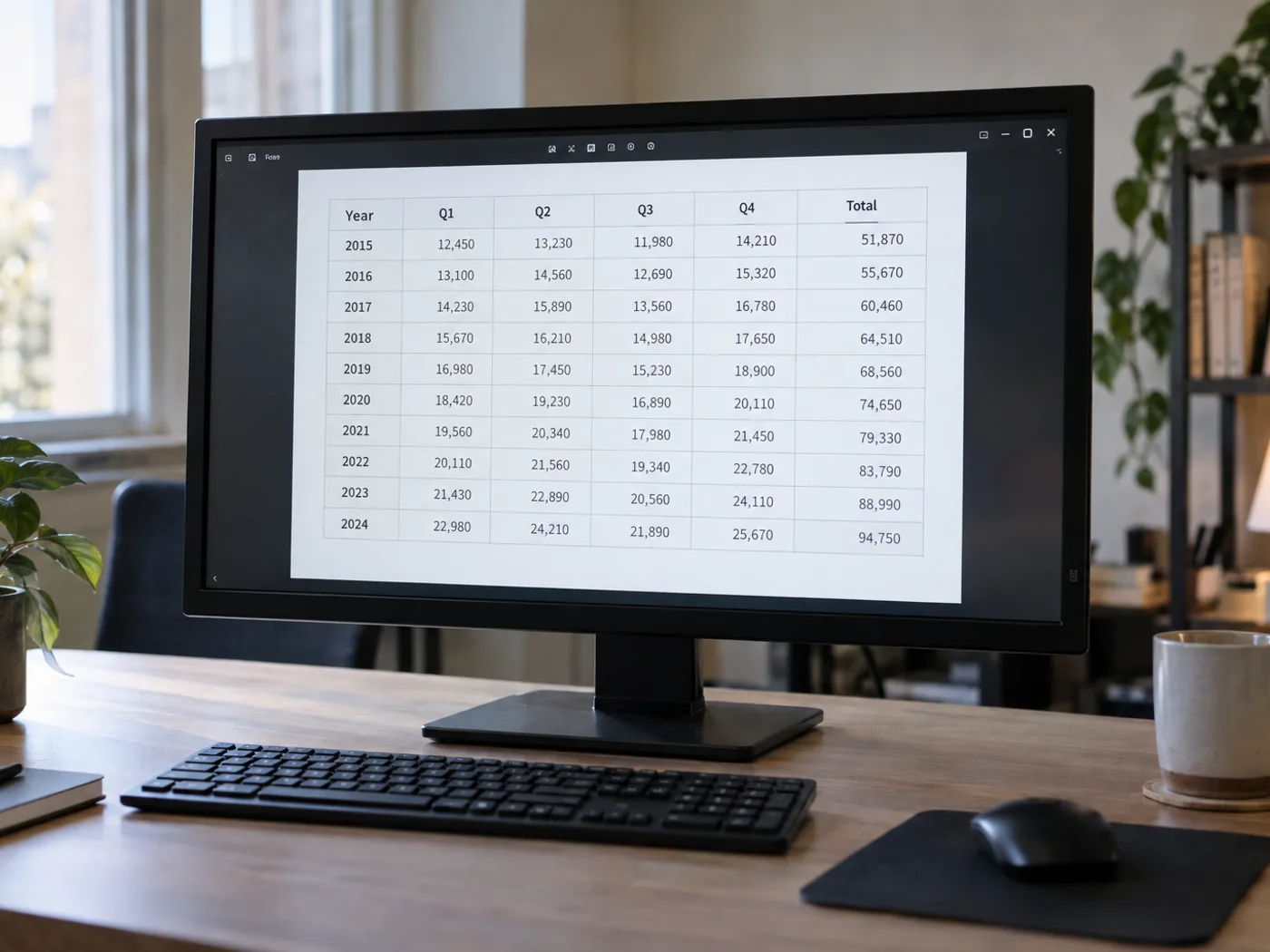
Rapporttabeller exporterade som PNG
Återskapa de synliga uppgifterna från en rapportbilaga som bara består av en bild när författaren inte har bifogat arbetsboken bakom den.
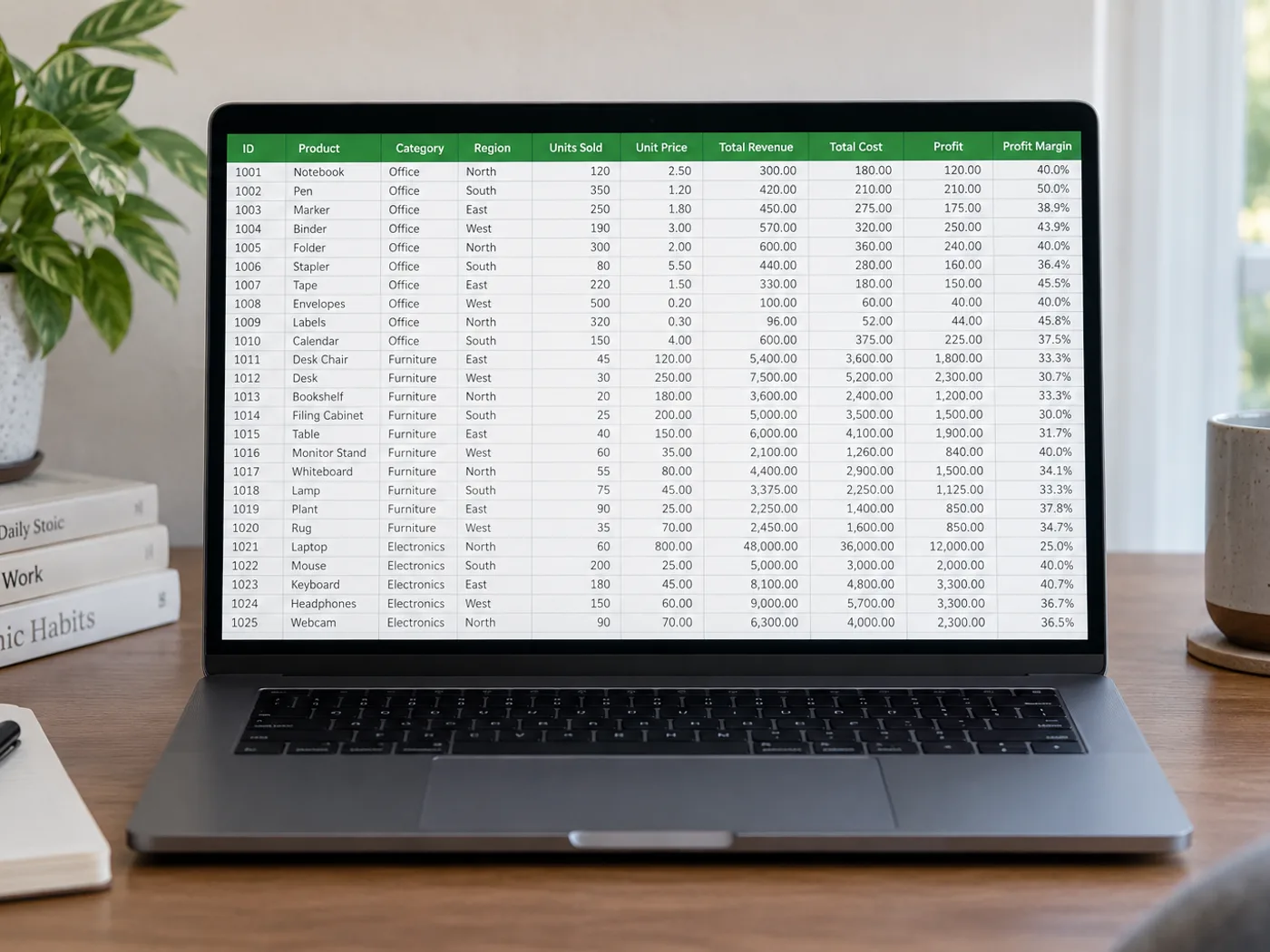
Referenstabeller med produktidentifierare
För in namn och koder i ett kalkylblad och kontrollera inledande nollor samt kombinationer av bokstäver och siffror innan du kopplar dem till dina befintliga poster.
Återskapa kalkylbladets celler från den ursprungliga PNG-bilden
- Spara PNG-bilden i originalstorlek i stället för att förstora en liten miniatyrbild.
- Läs av tabellen och granska smala kolumner, radbrutna rubriker och identifierarfält.
- Redigera feltolkade celler, exportera som XLSX och kontrollera identifierarnas formatering när filen öppnas i Excel.
Hantering av transparenta PNG-filer, diagram och inledande nollor
- Bör jag konvertera en PNG till JPG innan jag extraherar Excel-celler?
- Nej. Ladda upp PNG-filen direkt. Att konvertera den till JPG kan ge komprimeringsartefakter runt små tecken utan att tillföra information.
- Vad händer om min PNG-tabell har genomskinlig bakgrund?
- Texten måste vara tydligt urskiljbar mot bakgrunden. Om förhandsvisningen är svårläst ska du förbereda en kopia med en kontrasterande bakgrund före extraheringen.
- Blir en PNG med ett diagram till ett dataarbetsblad?
- Den här sidan är avsedd för synliga tabellceller. En ritad linje eller stapel innehåller inte den ursprungliga dataserien; använd källtabellen om den finns.
- Hur ska jag hantera koder som 00127 i arbetsboken?
- Jämför den extraherade koden med PNG-bilden och kontrollera cellformatet i Excel. Hantera identifierare som text när inledande nollor har betydelse.