How to Convert an Image to Excel with Editable Rows and Columns
Convert an image to Excel with editable rows and columns. Use Pixoate to extract table data, then check prices, dates and product codes before sharing.
A supplier sends a photograph of a price sheet. You can read the prices, but you cannot sort them, total a column or compare them with last month's order. Retyping is possible; checking every row while you type is where a small administrative job becomes an afternoon.
Pixoate's image-to-Excel converter for photographed tables extracts recognised table content into an editable XLSX file. It is useful for screenshots, printed stock sheets and clear photographs of rows and columns. The important final step is checking that the worksheet still means what the original document meant.
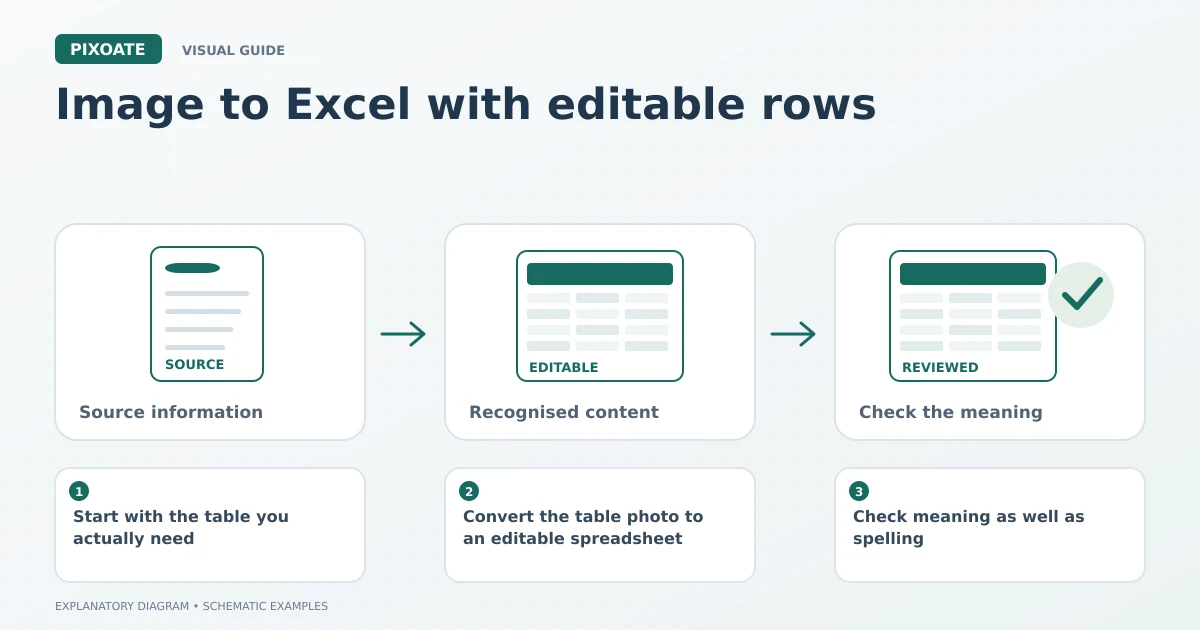
Original explanatory graphic. The scenes and sample records are schematic illustrations, not screenshots or measured tool results.
Start with the table you actually need
Use the original image where possible. A screenshot forwarded through several messaging apps may have smaller text and heavier compression than the source. Photograph paper straight on, include every relevant heading and avoid a bright reflection across the numbers.
If the image contains a desk, handwritten reminders and three unrelated tables, use crop an image around the required table first. Keep the column headings and the unit labels. A column headed “case” has a different meaning from one headed “each,” even when its numbers look similar.
For a long sheet, take overlapping photographs with readable text rather than one distant photograph of the entire page. Process and review the sections separately before combining them in your spreadsheet application.
Convert the table photo to an editable spreadsheet
- Open Image to Excel and upload the clearest source image.
- Select the document's main language from the available choices.
- Start with the default table reader. If the layout is interpreted poorly, try another available reader on the same image.
- Download the recognised table as XLSX.
- Open the workbook and compare its headers, first row, last row and totals with the source.
Pixoate offers table-reading choices because a simple grid and a price sheet with merged headings can behave differently. Switching readers is a way to compare results; it is not a substitute for checking the file you intend to use.
Check meaning as well as spelling
Consider this illustrative stock row: item 00128, pack quantity 12, case price 24.00. Several individually small mistakes could change a purchasing decision. The identifier might lose its leading zeros, the quantity might land under the price heading, or a decimal might be misread.
| Check | Why it matters |
|---|---|
| Product identifiers | Codes are labels, even when they contain only digits. |
| Units and pack sizes | A case price cannot be compared directly with a unit price. |
| Blank cells | An empty quantity does not necessarily mean zero. |
| Dates | A date such as 04/05 can be interpreted differently in US and UK workflows. |
| Totals | A plausible total can still hide an incorrect individual row. |
Add formulas yourself after checking the extracted values. A photograph records the displayed result of a calculation; it does not contain the original spreadsheet formula.
Convert a photographed stock list to Excel without merged columns
Use this small training table to practise checking the extracted structure. The records are fictional expected values, not measured OCR output. Download the stock-list review CSV and import the product-code column as Text so the exercise starts with intact identifiers.
| Product code | Description | Pack quantity | Case price |
|---|---|---|---|
| 00128 | Cotton cloths | 12 | 24.00 |
| 00007 | Glass jars | 6 | 18.50 |
| A-104 | Label rolls | 2 | 9.90 |
There should be four columns and three item rows. A merged title such as “September stock” belongs outside the item table. If it becomes a data row, remove it only after comparing the source. If “12 24.00” lands in one cell, verify which number belongs under quantity and which under price; splitting all spaces would also break “Cotton cloths.”
Check identifiers character by character, then quantities and decimals. Microsoft’s leading-zero guidance explains how Excel can convert numeric-looking codes. Importing them as text helps prevent loss; changing formatting after zeros have already disappeared cannot establish the original code.
For this fixture, the three case prices sum to 52.40. That arithmetic check supplements the row checks; it does not prove the correct quantity, currency or unit basis. In a real stock list, retain uncertain cells for supplier confirmation instead of filling them with a plausible value.
When CSV is the better destination
Choose convert an image table to CSV when the next system asks for a plain data file rather than an Excel workbook. Review the import settings, especially identifier columns and dates. CSV does not carry the same formatting and cell-type information as XLSX.
For a screenshot-to-XLSX task, keep three files together: the original image, the first extraction and the reviewed workbook. That small habit gives colleagues a way to resolve questions without repeating the whole job.
Can a blurry image become a reliable spreadsheet?
A better reader may improve a difficult extraction, but missing pixels cannot establish an unreadable number. Request a clearer source or verify the uncertain cell with the supplier before using it in an order.
Can I process several table images?
The tool includes a batch option where available under your account. Use shared settings for similar documents, then review each result. A successful first table does not prove that every later page has the same structure.
Start with one representative sheet in Pixoate Image to Excel. Once its layout and review steps work, apply the same approach to the rest of the paperwork.