Tarkista tiliotteen tapahtumat syöttämättä jokaista riviä käsin
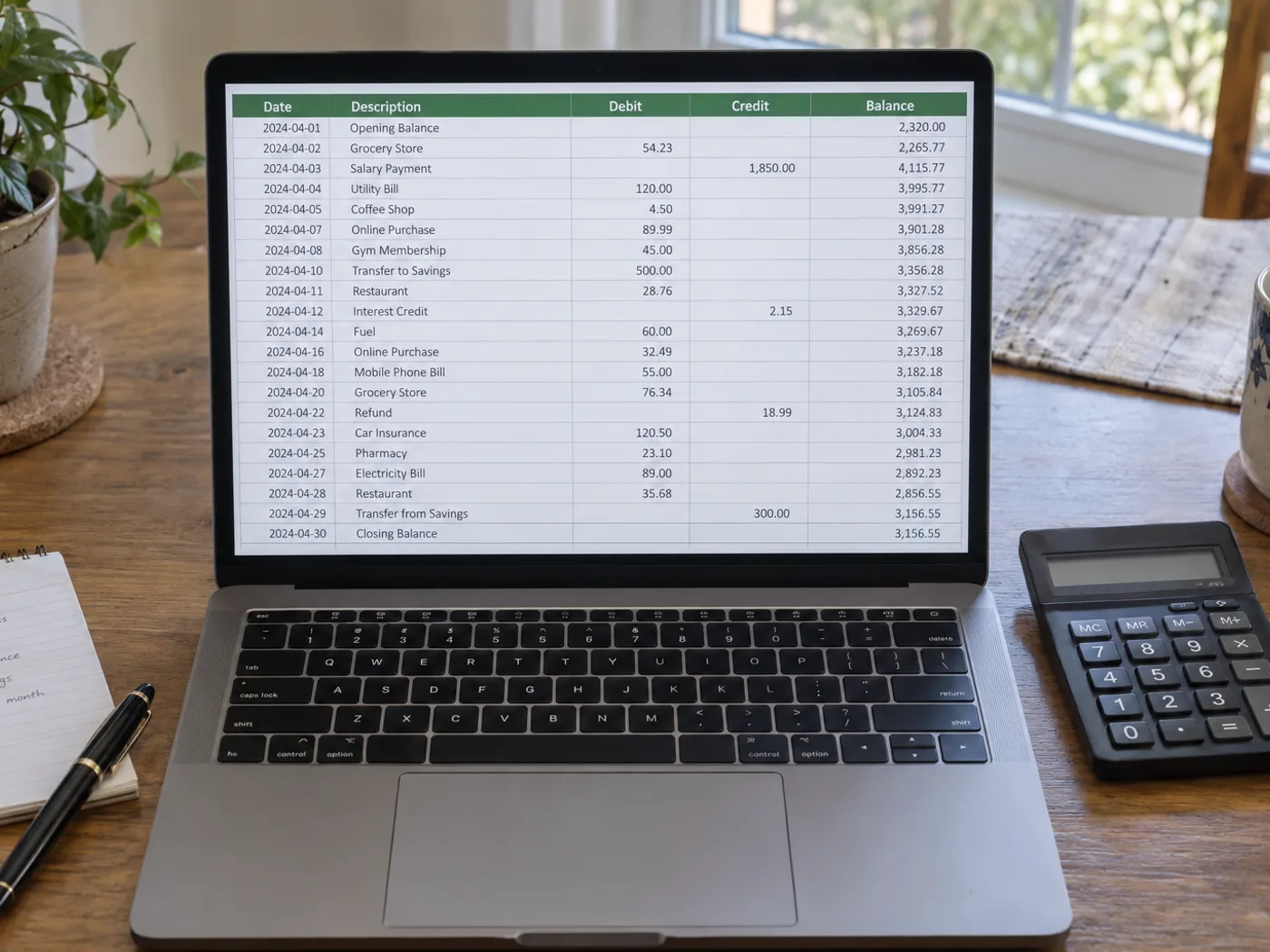
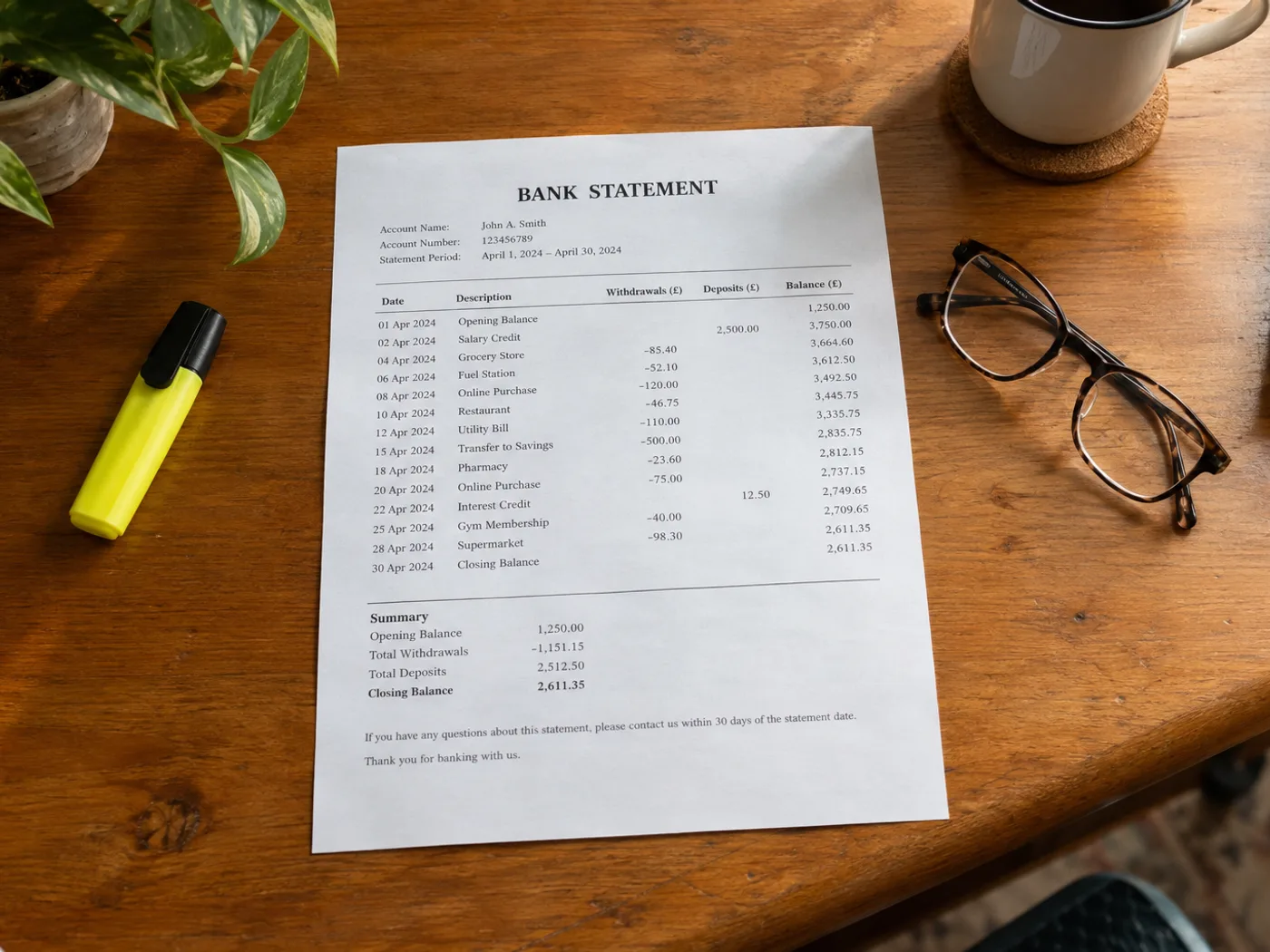
Lue tapahtumataulukko tiliotteen valokuvasta tai skannatusta kuvasta Exceliin manuaalista täsmäytystä varten. Tarkista veloitus- ja hyvityssarakkeet, päivämäärien järjestys ja juoksevat saldot. Helppolukuinen taulukko ei todista tietojen siirron olevan oikein.
Omien maksutapahtumien luokittelu
Laadi tarkistetut rivit ennen omien budjettiluokkiesi lisäämistä. Varmista, onko kukin summa tulo vai maksu.
Tiliotteen tapahtumien vertailu pääkirjaan
Käytä poimittuja viitteitä ja summia lähtökohtana ja vertaa niitä manuaalisesti ylläpitämiisi tietoihin.
Tarkista merkit ja päivämäärät ennen laskentataulukon täsmäytystä
- Valitse tiliote, jossa tapahtumien otsikot ja olennaiset saldotiedot ovat näkyvissä.
- Tarkista jokainen päivämäärä, summan merkintä ja viite. Kiinnitä huomiota siihen, siirtyvätkö kuvaukset toiselle riville.
- Vie korjattu työkirja ja täsmäytä se alkuperäiseen tiliotteeseen.
Pankkitilien käyttö, veloitusmerkinnät ja saldon tarkistamisen rajoitukset
- Yhdistyykö tämä pankkiini tapahtumien hakemista varten?
- Ei. Se käsittelee lähettämäsi tiliotekuvan eikä pyydä pankkitunnuksia tai käytä pankkitiliäsi.
- Miten tarkistan debet- ja kredit-etumerkit Excel-tuloksesta?
- Vertaa lähteen sarakeotsikoita sekä miinusmerkkejä ja sulkeita. Vahvista jokaisen tapahtuman suunta ennen omien kaavojen käyttämistä.
- Voinko lähettää pankkini PDF-tiliotteen tällä sivulla?
- Käytä PDF to Excel -työkalua valmiille PDF-tiedostolle. Tämä kuvapohjainen työnkulku on tarkoitettu valokuvatuista, skannatuista tai kuvakaapatuista tiliotetaulukoista tietojen poimimiseen.
- Vahvistaako muunnin, että tiliote täsmää?
- Ei. OCR voi tulkita summia väärin tai jättää rivejä pois. Täsmäytä loppusummat erikseen ja säilytä alkuperäinen tiliote viitteenä.