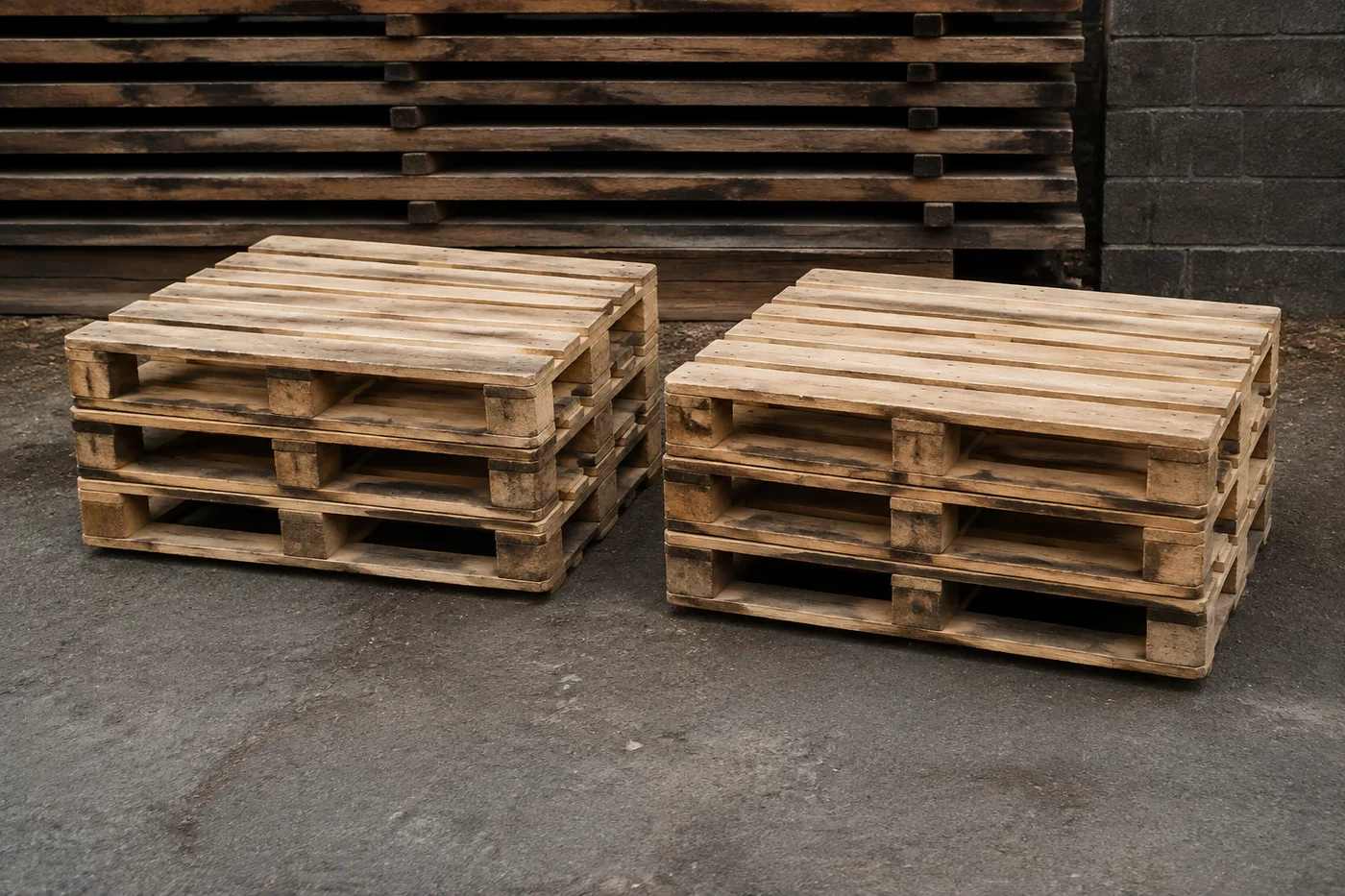
计算照片中的托盘数量 — AI 托盘计数器
支持 JPG、PNG、WEBP 图片格式 · 免费方案上限为 20 MB,Premium 套餐上限为 50 MB
Photograph the racking aisle, yard or trailer, upload the photo and review the tally markers against the photo. Built for empties tracking, yard audits and load checks.
- 检查照片,然后统计可见的 托盘
- Upload a photo and get an automatic count
- Review the markers to catch pallets counted twice or missed
- 免费使用 · 无需注册 · 无水印
上传图片
精准计数的小贴士
• 使用光线均匀、曝光良好的照片,并确保 托盘 完整位于画面中
• Keep your pallets visible and avoid overlapping items
• 点和热图显示保留的检测 - 检查并更正计数
了解工具:托盘计数器
The pallet counter counts visible pallets from your photo and marks detections for review. Counting starts automatically once the photo and item are ready. Visibility, overlap and similar-looking items can affect the total. Built for warehouses, hauliers and logistics yards.
工作原理
1. 拍摄您的 托盘
2. Upload your photo to count pallets automatically
3. Review the markers and correct the tally if needed
4. 添加到统计表,并将计数结果导出为 CSV
适用场景
• 空箱与托盘交换追踪
• 堆场与码头稽核
• 审查拖车装载草案
• 货架占用情况盘点
使用 托盘计数器 可以做什么
在开始之前查看主要功能。
- 清点货架、堆场和拖车上的托盘
- 通过单张照片审核仓库库存
- 快速追踪空托盘和退货
- 可选:标记一个托盘,只统计指定类型
- 在叠加层中核对每个托盘计数标记
- 将多张照片合并为一个总计数
- 忽略微小误检以提高准确度
设置参考
14 个设置
托盘计数器 的可用控件。
上传
- 单张照片 / 批量审计预设
- 选择单张照片计数或高级批量审核。检查每一个结果。选项: 单张照片批量审计
数量
- 已计入的标记滑块范围: 0–1 · 默认: 0.21
- Starts at 21%; slide toward Show more to include weaker markers or Only strongest to hide them.
- 叠加样式预设
- 选择点、热图、两者或干净的预览。选项: 两者点热感无
高级
- 结果叠加层下拉框
- Choose how count markers appear in the on-screen preview; the download keeps its own markers.选项: 圆点 + 热力图仅圆点仅热力图
统计
- 添加到统计一键
- Add this count to the tally sheet under the name of the object that was counted. Signed-in accounts add finished counts automatically unless that is turned off under Account settings; in bulk mode every photo also has its own Add to tally button.
- 标签文字输入
- Rename a tally row. Edits and removals wait until you choose Save changes, so you can fix several rows at once.
- 数量数字输入框
- Correct a row's count; totals, the chart and exports follow once the change is saved.
- Save changes一键
- Apply every edited or removed tally row in one step, or choose Discard changes to leave the sheet as it was.
Chart
- By object预设
- The chart is the same in every counting tool and covers the tallies of all of them. By object draws a separate line chart for each tally name, such as pipes and people. By tool draws a chart for each counting tool.选项: By objectBy tool
- 时段预设
- Choose how far back the chart looks. Days without a count appear as zero.选项: 7 days30 days90 days12 months
History
- Counting setup图库
- Keep comparable counts together. A first setup is created for you, so the first count can be saved straight away.
- Observed at文字输入
- The date and time of the count, shown as a date and a time field.
- 音符文字输入
- Starts with every detected object and its count, one per line, such as Pipes - 11. Edit it before saving.
- Save count一键
- Save the count to your account history. Open a saved count later to correct it or download its source photo.
常见问题
托盘计数器 如何助您完成任务
它每天为企业、创作者和日常任务解决实际问题。找到适合您的用例并开始。
空瓶与托盘交换对账
对于拆分总数,请在“示例”设置中为每个通道标记一个示例托盘 - 在一个通道上标记蓝色 CHEP,在下一个通道上标记白色交换 - 并针对每种类型运行经过审核的通道,以便与承运商进行核对。
发车前挂车装载核查
给装好货的拖车拍照,生成 AI 辅助草稿统计,核对实际货物、更正统计数值,并完成常规的货运清单核查后再发车。
一次会话完成多场地堆场盘点
打开批量审核,对每张过道照片运行不同对象模式,查看每个结果,并将更正后的总数导出为 CSV 或 PDF。
面向客户的第三方物流库存报告
将完成的托盘盘点保存到你的账户,并与第三方物流客户或货运商分享只读链接,让他们实时了解货架占用情况,而无需自己拥有账户。
入库收货与采购订单核对
在卸货时拍摄托盘以获得初步清点结果,然后人工核对实际货物、修正清点结果,并在签收前按正常收货流程操作。请勿仅凭照片结果作为依据。