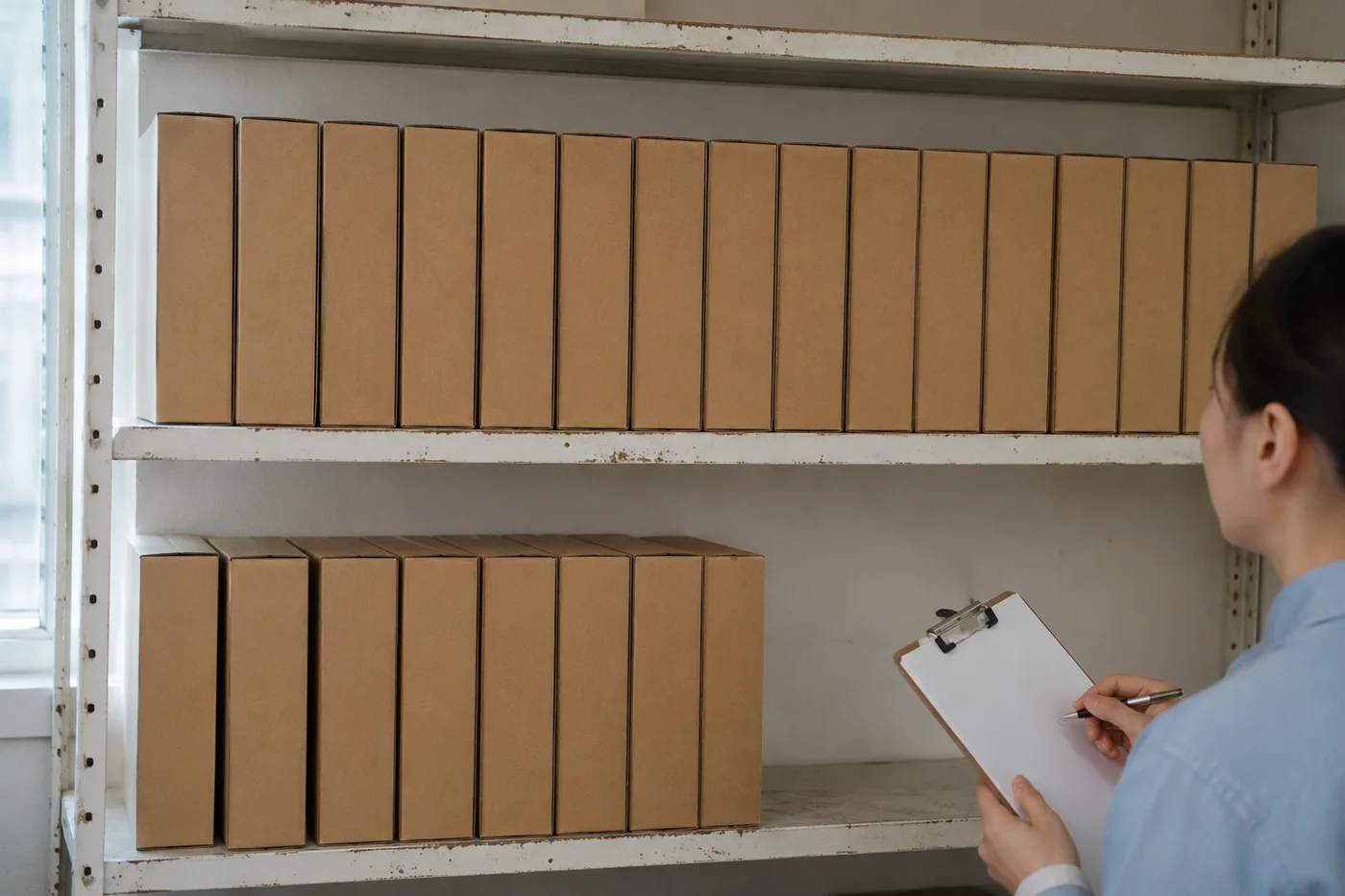
人工智能库存计数器 — 从照片中构建库存
支持 JPG、PNG、WEBP 图片格式 · 免费方案上限为 20 MB,Premium 套餐上限为 50 MB
Photograph each shelf or stack, upload the photo, review the result markers against the photo, then add the tally to an exportable stock-take.
- 检查照片,然后统计可见的 物品
- Upload a photo and get an automatic count
- Review the markers to catch items counted twice or missed
- 免费使用 · 无需注册 · 无水印
上传图片
精准计数的小贴士
• 使用光线均匀、曝光良好的照片,并确保 物品 完整位于画面中
• Keep your items visible and avoid overlapping items
• 点和热图显示保留的检测 - 检查并更正计数
了解工具:AI 库存计数器
The ai inventory counter counts visible items from your photo and marks detections for review. Counting starts automatically once the photo and item are ready. Visibility, overlap and similar-looking items can affect the total. Built for shops, warehouses, pharmacies and distributors.
工作原理
1. 拍摄您的 物品
2. Upload a photo and enter the product name to count automatically
3. Review the markers and correct the tally if needed
4. 添加到统计表,并将计数结果导出为 CSV
适用场景
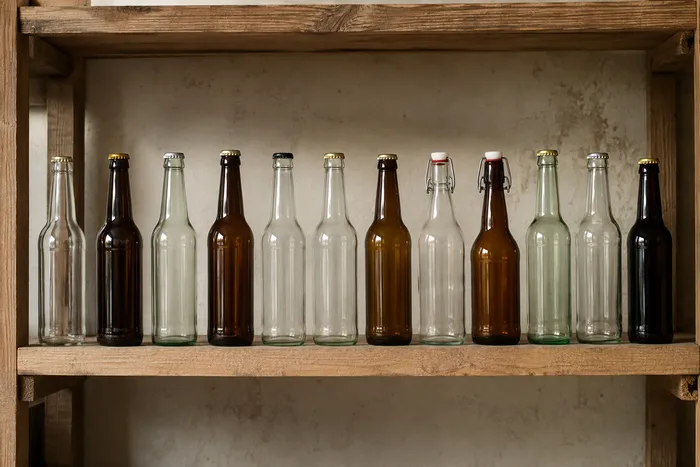
• 零售盘点与周期性清点
• 审查仓库进货单
• 合格的药房和零件审查
• 初步收缩率比较
使用 AI 库存计数器 可以做什么
在开始之前查看主要功能。
- 通过照片清点货架、堆垛、板条箱和托盘
- 导出前核对并修正照片计数结果
- 将盘点结果导出为 CSV 文件
- 逐个货架进行全面核验
- 可选:标记一件商品,只统计指定 SKU
- 将大批照片合并为一个库存总数
- 忽略零散的小误检以提高准确度
设置参考
15 个设置
AI 库存计数器 的可用控件。
上传
- 单张照片 / 批量审计预设
- 选择单张照片计数或高级批量审核。检查每一个结果。选项: 单张照片批量审计
数量
- 已计入的标记滑块范围: 0–1 · 默认: 0.21
- Starts at 21%; slide toward Show more to include weaker markers or Only strongest to hide them.
- 叠加样式预设
- 选择点、热图、两者或干净的预览。选项: 两者点热感无
- 要统计的对象文字输入
- Enter the item to count, then press Enter or leave the field to start automatically. Review every result marker.
高级
- 结果叠加层下拉框
- Choose how count markers appear in the on-screen preview; the download keeps its own markers.选项: 圆点 + 热力图仅圆点仅热力图
统计
- 添加到统计一键
- Add this count to the tally sheet under the name of the object that was counted. Signed-in accounts add finished counts automatically unless that is turned off under Account settings; in bulk mode every photo also has its own Add to tally button.
- 标签文字输入
- Rename a tally row. Edits and removals wait until you choose Save changes, so you can fix several rows at once.
- 数量数字输入框
- Correct a row's count; totals, the chart and exports follow once the change is saved.
- Save changes一键
- Apply every edited or removed tally row in one step, or choose Discard changes to leave the sheet as it was.
Chart
- By object预设
- The chart is the same in every counting tool and covers the tallies of all of them. By object draws a separate line chart for each tally name, such as pipes and people. By tool draws a chart for each counting tool.选项: By objectBy tool
- 时段预设
- Choose how far back the chart looks. Days without a count appear as zero.选项: 7 days30 days90 days12 months
History
- Counting setup图库
- Keep comparable counts together. A first setup is created for you, so the first count can be saved straight away.
- Observed at文字输入
- The date and time of the count, shown as a date and a time field.
- 音符文字输入
- Starts with every detected object and its count, one per line, such as Pipes - 11. Edit it before saving.
- Save count一键
- Save the count to your account history. Open a saved count later to correct it or download its source photo.
常见问题
AI 库存计数器 如何助您完成任务
它每天为企业、创作者和日常任务解决实际问题。找到适合您的用例并开始。
多门店零售循环盘点
经理可以使用批量审核在每张货架照片上运行不同对象模式,检查每个计数,并单独保存每个商店的更正会话。
仓库入库收货核验
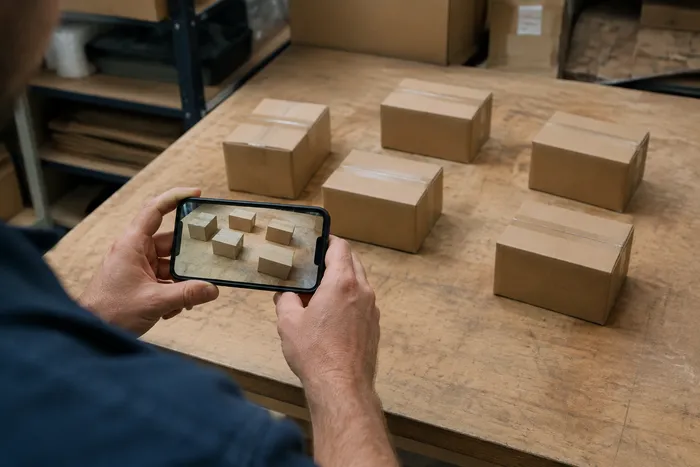
仓库工作人员对每个托盘进行拍照,在示例中标记 1-3 个示例商品(照片中的每个 SKU 一个),并将审核后的理货导出为 CSV 以与采购订单进行匹配。
药房管制库存核查记录
药店可以通过在示例中标记 1-3 个示例项目(每个 SKU 一个)来创建逐个货架的 AI 草稿,然后由合格人员进行审查并根据所需的手动程序进行更正。导出支持审核,但其本身并不是合规记录。
防损与损耗抽查
店铺经理可以持续对比经审核修正后的照片计数结果,作为损耗的初步筛查手段,在采取行动前再对差异进行实地核实。
小型制造商与车间零件计数
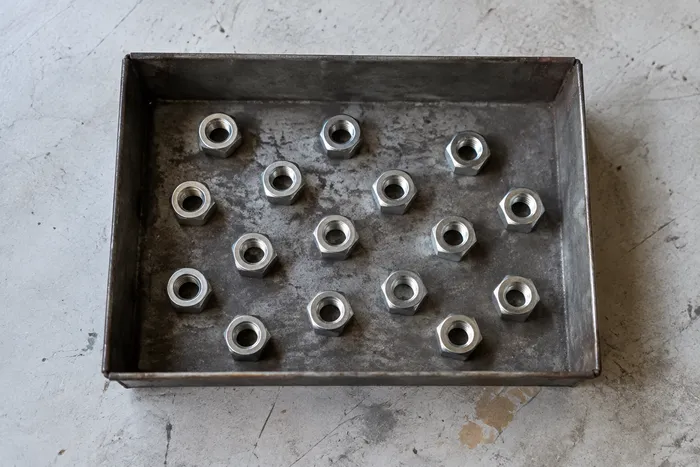
机械车间对螺钉、紧固件或垫圈的箱子进行拍照,并在示例设置中标记 1-3 个示例零件(混合托盘中的每种零件类型一个),然后再进行构建规划或重新排序。