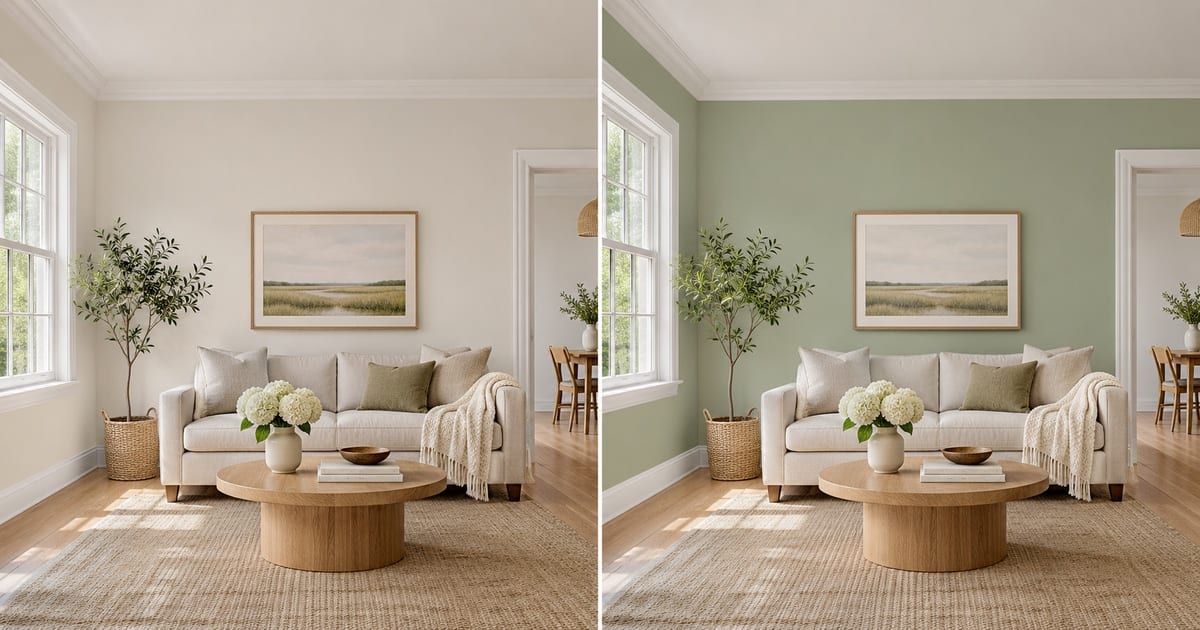
Prøv veggfarger i rommet ditt
Genererte resultater kan variere; gå gjennom hele resultatet før publisering
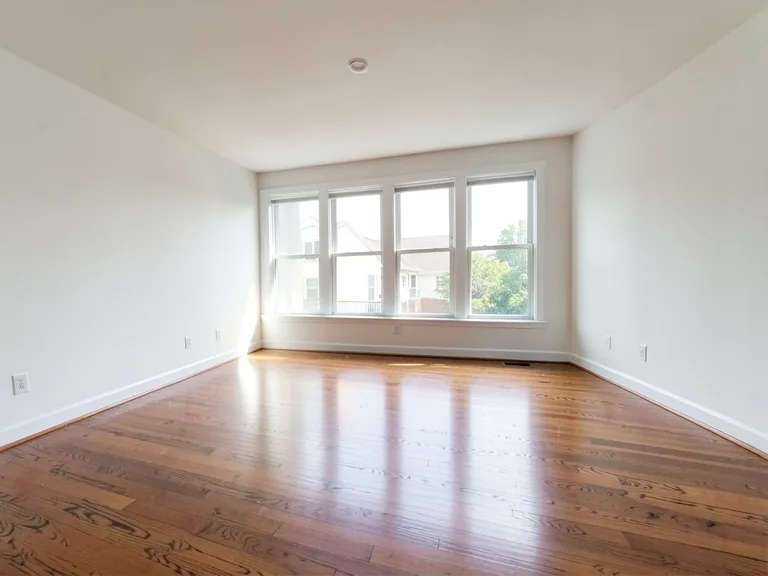
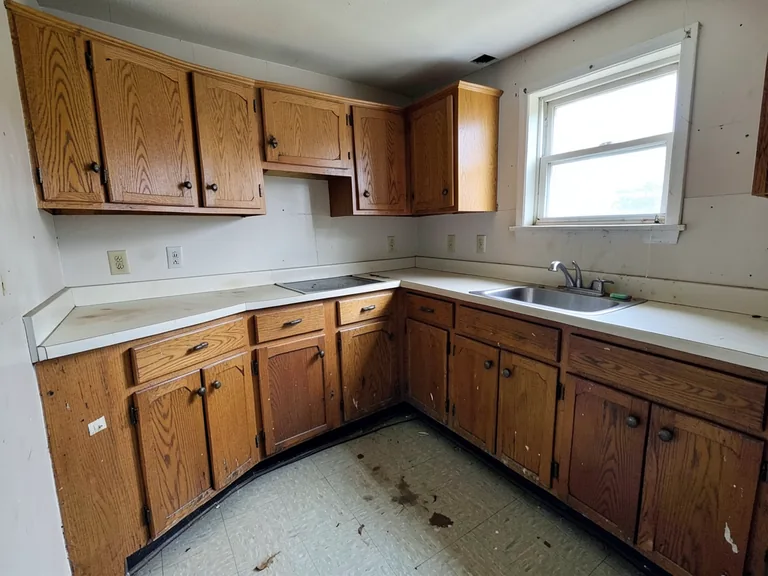
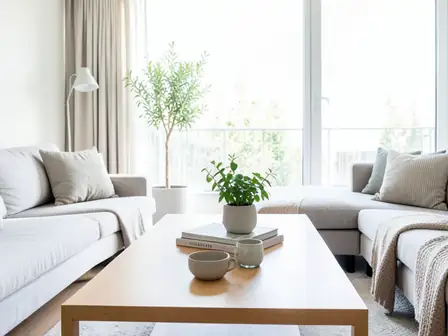
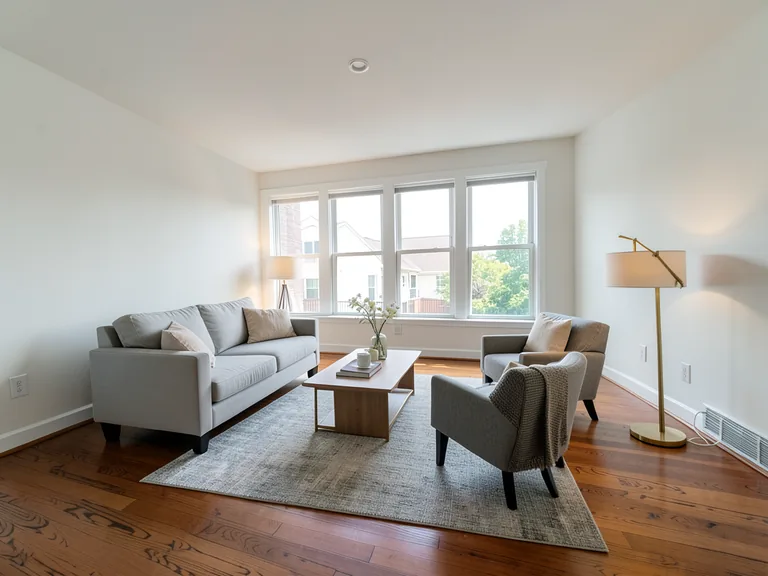
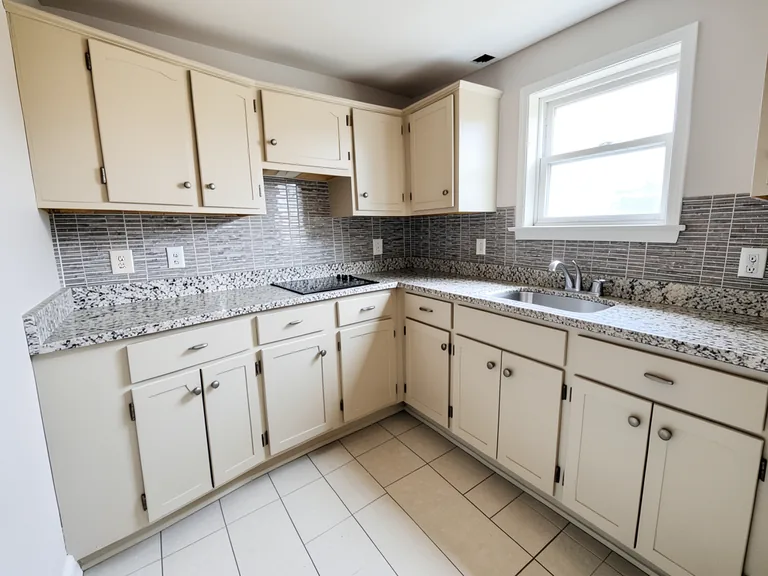
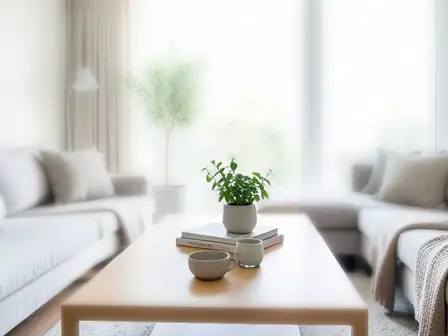
A swatch the size of a postcard tells you very little. It looks different at noon and at night, and a color that felt calm on a screen can turn heavy once it covers four walls. This visualizer repaints a photo of your own room, so you judge the color against your floor, your furniture and your window light, and keep the trim, ceiling and doors exactly as they are. Pick a color, add an accent wall or white trim with one tap, and compare versions before you open a single tin.
- Prepared Interior Paint Visualizer direction
- Redigerbar instruksjon
- Gjennomgang av hele resultatet kreves
Choose a source image for Interior Paint Visualizer
JPG, PNG, WebP, HEIC og andre støttede formater. For dette verktøyet gjelder: Free opptil 20 MB, Premium og høyere abonnementer opptil 50 MB.
Sett opp for Prøv veggfarger i rommet ditt
Forberedte innstillinger
- Utgangspunkt
- Last opp ett kildebilde
- Siden åpner riktig redigeringsflyt; opplasting er det eneste du må gjøre for å komme i gang.
- Forberedt arbeidsflyt
- Prepared Interior Paint Visualizer workflow
- Interior Paint Visualizer opens with the Interior Paint Visualizer direction preselected, so there is no need to find the operation manually.
- Utdataformat
- Samme som den opplastede filen
- Resultatet beholder formen på bildet du laster opp.
- Gjennomgå regel
- Kontroller hele det genererte resultatet før bruk
- Genererte bilder kan variere; sluttresultatet forblir under brukerens godkjenning før nedlasting.
Bruker som passer best
- Compare three wall colors on one photo before buying paint
- Show a landlord, partner or client the repainted room
- Try an accent wall or two-tone finish without committing
Ofte stilte spørsmål
- Will the color in the picture match the paint in the tin?
- Not exactly, and no visualizer can promise that. Photos and screens shift color, and your light changes it again. The picture shows how a hue sits with your floor, furniture and daylight, which is what settles most decisions. Confirm the final choice with a sample on the wall at morning, noon and evening.
- Does it repaint only the walls?
- The instruction asks for the walls only, keeping the ceiling, trim, doors, windows and furniture as they are. Look along the edges where a wall meets a curtain, a picture frame or a shelf, and if anything bled, run it again with a short note about that spot.
- Can I try an accent wall, white trim or a two-tone wall?
- Yes. Under "Add to your result" you can tap an accent wall, crisp white trim, a painted ceiling or a two-tone finish, and it is combined with the color you chose and anything you type in the custom instructions box.
- Which photo gives the most believable result?
- A daylight photo with the walls fully in the frame, taken straight on, with no strong color cast from curtains or a bright window. Turn off warm lamps if you can, so the AI sees the true wall color to start from.
Hva du kan gjøre med Ai eiendomsfotoredigerer
Se gjennom hovedfunksjonene før du begynner.
- Scene complete rooms automatically for disclosed concepts
- Legg til utvalgte TV-er, veggfarger eller landskapsforming nøyaktig
- Fjern described cables, bins, signs, and distracting clutter
- Erstatt skies and create realistic twilight exteriors
- Finjuster automatiske redigeringsområder manuelt ved behov
Innstillingsreferanse
5 innstillinger
Tilgjengelige kontroller for Ai eiendomsfotoredigerer.
Oppgaver
- RedigeringstypeNedtrekksmeny
- Velg redigeringen som skal utføres. Instruksjoner, markeringsverktøy og resultatkontroller tilpasses den valgte redigeringstypen.Alternativer: Tekstbasert redigeringGenerativ utfyllingMagisk viskelærBytt himmelRom staging
- Forhåndsinnstillinger med ett trykkForhåndsinnstillinger
- Velg a ready-made direction with one tap; generation uses the valgte preset automatisk.Alternativer: Legg til møblerLegg til TVMal veggene varmhviteSkumringshimmelErstatt skyFjern clutterFrisk opp uteområdet
- Egendefinerte instruksjoner (valgfritt)Tekstinntasting
- Beskriv the requested change, relevant materials, lighting, perspective, and details that must remain unchanged.
Velgion
- Penselstørrelse for markeringSkyveknappRekkevidde: 4–160px · Standard: 32px
- Angi penselbredden som brukes til å markere det nøyaktige området som skal legges til, fylles eller erstattes før generering.
Utdata
- Be AI om å bevare emneidentitet og produktdetaljerPå / Av
- Legger til en eksplisitt instruksjon for å beholde hovedemnet, formen, merkevaren, etikettene og lesbar tekst med mindre forespørselen endrer dem.
Relaterte verktøy for Prøv veggfarger i rommet ditt
Verktøy for vanlige neste trinn etter Prøv veggfarger i rommet ditt.
Virtuell iscenesettelse og eiendom
Virtuell iscenesettelse AI
Virtuelt møbler tomme rom med AI-møbler for eiendomsannonser. Lag stue-, soveroms-, kontor-, spise- og luksuskonsepter.
Prøv det nå
Virtuell iscenesettelse og eiendom
Ai romoppsetning
Scene empty or dated rooms with KI furniture and décor. Lag living rooms, bedrooms, offices, dining rooms, and interior style concepts.
Prøv det nå
Bildeforbedring
AI-bildeforbedrer
Juster støy, skarphet, farge og skala i én forbedringsarbeidsflyt, og sammenlign deretter resultatet med originalen.
Prøv det nåVeiledninger for dette verktøyet
- How to Prepare Real Estate Listing Photos in Bulk for an AgencyOrganize bulk real estate photo editing with Pixoate. Keep properties, room sequences and concept images clear across an agency's listing workflow.
- How to Remove Temporary Clutter from Real Estate Photos with AIRemove temporary clutter from real estate photos with Pixoate. Review cables and stray objects while preserving the property's actual condition.
Se hver forvandling lande
Hvert bilde krysser skråstreken uberørt og kommer ut på den andre siden ferdig.