For agents, hosts, homeowners and designers
Virtual Staging & Room Visualizers
Stage empty rooms, preview renovations and decorate spaces on a photo of your own. Every virtual staging and room visualizer tool in one place.
Start with your job
Browse by project type
Virtual staging tools: stage a room, preview a renovation or decorate a venue
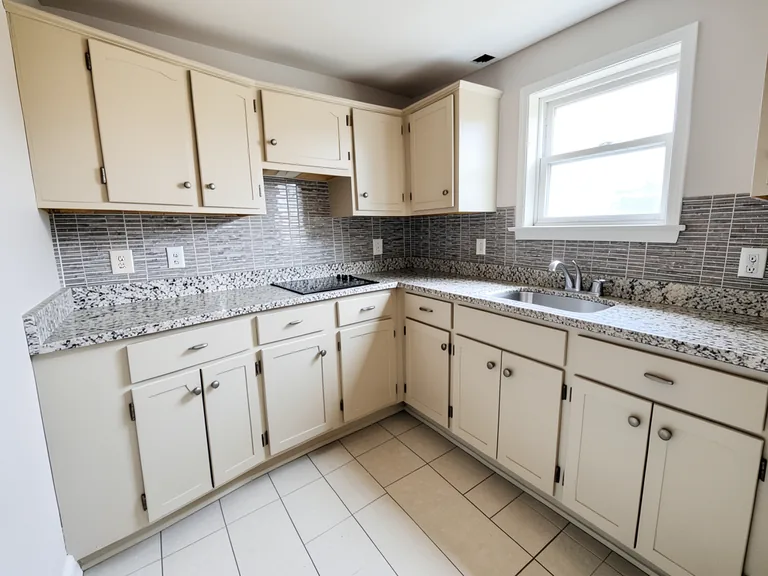
Virtual staging puts furniture, color and decor into a photo of a real space, so you can judge a layout, a finish or a decoration plan before you spend anything. These tools start from the photo you already have: an empty room, a dated kitchen, a bare yard or an unfurnished hall. Choose the project type, upload the photo and compare each result with the space as it really is.
Which virtual staging tool fits which job
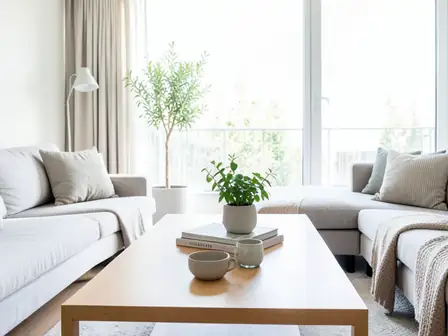
To furnish a bare room, start with room staging. Agents and hosts preparing photos for a sale or a booking page will find listing photo tools, and shoppers choosing a sofa or a bed can try pieces in the furniture visualizer. Paint, flooring, kitchens and bathrooms sit under home renovation, roofs, fences and gardens under exterior and outdoor, weddings and parties under event decor, and shop fit-outs under commercial spaces.
How to stage an empty room from one photo
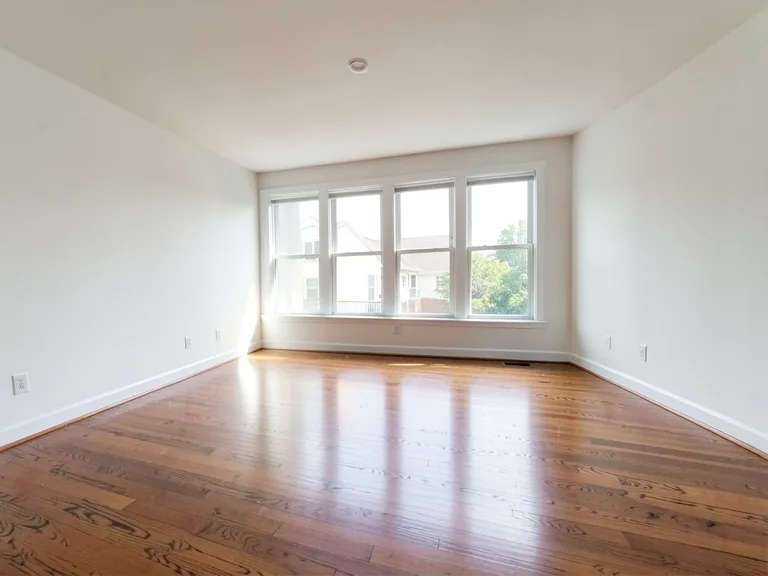
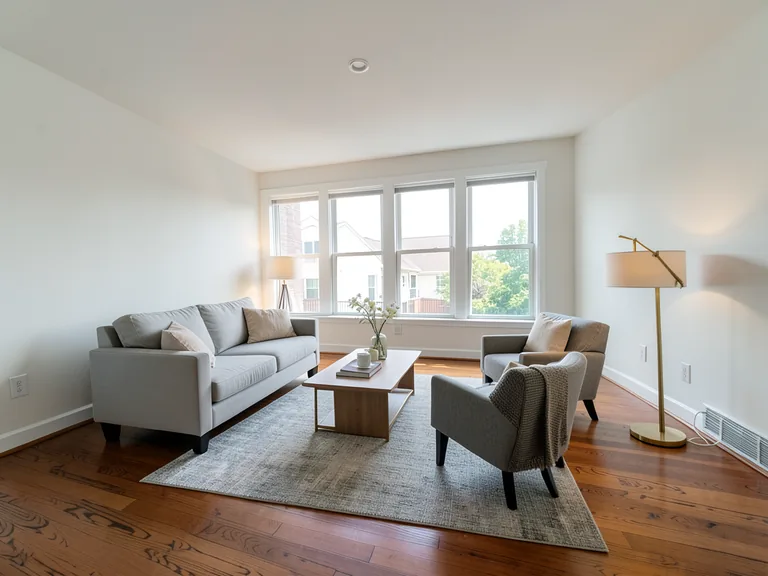
Staging an empty room takes a single photo with the floor, walls and windows in view. Virtual Staging AI furnishes the whole room in a style you choose, while Empty Room Converter turns a bare room into a specific space such as a home office, a nursery or a guest bedroom. Review every result next to the original before you use it anywhere.
- Upload a clear photo of the room with the floor, walls and windows visible.
- Choose a style or a room purpose from the buttons on the page.
- Tap items under Add to your result, or write your own instruction.
- Generate the result and compare it with the original photo.
- Save the image you like, or adjust the brief and try again.
Clear a cluttered room before you stage or sell
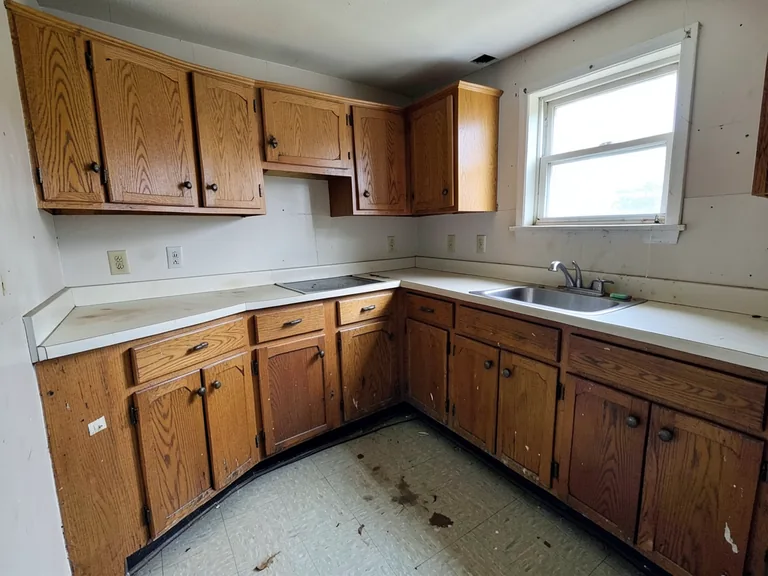
A cluttered photo hides the space a buyer is paying for. Declutter Room AI removes loose items while the walls, windows and fixed features stay as photographed, and Remove Furniture from Photo takes out movable furniture, rugs and decor. Clear first, then furnish: staging on top of a clean photo gives a more believable layout than staging around leftovers.
Preview a renovation before you hire anyone
Show a contractor what you have in mind by previewing it first. The Home Renovation Visualizer covers whole-room projects, the Interior Paint Visualizer tries wall colors, and the Flooring Visualizer swaps floor materials. A preview is a picture of an idea, so confirm sizes, materials and costs with a professional before you commit.
Decorate a wedding hall, party room or festival venue
Decoration is easier to approve when everyone can see it. The Wedding Decor Visualizer places stage designs, florals and seating in a photo of the venue, and the same approach covers banquet halls, birthday parties and seasonal celebrations. Share the picture with a decorator, so the brief is visual instead of a long message.
Keep staged photos honest
A staged or previewed image shows a possibility, not the property as it stands today. When you publish one in a listing, say that it is virtually staged, and keep the original photo within reach so buyers and guests can see the real room. Look closely at furniture legs, shadows and scale before you share a result, and generate again if something looks off.
Before you share a staged or previewed photo
- Compare the result with the original photo.
- Check that walls, windows, doors and fixed features are unchanged.
- Look at furniture scale, legs and shadows.
- Label the image as virtually staged wherever it is published.
- Keep the original photo for reference.
Frequently asked questions
- What is virtual staging?
- Virtual staging adds furniture, decor or finishes to a photo of a real space so people can picture it furnished or renovated. The room is not changed in real life, and the image shows a concept rather than a finished result.
- Which virtual staging tool should I start with?
- Start with Virtual Staging AI for an empty room, Declutter Room AI for a cluttered one, the Home Renovation Visualizer for remodel ideas, or the Wedding Decor Visualizer for a venue. Each sub-hub on this page lists the tools for its own kind of project.
- Can I stage a room that already has furniture?
- Yes. AI Room Staging works on furnished rooms as well as empty ones, and you can clear the space first with Declutter Room AI or Remove Furniture from Photo if you want to start from a bare room.
- Will the walls, windows and doors stay the same?
- The tools are prepared to keep fixed features such as walls, windows, doors and the camera angle. Results can still differ from the photo, so compare the new image with the original and generate again if a feature has moved.
- How realistic are the results?
- Results are concepts, and quality depends on the photo and the brief. A well-lit photo that shows the whole floor and walls gives the best layout. Check furniture scale, legs and shadows the way a buyer would before you use an image.
- Do I need to say that a photo is virtually staged?
- Many listing sites and local rules expect staged images to be disclosed. Check what applies where you publish, label the image as virtually staged, and make the original photo available so nobody mistakes the concept for the real room.
- Can I use one style for every room in a property?
- Virtual Staging AI and AI Room Staging have a Premium batch option that applies one style to every queued room photo. Run a single room first to confirm the direction, then queue the rest so the whole listing looks consistent.
- What happens to the photos I upload?
- Photos travel over an encrypted connection, are processed on secure servers and are deleted automatically afterward. They are not sold or shared, so you can work with listing and project photos without keeping extra copies elsewhere.
- What should I do if a result looks wrong?
- Generate again, name the items you want, or list what to leave out in the custom instruction. On Virtual Staging AI you can also use Refine area manually to paint where furniture belongs, which helps in unusual or narrow rooms.
- Can these tools replace a designer or a contractor?
- They help you decide and communicate, not build. A preview cannot measure a room, price materials or check regulations, so use it to explore ideas and then confirm dimensions, costs and permits with a qualified professional.
Watch each transformation land
Every photo crosses the slash untouched and comes out the other side finished.