Home Renovation Visualizer Tools
Preview paint, flooring, kitchens, bathrooms and other home improvements on a photo of your own space.
Home Renovation tools
Home Renovation Visualizer
See a renovation concept applied to a photo of your actual home, keeping the camera view the same for an honest before-and-after comparison.
Try it nowKitchen Remodel Visualizer
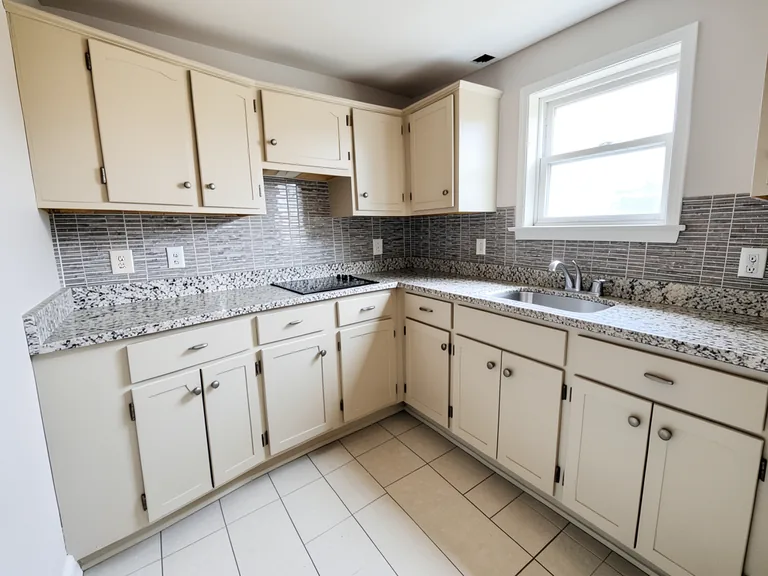
Try new cabinet colors, countertops and finishes on a photo of your existing kitchen while keeping its shape and viewpoint.
Try it nowBathroom Remodel Visualizer
Test tile, fixture and finish combinations on a photo of your existing bathroom while keeping its proportions and viewpoint.
Try it nowInterior Paint Visualizer
Upload a photo of your room and see the walls painted in any color before you buy a tin.
Try it nowFlooring Visualizer
Try hardwood, laminate, tile, marble or carpet on a photo of your own room and compare floors before you order, keeping your walls and furniture.
Try it nowGarage Interior Visualizer
Turn a photo of your garage into a workshop, gym, storage space or tidy parking bay and see it before you build, shelve or buy a single tool.
Try it nowWardrobe Designer AI
See a built-in, sliding-door or walk-in wardrobe in a photo of your own room before you order.
Try it nowOld House Renovation Visualizer
Most people can't look at a dated house and see what it could be.
Try it nowBuilding Renovation Visualizer
Show a committee, donor or contractor your temple, gurdwara, school, shop or hotel renovated — a realistic concept built on a photo of your real building.
Try it nowHome Improvement Photo Editor
Visualize a single home improvement — new flooring, a repainted wall, replaced fittings — with the AI asked to leave unrelated areas of the photo as they are.
Try it nowBrowse every ready-made page
Home Renovation Visualizer40 pages
By project
- Kitchen Remodel Project Visualizer
- Bathroom Remodel Project Visualizer
- Exterior Remodel Project Visualizer
- Flooring Change Project Visualizer
- Wall Color Project Visualizer
- Cabinet Makeover Project Visualizer
- Countertop Change Project Visualizer
- Backsplash Change Project Visualizer
- Roof Change Project Visualizer
- Landscaping Makeover Project Visualizer
- Room Extension Project Visualizer
- Fireplace Makeover Project Visualizer
- Lighting Redesign Project Visualizer
- Facade Makeover Project Visualizer
- Pool Makeover Project Visualizer
- Garage Conversion Project Visualizer
- Basement Finishing Project Visualizer
- Curb Appeal Project Visualizer
- Exterior Paint Project Visualizer
- Deck Addition Project Visualizer
By room
- Living Room Renovation Preview Generator
- Bedroom Renovation Preview Generator
- Kitchen Renovation Preview Generator
- Bathroom Renovation Preview Generator
- Dining Room Renovation Preview Generator
- Home Office Renovation Preview Generator
- Basement Renovation Preview Generator
- Exterior Renovation Preview Generator
By style
- Modern Renovation Style Visualizer
- Minimalist Renovation Style Visualizer
- Scandinavian Renovation Style Visualizer
- Farmhouse Renovation Style Visualizer
- Industrial Renovation Style Visualizer
- Coastal Renovation Style Visualizer
- Traditional Renovation Style Visualizer
- Contemporary Renovation Style Visualizer
- Luxury Renovation Style Visualizer
- Bohemian Renovation Style Visualizer
- Mid-Century Modern Renovation Style Visualizer
- Rustic Renovation Style Visualizer
Interior Paint Visualizer14 pages
By room
Flooring Visualizer7 pages
Garage Interior Visualizer4 pages
Wardrobe Designer AI6 pages
Building Renovation Visualizer12 pages
By building type
- Temple Renovation Visualizer
- Gurdwara Renovation Visualizer
- Church Renovation Visualizer
- Mosque Renovation Visualizer
- Marriage Hall Renovation Visualizer
- Shop Renovation Visualizer
- Restaurant Renovation Visualizer
- Hotel Renovation Visualizer
- School Renovation Visualizer
- Office Renovation Visualizer
- Clinic Renovation Visualizer
- Factory Renovation Visualizer
More in Virtual Staging & Room Visualizers
Home renovation visualizer: preview paint, floors, kitchens and more
Renovations are expensive to undo, so it helps to see them first. These tools take a photo of your own space and show a finish or a remodel on top of it: new wall colors, different flooring, an updated kitchen or bathroom, a built-in wardrobe or a garage turned into something useful. Use the result to plan, compare and brief a professional.
Try wall colors and floors
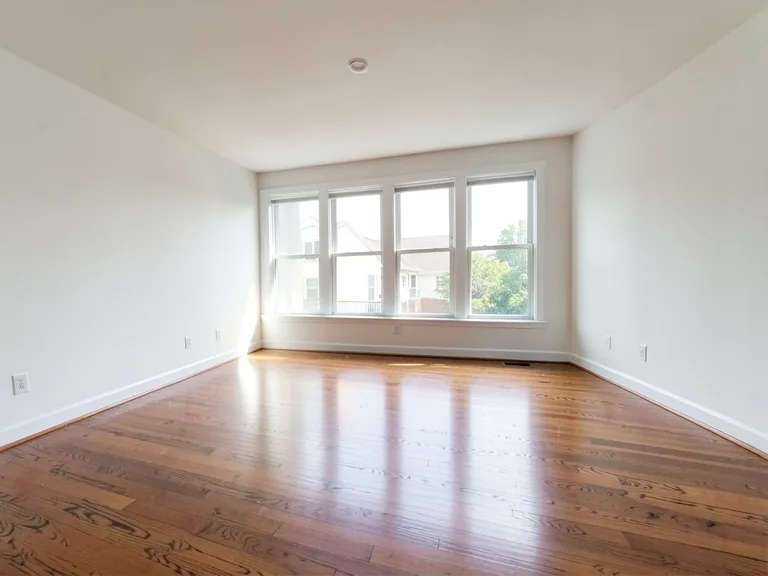
The Interior Paint Visualizer offers color buttons and pages for each room, while the Flooring Visualizer swaps materials such as hardwood, laminate, tile and carpet. Both keep the existing light and reflections so the new finish sits naturally in the room. Test two or three options on the same photo.
Preview a kitchen or bathroom remodel
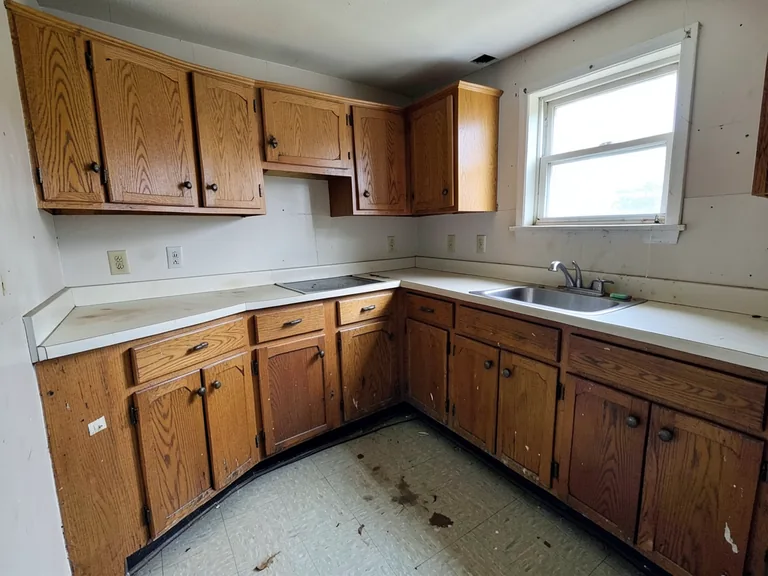
Wet rooms are where a preview saves the most. The Kitchen Remodel Visualizer and the Bathroom Remodel Visualizer show new cabinets, counters, tiles and fixtures in your own layout, so you can compare directions before you collect quotes. Layout changes are best discussed with your installer.
Plan a whole-room or whole-house project
The Home Renovation Visualizer has a page for each project type, such as exterior remodels, landscaping makeovers and garage conversions. For older buildings, Old House Renovation and Building Renovation show renovation ideas that keep the structure and character, and the Home Improvement Photo Editor handles a single focused change.
Add storage and garage space
The Wardrobe Designer AI previews built-in wardrobes and closets in styles such as sliding door and walk-in, and the Garage Interior Visualizer imagines a workshop, storage wall or home gym. Both work from a photo of the empty space.
- Upload a photo of the space as it is today.
- Choose a look or material from the buttons.
- Tap extras under Add to your result.
- Generate, compare with the original and save your favorite.
Start with the change that matters most
Renovation budgets disappear fast, so preview the change with the biggest visual effect first. For many rooms that is wall color or flooring, and for a kitchen it is often the cabinet fronts. Look at the result, decide whether it justifies the cost, and only then explore smaller upgrades such as lighting or hardware.
Photograph the room so the preview stays believable
A preview follows the photo you give it. Stand in a corner, hold the camera level, turn on the lights and open the curtains, so the walls, floor and ceiling are all visible. Shots with strong shadows or heavy clutter leave less room to show the new finish naturally.
Take a preview to your contractor
- Save the images you prefer.
- Note the materials and colors you chose.
- Ask for samples before ordering.
- Confirm measurements, costs and permits in writing.
Frequently asked questions
- Can I test several paint colors on one photo?
- Yes. Upload the photo once, choose a color, generate, then choose another and generate again. Keeping the same photo makes the colors easy to compare, though screens show color differently from real paint.
- Will the preview match the real paint or floor?
- It is a close idea, not a color match. Screens, lighting and printing all change how color looks, so always check a physical sample in your own room before you buy.
- Can I change the layout of a kitchen or bathroom?
- The visualizers are best for finishes, fixtures and style decisions in the room you photograph. Anything structural, such as moving plumbing or removing a wall, needs an engineer or installer to confirm it is possible.
- Which tool is best for a whole-room makeover?
- The Home Renovation Visualizer has pages for whole-room projects, and Room Makeover AI restyles the contents. Use Interior Paint and Flooring when only one surface changes.
- Can I preview a built-in wardrobe?
- Yes. Wardrobe Designer AI offers styles such as sliding door, walk-in and corner, and it works best when the photo shows the wall where the wardrobe will go.
- Can I show a renovation to a contractor?
- Yes, and it helps. A picture explains a finish faster than a description, but it is not a specification. Ask the contractor to confirm materials, measurements and costs separately.
- Does it work for old or damaged buildings?
- Old House Renovation and Building Renovation are made for aged properties. Use a clear photo of the facade or room, and describe the style you want to restore or update.
- What should I do if the result adds things I did not ask for?
- Shorten the instruction and list only the change you want, then say what must stay the same. Choosing a look button first and adding one detail at a time also keeps the result focused.
Watch each transformation land
Every photo crosses the slash untouched and comes out the other side finished.