ਤੁਹਾਡੀ PNG ਸਾਰਣੀ ਸਾਫ਼ ਹੈ, ਪਰ ਇਸ ਦੇ ਸੈੱਲ ਅਜੇ ਵੀ ਚਿੱਤਰ ਵਿੱਚ ਬੰਦ ਹਨ
PNG ਵਿੱਚ ਐਕਸਪੋਰਟ ਕਰਨ ਨਾਲ ਸਾਰਣੀ ਦੇ ਅੱਖਰ ਅਕਸਰ ਸਾਫ਼ ਰਹਿੰਦੇ ਹਨ, ਪਰ ਸੈੱਲ ਫਿਰ ਵੀ ਪਿਕਸਲ ਹੀ ਹੁੰਦੇ ਹਨ। ਸੇਵ ਕੀਤੀ PNG ਸਾਰਣੀ ਨੂੰ ਵਰਕਸ਼ੀਟ ਵਿੱਚ ਪੜ੍ਹਵਾਓ ਅਤੇ ਛਾਂਟੀ, ਫਿਲਟਰਿੰਗ ਜਾਂ ਹੋਰ ਸੁਧਾਰ ਲਈ Excel ਵਿੱਚ ਖੋਲ੍ਹਣ ਤੋਂ ਪਹਿਲਾਂ ਕੱਢੇ ਗਏ ਕਾਲਮ ਜਾਂਚੋ।
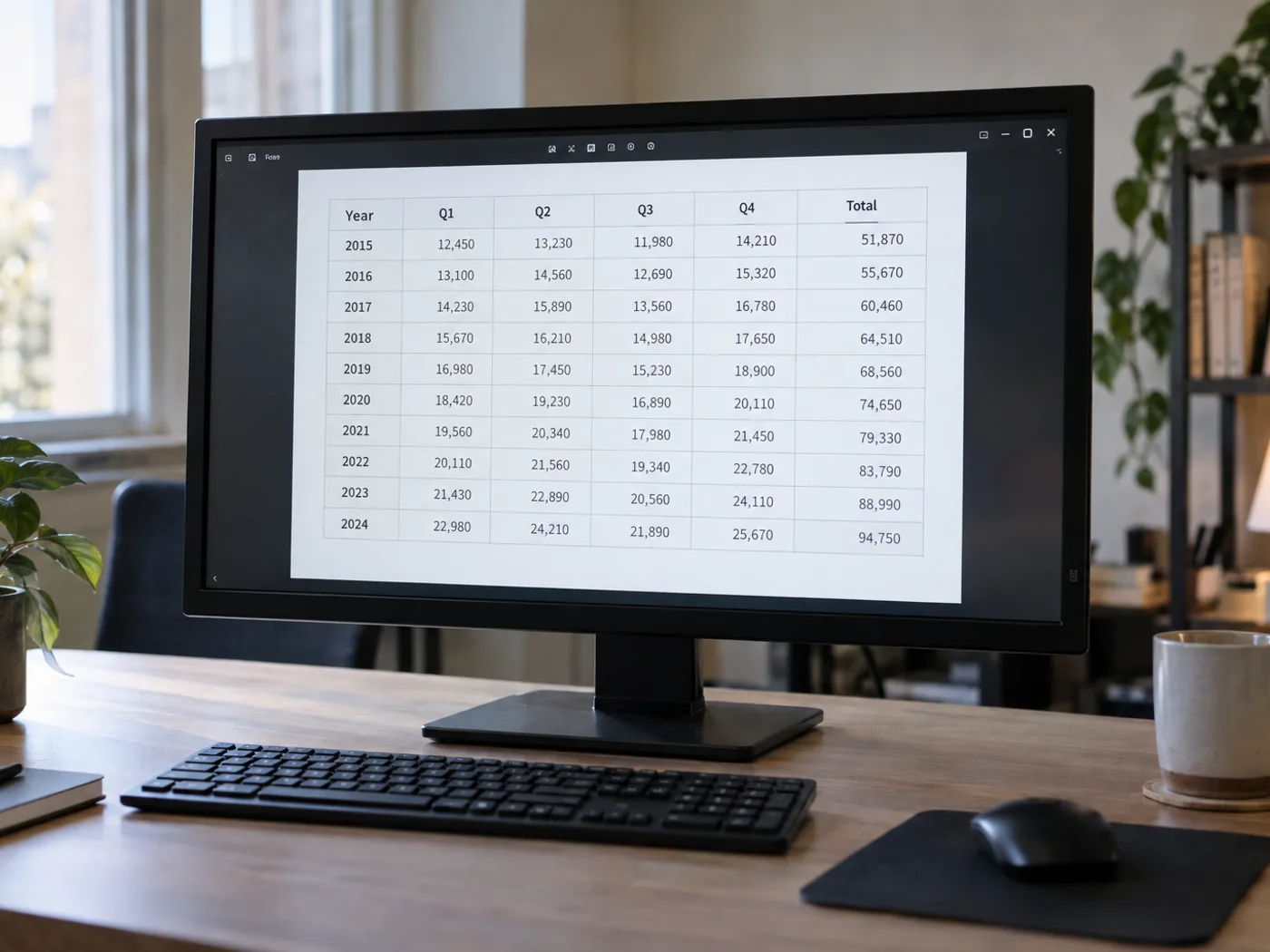
PNG ਵਜੋਂ ਐਕਸਪੋਰਟ ਕੀਤੇ ਰਿਪੋਰਟ ਦੇ ਟੇਬਲ
ਜਦੋਂ ਲੇਖਕ ਨੇ ਅਸਲ ਵਰਕਬੁੱਕ ਨਾ ਦਿੱਤੀ ਹੋਵੇ, ਤਾਂ ਸਿਰਫ਼ ਚਿੱਤਰ ਵਾਲੀ ਨੱਥੀ ਰਿਪੋਰਟ ਵਿੱਚ ਦਿਸਦਾ ਡਾਟਾ ਮੁੜ ਤਿਆਰ ਕਰੋ।
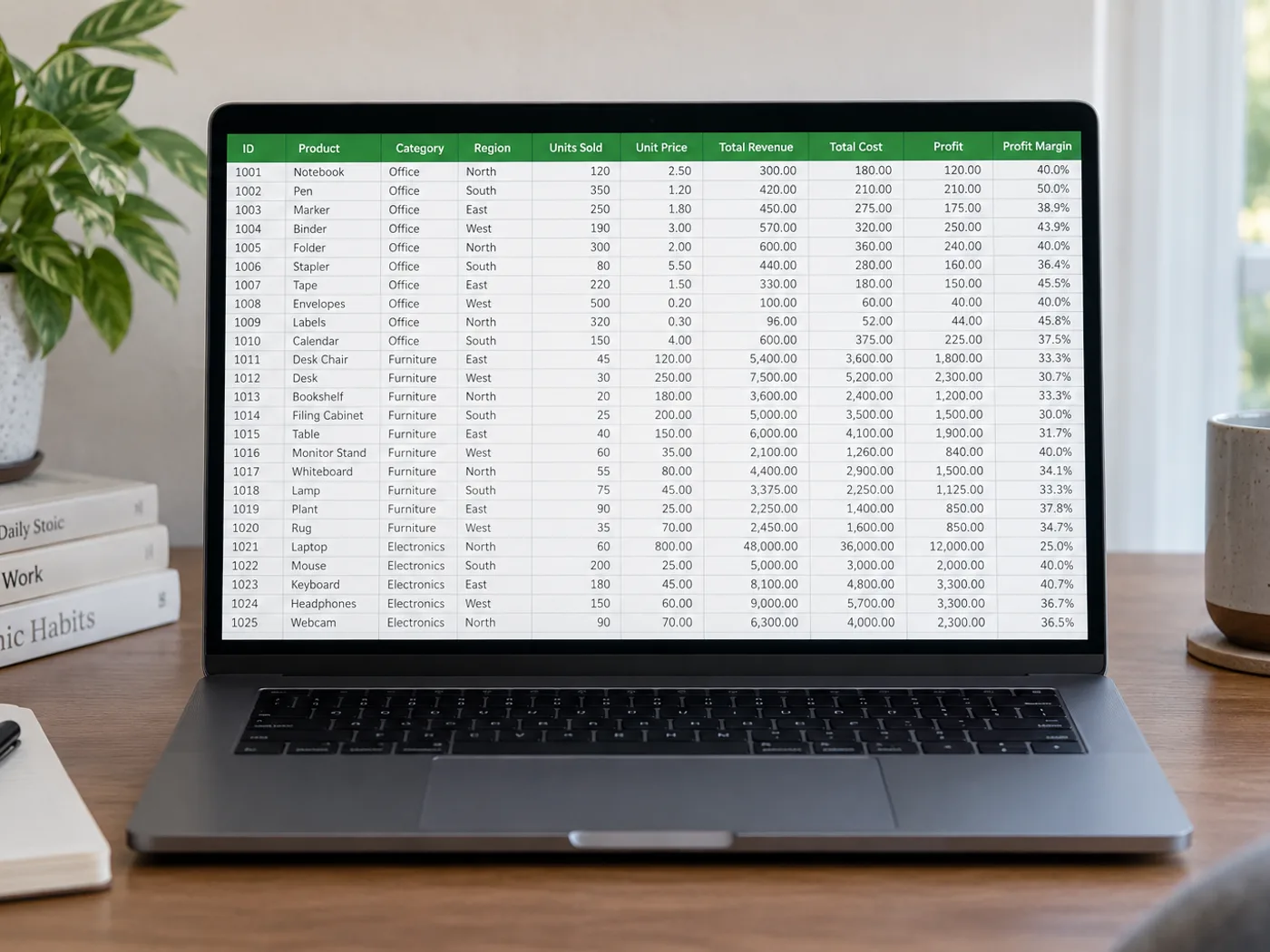
ਉਤਪਾਦ ਪਛਾਣ ਕੋਡਾਂ ਵਾਲੀਆਂ ਹਵਾਲਾ ਸਾਰਣੀਆਂ
ਨਾਮ ਅਤੇ ਕੋਡ ਵਰਕਸ਼ੀਟ ਵਿੱਚ ਲਿਆਓ। ਉਨ੍ਹਾਂ ਨੂੰ ਆਪਣੇ ਮੌਜੂਦਾ ਰਿਕਾਰਡਾਂ ਨਾਲ ਜੋੜਨ ਤੋਂ ਪਹਿਲਾਂ ਸ਼ੁਰੂ ਦੇ ਸਿਫ਼ਰਾਂ ਅਤੇ ਅੱਖਰਾਂ-ਅੰਕਾਂ ਦੇ ਸੁਮੇਲ ਦੀ ਜਾਂਚ ਕਰੋ।
ਅਸਲ PNG ਤੋਂ ਵਰਕਸ਼ੀਟ ਦੇ ਸੈੱਲ ਕੱਢੋ
- ਛੋਟਾ ਥੰਬਨੇਲ ਵੱਡਾ ਕਰਨ ਦੀ ਥਾਂ PNG ਨੂੰ ਇਸ ਦੇ ਅਸਲ ਮਾਪਾਂ ਵਿੱਚ ਸੇਵ ਕਰੋ।
- ਸਾਰਣੀ ਪੜ੍ਹੋ ਅਤੇ ਤੰਗ ਕਾਲਮ, ਕਈ ਲਾਈਨਾਂ ਵਿੱਚ ਵੰਡੇ ਸਿਰਲੇਖ ਅਤੇ ਪਛਾਣ ਵਾਲੇ ਖੇਤਰ ਜਾਂਚੋ।
- ਗ਼ਲਤ ਪੜ੍ਹੇ ਗਏ ਸੈੱਲ ਐਡਿਟ ਕਰੋ, XLSX ਐਕਸਪੋਰਟ ਕਰੋ ਅਤੇ Excel ਵਿੱਚ ਖੋਲ੍ਹਣ ਵੇਲੇ ਪਛਾਣ ਕੋਡਾਂ ਦੇ ਫਾਰਮੈਟ ਦੀ ਜਾਂਚ ਕਰੋ।
ਪਾਰਦਰਸ਼ੀ PNG ਫਾਈਲਾਂ, ਚਾਰਟਾਂ ਅਤੇ ਸ਼ੁਰੂਆਤੀ ਸਿਫ਼ਰਾਂ ਨੂੰ ਸੰਭਾਲਣਾ
- Excel ਸੈੱਲ ਕੱਢਣ ਤੋਂ ਪਹਿਲਾਂ ਕੀ PNG ਨੂੰ JPG ਵਿੱਚ ਬਦਲਣਾ ਚਾਹੀਦਾ ਹੈ?
- ਨਹੀਂ। PNG ਸਿੱਧਾ ਅੱਪਲੋਡ ਕਰੋ। ਇਸ ਨੂੰ JPG ਵਿੱਚ ਬਦਲਣ ਨਾਲ ਕੋਈ ਨਵੀਂ ਜਾਣਕਾਰੀ ਨਹੀਂ ਜੁੜਦੀ, ਸਗੋਂ ਕੰਪ੍ਰੈਸ਼ਨ ਕਾਰਨ ਛੋਟੇ ਅੱਖਰਾਂ ਦੇ ਆਲੇ-ਦੁਆਲੇ ਵਿਗਾੜ ਆ ਸਕਦਾ ਹੈ।
- ਜੇ ਮੇਰੇ PNG ਟੇਬਲ ਦਾ ਬੈਕਗ੍ਰਾਊਂਡ ਪਾਰਦਰਸ਼ੀ ਹੋਵੇ ਤਾਂ ਕੀ ਹੋਵੇਗਾ?
- ਟੈਕਸਟ ਬੈਕਗ੍ਰਾਊਂਡ ਤੋਂ ਸਾਫ਼ ਵੱਖਰਾ ਦਿਸਣਾ ਚਾਹੀਦਾ ਹੈ। ਜੇ ਪ੍ਰੀਵਿਊ ਪੜ੍ਹਨਾ ਔਖਾ ਹੈ, ਤਾਂ ਟੈਕਸਟ ਕੱਢਣ ਤੋਂ ਪਹਿਲਾਂ ਵੱਖਰੇ ਰੰਗ ਦੇ ਬੈਕਗ੍ਰਾਊਂਡ ਵਾਲੀ ਕਾਪੀ ਤਿਆਰ ਕਰੋ।
- ਕੀ ਚਾਰਟ ਵਾਲਾ PNG ਡਾਟਾ ਵਰਕਸ਼ੀਟ ਵਿੱਚ ਬਦਲ ਜਾਂਦਾ ਹੈ?
- ਇਹ ਪੰਨਾ ਸਾਰਣੀ ਦੇ ਦਿਸਦੇ ਸੈੱਲਾਂ ਲਈ ਹੈ। ਗ੍ਰਾਫ਼ ਦੀ ਲਕੀਰ ਜਾਂ ਪੱਟੀ ਤੋਂ ਮੂਲ ਡਾਟਾ ਲੜੀ ਨਹੀਂ ਮਿਲਦੀ; ਜਿੱਥੇ ਉਪਲਬਧ ਹੋਵੇ, ਮੂਲ ਸਾਰਣੀ ਵਰਤੋ।
- ਵਰਕਬੁੱਕ ਵਿੱਚ 00127 ਵਰਗੇ ਕੋਡ ਕਿਵੇਂ ਸੰਭਾਲਾਂ?
- ਕੱਢੇ ਗਏ ਕੋਡ ਨੂੰ PNG ਨਾਲ ਮਿਲਾਓ ਅਤੇ Excel ਵਿੱਚ ਉਸ ਦੇ ਸੈੱਲ ਦਾ ਫਾਰਮੈਟ ਜਾਂਚੋ। ਜਿੱਥੇ ਸ਼ੁਰੂਆਤੀ ਸਿਫ਼ਰ ਅਰਥ ਰੱਖਦੇ ਹਨ, ਉੱਥੇ ਪਛਾਣ ਕੋਡਾਂ ਨੂੰ ਟੈਕਸਟ ਵਜੋਂ ਰੱਖੋ।