Extract text from images — free
Pull editable text out of photos, screenshots and scans with accurate OCR — copy it or download in a click, in 100+ languages.
- Accurate OCR in 100+ languages
- Copy the text or download it instantly
- Free · no signup · files deleted automatically
JPG, PNG, WEBP and more · Up to 50 MB
上传 PDF
拖入一份 PDF 以转换
PDF up to 50MB
PDF 转 HTML 已完成?不妨试试这些
与 PDF 转 HTML 搭配使用的精选工具。继续编辑,不丢失你的文件。
HTML 美化
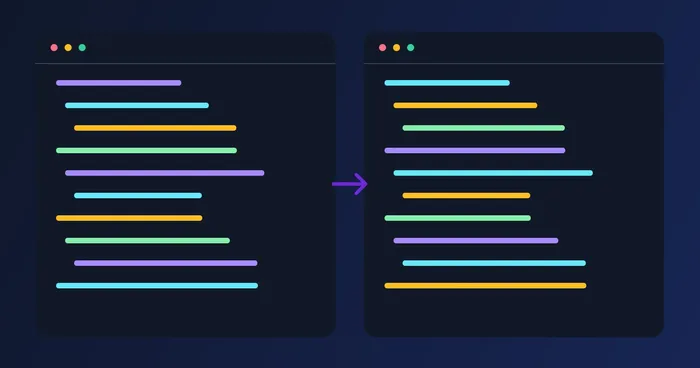
用规范的缩进美化杂乱的 HTML,或压缩为单行。拖入文件或粘贴内容,然后复制或下载。
立即试用PDF 转文本
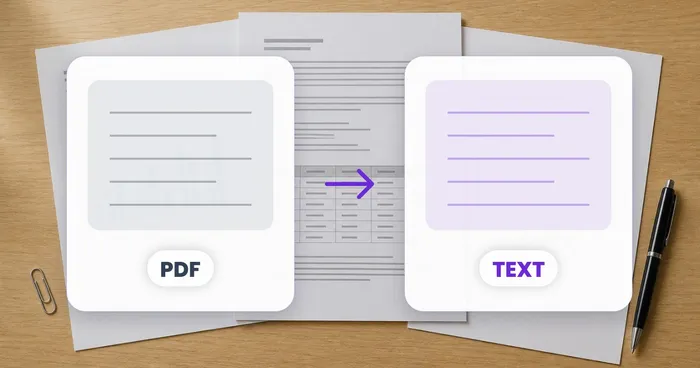
使用 OCR 从任意 PDF 中提取纯文本,包括扫描件和纯图像文档。
立即试用PDF 转 Word
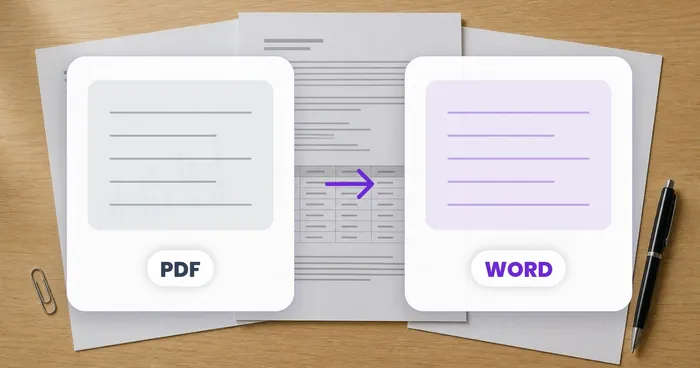
将 PDF 转换为可编辑的 .docx,可在 Word、Pages 和 Google Docs 中正常打开,并保留原有排版。免费、无需注册、无水印。
立即试用图片转 HTML
将截图转换为简洁的 HTML,采用真正的 <table> 元素和结构化标记。
立即试用合并 PDF
Combine two or more PDF files into one, drag to reorder. Free with no daily task limit, no signup and no watermark — files are processed securely on our server and deleted automatically, never stored or sold.
立即试用压缩 PDF
Shrink PDF file size for email and form uploads with quality presets. Free with no daily task limit, no signup and no watermark; files processed securely on our server and auto-deleted.
立即试用Frequently Asked Questions
该转换工具会重建文档的逻辑结构——标题、段落、列表、真正的 <table> 元素、链接和图片——而不像某些 PDF 阅读器那样只是将每个字符固定在 X/Y 坐标上。转换结果能在移动端自动重排,利于 SEO 索引,并开箱即可被屏幕阅读器识别。
features可以。表格会转换为标准的 <table>、<thead>、<tbody>、<tr>、<th> 和 <td> 元素,并在表头单元格上设置正确的 scope 属性。这让它们对屏幕阅读器友好、可搜索,并易于用 Bootstrap、Tailwind 或你现有的 CSS 框架设置样式——无需额外的标记转换。
technical可以。粘贴到 WordPress、Webflow、Ghost、Notion(作为嵌入)、Confluence、GitBook 或你的自定义静态网站中——该标记无依赖,通过 W3C HTML5 规范验证,在 Chrome、Safari、Firefox 和 Edge 中渲染效果完全一致。图片会根据你的偏好以 Base64 内联或提取为单独的文件。
usage可以。纯图片 PDF 会触发 OCR 引擎,先提取文本并重建版式,然后再生成 HTML。这意味着即便是旧扫描的白皮书、拍摄的报告和传真回传的文档,也能重新发布为带有正确标题、段落和链接的现代响应式网页。
features可以。嵌入的图片会被提取、优化(根据内容采用 WebP 或 PNG),并通过设置了 width 和 height 属性的 <img> 标签引用,以实现有利于 CLS 的加载。矢量图表可能会扁平化为位图——若要获得完整的矢量保真度,请使用「PDF 转图片」并手动嵌入 SVG 版本。
quality上传的文件会在几分钟内删除,绝不用于训练模型,绝不共享。HTML 输出没有水印、没有署名注释、也没有跟踪像素。代理公司和内部团队用该工具将旧版 PDF 迁移到现代 CMS 网站,无需担心任何授权或隐私问题。
privacyOpen the Engine control group next to the preview, pick Default, Engine 1 or Engine 2, then choose the document's language from the searchable Language picker below it — over 100 languages are supported, including non-Latin scripts. After changing either setting, click Re-run extraction to regenerate the HTML with the new OCR pass.
featuresStart with Default for common Latin-script languages — it's the fastest and most accurate for everyday documents. For less common scripts (Arabic, Hindi, Chinese) or when Default garbles headings and tables, switch to Engine 1 or Engine 2, set the matching Language, then Re-run extraction — different engines specialise in different scripts, so trying both takes seconds and often fixes misread accented characters.
tipsYes — the output panel shows an editable code box next to a live rendered preview, so typing a fix (removing a stray tag, adjusting a heading level, tweaking inline text) updates the preview pane immediately. Make all your corrections there before hitting download or copy, since both actions use whatever is currently in the code box, not the original OCR output.
featuresClick Copy HTML above the output panel — it copies exactly what's in the editable code box, including any manual edits you've made, to your clipboard and briefly shows 'Copied!' to confirm. This is the quickest route when you're pasting straight into a CMS's HTML or embed block rather than uploading a file.
usageYou can convert a PDF to HTML without creating an account. Signed-in free accounts get a daily allowance of conversions and see a small usage meter once they're near it, since scanned PDF pages route through OCR — Premium accounts don't see any cap.
pricingNo — there is no setting for this in the tool; how images are embedded in the output HTML is decided automatically and can't be switched in the UI, regardless of what some site copy suggests. If you need standalone image files for a CMS media library, export the pages separately with PDF to Images instead, which outputs PNG or JPG — not SVG — at your choice of 150, 200 or 300 DPI.
featuresHow PDF to HTML helps you get it done
Real problems it solves every day — for businesses, creators, and everyday tasks. Find the use case that fits you and start in seconds.
将旧版 PDF 迁移到现代网站
营销团队将旧的 PDF 白皮书、案例研究和宣传册转换为响应式 HTML 页面,让用户能在手机上阅读,也方便 Google 为 SEO 编入索引。
白皮书转博客文章
将可下载的 PDF 白皮书转换为博客文章 HTML,用于自然搜索排名、内部链接以及推动邮件订阅的内嵌行动号召。
研究论文网络重新发布
学者将已发表的 PDF 论文转换为 HTML,用于个人网站和大学主页,让研究成果在网上更易被发现和引用。
知识库文章导入
支持团队将 PDF 用户手册转换为 HTML 知识库文章,用于 Zendesk、Intercom 或 Help Scout——可搜索、可链接,且对屏幕阅读器友好。
用 PDF 模板制作邮件简报
将设计师提供的 PDF 邮件简报样稿转换为适用于 Mailchimp、Klaviyo 或 HubSpot Email 的邮件安全 HTML——基于表格的布局在包括 Outlook 在内的所有客户端中都能正常显示。
在线联盟营销对比表格
联盟营销人员将可打印的对比 PDF 转换为评测博客上的 HTML 表格,使产品规格易于浏览、可排序,并针对搜索排名进行 SEO 优化。
由 PDF 菜谱书生成的食谱博客
美食博主将 PDF 食谱书摘录转换为 HTML 食谱文章,配有结构化的配料表和分步说明,可直接用于 WordPress 或 Ghost。
SaaS 文档导入
SaaS 开发者关系团队将遗留的产品 PDF 转换为 HTML 文档,用于 GitBook、Mintlify 或 Docusaurus——可搜索、可版本管理,并与营销网站在视觉上保持一致。
Publish Press Releases as Web Pages
PR teams convert PDF press releases into clean HTML so each release gets its own indexable, shareable web page, instead of sitting inside a download that search engines rarely surface.
Turn Event Programs into Mobile Agendas
Convert a PDF conference program or wedding itinerary into responsive HTML so attendees can scroll the schedule on their phone instead of pinch-zooming a print layout.
Rebuild Public Reports for Government Portals
各机构将 PDF 公开报告和会议纪要转换为无障碍 HTML,让使用屏幕阅读器或移动设备的居民无需先下载文件即可阅读。
Migrate Spec Sheets into an Online Catalog
Convert PDF product spec sheets and datasheets into HTML tables that plug directly into a product page template, keeping specs searchable and styled consistently with the rest of the site.
Pixoate