Zählen Sie Bewehrungsstäbe auf einem Foto – KI-Bewehrungs- und Stahlstangenzähler
Funktioniert mit JPG, PNG, WEBP · Kostenlos bis 20 MB, Premium 50 MB
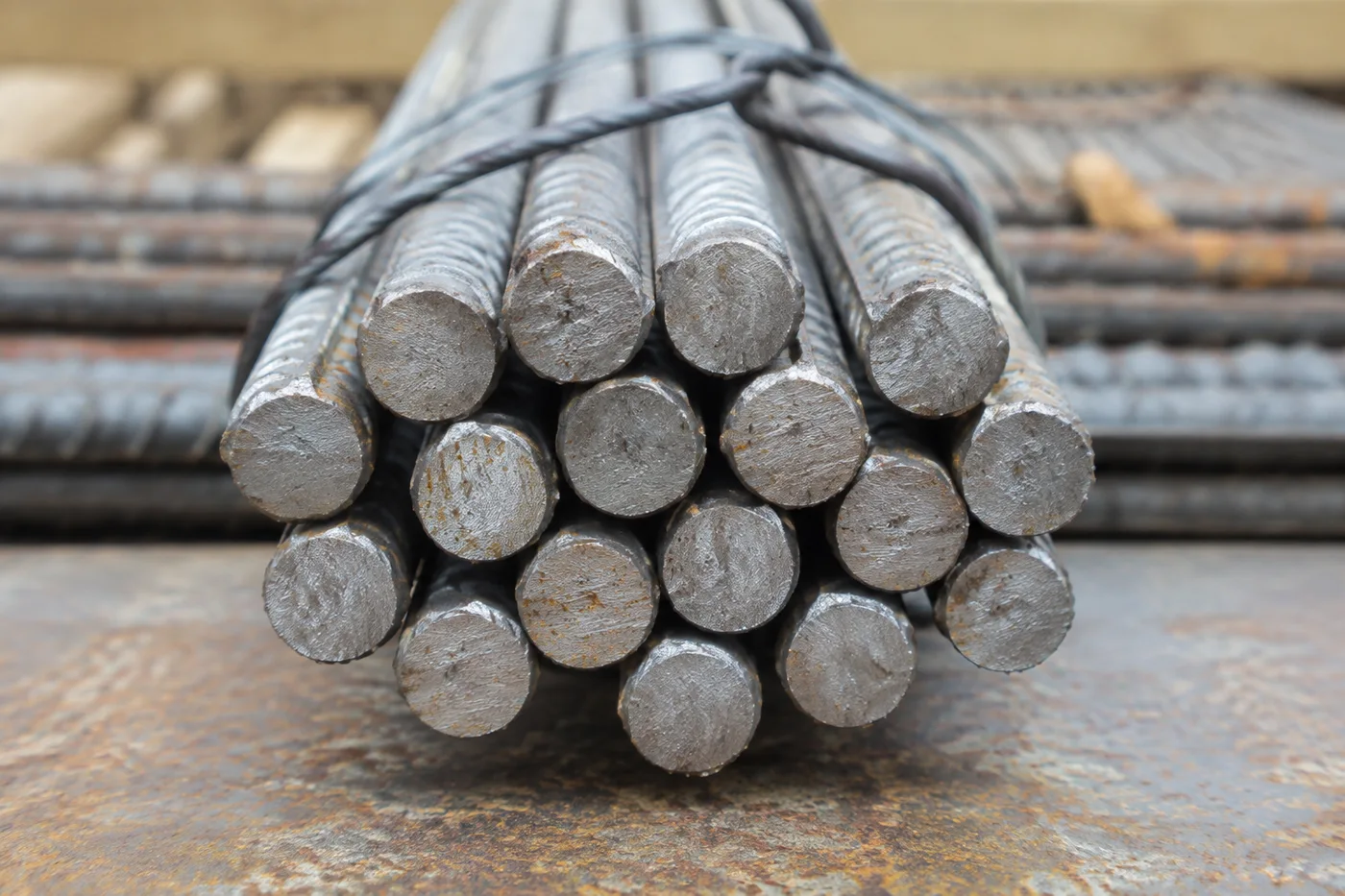
Photograph the bundle end-on, upload the photo and review the tally markers against the photo. Built for deliveries, steel-yard stock counts and load-out checks.
- Prüfen Sie das Foto und zählen Sie dann sichtbare Stäbe
- Upload a photo and get an automatic count
- Review the markers to catch rods counted twice or missed
- Kostenlos nutzbar · Keine Registrierung erforderlich · Ohne Wasserzeichen
Bild hochladen
Tipps für eine genaue Zählung
• Verwenden Sie ein gleichmäßig und gut beleuchtetes Foto, auf dem das Stäbe vollständig im Bild ist
• Keep your rods visible and avoid overlapping items
• Punkte und Heatmap zeigen beibehaltene Erkennungen – überprüfen und korrigieren Sie die Zählung
Über Bewehrungsstahl- & Stabzähler
The rebar & rod counter counts visible rods from your photo and marks detections for review. Counting starts automatically once the photo and item are ready. Visibility, overlap and similar-looking items can affect the total. Built for construction sites, steel yards and fabricators.
So funktioniert's
1. Fotografieren Sie Ihre Stäbe
2. Upload your photo to count rods automatically
3. Review the markers and correct the tally if needed
4. Zur Zählliste hinzufügen und Ihre Zählung als CSV exportieren
Perfekt für
• Überprüfte Bewehrungslieferungsentwürfe
• Bestandszählungen im Stahllager
• Zählung von Rohr- und Röhrenbündeln
• Verladekontrollen in der Fertigung
Das können Sie mit Bewehrungsstahl- & Stabzähler machen
Überprüfen Sie die Hauptfunktionen, bevor Sie beginnen.
- Bewehrungsstahl, Stahlstäbe und Rundstäbe stirnseitig zählen
- Zählen Sie ein Bündel aus einem unterstützten Foto
- Überprüfen Sie jede gezählte Balkenmarkierung und korrigieren Sie die Zählung
- Überprüfen Sie die überprüften Lieferungen anhand des Bestellformulars
- Mehrere Bündel in einer Stapelprüfung zählen
- Markieren Sie optional einen Stab, um eine dichte Zählung zu verfeinern
Referenz zu den Einstellungen
14 Einstellungen
Verfügbare Steuerelemente für Bewehrungsstahl- & Stabzähler.
Hochladen
- Einzelfoto / MassenauswertungVoreinstellungen
- Wählen Sie eine Einzelfotozählung oder eine Premium-Massenprüfung. Überprüfen Sie jedes Ergebnis.Optionen: Einzelnes FotoSammelprüfung
Anzahl
- Inklusive MarkerSchiebereglerBereich: 0–1 · Standard: 0.21
- Startet bei 21 %. Schieben Sie den Regler in Richtung „Mehr anzeigen“, um schwächere Markierungen einzubeziehen, oder zu „Nur die stärksten“, um sie auszublenden.
- ÜberlagerungsstilVoreinstellungen
- Wählen Sie Punkte, eine Heatmap, beides oder eine saubere Vorschau.Optionen: BeidePunkteWärmeKeine
Erweitert
- Ergebnis-OverlayRunterfallen
- Choose how count markers appear in the on-screen preview; the download keeps its own markers.Optionen: Punkte + HeatmapNur PunkteNur Heatmap
Strichliste
- Zur Zählliste hinzufügenEin Klick
- Add this count to the tally sheet under the name of the object that was counted. Signed-in accounts add finished counts automatically unless that is turned off under Account settings; in bulk mode every photo also has its own Add to tally button.
- BeschriftungTexteingabe
- Rename a tally row. Edits and removals wait until you choose Save changes, so you can fix several rows at once.
- AnzahlZahleneingabe
- Correct a row's count; totals, the chart and exports follow once the change is saved.
- Save changesEin Klick
- Apply every edited or removed tally row in one step, or choose Discard changes to leave the sheet as it was.
Chart
- By objectVoreinstellungen
- The chart is the same in every counting tool and covers the tallies of all of them. By object draws a separate line chart for each tally name, such as pipes and people. By tool draws a chart for each counting tool.Optionen: By objectBy tool
- ZeitraumVoreinstellungen
- Choose how far back the chart looks. Days without a count appear as zero.Optionen: 7 days30 days90 days12 months
History
- Counting setupGalerie
- Keep comparable counts together. A first setup is created for you, so the first count can be saved straight away.
- Observed atTexteingabe
- The date and time of the count, shown as a date and a time field.
- NotenTexteingabe
- Starts with every detected object and its count, one per line, such as Pipes - 11. Edit it before saving.
- Save countEin Klick
- Save the count to your account history. Open a saved count later to correct it or download its source photo.
Verwandte Tools für Bewehrungsstahl- & Stabzähler
Tools für allgemeine nächste Schritte nach Bewehrungsstahl- & Stabzähler.
Zählen & Inventar
Objektzähler
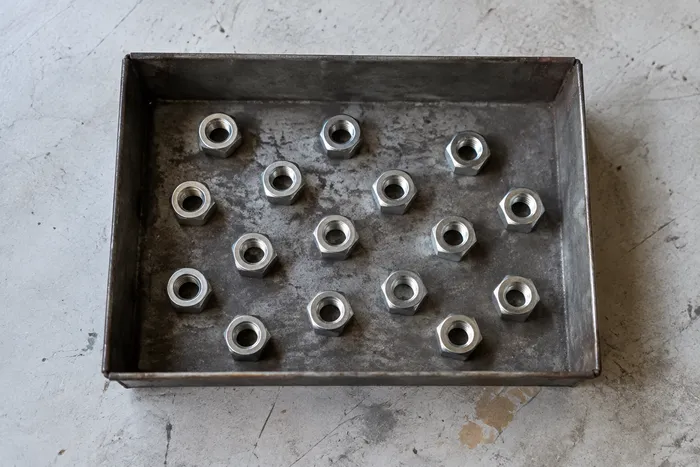
Schätzen Sie die Anzahl der Objekte auf einem Foto. Prüfen und korrigieren Sie die nummerierten Markierungen, bevor Sie die Anzahl verwenden.
Jetzt ausprobieren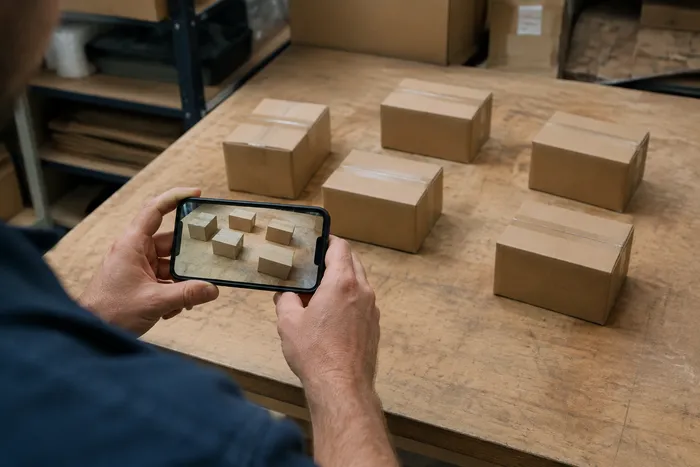
Zählen & Inventar
Live-Objektzähler
Richten Sie Ihr Telefon auf getrennte, vollständig sichtbare Objekte und überprüfen Sie die Detektormarkierungen, während die Zählung in Echtzeit aktualisiert wird.
Jetzt ausprobieren
Zählen & Inventar
Flaschenzähler
Zählen Sie Flaschen auf Regalen, in Kisten oder in Kühlräumen anhand eines Fotos, wobei die gezählten Erkennungen zur Überprüfung markiert werden.
Jetzt ausprobierenHäufig gestellte Fragen
Wie Bewehrungsstahl- & Stabzähler dir hilft, es zu erledigen
Es löst jeden Tag echte Probleme – für Unternehmen, Kreative und alltägliche Aufgaben. Finden Sie den für Sie passenden Anwendungsfall und starten Sie.
Überprüfung der Bewehrungslieferung am Tor
Fotografieren Sie das Bündel mit der Vorderseite für einen KI-gestützten Entwurf, überprüfen Sie dann manuell die physischen Balken, korrigieren Sie die Zählung und folgen Sie dem normalen Empfangsverfahren, bevor Sie es unterschreiben. Verlassen Sie sich nicht nur auf das Bild.
Abrechnungsaufschlüsselung nach Durchmesser
Für eine Aufteilung nach Durchmesser markieren Sie vor jeder Zählung in der Einstellung „Beispiele“ einen Beispielstab – jeweils nur für eine Stabgröße – und prüfen und korrigieren jeden Durchgang manuell, bevor Sie die Zählung als Entwurf für die Rechnungsstellung verwenden.
Verladekontrollen auf dem Stahllagerplatz
Verwenden Sie das markierte Ergebnis als Entwurf für den Versandschein, überprüfen Sie dann manuell das physische Paket und korrigieren Sie Fehler oder Duplikate, bevor Sie die Auslieferung genehmigen.
Audits über mehrere Lieferstandorte
Öffnen Sie die „Sammelprüfung“, um den Modus „Einzelne Objekte“ auf jedes Lieferungsfoto anzuwenden, und prüfen Sie jedes Ergebnis, bevor Sie die Prüfung exportieren.
Bestandsschwund- und Diebstahlprüfungen auf dem Stahllagerplatz
Verwenden Sie überprüfte und korrigierte Fotoabrechnungen als Eingabe für regelmäßige Lagerbestandskontrollen. Untersuchen Sie Unstimmigkeiten mit physischen Aufzeichnungen und autorisierten Verfahren. Ein KI-Bild allein stellt weder Schwund noch Diebstahl dar.
Sehen Sie, wie jede Verwandlung gelingt
Jedes Foto überquert den Schrägstrich unbearbeitet und kommt auf der anderen Seite fertig heraus.