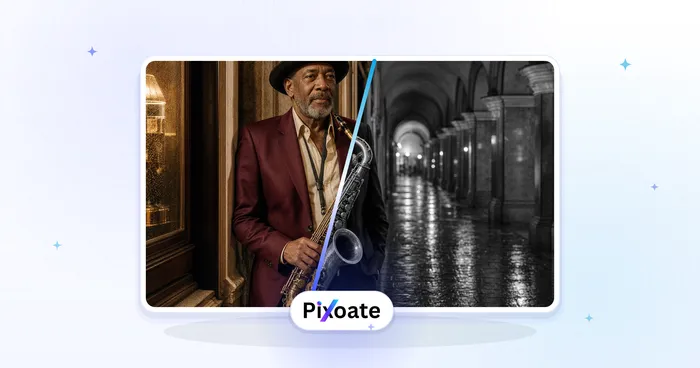
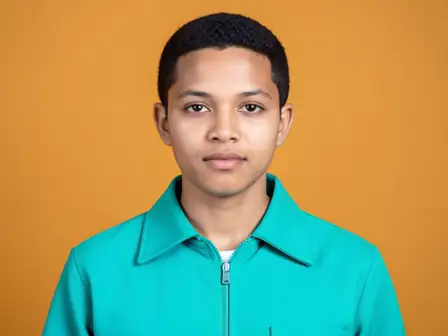
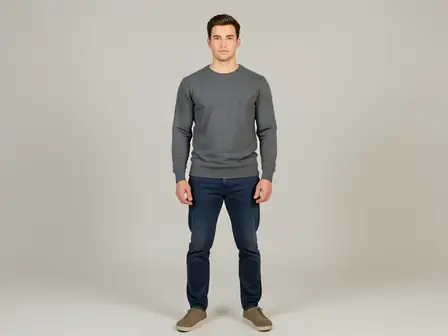
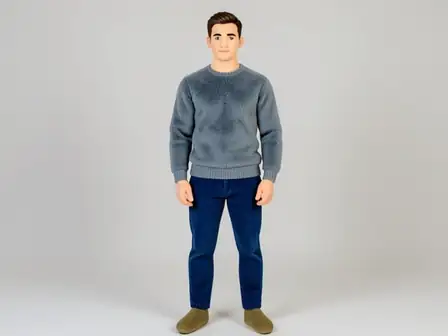
The same source image before and after applying Optie – Waist Adjust.
Optie – Waist Adjust applied to the same source image
Original source image before Optie – Waist Adjust

Taille aanpassen — vorm een geverifieerde taille zonder het portret opnieuw te genereren

Vorm één geverifieerde band rond de natuurlijke taille met bestaande bronpixels terwijl bovenlichaam, gezicht, heupen en elke pixel buiten de omtrek ongewijzigd blijven.

Upload een foto voor het Optie – Waist Adjust-effect

Wat je kunt doen met het Optie – Waist Adjust-effect

Bekijk de beschikbare effectmogelijkheden voordat je begint.

  • Apply the Optie – Waist Adjust effect to any photo
  • Fine-tune the effect strength to taste
  • Preview your photo live as you edit
  • Download your edited photo in high quality
  • Apply Optie – Waist Adjust to many photos at once

Hoe het werkt

Waist Adjust makes a restrained change to a natural waist you can clearly see, and leaves the rest of the photo exactly as you shot it. It locates each person by their face, shoulders and hips, then separates a natural waist from the background, hair, skin and clothing before anything moves. The adjustment eases off to nothing at every edge of that area, and nearby background is filled in behind the new outline so no gaps appear. The face and every pixel outside the adjusted area are copied straight into a lossless PNG. In a group photo you pick who to change, or switch on "Apply to everyone" in Settings. Anyone standing too close for their neighbour to stay untouched is left alone rather than guessed at. If the photo is unclear, cut off, transparent or ambiguous, it stops instead of guessing.
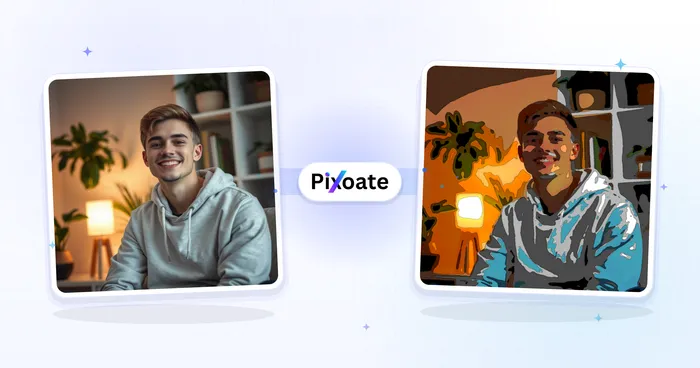
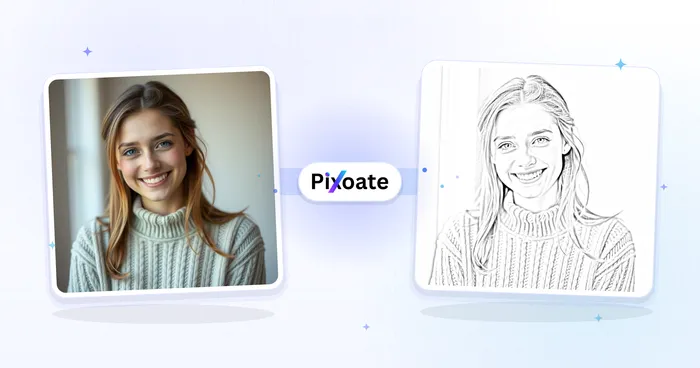
Verwerken

Optie – Waist Adjust gebruikt een AI-actie. Eventuele afzonderlijke toeslagen worden weergegeven voordat dit effect wordt verwerkt.

Beste voor

sharp, opaque, front-facing photos with a clear face, both shoulders and hips visible, and some background around the waist — including group photos where each person has clear space around them.

Minder geschikt voor: people packed shoulder to shoulder with no gap between them, side or seated poses, crossed arms or hands resting on the waist, cropped hips, loose or layered garments, transparent cutouts, motion blur, and bodies touching the image edge.

Manieren om Optie – Waist Adjust te gebruiken

  • Pas de taillebreedte subtiel aan zonder herkenbare gelaatstrekken, kledingtextuur of het hele portret opnieuw te genereren.
  • Behoud borst, schouders, gezicht, heupen, benen en verre achtergrond exact als in de bron terwijl je één lokale band vormt.
  • Gebruik de intensiteit om binnen een vaste veiligheidsgrens een subtiele of duidelijkere tailleaanpassing te kiezen.

Optie – Waist Adjust vragen

Wat is het verschil tussen Taille aanpassen en Lichaam versmallen?
Taille aanpassen concentreert de vervorming in een kortere band rond de natuurlijke taille en laat die vóór de bovenromp en heuplijn tot nul aflopen. Lichaam versmallen gebruikt een breder rompprofiel. Beide hergebruiken bronpixels en behouden gezicht en buitenste kader exact.
Waarom kan Taille aanpassen een foto weigeren?
A safe adjustment needs a clear face, both shoulders, both hips, a waist it can tell apart from the background, and clean space beside it — including space between this person and anyone standing next to them. It stops when loose clothing, something in the way, cropping, transparency or an angled pose makes that boundary unreliable.

Meer Portret & Schoonheid-effecten

Bekijk de aanbevolen effecten in beweging

De krachtigste effectkeuzes staan vooraan in deze strook, vóór de rest van de catalogus.