Đếm số viên gạch trong một bức ảnh - Bộ đếm gạch và khối AI
Hoạt động với JPG, PNG, WEBP · Miễn phí lên tới 20 MB, 50 MB cao cấp
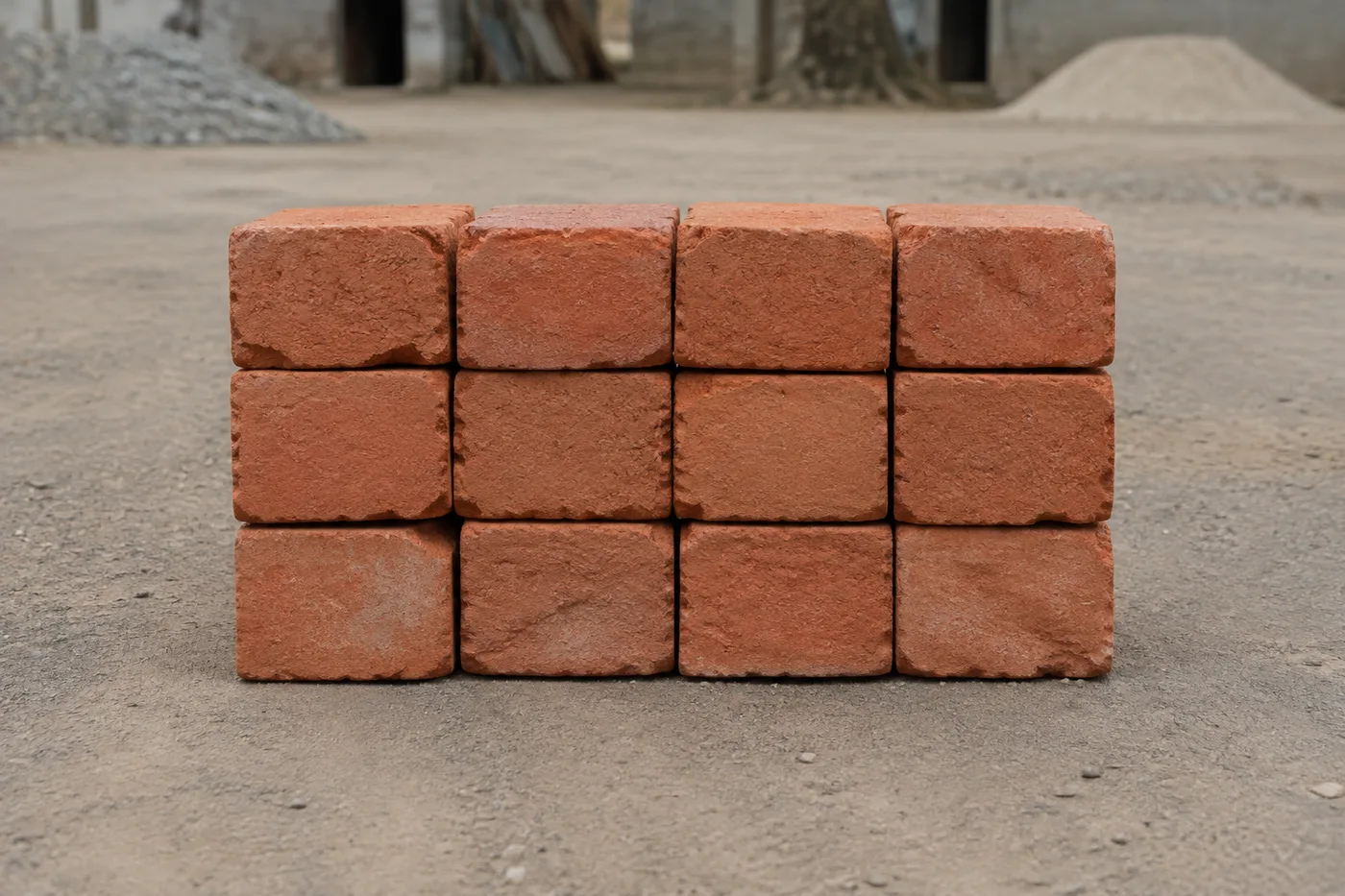
Photograph the stack, pallet or delivery, upload the photo and review the tally markers against the photo. Built for delivery checks, site stock counts and yard audits.
- Xem lại ảnh, rồi đếm các viên gạch nhìn thấy được
- Upload a photo and get an automatic count
- Review the markers to catch bricks counted twice or missed
- Sử dụng miễn phí · Không cần đăng ký · Không có hình mờ
Tải ảnh lên
Mẹo để đếm chính xác
• Dùng ảnh đủ sáng, ánh sáng đều và có toàn bộ viên gạch nằm trong khung hình
• Keep your bricks visible and avoid overlapping items
• Dấu chấm và bản đồ nhiệt hiển thị các phát hiện được giữ lại — xem lại và sửa bản kiểm kê
Giới thiệu Bộ đếm gạch
The brick counter counts visible bricks from your photo and marks detections for review. Counting starts automatically once the photo and item are ready. Visibility, overlap and similar-looking items can affect the total. Built for builders, site managers and building-material suppliers.
Cách hoạt động
1. Chụp ảnh viên gạch
2. Upload your photo to count bricks automatically
3. Review the markers and correct the tally if needed
4. Thêm vào bảng kiểm đếm và xuất số đếm của bạn ra CSV
Hoàn hảo cho
• Đã xem xét dự thảo phân phối gạch và khối
• Đếm vật tư công trường giữa các giai đoạn
• Kiểm kê kho bãi vật liệu xây dựng
• Ước tính vật liệu còn lại
Bạn có thể làm gì với Bộ đếm gạch
Xem lại các khả năng chính trước khi bạn bắt đầu.
- Đếm gạch và khối bê tông trên các chồng hàng và pallet
- Kiểm tra nhanh ước tính hàng giao và tồn kho tại chỗ
- Kiểm tra từng điểm đánh dấu viên gạch đã đếm và chỉnh lại tổng số
- Kiểm tra nhiều pallet trong một lượt hàng loạt
- Duy trì bảng đếm liên tục theo từng chuyến hàng đã dán nhãn
- Kiểm tra các hàng gạch xếp sát nhau để phát hiện gạch bị bỏ sót hoặc đếm trùng
Tham khảo cài đặt
cài đặt 14
Các điều khiển có sẵn cho Bộ đếm gạch.
Tải lên
- Ảnh đơn / Kiểm kê hàng loạtCài đặt sẵn
- Chọn số lượng ảnh đơn hoặc kiểm tra hàng loạt Premium. Xem xét mọi kết quả.Tùy chọn: Ảnh đơnKiểm kê hàng loạt
Số lượng
- Điểm đánh dấu được tínhThanh trượtPhạm vi: 0–1 · Mặc định: 0.21
- Starts at 21%; slide toward Show more to include weaker markers or Only strongest to hide them.
- Kiểu lớp phủCài đặt sẵn
- Chọn dấu chấm, bản đồ nhiệt, cả hai hoặc bản xem trước rõ ràng.Tùy chọn: Cả haiDấu chấmNhiệtKhông có
Nâng cao
- Lớp phủ kết quảDanh sách thả xuống
- Choose how count markers appear in the on-screen preview; the download keeps its own markers.Tùy chọn: Chấm + bản đồ nhiệtChỉ chấmChỉ bản đồ nhiệt
Kiểm đếm
- Thêm vào bảng kiểm đếmMột cú nhấp
- Add this count to the tally sheet under the name of the object that was counted. Signed-in accounts add finished counts automatically unless that is turned off under Account settings; in bulk mode every photo also has its own Add to tally button.
- NhãnNhập văn bản
- Rename a tally row. Edits and removals wait until you choose Save changes, so you can fix several rows at once.
- Số lượngÔ nhập số
- Correct a row's count; totals, the chart and exports follow once the change is saved.
- Save changesMột cú nhấp
- Apply every edited or removed tally row in one step, or choose Discard changes to leave the sheet as it was.
Chart
- By objectCài đặt sẵn
- The chart is the same in every counting tool and covers the tallies of all of them. By object draws a separate line chart for each tally name, such as pipes and people. By tool draws a chart for each counting tool.Tùy chọn: By objectBy tool
- Khoảng thời gianCài đặt sẵn
- Choose how far back the chart looks. Days without a count appear as zero.Tùy chọn: 7 days30 days90 days12 months
History
- Counting setupThư viện
- Keep comparable counts together. A first setup is created for you, so the first count can be saved straight away.
- Observed atNhập văn bản
- The date and time of the count, shown as a date and a time field.
- Nốt nhạcNhập văn bản
- Starts with every detected object and its count, one per line, such as Pipes - 11. Edit it before saving.
- Save countMột cú nhấp
- Save the count to your account history. Open a saved count later to correct it or download its source photo.
Các công cụ liên quan dành cho Bộ đếm gạch
Công cụ dành cho các bước tiếp theo phổ biến sau Bộ đếm gạch.
Đếm & kiểm kê
Bộ đếm vật thể
Ước tính số lượng vật thể từ một bức ảnh. Hãy xem lại và chỉnh các điểm đánh dấu được đánh số trước khi sử dụng kết quả.
Dùng thử ngay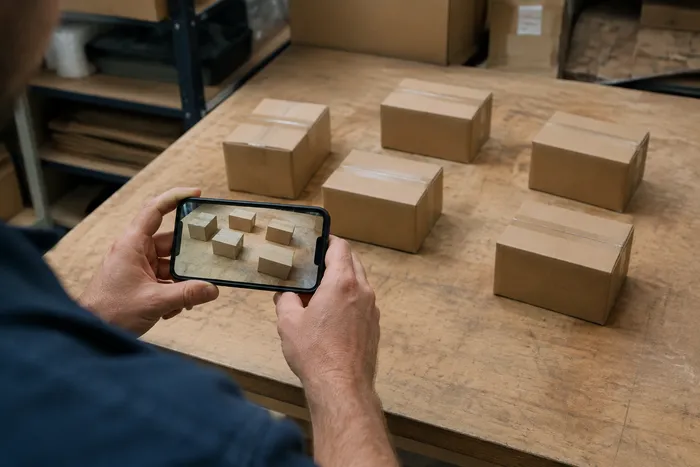
Đếm & kiểm kê
Đếm vật thể trực tiếp
Hướng điện thoại của bạn vào các mục riêng biệt, hiển thị đầy đủ và xem lại các điểm đánh dấu của máy dò khi số lượng cập nhật theo thời gian thực.
Dùng thử ngay
Đếm & kiểm kê
Bộ đếm chai
Đếm chai trên kệ, trong sọt hoặc trong kho lạnh chỉ từ một tấm ảnh, kèm các vật thể đã phát hiện và đếm được đánh dấu sẵn để bạn kiểm tra lại.
Dùng thử ngayCâu hỏi thường gặp
Bộ đếm gạch giúp bạn hoàn thành công việc như thế nào
Những vấn đề thực tế mà nó giải quyết hàng ngày — cho doanh nghiệp, người sáng tạo và các công việc hàng ngày. Tìm trường hợp sử dụng phù hợp với bạn và bắt đầu.
Kiểm tra lô gạch giao hàng trước khi dỡ hàng
Chụp ảnh pallet gạch để có số liệu đếm gạch sơ bộ, sau đó kiểm tra lô hàng thực tế, sửa lại các điểm đánh dấu và hoàn tất kiểm tra phiếu giao hàng thông thường trước khi xe rời đi.
Theo dõi vật liệu còn lại giữa các giai đoạn
Chụp ảnh chồng vật liệu còn lại để có ước tính với sự hỗ trợ của AI, sau đó kiểm tra và đối chiếu với tồn kho thực tế trước khi lên kế hoạch cho giai đoạn thi công tiếp theo.
Kiểm Kê Cả Bãi Trong Một Đợt
Mở Kiểm tra hàng loạt để chạy chế độ Đối tượng riêng biệt trên mỗi ảnh xếp chồng, sau đó xem lại mọi kết quả trước khi sử dụng tổng số yard kết hợp.
Đếm tồn kho tại công trường bằng điện thoại của bạn
Đi quanh công trường chụp từng chồng hàng bằng camera điện thoại, thêm mọi kết quả vào Bảng kiểm đếm, và xuất tồn kho công trường trong ngày dưới dạng báo cáo CSV hoặc PDF cho quản lý công trường.
Tách gạch khỏi phế liệu hỗn hợp tại công trường
Đánh dấu một viên gạch hoàn chỉnh trong cài đặt Ví dụ trước khi đếm để các khối và mảnh vụn không bị nhầm với các viên gạch, sau đó xem lại từng điểm đánh dấu trước khi sử dụng tổng số.
Ước tính tổng số cả pallet từ một ảnh chụp mặt trước
Đếm số gạch thấy được trên một mặt của một chồng hình chữ nhật, rồi nhân với độ sâu đã biết để ước tính nhanh cả pallet — hữu ích khi việc trèo quanh chồng gạch để chụp mọi mặt là không khả thi trên một công trường bận rộn.
Ngắm nhìn từng vùng đất chuyển hóa
Mỗi bức ảnh đều vượt qua dấu gạch chéo và đi ra phía bên kia.