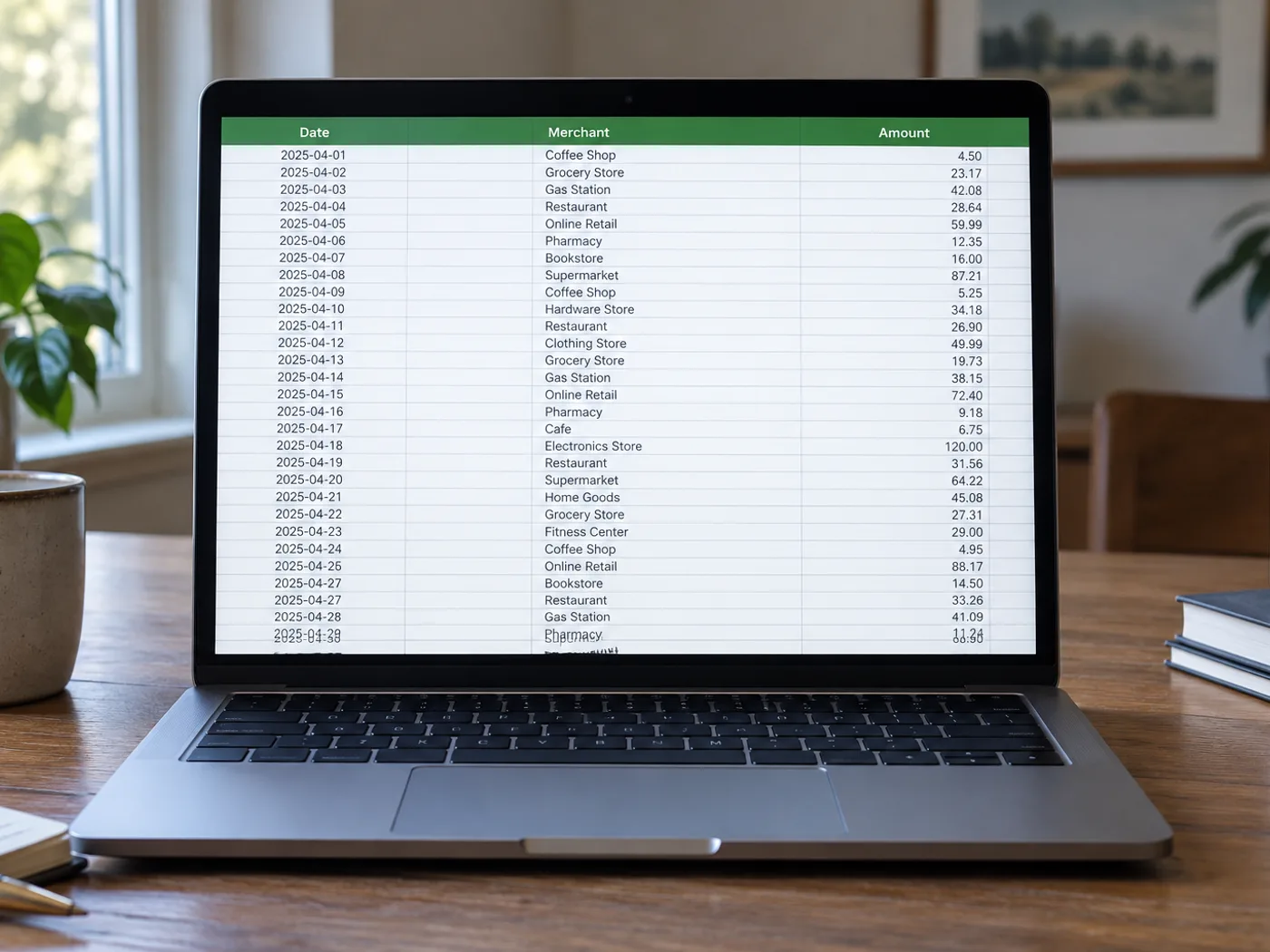
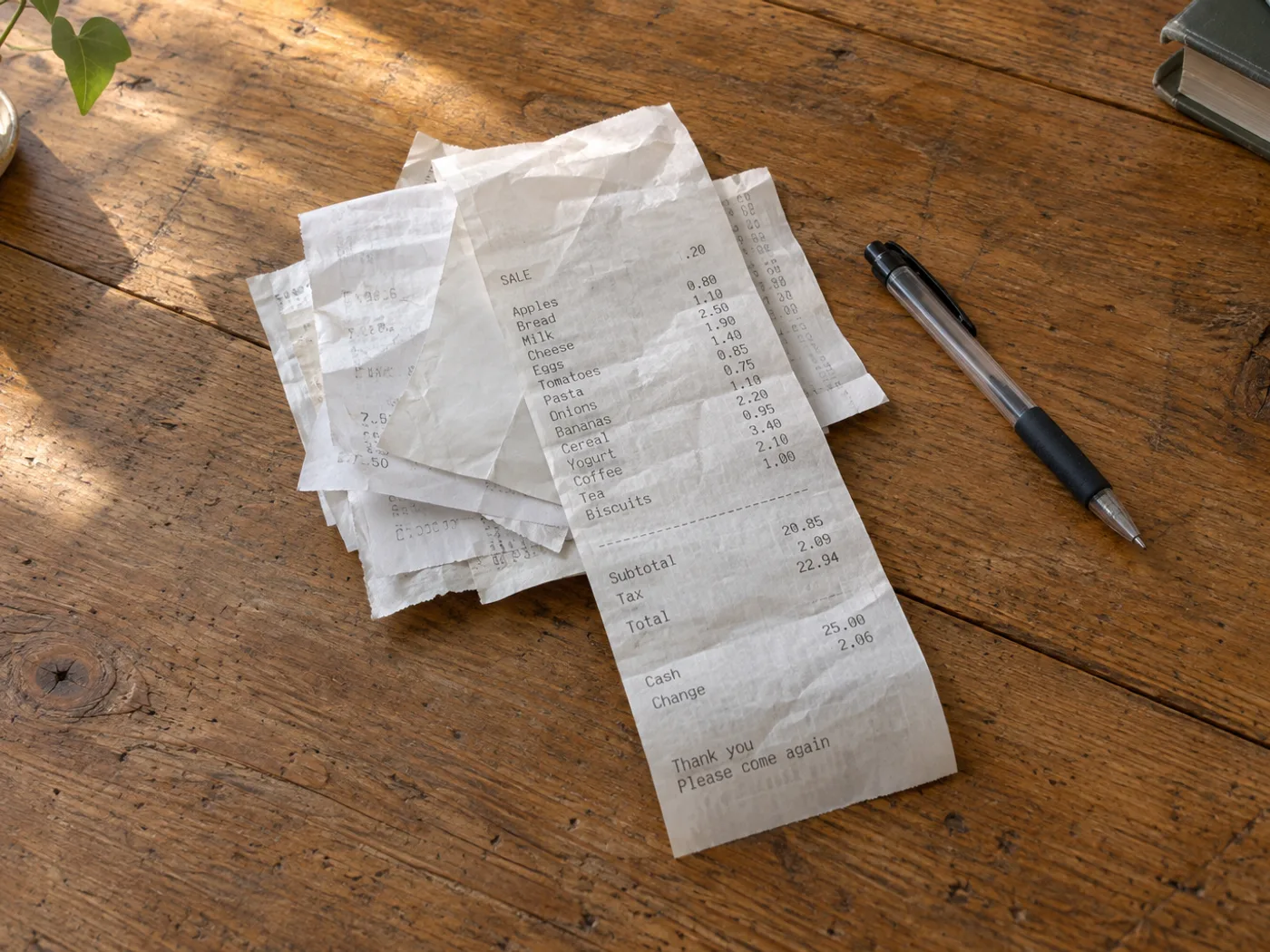
展示贴近实际使用的源文档,以及“图片转 Excel”处理后的实际文档状态或输出文件。
之后
之前
图片转 Excel

Receipt to Excel — Review Purchase Line Items

Upload a clear receipt photo with the line items and totals visible

将收据图片中的明细提取到 Excel 工作簿中。使用 XLSX 数据前,请根据原始收据核对数量、折扣、税费和总额。

  • Itemized travel expense review
  • 对比重复购买记录

上传您的表格图像

Upload a clear receipt photo with the line items and totals visible

All image formats (JPG, PNG, WEBP, HEIC, TIFF…)

Turn a pile of itemized purchases into a reviewable worksheet

Turn the itemized section of a receipt photograph into spreadsheet rows for expense review. Thermal printing, discounts and wrapped product names can confuse recognition, so compare every important amount with the original receipt.

Itemized travel expense review

Separate purchased items from tax and payment lines before assigning your own expense categories in a workbook.

对比重复购买记录

持续收集收据上的明细,手动统一商品名称后,再在 Excel 中比较单价。

添加费用类别前检查收据项目

  1. Flatten the receipt and photograph it in even light so faded digits remain visible.
  2. 提取并检查换行的描述、负数折扣以及数量与价格的对应关系。
  3. Keep subtotal and tax rows distinguishable from items, then export the checked workbook.

褪色的收据、折扣和看起来像商品的合计金额

Will receipt to Excel classify expenses automatically?
它会提取可见的表格数据。查看工作簿后,再分配会计类别,并决定哪些采购项目应计入费用报销。
Can a faded thermal receipt still be converted?
Only legible marks can be recognized reliably. Try a better-lit close-up and correct uncertain amounts; missing print cannot be reconstructed with certainty.
Why does my receipt total appear as another item?
Receipts often separate totals through spacing rather than clear columns. Review the grid and distinguish subtotal, tax, tips and payment rows before analysis.
提取出的工作簿可以替代收据吗?
Keep the original receipt as supporting evidence. The workbook is a transcription for review and may contain recognition errors.
免费使用 · 无需注册 · 无水印上传过程全程加密传输已根据我们的数据保留政策移除

观看每一个转变土地

每张照片都原封不动地穿过斜线,并在另一边完成。