Bảng PNG của bạn rất rõ, nhưng dữ liệu trong các ô vẫn nằm trong hình ảnh
Xuất PNG thường giữ được chữ trong bảng sắc nét, nhưng các ô vẫn chỉ là điểm ảnh. Chuyển bảng PNG đã lưu vào trang tính và kiểm tra các cột được trích xuất trước khi mở trong Excel để sắp xếp, lọc hoặc làm sạch thêm.
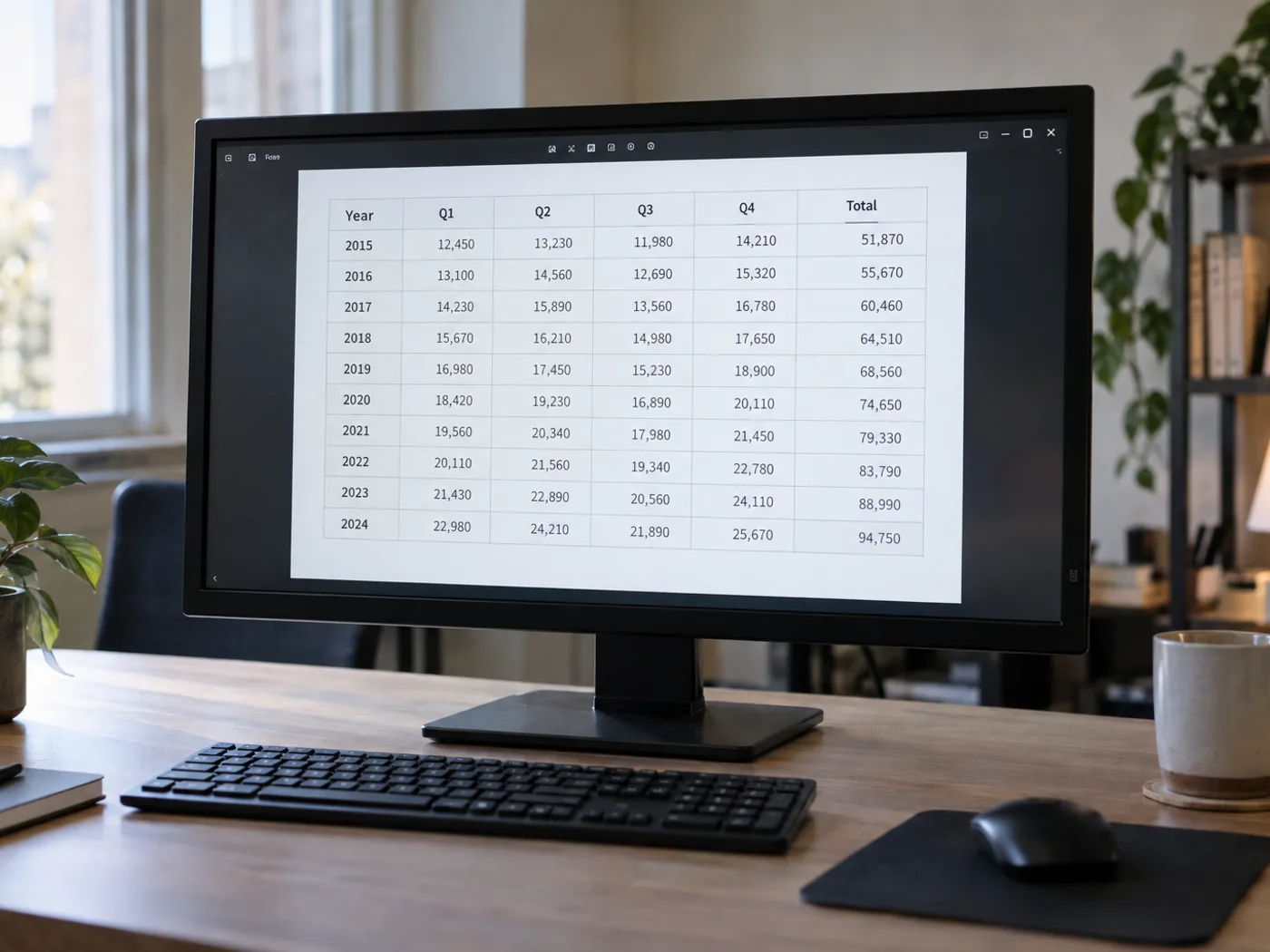
Bảng báo cáo xuất dưới dạng PNG
Dựng lại dữ liệu nhìn thấy trong báo cáo đính kèm chỉ có dưới dạng ảnh khi tác giả không cung cấp tệp bảng tính gốc.
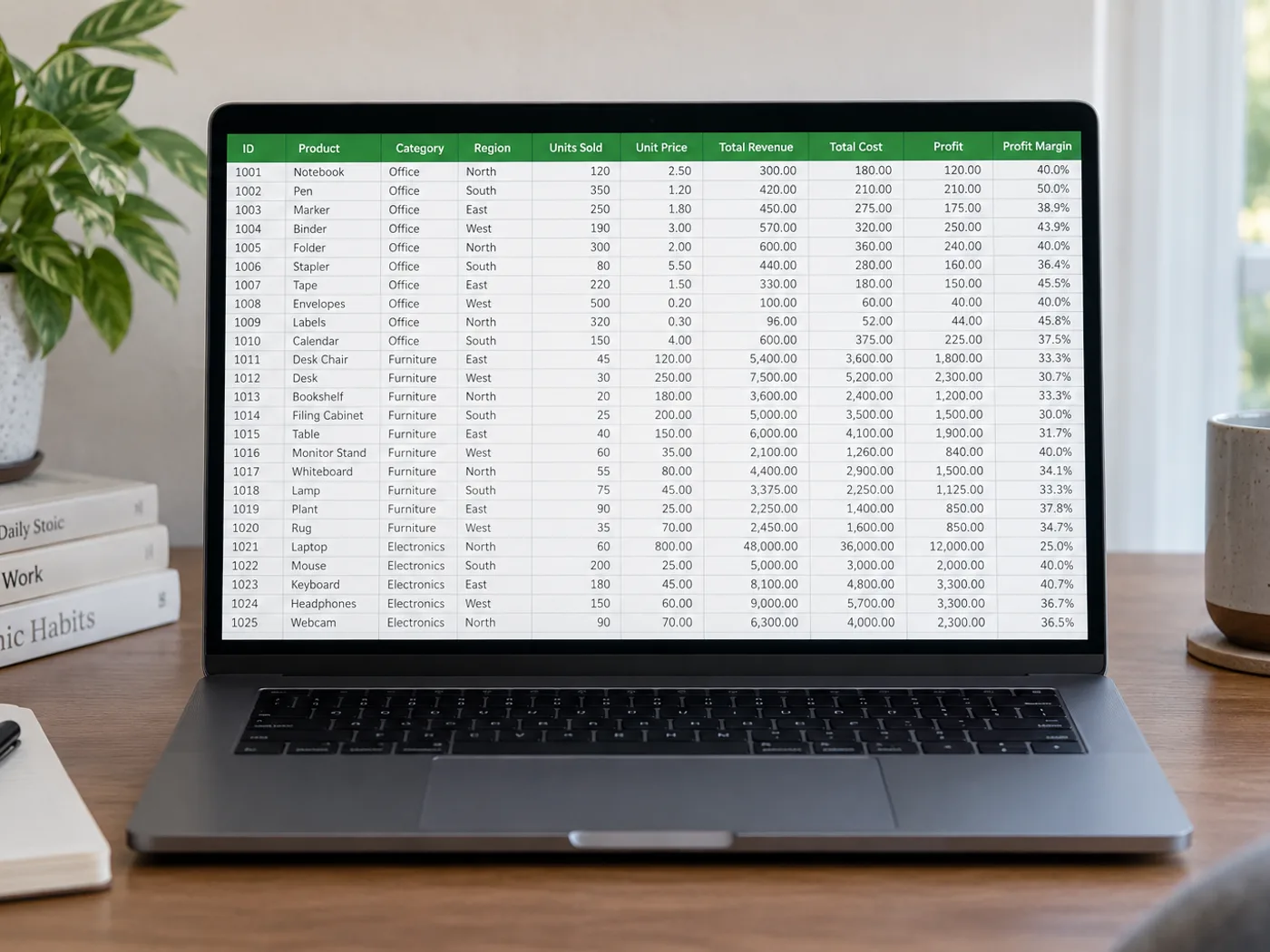
Bảng tham khảo có mã định danh sản phẩm
Đưa tên và mã vào trang tính, kiểm tra các số 0 ở đầu cùng những tổ hợp chữ và số trước khi ghép với dữ liệu hiện có.
Khôi phục các ô trang tính từ ảnh PNG gốc
- Lưu PNG ở kích thước gốc thay vì phóng to một hình thu nhỏ.
- Đọc bảng và kiểm tra các cột hẹp, tiêu đề xuống dòng và trường định danh.
- Chỉnh sửa các ô bị đọc sai, xuất XLSX và kiểm tra định dạng mã định danh khi mở bằng Excel.
Xử lý PNG trong suốt, biểu đồ và các số 0 ở đầu
- Tôi có nên chuyển PNG sang JPG trước khi trích xuất các ô Excel không?
- Không. Hãy tải trực tiếp tệp PNG lên. Chuyển sang JPG có thể gây nhiễu do nén quanh các ký tự nhỏ mà không bổ sung thông tin.
- Nếu bảng PNG của tôi có nền trong suốt thì sao?
- Văn bản phải luôn nổi bật rõ ràng trên nền. Nếu bản xem trước khó đọc, hãy chuẩn bị một bản có nền tương phản trước khi trích xuất.
- PNG chứa biểu đồ có được chuyển thành trang tính dữ liệu không?
- Trang này dành cho các ô bảng có thể nhìn thấy. Đường hoặc cột trên biểu đồ không cung cấp chuỗi dữ liệu gốc; hãy dùng bảng nguồn nếu có.
- Tôi nên xử lý các mã như 00127 trong sổ tính như thế nào?
- Đối chiếu mã đã trích xuất với PNG và xác minh định dạng ô trong Excel. Xử lý mã định danh dưới dạng văn bản khi các số 0 ở đầu có ý nghĩa.