


16-Bit Pixel art Generator
Generative output can vary; review the full result before publishing
The 16-bit era was pixel art's golden age — palettes rich enough for sunsets, grids fine enough for expression, whole worlds drawn a tile at a time. This direction converts your photo into that register: detailed retro beauty with dithered skies and shaded depth, nostalgia with room to breathe.
- Prepared 16-Bit direction
- Editable prompt
- Full-result review required
Choose a source image for 16-Bit
JPG, PNG, WebP, HEIC, and other supported formats. Free up to 20 MB; Premium and higher up to 50 MB for this tool.
Using 16-bit pixel art for scenes and wallpapers
The 16-bit register has room for scenery, so this is the pixel style to use for landscapes, streets and rooms rather than single icons. Photos with a clear foreground, middle and background turn into scenes that look like a game level. Sunsets, snowy streets and seaside views give it gradients to work with.
The result keeps your photo's shape, so frame for where the image will go. A phone wallpaper needs a tall crop, and a desktop or stream background needs a wide one; switch the photo between landscape and portrait or crop before uploading rather than after. People in the scene become small figures, so turn on identity preservation only if a person is the main subject.
Look over the result for text on shop signs and cars, which can turn into scrambled marks; regenerate with "no text" in the instruction if they distract. For a wallpaper, the original resolution, with Premium or one credit, keeps the block edges sharp on a large screen. For a single character instead of a scene, use the game sprite style.
Set up for 16-Bit Pixel art Generator
Prepared settings
- Starting point
- Upload one source image
- The page opens on the correct edit workflow; upload is the only required setup step.
- Prepared workflow
- Prepared 16-Bit style
- 16-Bit Pixel art Generator opens with the 16-Bit direction preselected, so there is no need to find the operation manually.
- Output shape
- Same as your upload
- The result keeps the shape of the image you upload.
- Review rule
- Review the complete generated result before use
- Generated imagery can vary; the final result stays under the user's approval before download.
Best-fit uses
- Detailed pixel scenes from travel and city photos
- Golden-age-styled portraits and wallpapers
- Retro scene art for streams and communities
Frequently asked questions
- Why does 16-bit handle scenes better than 8-bit?
- Budget — several times the colors and resolution buys gradients, dithering, and mid-detail, so a beach sunset keeps its glow instead of collapsing to four bands. It is the era where pixel landscapes became paintings.
- What is dithering and why does it matter here?
- Alternating pixels of two colors to fake a third — the era's signature texture for skies and shadows. Ask for dithered skies and shadows in the prompt if the first result looks smooth; that checkerboard shimmer is much of what makes 16-bit feel authentic.
- What should I review in a 16-Bit result?
- Inspect faces, hands, object geometry, small details, perspective, readable marks, and any claim implied by the scene. Regenerate or reduce the requested change when something is inaccurate.
- What rights checks apply to a 16-Bit client project?
- Use only source material and references you have rights to, follow the destination platform rules, and obtain any required person or property permissions. Generated output still needs a human accuracy and rights review.
What you can do with Pixel Art Generator
Review the main capabilities before you begin.
- Convert photos into retro 8-bit pixel art
- Make pixelated avatars and profile pictures
- Create game sprites from your own images
- Choose the pixel block size for chunky or fine art
- Pick a color palette for an authentic retro look
- Smooth gradients with dithering on limited colors
- Pixelate many images at once in a batch
Settings reference
4 settings
Available controls for Pixel Art Generator.
Mode
- Single / Batch (ZIP)Presets
- Choose Single to pixelate one photo, or Batch (ZIP) to convert many photos with the same pixel settings and download them together as a ZIP; Batch requires a Premium plan.Options: SingleBatch (ZIP)
Effect
- Pixel SizeSliderRange: 10–100% · Default: 70%
- Sets how large each pixel block is — Fine keeps more photo detail with smaller blocks, Chunky gives a bolder retro 8-bit look with big visible pixels.
- PaletteDropdown
- Picks the color set for your pixel art: Auto samples colors from the photo, while the retro and craft options snap every pixel to a fixed palette — Perler and DMC match real bead and cross-stitch colors.Options: Auto (from photo)Game Boy (4 greens)PICO-8 (16)NESPerler beadsDMC floss (cross-stitch)
- Dithering (smoother gradients in few colors)On / Off
- When on, mixes neighboring palette colors in a fine speckled pattern so gradients look smoother with few colors; leave it off for solid blocks that are easier to follow in craft patterns.
Related tools for 16-Bit Pixel art Generator
Tools for common next steps after 16-Bit Pixel art Generator.
Creative & Design
Photo Filters & Effects
Preview cinematic, vintage, glitch and beauty effects on your photo, then download the look you choose.
Try it now
Photo Editing & Utilities
Online Photo Editor
Crop and resize photos. Add text, shapes, effects and templates, or use AI editing tools.
Try it now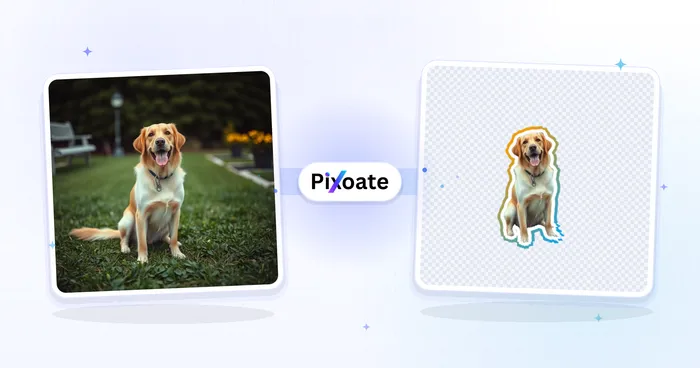
Creative & Design
Image to Sticker
Remove the background, add an adjustable outline and download a sticker image.
Try it nowHow Pixel Art Generator helps you get it done
Real problems it solves every day — for businesses, creators, and everyday tasks. Find the use case that fits you and start.
Pixel Avatars & Game Sprites
Convert selfies into 8-bit pixel avatars and sprites for games, Discord, Twitch, and forums
Retro Gaming Content
Create pixel art thumbnails, banners, and overlays for retro gaming channels and streams
Pixel Art Profile Pictures
Make nostalgic pixelated profile pictures for social media and gaming community platforms
Pixel Prints & Stickers
Turn photos into pixel art for stickers, posters, and retro-themed merch and gifts
Perler Bead Patterns From Any Photo
Choose the Perler beads palette, turn dithering off, then use the craft export on the result screen to get a numbered bead pattern chart and shopping list for a physical melty-bead board.
Cross-Stitch Charts From Photos
Pick the DMC floss palette to snap your image's colors to real embroidery-thread codes, then export a printable cross-stitch chart with a per-color stitch count — no separate charting app needed.
Retro Game Asset Prototyping
Generate NES, Game Boy or PICO-8-palette sprites from reference photos or concept art to quickly mock up character and prop art for an indie game before commissioning final pixel art.
Matching Avatar Packs for Communities
Batch-convert a folder of headshots with one pixel size and palette to produce a consistent set of retro avatars for an entire Discord server or team, downloaded together as a ZIP.
Personal Retro Avatar for Social & Gaming Profiles
Turn a single selfie into an 8-bit-style profile picture for X, Discord, Twitch or forum profiles using the Auto or NES palette with dithering off for crisp, easily recognizable blocky pixels — no batch mode or account needed for a quick one-off avatar.
Minecraft Build Blueprints
Turn any image into a blocky grid to plan Minecraft pixel art: each pixel becomes one block, and a limited palette keeps the build to a handful of block colors. Useful for banners, map art and wall murals.
Watch each transformation land
Every photo crosses the slash untouched and comes out the other side finished.























