
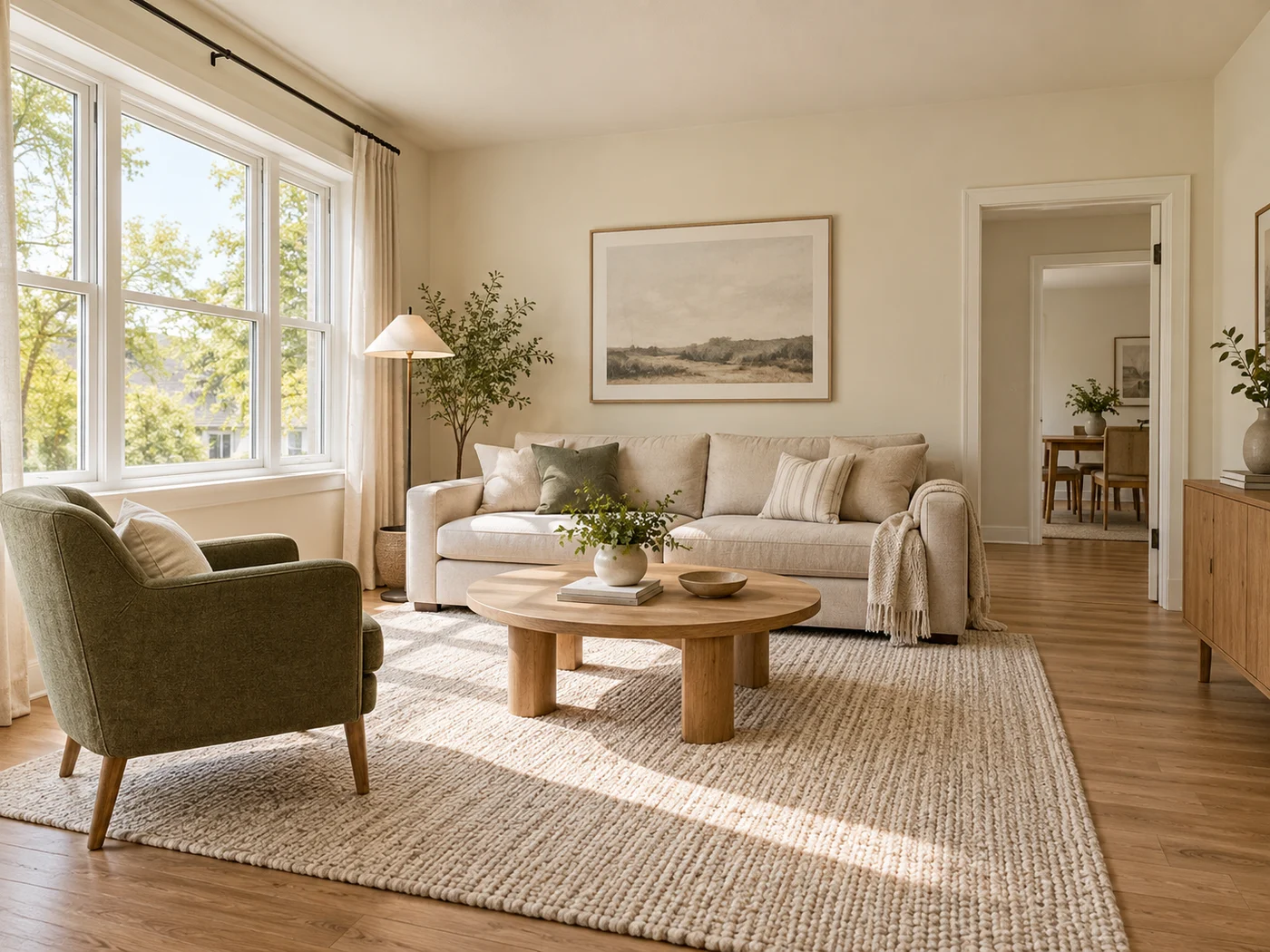
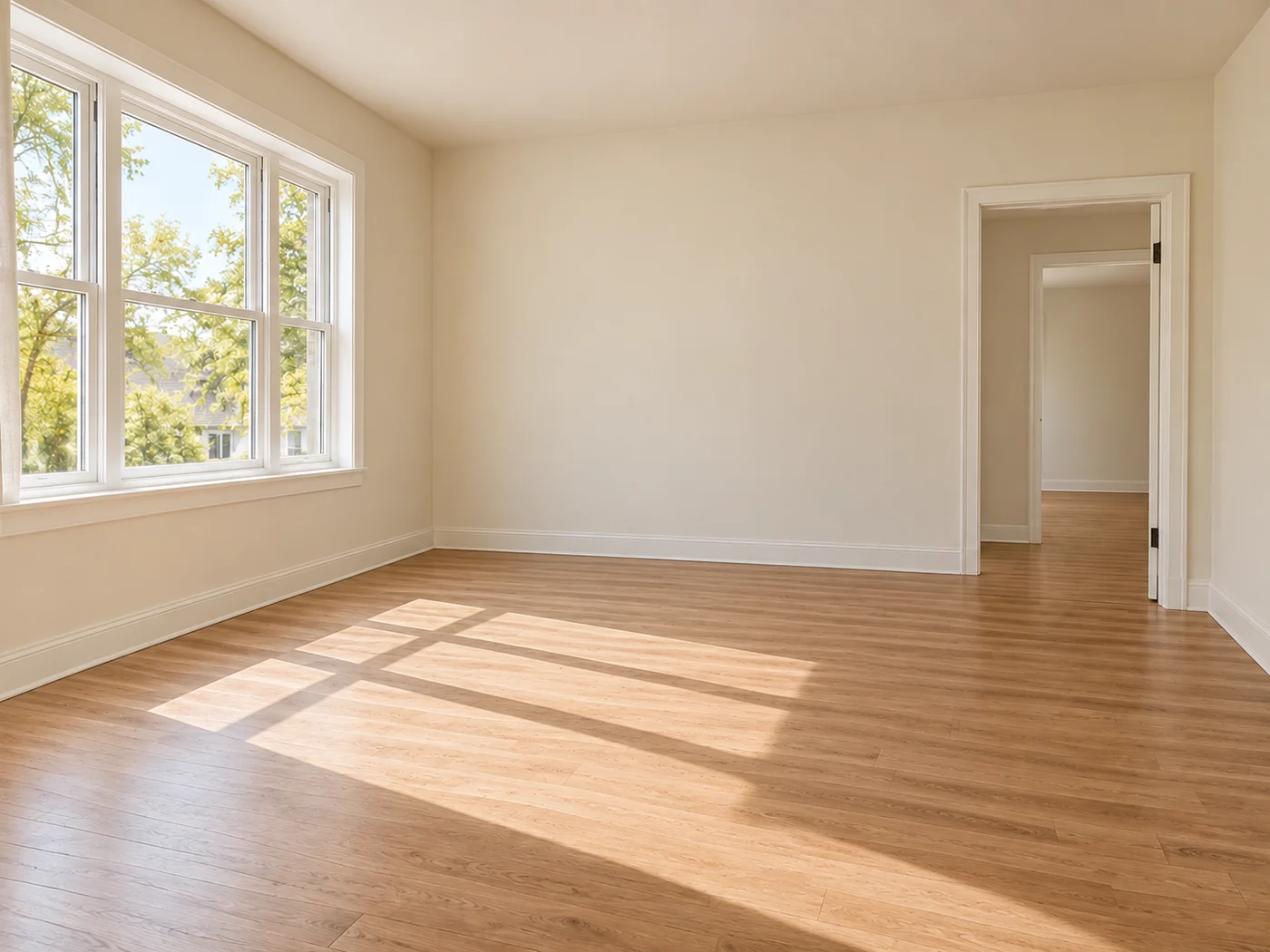
Illustrative preview
Virtual Staging AI for Empty Rooms and Property Listings
AI concept: check furniture legs, contact shadows, scale, and room geometry. Regenerate flawed results and disclose virtual staging.
Upload an empty property photo, choose the room purpose and style, and generate a complete virtual layout automatically—without painting furniture zones one image at a time.
- Automatic complete-room furniture planning
- Instructions to retain architecture and perspective
- Premium batch staging for multiple listing photos
Choose an empty room or unfurnished property photo
JPG, PNG, WebP, HEIC, and other supported formats. Free up to 20 MB; Premium and higher up to 50 MB for this tool.
How to virtually stage an empty room photo with AI for a property listing
Virtual staging AI takes a photo of an empty or unfurnished room and adds a complete furniture layout in the style you choose: living room, bedroom, home office, dining room or a luxury listing look. It plans where furniture goes across the whole room while its instructions protect walls, windows, doors and the camera angle, so you do not paint furniture zones one picture at a time. Each result is a concept to review and to disclose as staged.
Stage an empty room from a single photo
No painting is needed for a whole-room concept: on a bare room, the tool plans the layout across the room by itself. Pick the style that matches the buyer you have in mind, then use Custom instructions for details a preset cannot know, such as oak floors, a warm neutral palette or a desk by the window. Virtual house staging gives the cleanest result on a well-lit photo where the floor is visible, so furniture has somewhere to stand.
- Upload a photo of the empty room with floor, walls and windows in view.
- Open Styles and choose Stage living room, Stage bedroom, Stage home office, Stage dining room or Luxury staging.
- Add Custom instructions for materials, colors or items to leave out.
- Choose Generate Room staging and wait for the result.
- Check the staged room against the original photo before you save the PNG.
How to use AI to decorate a room from a photo
As an AI interior design generator for your room photo, the tool takes a brief the way a decorator would: Scandinavian pale oak, modern farmhouse, a calm bedroom, a quiet corner office. To design a room with AI, name the style and the room purpose. The design is limited to what the camera can see: furniture appears in your real room, so scale and layout follow the camera view, and each run is one concept rather than a floor plan.
Check scale, legs and shadows like a buyer would
Treat every result as a concept. Compare the staged room with the original and look at furniture legs, contact shadows, scale and room geometry, because those are the details a buyer's eye catches first. If something is distorted, regenerate rather than publishing it. The tool's own note says to disclose virtual staging, and listing services and local rules differ on how, so check yours. To show the change honestly, put the before and after side by side.
Fix a layout that looks wrong with Refine area manually
When the automatic layout is wrong for an unusual room, choose Refine area manually and paint where furniture belongs. Cover the complete footprint, the full height and the contact-shadow area of each piece, and keep walls, windows, doors, the ceiling and other fixed architecture outside the painted zone. A mark that is too small or that touches the structure is rejected with a message that says which of those to fix.
Virtual staging for real estate agents and photographers
Virtual staging for realtors starts with the listing photos an agent or photographer already has: upload an empty room, choose the style the likely buyer would expect and download a PNG to review. It runs in a browser and you operate it yourself, and each image still needs a check against the room and the listing rules before it goes online. Keep the original photo for the gallery, because a staged photo is a concept.
Stage every photo of a property in the same style
Batch images, a Premium option, applies one style to every queued room photo and returns a ZIP of PNGs, which keeps the listing photos of a property consistent. Run one room first to confirm the direction, then queue the rest. To restyle a room that already has furniture, try a furnished room in a new interior style, and for a TV, wall color or landscaping, use the precise-placement presets for property photos.
Before you upload the room photo
- Shoot from a corner at eye level so the floor and as much of the room as possible are in view.
- Switch on the lights and open the blinds, so walls and floor are evenly lit.
- Clear stray items first, because the tool is built for empty or unfurnished rooms.
- Keep an unstaged photo of the same room to show beside the staged one.
- Use an opaque JPG or PNG, because transparent images are rejected.
Before and after you stage an empty room
Show buyers what changed by exporting a before-and-after comparison; a room that already has furniture can be restyled in a new interior style.
One-off changes such as a TV, wall color, or landscaping need the precise-placement presets for property photos.
What you can do with Virtual Staging AI
Review the main capabilities before you begin.
- Stage the full room automatically without painting
- Create living, bedroom, office, and dining layouts
- Protect fixed architecture through strict preservation instructions
- Process multiple listing photos in Premium batch mode
Settings reference
5 settings
Available controls for Virtual Staging AI.
Workflow
- Single image or Batch imagesPresets
- Process one image, or use Premium Batch images to apply the same automatic recipe to a set and download one ZIP.Options: Single imageBatch images
Styles
- One-tap presetsPresets
- Pick a ready-made direction with one tap; generation uses the selected preset automatically.Options: Stage living roomStage bedroomStage home officeStage dining roomLuxury staging
- Custom instructions (optional)Text input
- Describe the requested change, relevant materials, lighting, perspective, and details that must remain unchanged.
Selection
- Selection brush sizeSliderRange: 4–160px · Default: 32px
- Automatic selection is the default. Open Refine area manually and set this brush width only when the image needs a tighter edit boundary.
Output
- Ask AI to preserve subject identity and product detailsOn / Off
- Adds an explicit instruction to retain the main subject, shape, branding, labels, and readable text unless the request changes them.
Related tools for Virtual Staging AI
Tools for common next steps after Virtual Staging AI.
Virtual Staging & Property
AI Real Estate Photo Editor
Edit real-estate photos with AI: add furniture or a TV, paint walls, remove clutter, replace skies, improve landscaping, and create twilight exteriors.
Try it now
Virtual Staging & Property
AI Room Staging
Stage empty or dated rooms with AI furniture and décor. Create living rooms, bedrooms, offices, dining rooms, and interior style concepts.
Try it now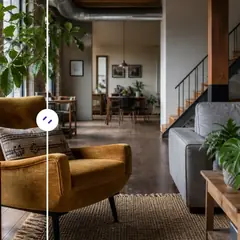
AI Image Studio
Add Object to Photo with AI
Add furniture, plants, people, products, and décor to photos with AI. Paint the placement area and preserve the prepared source outside it.
Try it nowFrequently Asked Questions
Guides for this tool
- Virtual Staging for Unfurnished Rentals: Show Layout Ideas to Prospective TenantsUse virtual staging to show furniture layout ideas for unfurnished rentals. Create Pixoate concepts that help tenants picture a room's possible use.
- People Buy Possibilities: Why Empty Rooms Need a Visual StoryEmpty rooms can leave buyers struggling to picture everyday life. Explore believable Pixoate virtual staging concepts and what home-staging research says.
Watch each transformation land
Every photo crosses the slash untouched and comes out the other side finished.























