
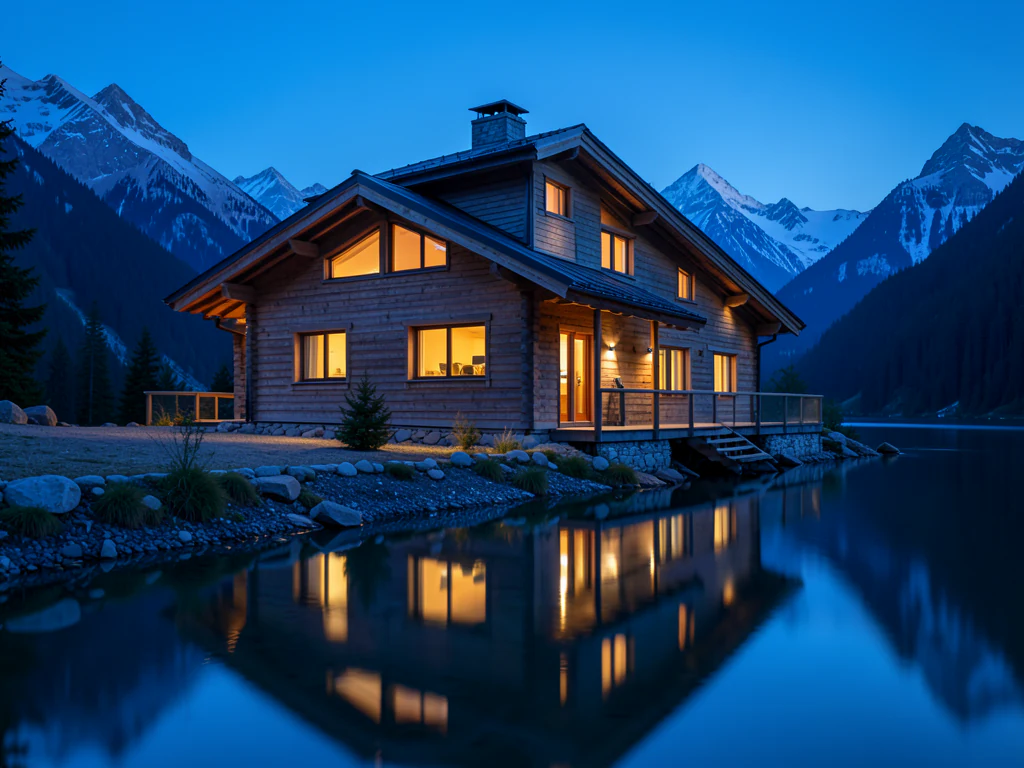
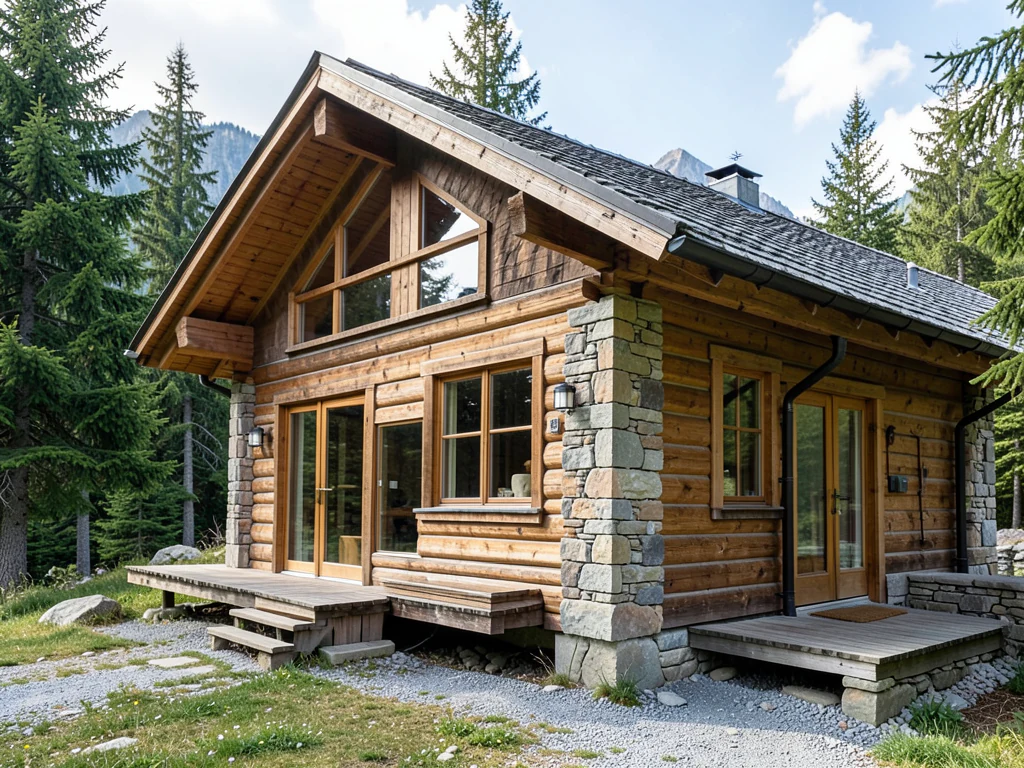
AI Image Generator — Turn Text Prompts Into Images
Free AI generations are limited per day · Premium adds higher AI allowances, 4 images per run and Full HD downloads
Create AI images from text prompts in square, landscape, portrait, or wide formats. Try it free; Premium adds four variations per run and batch generation.
- Text to image — just type a prompt
- Square, landscape, portrait and wide formats
- Square, wide, and portrait PNGs ready for any channel
Free AI generations are limited per day · Premium adds higher AI allowances, 4 images per run and Full HD downloads
For precise wording, write: Include the exact text "Your headline" and "Your message". Up to 3 short phrases appear in caption panels above and below the picture.
Tips for better AI images
• Be specific: subject, setting, lighting and style beat one-word prompts
• Add a style — "watercolor", "photorealistic", "3D render", "flat illustration"
• Not quite right? Re-run the same prompt — every generation is a new variation
About the AI Image Generator
Generate an image from a text prompt in square, landscape, portrait or wide format. Prompts are screened by automated safety filters. Server-processed files are removed within 24 hours unless you explicitly create a shared result link.
How It Works
1. Describe the image you want in plain words
2. Pick an aspect ratio for your use case
3. Hit Generate — the AI draws it
4. Download your PNG or re-run for a new variation
Perfect For
• Blog headers, thumbnails and social posts
• Concept art, moodboards and storyboards
• Product mockups and marketing visuals
• Wallpapers, avatars and creative projects
How to make AI images from a text prompt and download them as PNGs
This AI image generator online turns a written description into a picture. Type what you want to see, pick a square, landscape, portrait or wide shape, and the AI draws it and returns a PNG. It works from words only, so there is nothing to upload, and it suits blog headers, thumbnails, concept art, mood boards and social posts. Premium adds up to four variations per run and prompt-list batches.
How to use AI to make a picture from a text prompt
An image AI generator rewards detail over brevity. A prompt such as a ceramic teapot on a windowsill in morning light, soft focus, gives the generator far more to work with than the word teapot, and a style word like watercolor, 3D render or flat illustration steers the look. Change one thing at a time between runs so you can see which edit made the difference, since every run is a new variation.
- Type a prompt that names the subject, the setting, the light and a style.
- Pick Square 1:1, Landscape 3:2, Portrait 2:3 or Wide 16:9.
- Select Generate my image and keep the page open until the picture appears.
- Select Download, wait for the full-size render, then save the PNG from the result screen.
Make realistic pictures with the AI photo generator
The generator responds to photographic wording: ask for photorealistic and describe the lens, the light and the setting in plain words, such as a close portrait of a baker at dawn, soft window light, shallow depth of field. A generated picture is not a photograph, so check hands, teeth, reflections and any lettering before you use it, and label it where an audience could mistake it for a real photo.
Make AI art and pick a shape that fits
For AI art, the same prompt box takes a medium and a mood, such as a watercolor of a fox reading by a window in a muted palette. Wide 16:9 suits banners, wallpapers and video thumbnails, Portrait 2:3 suits posters and pins, Landscape 3:2 suits blog images, and Square 1:1 suits avatars and feed posts. For a thumbnail, turn the picture into a YouTube thumbnail with a headline afterward. Premium can produce two or four variations per run, so you can compare several readings of one idea.
Put exact words in an image
Letters drawn inside a scene are hard to control, so ask for no text in the picture. When you need exact wording, write Include the exact text followed by up to three quoted phrases, no more than 80 characters each and 160 in total. They are set in caption panels above and below the picture, not inside it. For a headline in a font you choose, add the words afterward with a text tool.
Fix, extend or reuse an image you generated
When a result is close but one area is wrong, paint over it and describe the fix. To use AI to add to an image or to change the whole picture with a written instruction, or to start from a photo of your own, use the editor instead. A cramped composition can be extended past its edges, and a subject on a plain background can be lifted out as a transparent PNG for a design.
Before you publish a generated image
- Zoom in on hands, teeth, jewelry and any lettering, where generated images can slip.
- Label generated images where an audience could mistake them for photographs.
- Keep real people's names out of the prompt, because prompts that name real people are blocked.
- Download the version you like before generating again, because a new run replaces the results on screen.
Fixing and reusing a generated image
When a result is close but one area is wrong, paint over it and describe the fix, or change it with a written instruction.
A cramped composition can be extended past its edges, and the subject can be saved as a transparent PNG for a design.
What you can do with AI Image Generator
Review the main capabilities before you begin.
- Turn any text prompt into an original image
- Generate square, landscape, portrait or wide formats
- Create multiple image options in a single run
- Generate an image from a written prompt
- Make unique visuals for social posts and blogs
- Download your generated images as PNG
Settings reference
5 settings
Available controls for AI Image Generator.
- Processing modePresets
- Process one input, or switch to Premium batch mode to process multiple inputs with shared settings. Available input types depend on the tool.Options: Single promptBatch prompts
Prompt
- Describe your imageText input
- Type what you want the AI to draw — subject, setting, lighting and style, up to 1000 characters; specific prompts produce noticeably better images than one-word ones.
- Prompts · one per lineText input
- In Batch prompts mode, enter one image description per line. The selected aspect ratio and images-per-run setting apply to each prompt.
Size
- Aspect ratioPresets
- Pick the shape of the generated image so it fits where you'll use it — square for avatars, landscape or wide for headers and thumbnails, portrait for stories.Options: Square 1:1Landscape 3:2Portrait 2:3Wide 16:9
- Images per runPresets
- Choose how many variations one Generate click produces so you can pick the best take; generating 2 or 4 images per run is a Premium feature.Options: 124
Popular presets
Related tools for AI Image Generator
Tools for common next steps after AI Image Generator.
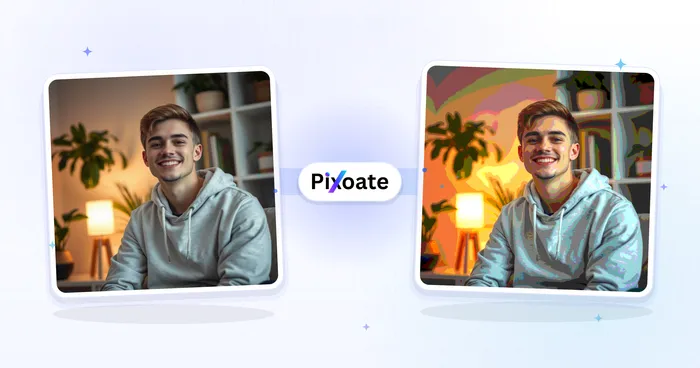
Creative & Design
Anime Generator
Turn a photo into original modern anime, manga, chibi, or cinematic artwork with editable AI directions.
Try it now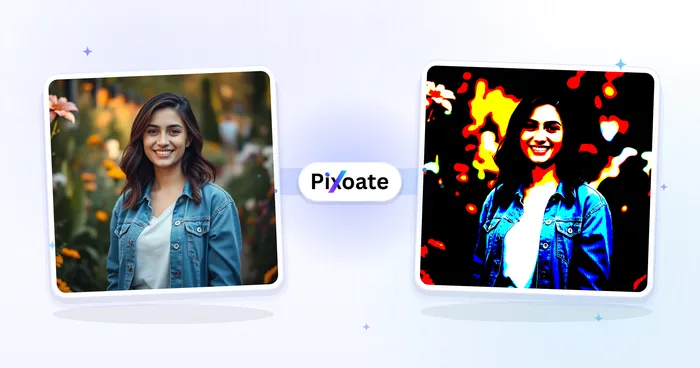
Creative & Design
Cartoon Generator
Turn a photo into original 3D, vector, comic, clay, or custom cartoon artwork with editable AI directions.
Try it now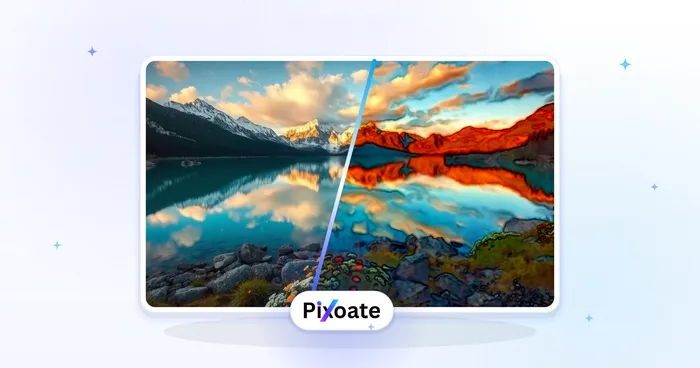
Creative & Design
Watercolor Generator
Convert a photo into a watercolor-style image.
Try it nowFrequently Asked Questions
How AI Image Generator helps you get it done
Real problems it solves every day — for businesses, creators, and everyday tasks. Find the use case that fits you and start.
Blog headers and social posts
Generate an on-topic hero image for a blog post, newsletter or social update instead of hunting stock sites — pick wide 16:9 for headers and square 1:1 for feeds.
Concept art and moodboards
Explore visual directions fast: describe a scene, character or interior, generate variations, and pin the keepers to a moodboard before committing design or illustration budget.
Marketing and product visuals
Mock up campaign imagery, backgrounds and lifestyle scenes for landing pages and ads. Premium high-resolution output holds up in print and full-width hero sections.
Wallpapers, avatars and personal projects
Create custom phone and desktop wallpapers, profile art or artwork for invitations and gifts — portrait 2:3 fits phone screens, square 1:1 fits profile pictures.
Watch each transformation land
Every photo crosses the slash untouched and comes out the other side finished.























