How to Combine Document Photos into One PDF in the Correct Page Order
Combine document photos into one PDF with Pixoate. Arrange page order, check orientation and keep related paperwork together for a clear handoff.
The requested document is on your phone as eight photographs. Their filenames reflect when the camera saved them, not necessarily the order someone should read them. Forwarding eight separate images leaves the recipient to reconstruct the packet.
Use Pixoate Image to PDF to combine document photos. Arrange the pages deliberately, check their orientation and generate one file that is easier to open and review.
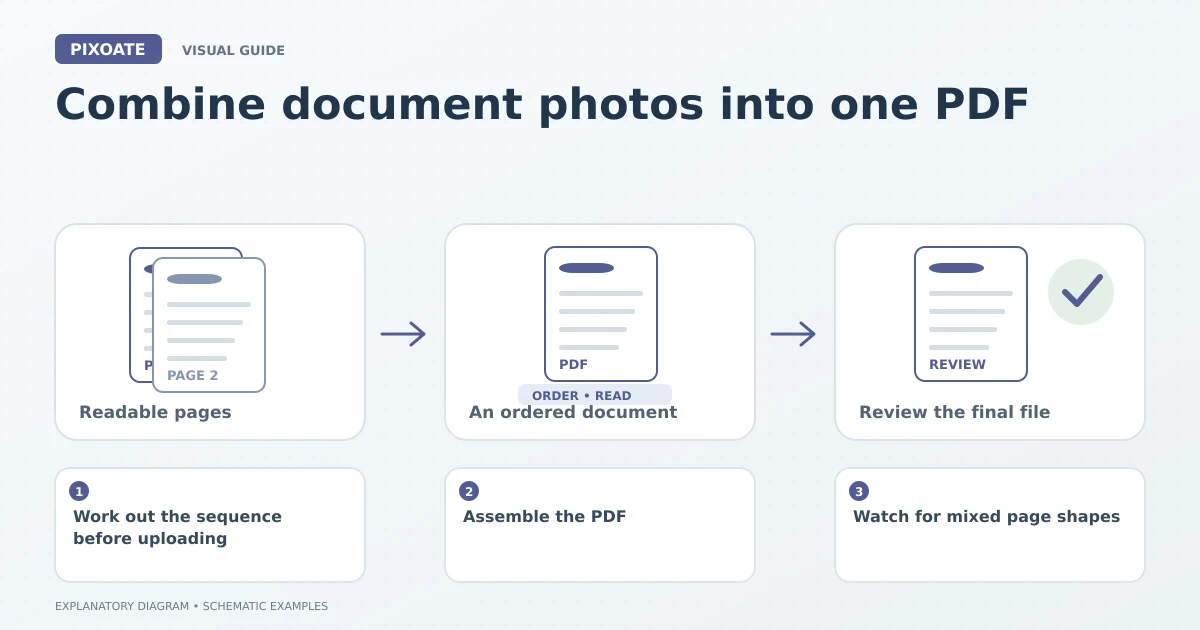
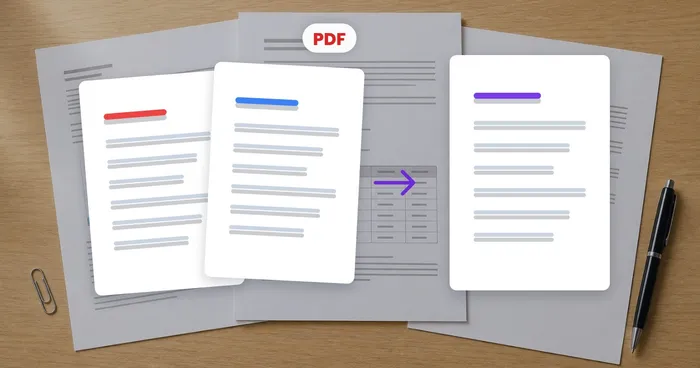
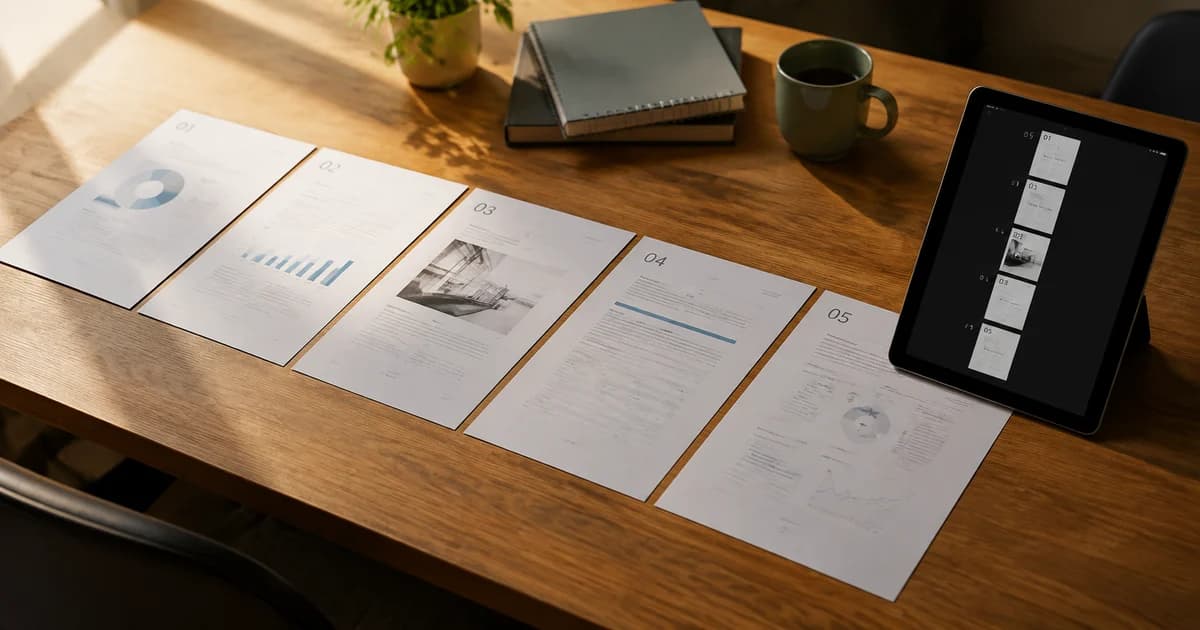
Original explanatory graphic. The scenes and sample records are schematic illustrations, not screenshots or measured tool results.
Work out the sequence before uploading
Identify the cover sheet, continuation pages, attachments and final signature page. Read page numbers and sentence continuations instead of relying only on file timestamps.
Look for duplicate photographs. Keep the clearer version of the same page, but do not mistake a similar-looking reverse side for a duplicate. A form's second page may differ only in a small section near the bottom.
Assemble the PDF
Upload the images to Image to PDF. Use the page controls to drag images into order or move them with the available arrows. Rotate sideways pages and select a paper size and orientation appropriate to the recipient.
Choose an ordinary PDF when the job is to keep the images together. Choose the searchable-text option when recognised text would help, and select the document language. Searchability needs a separate output check; a visible page is not proof of correct recognition.
Before downloading, inspect the first and last page and every transition between sections. After downloading, reopen the PDF and repeat that quick sequence review.
Watch for mixed page shapes
A receipt, a landscape table and a portrait form can all belong in one packet. Decide whether each should retain its proportions or sit on a standard page. Avoid stretching images to fill a page, which can distort text and signatures.
Use margins where they improve printing, but check whether they make a narrow receipt too small to read. When a page is genuinely too distant or blurred, a new capture is more useful than enlarging it inside the PDF.
Add existing PDFs without rebuilding everything
If part of the packet already exists as a PDF, create the image section first and then merge the PDFs into one document. Use PDF Organize to review or rearrange pages if the combined sequence needs adjustment.
Keep a copy of each source while preparing the final packet. That makes it easier to replace one poor page without losing the rest of the work.
Why are the pages in the wrong order?
Upload order, filename sorting and the intended reading order can differ. Explicitly arrange the thumbnails instead of assuming one reflects another.
Should every page face the same direction?
Each page should be easy to read. A wide table may be more useful as a landscape page than as tiny text forced onto a portrait page.
Start with combine multiple images into one PDF, then review the packet as a reader. The important result is a complete, readable sequence rather than simply fewer attachments.