How to Count Shop Inventory from Shelf Photos
Count visible shelf stock, review object markers and export a tally. Learn how to handle hidden items, mixed products and inventory discrepancies.
You counted the display before opening, moved a few boxes during the day, and now the closing count does not match the spreadsheet. In a toy shop, gift store or independent convenience shop, the difficult part is often keeping the count tied to a specific place and time.
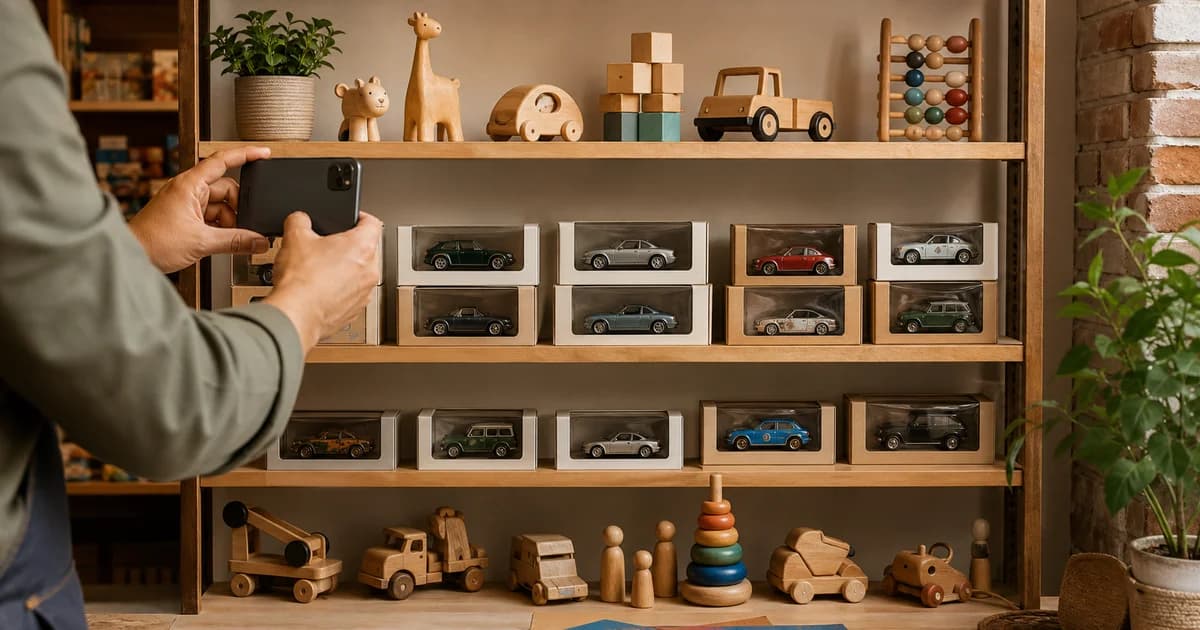
Pixoate can help you count shop inventory from a shelf photo. You review visible items, keep a marked image and add the result to a tally. The photograph makes the count easier to revisit when someone asks what was included.
Define the unit before you count
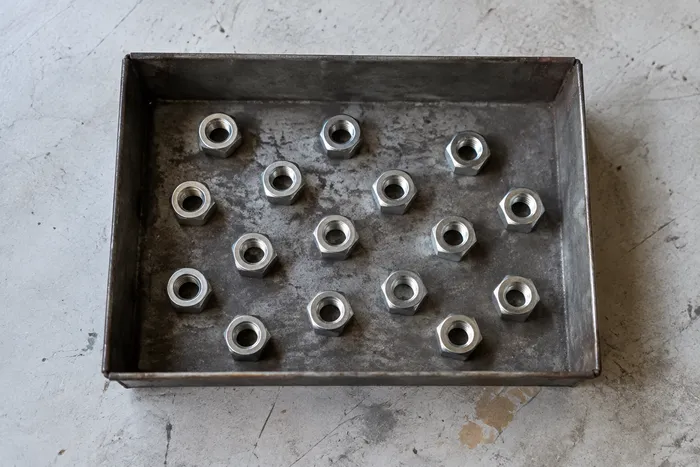
A toy car, a boxed set of six cars and a shipping carton are three different inventory units. The counter needs to be shown the object you mean. A box around one wheel can produce a very different interpretation from a box around a complete toy.
Separate products that look alike but have different stock codes. A photograph may not reliably distinguish two identical boxes containing different colours or sizes. Keep stock identification in your inventory records; use the photo to support the visible quantity.
How to create a reviewed shelf count
- Photograph one clearly defined shelf or tray with even lighting. Pull forward items only if that is part of your normal, safe stocktaking process.
- Open the object counter for retail stock photos and upload the original image.
- For repeated items, mark one to three complete examples. Use tight boxes around whole objects rather than labels, wheels or packaging details.
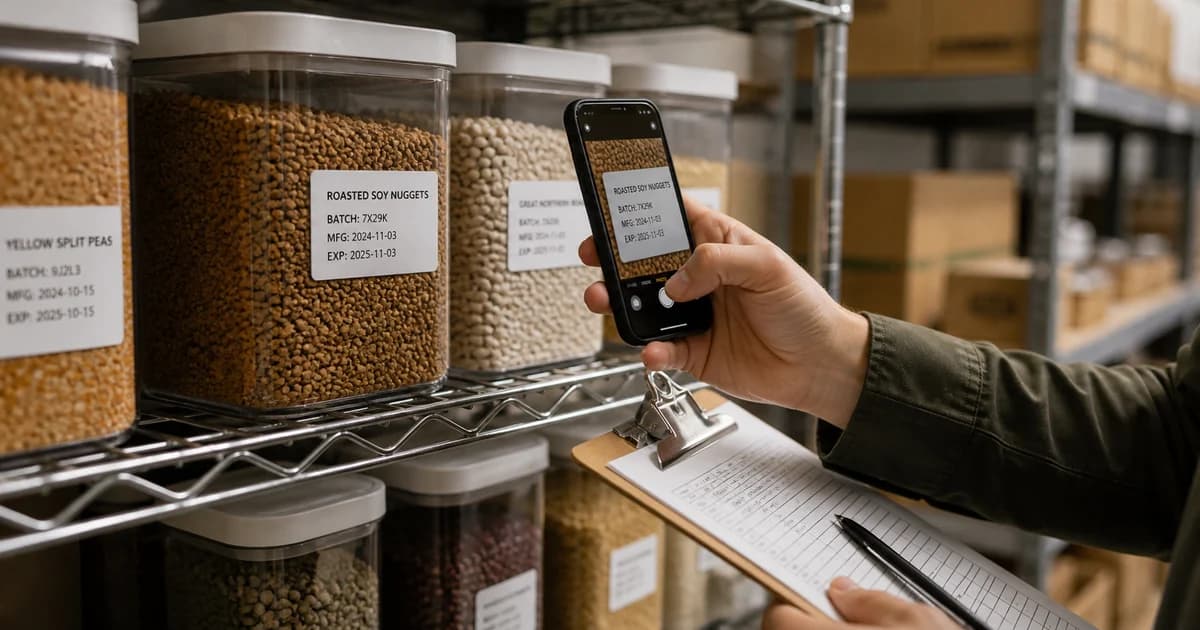
- Choose Count, then check the result markers and any selected reference. Review misses, duplicates and matches to the wrong product.
- Add the reviewed result to the tally and give it a clear label, such as “Aisle 2, shelf B, boxed red cars.” Export the tally as CSV or a PDF report when needed.
Pixoate also has a Bulk audit mode using the Distinct objects detector. Example-guided counts are performed individually with examples for each photo. Do not assume one marked toy will be reused as a counting template across an entire batch.
A photograph cannot see stock behind stock
A front-facing image may show eight bottles even though four more sit behind them. It may also show an empty display box that still looks like a saleable unit. Count only what is actually visible and verified.
For deeper shelves, use separate views or a physical count for hidden units. Avoid overlapping photographs that include the same items twice. Keep back-room stock and shop-floor stock in separately labelled rows, then reconcile them using your existing records.
Use a discrepancy to investigate, not accuse
Suppose a toy shop starts with 24 units, receives 12 more, records nine sales and removes two damaged units. Its illustrative expected closing stock is 25 units: 24 + 12 − 9 − 2. Transfers, returns and other movements also need to be included where relevant.
If the reviewed physical count differs, check those records and recount the affected stock. A discrepancy can come from hidden items, a mistaken unit definition, an unrecorded transfer or a counting error. A lower count is not proof of theft, and this tool does not determine who moved an item.
Make tomorrow's stocktake easier
Use the same shelf labels and capture positions each day. Record the time and reviewer with each count. Before replacing a stock figure in your business system, check whether stock has moved since the image was taken.
A small US gift store might start with its fastest-moving display. A UK toy shop might use the workflow for one shelf at closing. Both can learn whether the process helps before expanding it across the premises.
Can the counter update our point-of-sale system?
This workflow exports a reviewed tally. It does not promise automatic POS synchronisation, barcode identification or sales reconciliation.
What if the result looks wrong?
Check the example boxes, lighting and object visibility. Retake the photograph or count manually when the image does not support a reliable result.
Try a single shelf with the AI inventory photo counter, then compare its reviewed tally with your normal count before making it part of a daily routine.