How to Make a PDF from a Word File, Photos or a Scan
Choose the right way to make a PDF document from a Word file, photos, a web page or paper, then set the page order and check size and searchability.
Written by the Pixoate team. We check how each tool behaves before we describe it, and we date any prices or portal rules we quote.
"Make a PDF" is a different job depending on what you are starting from. A Word file, a stack of phone photos, a paper form and a web page each have their own shortest route, and the wrong one is how people end up with a PDF that is out of order, too large or impossible to search.
The rule of thumb: if the content already exists as a document, convert it. If it is pictures, build the PDF from the pictures. If it is paper, scan it. If you have several pieces, make each one a PDF and combine them last.
Pick the route by what you have
| You have | Route | Pixoate tool |
|---|---|---|
| A Word file (DOC, DOCX, ODT, RTF) | Convert the document | Word to PDF |
| Photos or screenshots on your device | Place each picture on a page | Image to PDF |
| Paper pages | Capture them with a camera and clean them up | Scan to PDF |
| A web page | Print it and save as PDF in your browser | Your browser's print dialog |
| Several of the above | Make each one a PDF, then join them | Merge PDF |
Make a PDF from a Word file
- Save the document, so the file you upload has your latest edits.
- Open Word to PDF and add the .doc, .docx, .odt or .rtf file.
- Select Convert to PDF, then See result, then Download.
- Open the PDF and scroll through it, paying attention to page breaks, tables, headers and footers.
There are no settings, and the whole document is converted, so there is no page range. Spreadsheets and slides have their own converters: Excel to PDF takes XLS, XLSX, ODS and CSV, and PowerPoint to PDF takes PPT, PPTX and ODP.
The PDF is exported from the document itself, so its text stays text. You can search it, select it and copy from it. Only supported fonts and layout carry over, so if something moved, adjust the Word file and convert again.
Make a PDF from photos or screenshots
Image to PDF puts one picture on each page, in the order of its Pages list, and accepts JPG, PNG, WebP and HEIC.
- Add the pictures.
- Drag the rows, or use the up and down arrows, until the thumbnails are in reading order. File names are not a reliable guide for camera photos.
- Choose Paper size. A4 or Letter suits a document you will print or submit. Image fit makes each page the size of its picture, which suits screenshots of different shapes.
- Select Make my PDF, then See result, then Download.
Each picture is saved inside the PDF as a compressed JPEG, and transparent areas turn white. There is no per-page rotation or cropping, so straighten and trim a photo before you add it. If the pages need to be searchable, switch What should the PDF do? to Make text searchable.
Make a PDF from paper
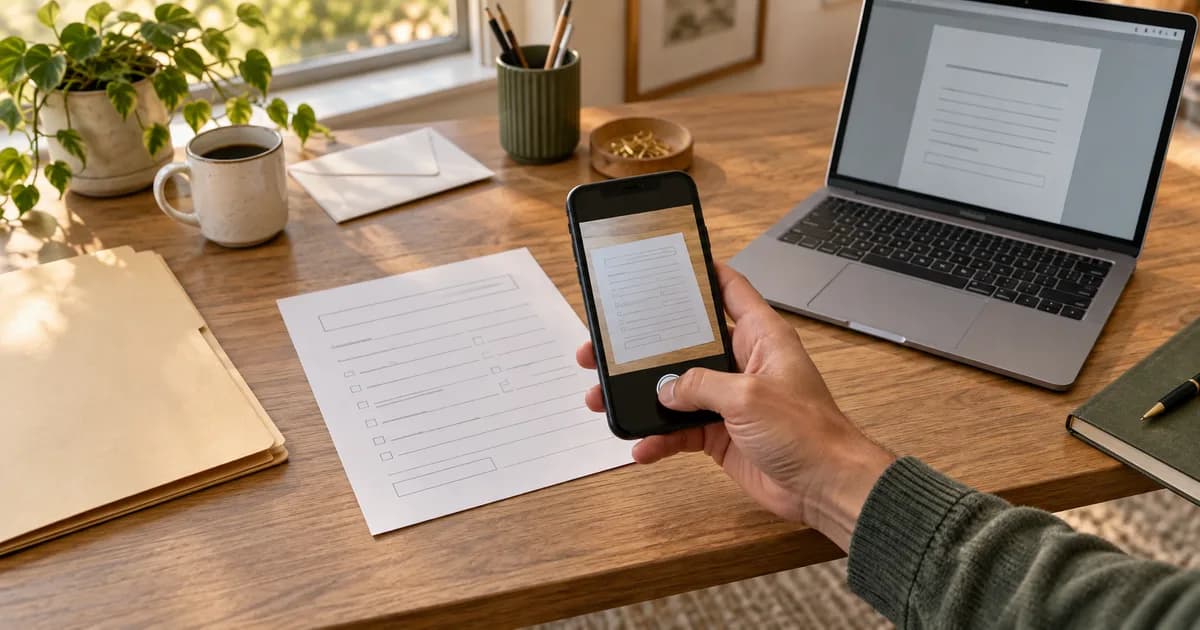
Photographing paper on a desk gives you shadows, tilted edges and a cluttered background. Scan to PDF is built for that.
- Select Scan my document, allow camera access and select Capture page for each sheet. You can also add photos with From gallery.
- Leave Auto-crop page edges and Straighten (deskew) on. They start switched on.
- Pick a Scan mode: Auto keeps color and whitens the paper, B&W gives crisp text and Grayscale keeps tones.
- Choose a page size in the Output tab: A4, Letter, Legal or Fit.
- Select Build PDF & Download. The pages are assembled in your browser.
Use Image to PDF instead when the pictures are already clean, such as screenshots or flatbed scans. The guide to converting a JPG or PNG to PDF shows the settings to choose for a portal, an email or a printer. The text recognition step is an option in both tools and sends pages for processing.
Make a PDF from a web page
The browser already has this built in. Open the page, choose Print and pick Save as PDF as the destination. The wording differs between browsers and operating systems, and some offer Export as PDF in a menu instead.
Check the preview before you save. Long pages are cut across sheets, and some pages hide menus or backgrounds when printed. If you need the page exactly as it looks on screen, take a screenshot and build the PDF from it with Image to PDF.
Put the pieces together in the right order
When one PDF has to contain a Word letter, a set of photos and a scanned form, convert each part first, then join them with Merge PDF.
- Add the PDFs. The badge on each card is its position in the finished file.
- Drag the cards into order, or use the small arrows.
- Select Merge my PDFs, then See result and download the combined file.
Merge PDF reads PDFs only and takes up to 20 files at a time. The pages inside each file keep their order. If the result comes out wrong, the guide to fixing a merged PDF explains how to trace the cause.
Here is an invented example
Someone applying for a rental needs to send one PDF containing a cover letter written in Word, four phone photos of a pay slip, and a signed page that exists only on paper. They convert the letter with Word to PDF, photograph the signed page with Scan to PDF in Auto mode, and build the pay-slip photos into a PDF with Image to PDF, checking the thumbnails so the four pictures are in reading order. Then they merge the three PDFs: letter first, pay slip second, signed page last.
The check afterward is short. Six pages were expected (one letter page, four photos, one signed page), and six came out. The pay-slip pages are slightly darker than the letter, so the applicant retakes one photo in better light rather than sending a shadowy page. The point is that each piece was made with the route that suited it, and nothing was fixed after merging that could have been fixed before.
Check size and searchability before you send it
- Pages: the page count should equal the parts added together, and the order should match what the reader expects.
- Searchable text: a PDF from a Word file is searchable. Pictures and scans are image-only unless you chose the searchable option. Try to select one word on a page, or use your viewer's find command.
- Size: photos make large PDFs. In Scan to PDF the Quality slider runs from 40 to 100 percent, and a lower value gives a smaller file. For any finished PDF, shrink it with Compress PDF and look at the pages again.
When it goes wrong
- The pages are in the wrong order. Fix the order before you build, using the thumbnails, because the tool builds in the order it is shown.
- The text is blurry. The source picture was soft, or a heavy size reduction was used. Start again from the sharpest original.
- The PDF is too heavy. Photos are large. Reduce them or compress the finished file, then look at the small print again.
- The Word layout moved. Adjust the Word file and convert again, as unusual fonts and complex tables do not always carry over.
- You cannot select any text. The pages are pictures. Use the searchable option, or run recognition on the pages you need.
Frequently asked questions
How do I put a Word document and photos in one PDF?
Convert the Word file with Word to PDF, build a second PDF from the photos with Image to PDF, then join them with Merge PDF in the order you want. Merge reads PDFs only, so each piece has to be a PDF first.
Why does my PDF look different from the Word file?
Only supported fonts and layout carry over, so line and page breaks can shift in documents with unusual fonts or complex tables. Read the PDF once before sending it, adjust the Word file if needed and convert again.
How can I tell whether a PDF is searchable?
Open it, click in the text and try to select a single word, or use the find command and type a word you can see. If nothing selects or matches, the pages are pictures of text.
Should I use Scan to PDF or Image to PDF for a paper form?
Scan to PDF when you are capturing paper with a camera, because it straightens and crops the pages. Image to PDF when the pictures are clean already and you want them placed as they are.
Start from what you have, then turn the Word file into a PDF or pick the route above that matches your pages.