
How to Improve Shopify Product Images in Bulk for Better Listings
Improve Shopify product images in bulk with Pixoate. Review backgrounds, detail, resolution and file size to create a clearer, more consistent catalogue.
A growing Shopify catalogue rarely arrives in one tidy photo session. Some images come from suppliers, some from a phone and others from last season's campaign. Improving them in bulk begins with deciding which problems can share a treatment.
Pixoate combines focused tools for bulk product photo enhancement, backgrounds, resolution and file size. Work through those stages deliberately, then upload the reviewed results to Shopify yourself; these tools do not automatically update your store.
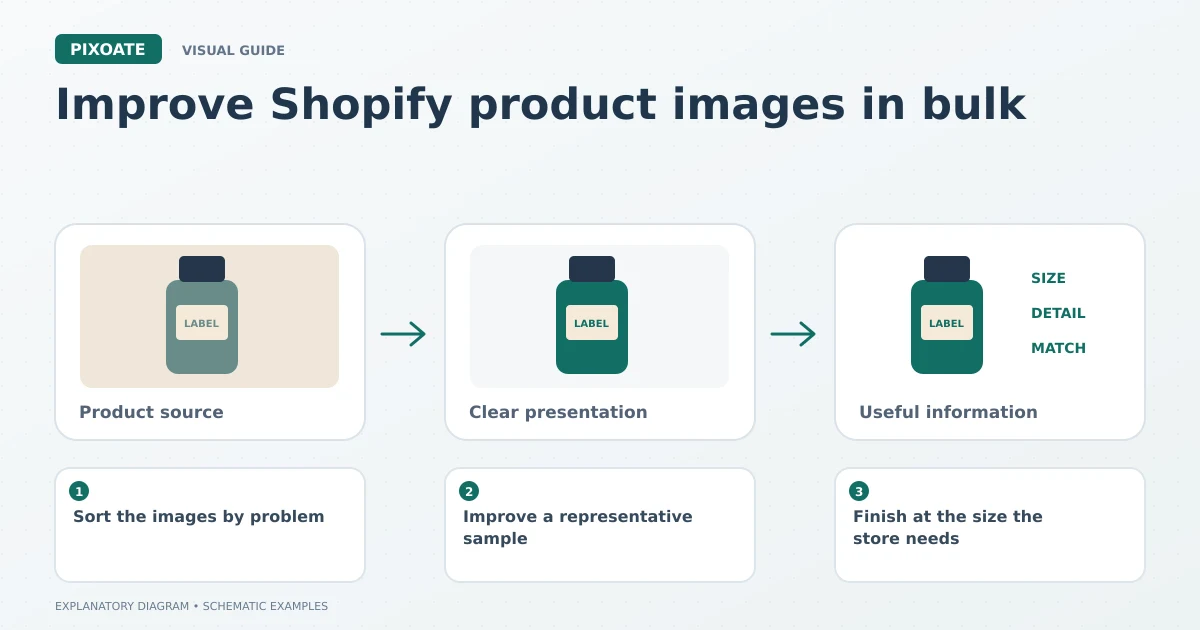
Original explanatory graphic. The scenes and sample records are schematic illustrations, not screenshots or measured tool results.
Sort the images by problem
Separate dark photos, cluttered backgrounds, low-resolution sources and oversized files. A single aggressive adjustment is unlikely to suit a pale product photographed in daylight and a dark product photographed indoors.
Keep filenames connected to the correct product and variant. A beautiful blue-shirt image attached to the black-shirt variant creates a problem that image quality cannot solve.
Improve a representative sample
Start with the clearest available originals. Use Pixoate Photo Enhancer for appropriate light, noise, colour and detail adjustments. Compare labels, materials and product colour with the source.
For cutouts and catalogue consistency, remove product backgrounds in bulk. Review thin edges, handles, transparent areas and shadows. The product-layout controls can help standardise centring, spacing and square output where available.
Use bulk image upscaling when the source dimensions are inadequate for the intended display. More pixels do not prove that generated lettering or texture is authentic, so inspect those details carefully.
Finish at the size the store needs
Choose consistent dimensions for comparable listing placements, then compress product images for web delivery. Avoid making every image enormous simply because a larger export is possible.
Review the uploaded result in your actual theme. Image treatment, theme cropping and the platform's delivery behaviour can each affect what visitors see. Check collection cards, product pages and mobile layouts separately.
| Review point | What to look for |
|---|---|
| Product identity | Correct item, variant, quantity and packaging |
| Image detail | Readable labels and plausible texture |
| Catalogue consistency | Similar spacing and visual scale |
| Mobile view | Intact product edges and readable useful details |
| File handling | Manageable size and a format accepted by the destination |
Measure a real business outcome
Shopify's product-photography guidance [1] connects clear, high-quality photographs with showing customers what they will receive and building trust. That does not establish a guaranteed sales increase for your particular store.
Record the changes you make and compare relevant store results with attention to traffic, pricing and promotions. Customer questions about colour or included items can also reveal whether the images are doing a clearer job.
Does batch processing remove the need to inspect each photo?
No. Shared settings make repeated processing convenient, but one awkward cutout or altered label still needs individual attention.
Do I need every tool for every image?
Use only the stages that solve a visible problem. Begin with one representative product image, approve the treatment and extend it to similar sources.
Sources
- product-photography guidance:
https://help.shopify.com/en/manual/products/product-media/product-photography