


Clothing Product Photo Generator
Generative output can vary; review the full result before publishing
Apparel photography is texture-and-drape photography — the weave must read, the fall of the fabric must look like fabric. This direction stages your garment in a catalog-grade setting — flat-lay, hung, or on a form, as you photographed it — with the AI asked to keep weave detail from your photo.
- Prepared Clothing direction
- Editable prompt
- Source-detail review required
Choose a source image for Clothing
JPG, PNG, WebP, HEIC, and other supported formats. Free up to 20 MB; Premium and higher up to 50 MB for this tool.
Garments: flat-lays, hangers and what gets replaced
How you shoot the garment decides what the scene can be. A shirt photographed on a hanger is likely to keep the hanger and its hook, because they touch the garment in the photo. A flat-lay shot from directly above needs a surface seen from above, but the Warm wood look describes a wall behind the product. For flat-lays, write your own direction instead, for example 'seen from directly above on pale linen, soft daylight from the top of the frame'.
Wrinkles, lint and pet hair are part of the garment and are likely to stay in the result, so steam the piece and roll it with tape first. Fabric color is also asked to stay as photographed, which means black cotton shot in dim light stays muddy. Shoot dark pieces with more light than seems necessary, and pale pieces against a mid-tone surface so their edges separate cleanly.
If you want a fashion look with ready-made settings, the clothing photoshoot page includes a linen flat-lay seen from above. For a plain marketplace version of the same piece, cut the garment out onto a clean background.
Set up for Clothing Product Photo Generator
Prepared settings
- Starting point
- Upload one source image
- The page opens on the correct edit workflow; upload is the only required setup step.
- Prepared workflow
- Prepared Clothing scene direction
- Clothing Product Photo Generator opens with the Clothing direction preselected, so there is no need to find the operation manually.
- Output shape
- Same as your upload
- The result keeps the shape of the image you upload.
- Review rule
- Preserve the source subject and verify factual details
- Generated imagery can vary; the final result stays under the user's approval before download.
Best-fit uses
- Marketplace-ready flat-lays and hung presentations
- Catalog consistency across a clothing line
- Fabric-true heroes for small fashion brands
Frequently asked questions
- Flat-lay, hanger, or model presentation?
- Flat-lay for casual and knits, hung for structure and drape, model context for fit-critical pieces. A garment-only first image compares cleanly in the grid; this page stages the garment from your photo and does not add a person.
- How do I keep blacks and whites honest?
- Expose for both ends when you shoot — the garment keeps your photo's exposure, so black garments need visible seams and whites need visible weave in the source. Review both extremes at zoom; crushed blacks and blown whites are apparel's classic listing failures.
- What should I review in a Clothing result?
- Check the subject, product geometry, colors, labels, logos, identity-relevant details, shadows, and edges against the source. Reject any output that changes a factual detail.
- What rights checks apply to a Clothing client project?
- Use only source material and references you have rights to, follow the destination platform rules, and obtain any required person or property permissions. Generated output still needs a human accuracy and rights review.
What you can do with AI Product Background Generator
Review the main capabilities before you begin.
- Build a backdrop around your product from a single photo
- Generate studio sweeps, podiums, gradients, and natural scenes
- Ask the AI to keep the product and label as photographed
- Prepare product concepts for listings and campaigns
Settings reference
4 settings
Available controls for AI Product Background Generator.
Workflow
- Single image or Batch imagesPresets
- Process one image, or use Premium Batch images to apply the same automatic recipe to a set and download one ZIP.Options: Single imageBatch images
Backdrops
- One-tap presetsPresets
- Pick a ready-made direction with one tap; generation uses the selected preset automatically.Options: White studioWarm beigeColor gradientStone podiumBotanical
- Custom instructions (optional)Text input
- Describe the requested change, relevant materials, lighting, perspective, and details that must remain unchanged.
Selection
- Selection brush sizeSliderRange: 4–160px · Default: 32px
- The subject area is found automatically. This brush appears only if that automatic area could not be found; paint the area to edit, then generate again.
Related tools for Clothing Product Photo Generator
Tools for common next steps after Clothing Product Photo Generator.

Background Studio
Remove Background
Remove a photo background and download a transparent PNG. Review hair and edges before use.
Try it now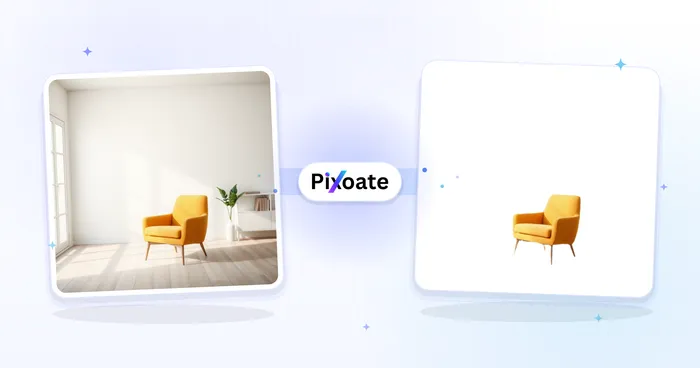
Background Studio
White Background Maker
Replace a photo background with white for product listings.
Try it now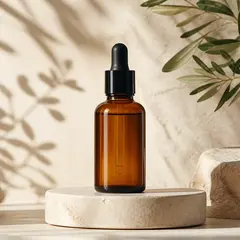
Product Photography Studio
AI Product Photos
Generate a background scene around your product. Describe the setting and review the result.
Try it nowGuides for this tool
- The Seasonal Campaign That Never Launched: When Product Photography Slows MarketingSeasonal campaigns can stall when every image needs a new photoshoot. Explore how Pixoate helps adapt existing product photos into useful campaign assets.
- How to Create AI Lifestyle Product Photos Without a Studio PhotoshootCreate AI lifestyle product photos with Pixoate. Explore settings for small business campaigns and review product shape, colour and scale before use.
Watch each transformation land
Every photo crosses the slash untouched and comes out the other side finished.























