How to Create a Scanned PDF from Phone Photos Using Pixoate
Create a scanned PDF from phone photos with Pixoate. Prepare readable pages, choose searchable output when needed and check the final document.
You photograph a form because there is no scanner nearby. The words are visible, but the page is tilted, the table underneath is in the frame and a shadow crosses the bottom. Sending that photo may make the recipient do the cleanup for you.
Pixoate's scan-to-PDF tool for phone photos provides document-oriented cleanup and page assembly. It can help turn readable captures into an organised PDF without making you reproduce the paperwork.
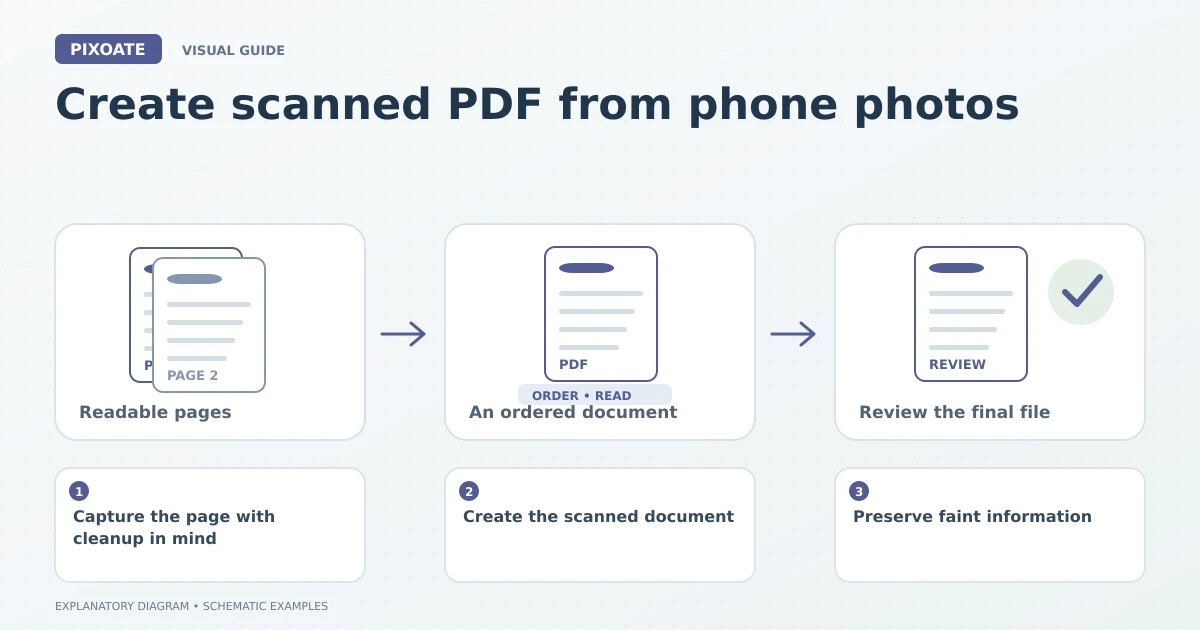
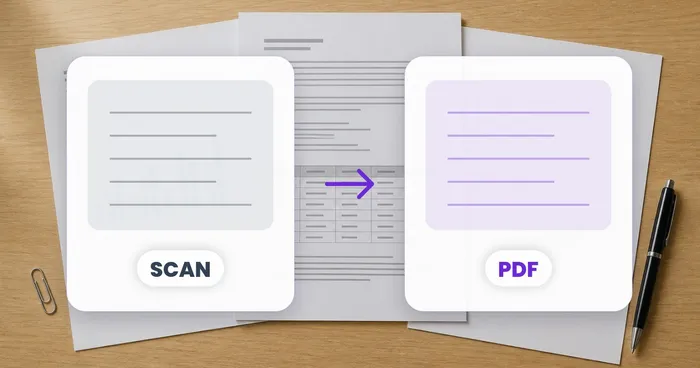
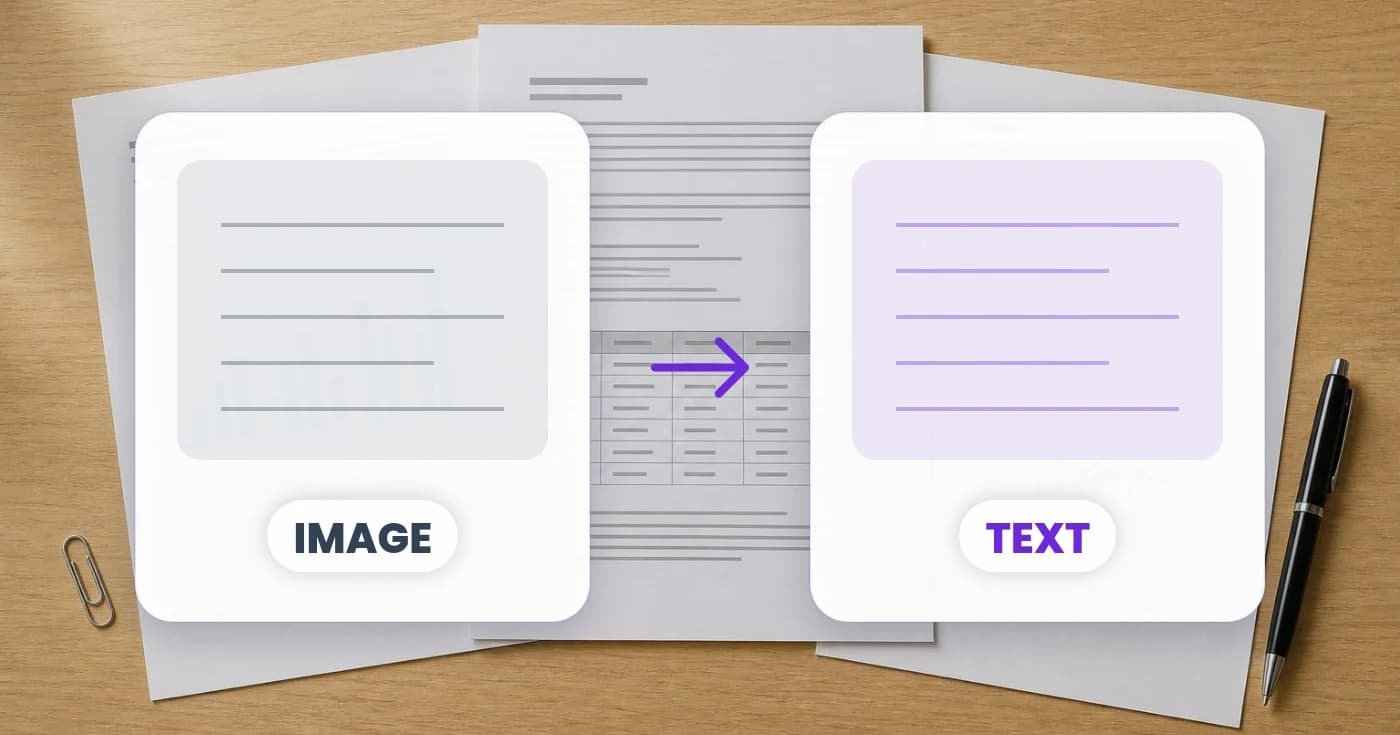
Original explanatory graphic. The scenes and sample records are schematic illustrations, not screenshots or measured tool results.
Capture the page with cleanup in mind
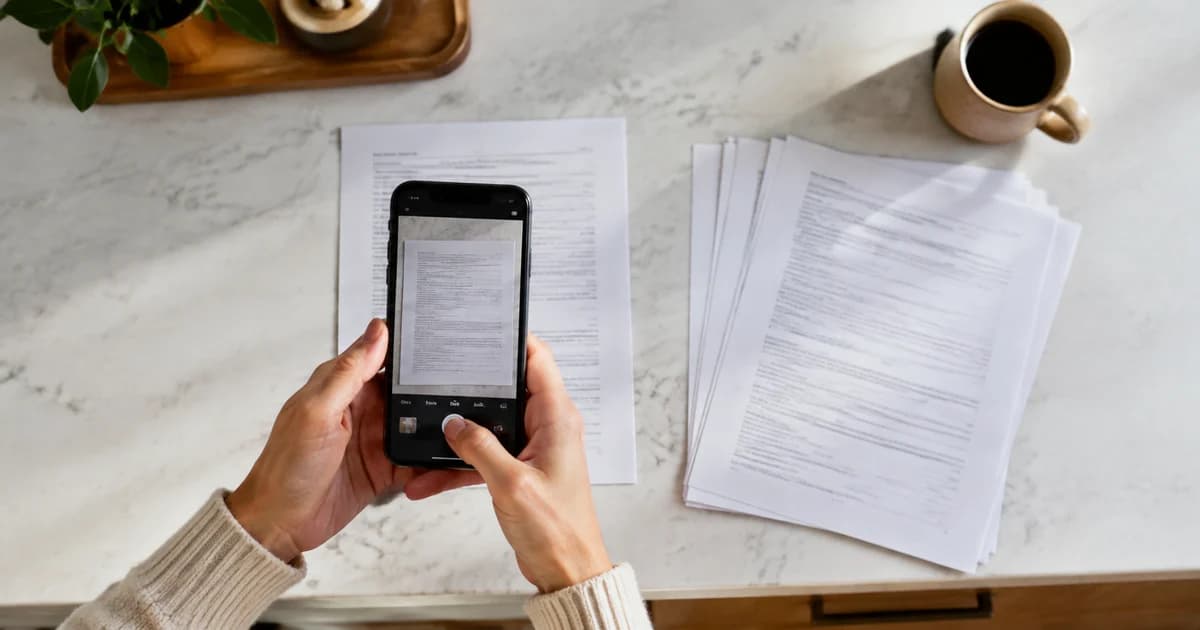
Lay the document flat, avoid glare and hold the camera as parallel to the page as possible. Include all four corners. A simple contrasting surface makes the paper boundary easier to identify.
Take one clear photograph per page. Check the smallest text before moving on; a scanner effect cannot establish words that were never readable in the source. Keep signatures, stamps and handwritten additions inside the frame.
Create the scanned document
- Upload the page images to Scan to PDF.
- Review automatic page-edge cropping and straightening.
- Choose a scan appearance: Auto, black and white, grayscale or Original.
- Adjust shadow removal, brightness or contrast only as needed.
- Rotate and reorder the pages, then choose page size and orientation.
- Generate the PDF and inspect the downloaded document.
Black and white may suit a plain text form, while grayscale or colour can better preserve stamps, shaded charts and photographs. Compare the result with the original before deciding that a cleaner-looking page is the better record.
Preserve faint information
Excessive cleanup can wash out pencil marks or pale ink. A setting that improves the printed heading may harm a handwritten note at the bottom. Review those areas separately.
For a multi-page document, confirm that every page belongs to the same job and that blank reverse sides are handled intentionally. Numbered pages, continued sentences and signatures can help you detect a missing page.
Decide whether the PDF needs searchable text
A scanned appearance and a searchable text layer are separate features. If the recipient must find words or copy recognised text, use create a searchable PDF from images and verify search results in the downloaded file.
When retaining the cleaned Scan to PDF output, use a supported PDF OCR workflow rather than feeding the PDF into a tool that accepts only images. Keep the original captures so you can choose the appropriate route without losing the source.
If the final document exceeds an upload limit, compress the scanned PDF, then check small print again. Do not remove required pages simply to reduce its size.
Which paper size should I choose?
Use the recipient's requirement. A4 and US Letter are different page sizes; Fit can follow the image proportions when a standard printed page is unnecessary.
Can this repair a cut-off signature?
No. Retake an incomplete photograph. Cleanup should improve presentation of existing information, not invent missing document content.
Open Pixoate Scan to PDF with one readable capture, choose restrained cleanup settings and review the final pages in the order the recipient will read them.