Make Scanned Household Paperwork Searchable for Your Family
Convert scanned image pages into a searchable PDF. Test recognised text, page order and the actual viewer, with practical checks for older family members.
The guarantee is somewhere in a folder of scanned letters. You remember the appliance name but not the filename, and searching the PDF finds nothing. The pages are visible, yet the words are still trapped in images.
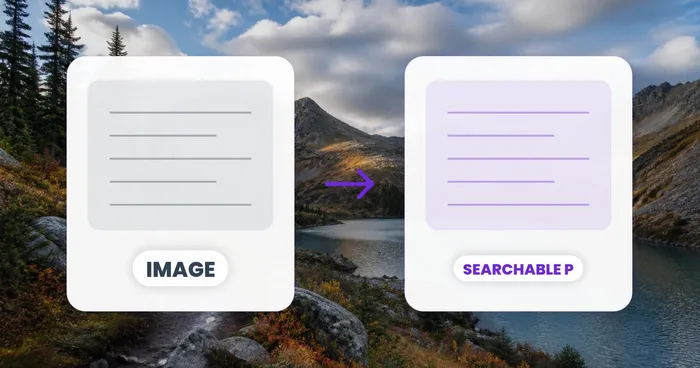
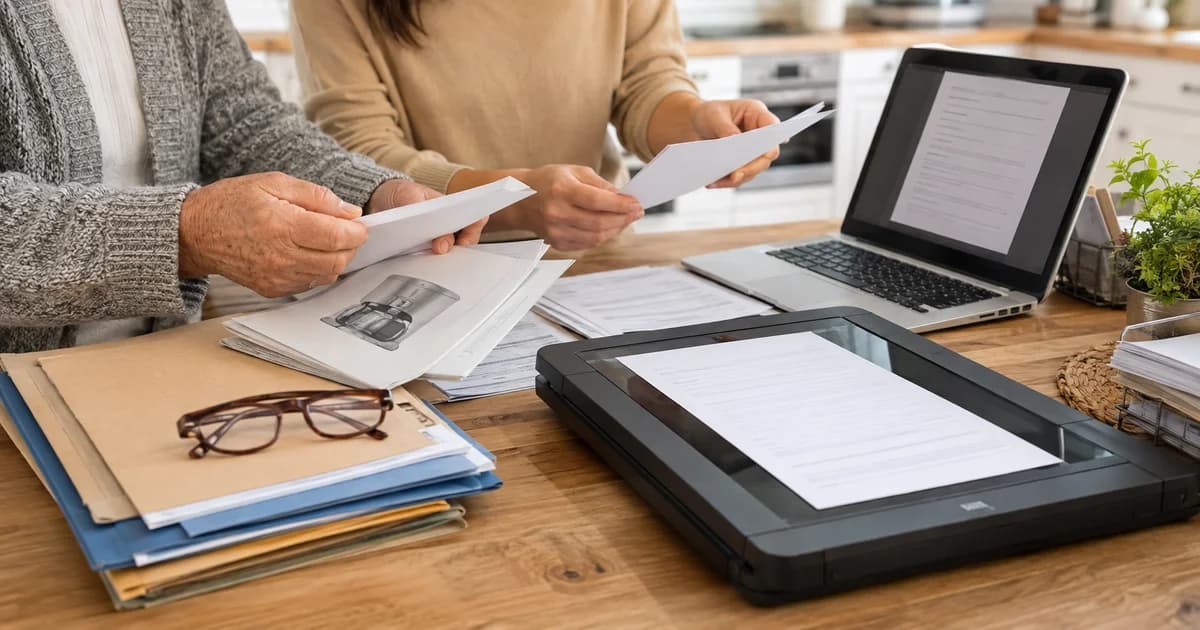
Pixoate's searchable PDF maker for scanned image pages adds an OCR text layer while keeping the scanned pages visible. It can help turn a small set of household papers into a document where a family member can look for a name, reference or heading.
Start with image pages, not an existing PDF
This tool accepts image files. If your scanner or phone has produced JPG or PNG pages, those can form the starting point. An existing PDF document belongs to a different workflow, such as the PDF editor's scanned-page OCR.
Keeping that distinction clear saves time. Renaming a PDF to .jpg does not convert its contents, and an image-only upload should not be expected to accept it.
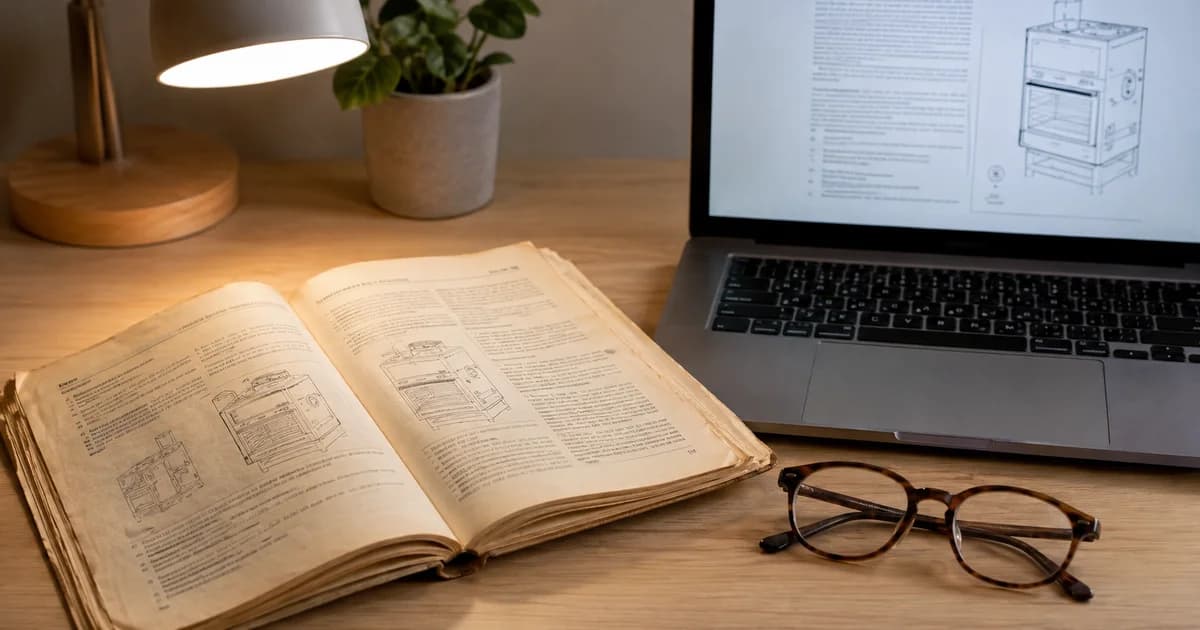
For a household archive, choose a manageable group of related pages, such as one appliance manual section or a set of club notices. The interface shows the supported page and file limits; check them before assembling a large archive.
How to make scanned images searchable
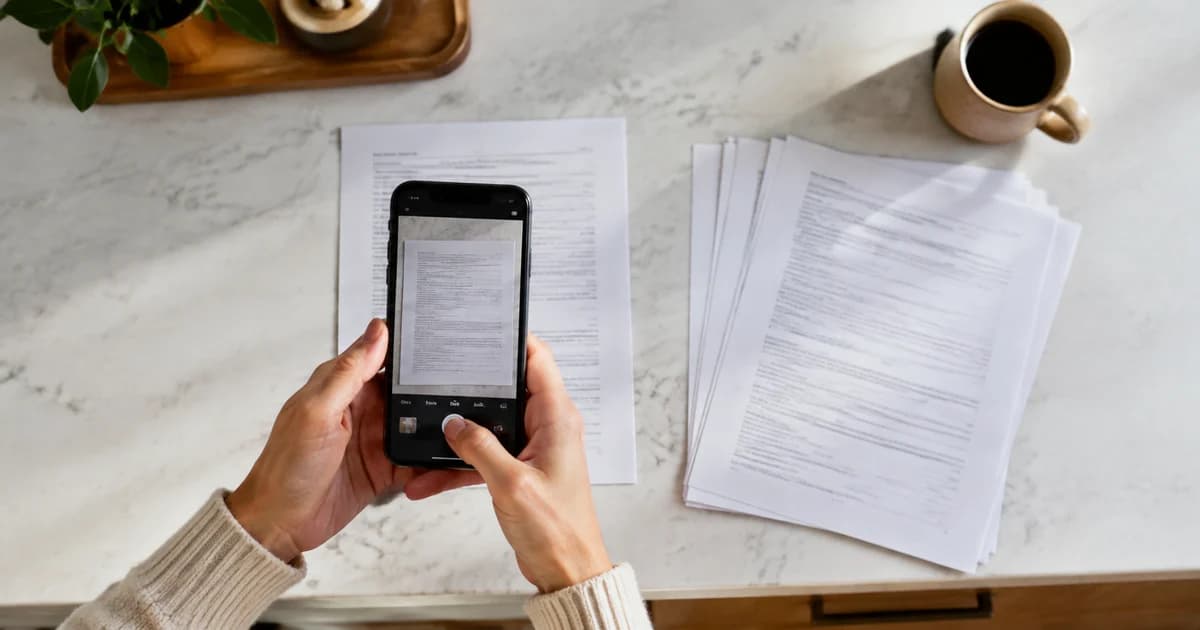
- Capture each page flat, upright and fully inside the frame, with readable text and no glare.
- Open the image-to-searchable-PDF tool and add the image pages.
- Put the pages in the intended order and confirm the searchable OCR workflow is selected.
- Generate the PDF and download it.
- Open the download, search for a word you can see on each page, and compare selected or copied text with the scan.
Test more than a heading on the first page. A successful search there does not prove that later pages, small print or rotated images were recognised correctly.
Make a file that someone else can navigate
Use a descriptive filename containing the subject and a date where useful. Keep the original image pages in a separate folder. If you share the PDF with a relative, explain what it contains rather than sending an unexplained attachment.
For an older family member, demonstrate the search control in the viewer they actually use. On many desktop viewers, Ctrl+F or Command+F opens search; phone interfaces differ. Practise with an obvious word and show how to move between matches.
Use unambiguous dates in your own filenames. A written month or year-month-day pattern can prevent confusion between US and UK date conventions without changing the scanned document itself.
Searchable does not automatically mean accessible
The W3C's OCR guidance describes checking recognised text and its reading order. OCR alone does not guarantee correct headings, document tags, reading order or full compatibility with assistive technology.
If a relative uses a screen reader or needs reflowing large text, test the final file with that person and their actual software. For an important document, request an accessible original from the issuer when the scan remains difficult to use.
For large-print notes, you may copy verified text into a document you control and format it for the reader. Clearly distinguish your working notes from the issuer's original, and check names, dates and numbers against the source.
Handle private household papers carefully
Start with an ordinary manual or non-sensitive notice while learning the workflow. Before uploading personal paperwork, confirm that you have permission and review the service's security and retention policy.
Keep shared folders limited to the intended recipients. The convenience of searchable text also makes it easier to find information that should not have been included in a shared document.
If the finished PDF is too large for an agreed sharing channel, try PDF compression for scanned documents, then repeat the search and readability checks on the compressed copy.
What if search still finds nothing?
Check the selected workflow, page clarity and output file. Try a clearer source and search a plainly printed word. Do not assume OCR succeeded just because a PDF was created.
Will handwriting work as well as print?
Handwriting varies greatly and needs its own careful review. Do not depend on uncertain recognition for important names, instructions or amounts.
Start with a few related pages and make your scanned household paperwork searchable. Verify the result in the viewer your family will use before expanding the archive.