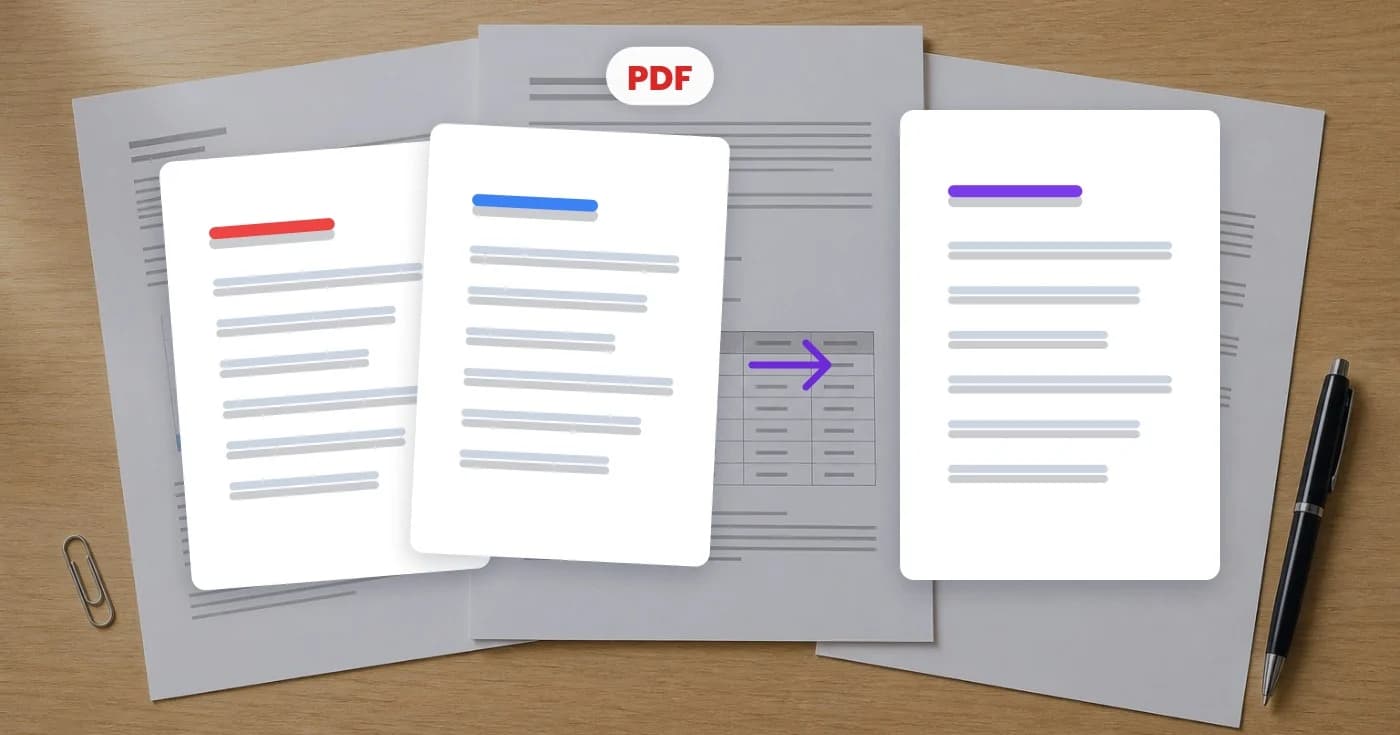
Edit PDF Forms and Handouts Without Retyping Every Page
Make supported PDF text corrections, add answers and use page OCR when needed. Check exported forms, font limits and sensitive information before sharing.
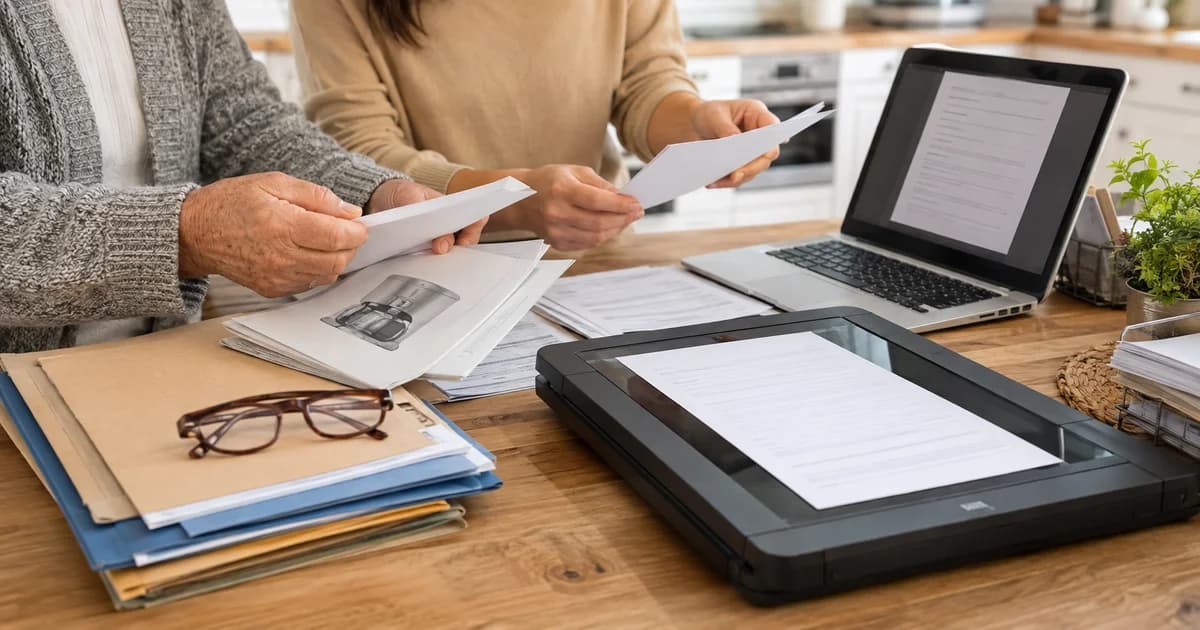
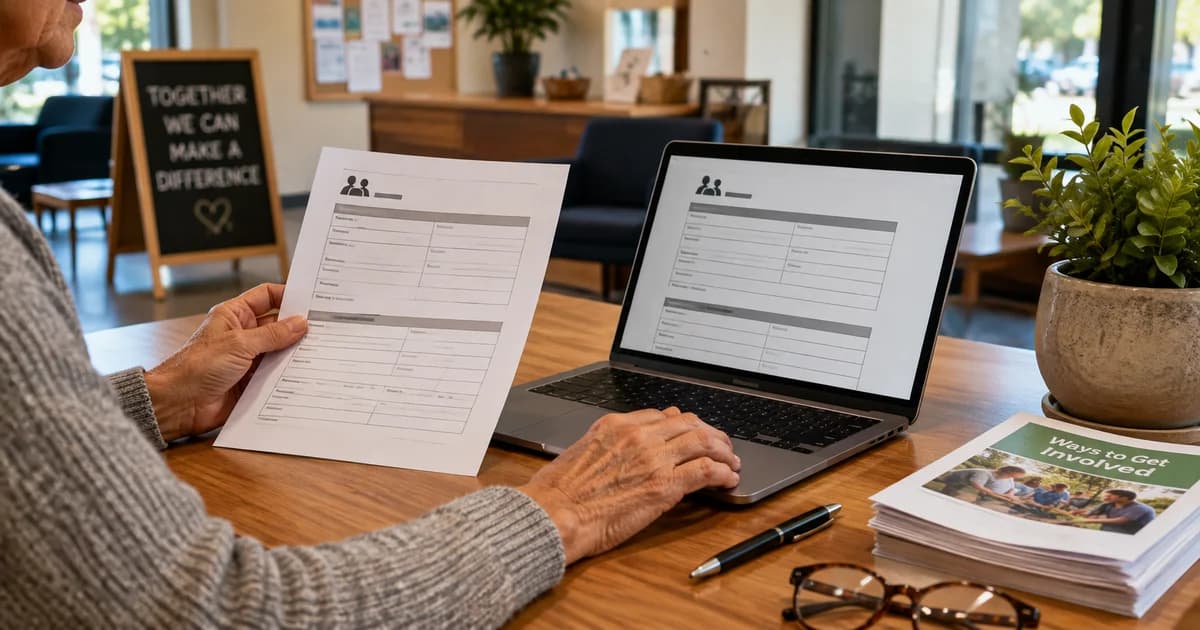
The community centre sends a PDF registration sheet, the organiser asks for one corrected contact line, and the original document is nowhere to be found. Printing, writing by hand and scanning everything again is possible, but it introduces another generation of blur and another file to keep track of.
Pixoate's online PDF editor for adding and correcting text can help with supported edits. It lets you work on a copy of the PDF and review the result before downloading, which is useful for household paperwork, volunteer documents and small-business handouts.
Check what kind of PDF you have
Try selecting an existing line. Some PDFs contain digital text; others are pictures of a page. A third category contains interactive form fields. The best workflow depends on that distinction.
Pixoate can replace supported Latin text on unrotated pages and add text overlays. It also offers page OCR for scans. It does not promise perfect editing of every font, language, rotated page or complex layout.
If the issuer supplies a fillable form or an editable original, use that route when it meets the requirement. For filling existing fields, the PDF form-filling tool may be the more suitable starting point.
How to make a small PDF correction
- Save a copy of the original with a clear filename. Make sure the document is yours to edit or that the organiser has authorised the change.
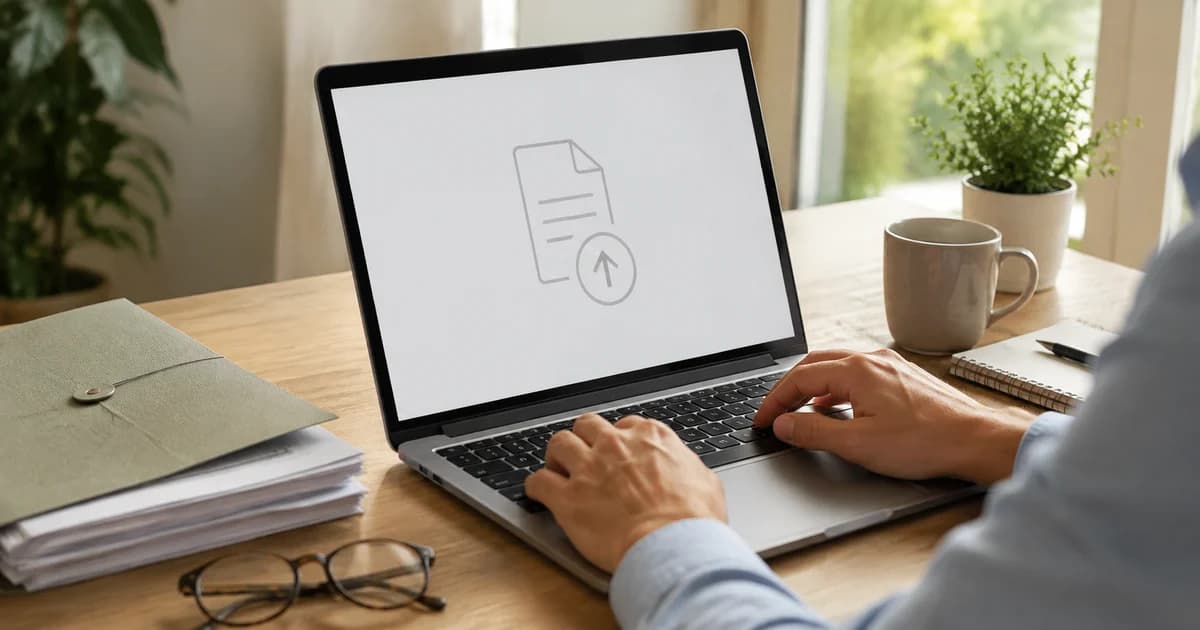
- Upload the working copy to Pixoate's PDF text editor.
- Select a supported text line to edit it, or choose Add text to place a new answer in a blank area.
- Match the text size and position to the surrounding content. Keep long answers within the intended space.
- Review every affected page, download the edited PDF and reopen that downloaded file to check the final result.
For example, a US volunteer group might need a corrected meeting location on its own handout. A UK sports club might need to add a contact number to a permission-form template it controls. Check the complete number and address, not just the part you changed.
When the PDF is a scan
Use Run OCR on the relevant page if you need to recognise its printed text for editing. Review the recognised lines carefully before changing them. OCR can confuse similar characters and may fail on unclear scans.
For a form that only needs an answer in an empty box, adding text may avoid unnecessary recognition of the whole page. Choose the smallest change that solves the task.
If OCR finds nothing or the layout becomes unreliable, obtain a clearer scan or ask for the source document. Repeatedly editing a poor scan does not make the underlying text more dependable.
White-out and redaction are different actions
Covering a line visually is not the same as removing sensitive information. Do not use a white rectangle as a privacy measure. If information must be removed, use the dedicated redaction function and independently check the exported file, including text selection and search.
This matters when sharing volunteer lists or family forms: a page can look clean while still containing information beneath an overlay. Review Pixoate's security and file-handling information before uploading sensitive documents.
Check the version the recipient will receive
Open the download in a PDF viewer and look for shifted text, clipped answers, blank pages or missing characters. Test printing if the document will be printed. US Letter and UK A4 page layouts can have different margins; preserve the requested format rather than assuming one paper size fits both.
If the final file exceeds the recipient's upload limit, try compressing the edited PDF, then repeat the readability check on that final copy.
Can I edit a digitally signed document?
Avoid changing a signed original. Editing can affect signature validity. Ask the issuer for the appropriate unsigned source or correction process.
Will any font be replaced perfectly?
No. Font encoding and layout support vary. Check the actual exported result, especially names and symbols.
For a small authorised correction, edit your PDF online, keep the original and send only the version you have reopened and checked.