How to Sign a Word Document: Which Signature Type Will the Recipient Accept?
How to sign a Word document: compare typed, drawn and certificate-based signatures, what each proves and which route keeps the file editable or final.
Written by the Pixoate team. We check how each tool behaves before we describe it, and we date any prices or portal rules we quote.
Signing a Word document looks like one task and is really three questions. What kind of signature will the recipient accept? Does the file still need to change? And how will you keep a record of exactly what was signed? Answer those first and the clicking is short.
This guide is about choosing. It compares the signature types, says what each one shows and does not show, and matches them to routes that keep the Word file editable or make it final. For the click-by-click steps, each tool page has its own guide.
Start with one question for the recipient
Before you sign anything, ask: what exactly do you accept as a signature? Their answer decides the route.
| They say | They usually mean | Route that fits |
|---|---|---|
| "Sign it and send it back" | A visible signature on the document | A signature picture in the Word file, or a signed PDF copy |
| "Send a PDF" | A final copy that is hard to change by accident | Convert to PDF, then sign the PDF |
| "A digital signature" or "digital ID" | A certificate-based signature | Not these tools. Use their process or software that issues digital IDs |
| "Sign through our platform" | A named signing service | Use that service |
| "Print, sign and scan" | A scan of a paper signature | A signed PDF often does the job. Ask |
If the answer is unclear, ask which file format they accept. Some portals take only PDF, and some reviewers want the .docx so they can comment.
Which kind of signature a Word route gives you
Every route below produces a visible mark: a typed name, a drawn or uploaded picture of your ink, or a handwriting-style name rendered as an image. None of them carries a certificate, an identity check or a seal that shows whether the text changed afterward. That is the same as signing paper and scanning it, and for many everyday documents it is what is asked for. A certificate-based digital signature is a different thing; the comparison of electronic and digital signatures explains what each proves and when a recipient insists on one. Whether a mark is accepted is the recipient's decision and can differ between document types. This is a description of the tools, not legal advice.
Route A: sign a Word document with a picture and keep it editable
Choose it when the document will keep changing: a draft, a template, a form with blanks, a file the other side will mark up. Make the picture with the signature generator, which lets you draw or type and saves a transparent PNG trimmed to the ink, then insert it as a picture on the signature line in Word.
The price of staying editable is that anyone holding the file can move the picture or change the text beside it. Keep an unsigned copy, and treat the signed one as a working copy rather than a final.
Route B: electronically sign a Word document as a final PDF
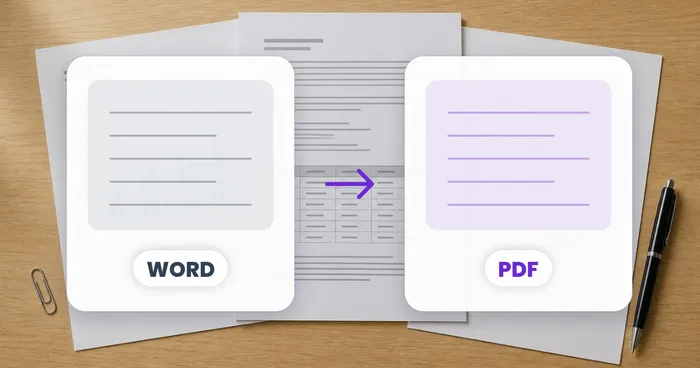
Choose it when the text is finished and the document will be filed, archived or uploaded. Finish your edits, accept or reject tracked changes and delete comments, so the PDF shows exactly what you intend to sign. Then convert the Word file to PDF, which accepts DOC, DOCX, ODT and RTF, and check page breaks, fonts and tables before you sign. The guide to making a PDF from Word, photos or a scan covers the other starting points. Add your signature with Sign PDF, using Draw, Type or Upload. The Date, Text and Stamp tabs cover a printed name, a date or a company stamp.
The signature is stamped onto the page as an image, and typed text and dates become part of that image, so they cannot be selected as text.
Route C: when a certificate-based signature is required
If the recipient needs a digital ID, a named platform or a certificate, neither route above meets it. These tools place a visible signature and nothing more. Word has its own digital signature feature, which may require a digital ID, so ask the recipient what process they specify and follow that one.
Here is an invented example
A freelancer needs to return a two-page services agreement that a client sent as a .docx. The client's email says "sign and send back a PDF". That points to Route B. The freelancer first checks that tracked changes are resolved, since the client made two suggestions in the margin that have already been agreed. Then the file is converted, and the freelancer reads the PDF and notices a table has moved onto page 2. That is worth fixing in Word before signing, so the freelancer adjusts the spacing, converts again and signs the second copy.
On the signed PDF, the signature sits on the line on page 2, a date sits beside it, and the first page carries initials. The freelancer saves the master, the final unsigned PDF and the signed PDF under three clear names. When the client replies asking for a changed payment term, there is no confusion about which file was signed and which is still open.
Keep the editable file and the signed file apart
Name the files by purpose, so nobody mistakes a draft for the version that was signed:
| File | Purpose | Edit it? |
|---|---|---|
| agreement-draft.docx | Editable master, unsigned | Yes |
| agreement-final.pdf | Converted and checked, unsigned | No |
| agreement-signed.pdf | The signed copy you send | No |
If the wording changes later, edit the Word master, convert it again and sign again. A signature on an earlier version says nothing about the new one. Keep the master, the signed copy and the message in which the recipient received it together.
When it goes wrong
- The signature covers text. Move and resize it before you create the signed copy. A signature that hides a printed name or a clause is a reason for the recipient to send the file back.
- The recipient says the signature is not valid. That usually means they wanted a certificate-based signature or their own platform. Ask what they require instead of resending the same file. The comparison of electronic and digital signatures lays out the difference.
- The document changed after you signed. A visible signature does not alert anyone to edits, so sign again on the new version and keep the earlier one under its own name.
- Several signers are needed. These tools sign your own copy. They do not send requests to other people or track who has signed, so pass the file along yourself or use the platform your counterparty names.
Check the signed copy before it leaves
Open the signed file itself rather than trusting the preview.
- The signature sits on the right line on every page that needs one and does not cover printed text.
- The date uses the format the recipient expects. The Date tab offers five formats, such as MM/DD/YYYY and YYYY-MM-DD.
- The page count and order match the converted PDF. The preview shows only the first 24 pages, so scroll through a long file.
- The file name says what it is, such as lease-signed.pdf.
Conversion and signing run on Pixoate's servers, so the file is uploaded and then removed under the Security policy. If your organization does not allow a document to leave your device, use signing software that runs locally.
Frequently asked questions
Will the recipient accept a typed name as my signature?
For some documents, yes; for others, no. A typed name is plain text, so it ties the document to no one in particular. Ask the recipient before you rely on it, and use a signature picture on a PDF copy if they want a signed file.
Should I send the Word file or a PDF to be signed?
Send the Word file when the other side needs to edit it, and a PDF when the text is final. If you send Word, expect the text to change. If you send a PDF, edits mean converting and signing again.
How do I show when the document was signed?
Add a date next to the signature. In Sign PDF, the Date tab places today's date or a date you pick, in one of five formats. In Word, type the date beside the signature picture.
What should I keep as a record?
Keep the editable master, the signed copy and the message that went with it. If the wording changes, keep each signed version under its own name so you can show which text was signed.
Decide what the recipient accepts, finish your edits, and sign the PDF copy if a final copy is what they need.