YouTube Thumbnail Size and Format: Dimensions, File Size and Safe Zones
YouTube thumbnail size, accepted file types and file size limits as of October 2026, where to keep text safe, and how to bring any image to 16:9.
Written by the Pixoate team. We check how each tool behaves before we describe it, and we date any prices or portal rules we quote.
You have the picture and the title, and now the file has to be right. Upload the wrong shape and the part you cared about may be cropped away. Upload the wrong file and it may be refused, or look soft in the feed.
This guide gives the YouTube thumbnail size, the file types and the file size limits as YouTube's help page listed them in October 2026, where to keep faces and words so they survive small sizes, and how to bring any image to the right shape with the YouTube thumbnail maker.
At a glance: what to check first
- Make the image 16:9, which is the shape of a widescreen video frame.
- Save it as a JPG or PNG.
- Keep the file under the limit for the device you upload from: 2 MB on a mobile device or 50 MB on a computer, as of October 2026.
- Keep faces and words away from the edges, and keep the words few and large.
- Shrink the preview to a few centimeters wide and check that it still reads.
YouTube thumbnail dimensions and file rules, as of October 2026
YouTube's thumbnail help page listed these requirements for video thumbnails when it was checked in October 2026:
| Requirement | Video thumbnail |
|---|---|
| Resolution | 3840 × 2160 pixels |
| Minimum width | 640 pixels |
| Aspect ratio | 16:9 |
| File types | JPG or PNG |
| Maximum file size | 2 MB when you upload from a mobile device, 50 MB from a desktop |
The same page lists a taller shape for Shorts, 2160 × 3840 pixels at 9:16, and a 1:1 shape for podcast playlists. These rules change, so confirm them on YouTube's page before you publish, and treat this table as a checked snapshot rather than a permanent fact.
Where the thumbnail maker fits
The maker exports a 16:9 JPG at a fixed size. That meets the shape and the accepted file type, and the output is set up to clear the minimum width on the help page. It may be smaller than the resolution the page lists as the one to aim for, so check the downloaded file's dimensions in your own file viewer before you decide.
If you want a larger file, there is a route that stays inside the tools:
- Make the thumbnail in the maker and download the JPG.
- Enlarge it with the image upscaler. Larger factors need Premium, and the detail it adds is estimated, so check the edges of the text.
- Check the file size. A larger JPG can run past 2 MB, which matters if you upload from a phone.
If the result is over a limit, shrink it with the image compressor. Type a number under Target file size (KB) and keep some headroom, because KB means 1024 bytes and the tool can return the closest result when a target cannot be met, which may be over the target. Then check the dimensions and compare faces and text with the original.
A worked example, invented for illustration. Aisha edits on her phone and has a 3.4 MB PNG thumbnail. The help page's phone limit is 2 MB, so the upload is refused. She runs the PNG through the compressor with a target comfortably under 2 MB, opens the result and compares the face and the title text with the original. The text edges look slightly softer, so she tries a higher target, still under the limit, and the text looks clean. She uploads that one, then checks how it appears in the feed.
Safe zones: keep what matters away from the edges
A safe zone is the part of the frame where nothing important is likely to be cut off, covered or shrunk until it cannot be read. YouTube does not hand you a drawing of it, so treat the points below as working rules, not requirements.
- Leave a margin. Keep faces and words at least about 5% in from every edge. On a widescreen frame that is a small strip all around, wider at the sides than at the top and bottom.
- Keep a lower corner clear. Feeds commonly draw a small label, such as the video length, over a corner, often the lower right. Do not end a headline there, and check how YouTube shows yours once it is uploaded.
- Design for small. In a feed the thumbnail is far narrower than the file you uploaded. Zoom your browser out until the picture is only a few centimeters wide. If the words blur, shorten them.
- Use few words. A handful of large words survives small sizes. A sentence does not.
In the maker, the preview shows the whole frame, so you can see where each text box sits. If a headline does not fit its box, the editor stops the export and asks you to shorten it or enlarge the box.
Get an image to 16:9
There are two cases, depending on whether you want text on the picture.
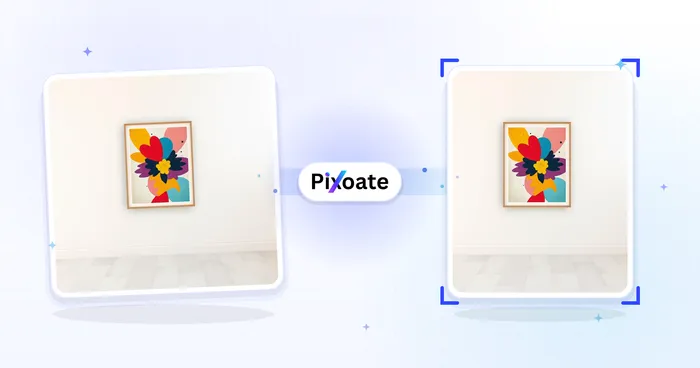
You want a headline on it. Open the maker and upload the picture, which is fitted to the frame as it loads. On the Background tab, choose Fill frame (crop) to cover the whole frame and trim the overflow, or Fit + background to keep the whole picture and fill the leftover space with Blur, Color, Gradient, Designs or Photo. Edit the headline, select Make my thumbnail and download the JPG.
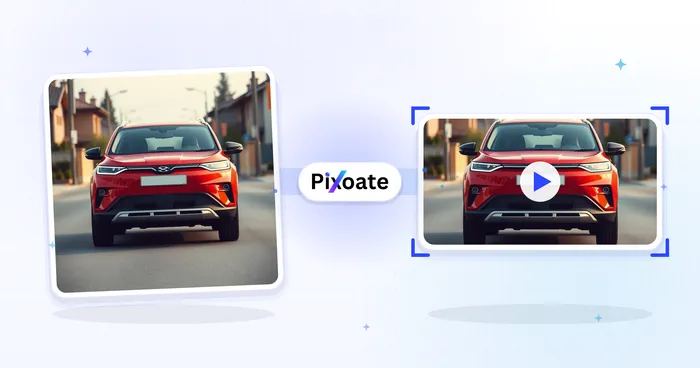
You only want the picture at the right shape, with no text. The maker needs at least one text box, so do it in two steps. Crop the picture with the image cropper, choosing Landscape (16:9) under Quick Crop Presets. Then open the image resizer, leave Maintain aspect ratio on and enter the width you need. The height follows. Do not untick Maintain aspect ratio to force other numbers onto the picture, because that stretches faces and lettering.
When an upload is refused or looks wrong
| What happens | Likely cause | What to do |
|---|---|---|
| The upload is refused | The file is over the limit for that device, or it is not a JPG or PNG | Compress it, or switch to a computer, or save it as JPG |
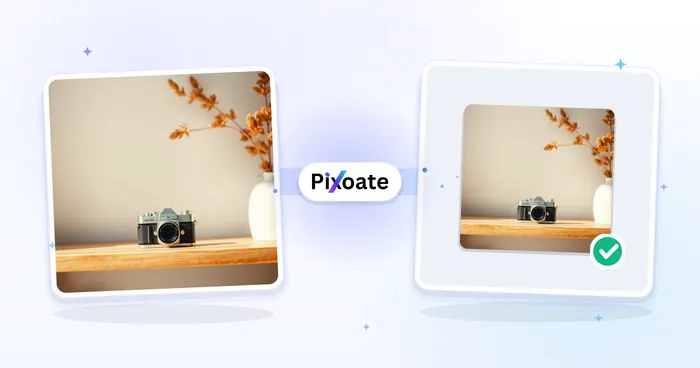
| Black bars appear | The picture is not 16:9 | Crop to 16:9, or use Fit + background in the maker |
| Words are cut off | They sat near an edge or under a corner label | Move them inward and shorten them |
| The thumbnail looks soft | The source was small or heavily compressed | Start from a sharper picture |
| A vertical photo loses its subject | Cropping to 16:9 removes most of its height | Use Fit + background so the whole picture stays |
Honest limits
A correct size does not make a thumbnail good, and no file setting controls how YouTube displays it. The platform may recompress the image, draw overlays on it, and show it at different sizes on a phone, a television and a desktop feed. The rules on the help page can also change without notice, so treat any guide, this one included, as a starting point and check the page itself.
Two choices come up often. If your picture is vertical, cropping to 16:9 may cut off the subject, so fit it on a blurred or colored background instead. If your text is long, cut words before you shrink them. A short headline in large letters beats a clever one nobody can read.
Check the result before you upload
Open the finished file at full size and check four things: the shape is 16:9, the file size is within the limit for your device, no word touches an edge, and the headline is still readable when the picture is small. After you upload, look at how YouTube displays it and adjust if a corner is covered.
Frequently asked questions
Is a smaller 16:9 thumbnail still fine for YouTube?
If it is 16:9 and clears the minimum width on YouTube's page, it meets the shape and the minimum. The page lists 3840 × 2160 as the resolution to aim for, which gives more sharpness on large screens, so a larger file is the safer choice.
Why is the file size limit different on a phone?
YouTube's help page lists 2 MB for video thumbnails uploaded from a mobile device and 50 MB from a desktop. If you work on a phone, check the file size before you upload, and compress it if it is over.
What sizes does the thumbnail downloader list?
The YouTube thumbnail downloader lists the copies YouTube stores for a video, from Maximum (HD) at 1280 × 720 down to Default at 120 × 90. That list is not the upload requirement. Use another channel's thumbnail for reference only, unless you have permission.
Make the picture 16:9, keep the words few and large, and make your thumbnail in the maker before you check it at feed size.