Google Business Profile Photo Rejected After Resizing?
Check file size, dimensions and photo content after a Google Business Profile upload fails. Learn why meeting image specifications does not ensure approval.
Pixoate publishes practical guides to image and document workflows. This guide links to the destination's documentation and explains what to check in your own files.
You resize a business photo, submit it to Google Business Profile and still do not see it publicly. Resizing changes only part of the submission. File requirements, content and profile status need separate checks, and an image can meet one while failing another.
Keep the original and the submitted export so you can compare them. Record the status or error shown by Google before changing the file again.
Confirm the exported file properties
Google's photo guidance, checked on 9 September 2026, accepts JPG or PNG, recommends 720 × 720 pixels and specifies a size between 10KB and 5MB. Check the actual saved file, not just the numbers you entered before exporting it.
If the dimensions need correction, use Resize Image while preserving proportions. If the file is too large in bytes, compress a copy and inspect lettering, signs and useful product details afterward. Do not keep reducing an already acceptable file simply because its publication status has not changed.
Ask whether the photo represents the business
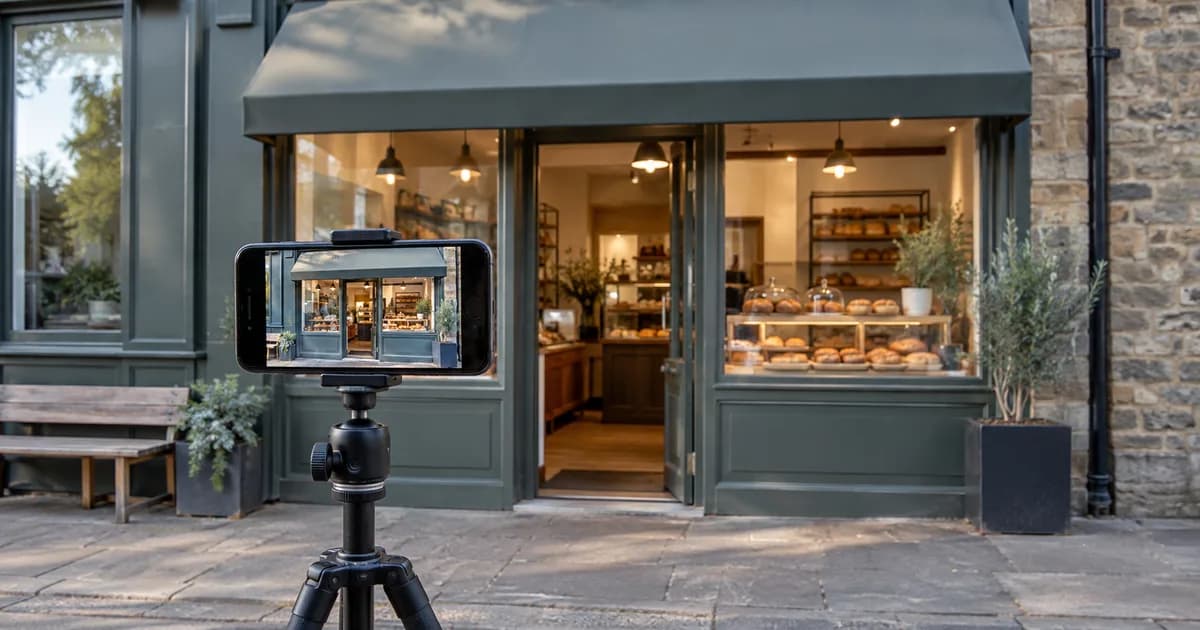
A useful photo helps a customer recognise the entrance, understand a service or identify a real product. Google asks for images that represent reality without significant alterations or excessive filters. A polished but imagined storefront can be less useful than a straightforward, well-lit photograph of the actual entrance.
Review the submitted composition. A square crop can remove the address sign or the visual context someone needs when approaching from the street. Use Crop Image to keep the relevant detail in view, then check the final placement.
Check profile status separately
Google states that the Business Profile must be verified before its photos and videos appear publicly. If the image meets the technical guidance, check the profile and submission status through Google's own interface and support resources.
Pixoate prepares the image file. It does not verify a Business Profile, approve images or control when they appear. Repeatedly re-exporting the same photo cannot resolve an account-level issue.
Keep location records clear
For a business with several locations, keep each image attached to the correct address. Do not use an attractive entrance photo from one branch to represent another. Check the signs, layout and surroundings against the real location.
| Observation | Investigate |
|---|---|
| Export has the wrong file type or size | File preparation |
| Important entrance detail is cropped out | Composition and placement |
| Image shows a materially altered business | Content accuracy |
| Technically suitable photo is not public | Profile and submission status |
Use the Business Profile photo workflow for a repeatable preparation checklist. Approve one representative file before applying batch settings to a larger set, then inspect each location's actual image.