Why Shopify Product Images Look Blurry on Mobile
Find whether a blurry Shopify product photo comes from the source, export or theme. Check dimensions, crop and compression before replacing every image.
Pixoate publishes practical guides to image and document workflows. This guide links to the destination's documentation and explains what to check in your own files.
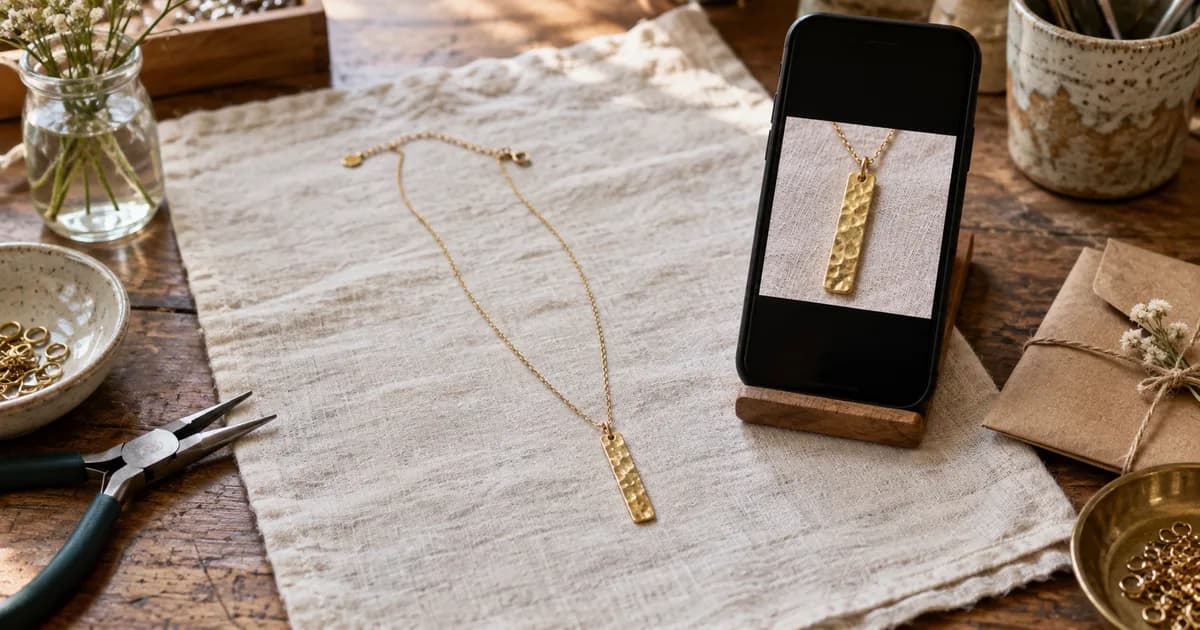
A product image looks sharp in your source folder but soft in a Shopify collection on a phone. Before increasing every file to a larger size, identify where the detail disappears. The source, the exported file and the storefront are three separate stages, and each needs a different correction.
This guide is a diagnostic workflow, not a claim that a particular image size will increase sales. Keep one representative product and its original file available while you investigate.
Compare the same detail at each stage
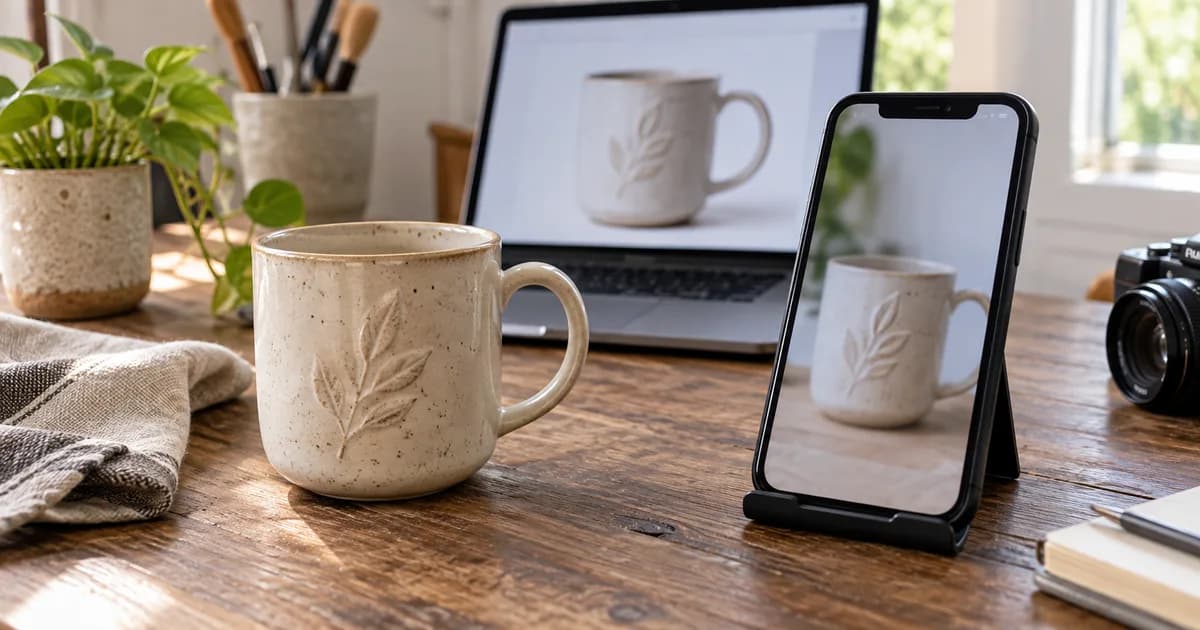
Choose a feature that matters to the buyer: a printed label, stitched seam, edge of a clasp or the grain of a material. Open the original and the exported image at a comparable displayed size. Pixoate Image Compare can help you keep both versions in view.
Record where the feature first becomes unclear. If it is already missing from the source, a larger export does not establish what the real feature looks like. Obtain a better photograph. If it survives in the source but disappears in the downloaded export, review the crop and compression settings before investigating Shopify.
Separate canvas size from product size
A large canvas can contain a small product. Adding empty space without reconsidering the framing leaves fewer useful pixels describing the item. Conversely, a crop that makes the product fill the frame can cut off an important edge in a thumbnail.
Use Crop Image to keep the selling point visible, then Resize Image for your chosen output dimensions. Preserve proportions. Shopify recommends 2048 × 2048 pixels for square product images, but the suitable shape still depends on the product and theme. See Shopify's current product-media guidance.
Test one compression decision
Keep an uncompressed or high-quality master. Make a delivery copy with Compress Image, then compare the same label or seam. Change one setting at a time. A small byte count is useful only when the resulting detail remains adequate for the task.
Avoid repeatedly opening and re-saving an already compressed JPG. Work from the master when preparing another version.
Inspect the actual mobile placement
Upload the approved sample to the correct product and variant. Check the collection thumbnail, main product image and gallery. Review the theme's image-fitting controls if the downloaded file is clear but the storefront version is not.
| What you observe | Next check |
|---|---|
| Detail is missing in the source | Photograph the item again |
| Export introduces smudging or blockiness | Review compression and the chosen output size |
| Product is tiny inside a sharp image | Review composition and internal spacing |
| Only the storefront looks wrong | Inspect the actual theme and image placement |
Keep a short record of the source dimensions, export settings and placement checked. Once the sample works, apply it to comparable products and review exceptions. Premium batch processing can help with repeated preparation, but it cannot decide whether each variant is represented accurately.
Follow the Shopify product-image preparation workflow for the complete sequence.