
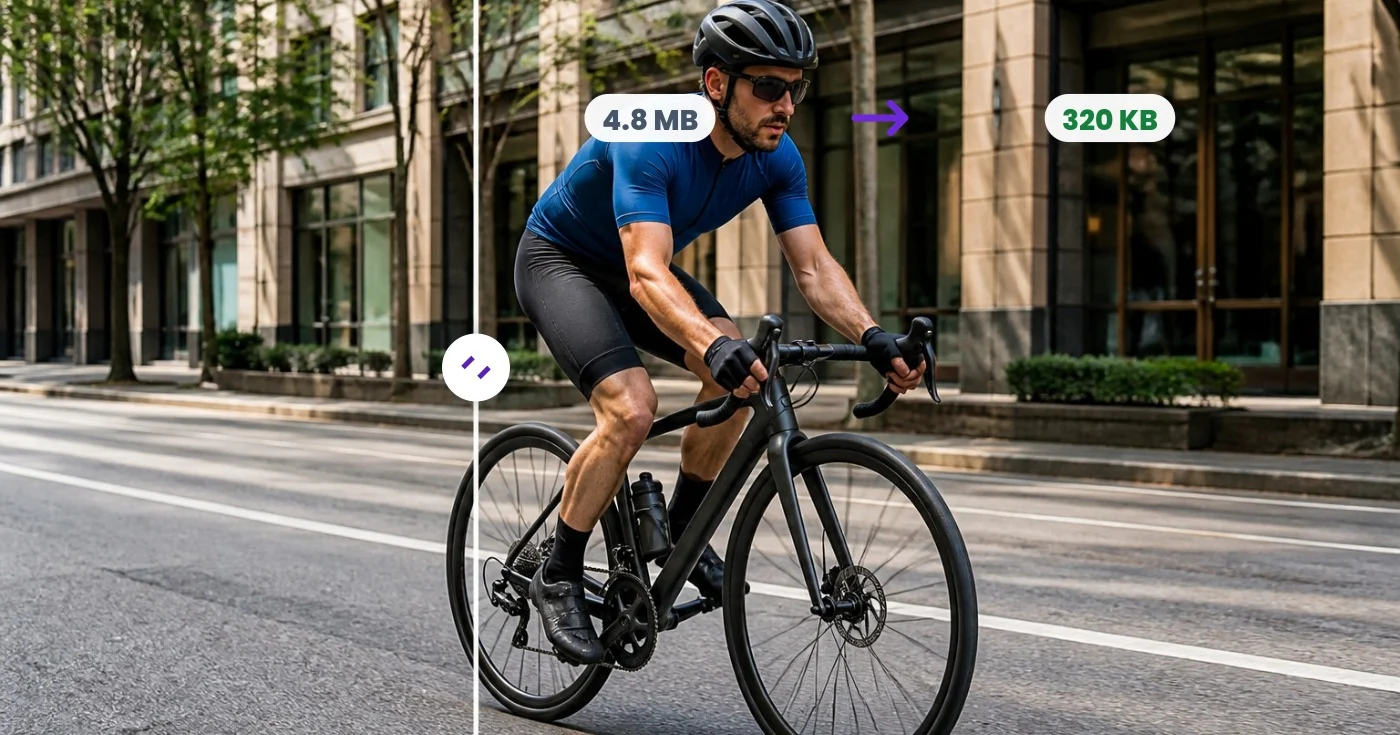
GIF Compressor — Shrink Files Without Breaking Animation
Compress an animated GIF by reducing colors, optimizing frames, or scaling it. Compare file sizes while the loop and timing stay intact, or batch-compress with Premium.
Drop a GIF — see the smaller version instantly
GIF only · Free up to 30 MB, Premium 50 MB
Compress an animated GIF online and see how much smaller it gets
This online GIF compressor reduces the file size of an animated GIF by lowering its colors, optimizing frames and, if you choose, scaling it down. Adjust the sliders, select Compress GIF, and the result shows the size before and after with the percentage saved. Every frame, the loop setting and the frame timing are kept, so the animation plays the same, only lighter.
Reduce a GIF file size step by step
A GIF stores a color palette, and a smaller palette gives a smaller file. Start with Colors, which runs from 2 to 256 and begins at 128, and lower it a step at a time, running Compress GIF each time to check the preview. Photos and gradients show banding sooner than flat artwork, so stop when the picture starts to look rough. If the GIF is larger than the space where it will be shown, resize it by percentage first, because every frame then has fewer pixels to store.
- Drop a GIF into the upload area.
- Adjust Colors, Lossy level or Scale.
- Select Compress GIF and wait for the preview.
- Compare Before, After and Saved in the size summary.
- Select See result and download the smaller GIF.
Shrink busy animations with Lossy level and Scale
Lossy level runs from off to 32. A higher value lets small pixel differences between frames count as unchanged, which shrinks animations with a lot of motion or grain at the cost of some fine detail. Scale runs from 10 to 100 percent and reduces the dimensions of every frame before encoding, which tends to remove the most data from a large GIF. Cropping away borders and dead space before you scale leaves less to keep.
Choose a Compression effort
Compression effort goes from 1 to 10 and starts at 7. The higher the value, the harder the compressor works to reduce the file size, and the longer it takes to finish. Leave it alone at first, change Colors, Lossy level or Scale, and raise the effort afterward if you want to squeeze the file further.
Compress several GIFs with the same settings
With several GIFs to shrink, switch from Single GIF to Batch, add the files and set Colors, Compression effort, Lossy level and Scale once. Every GIF is compressed with those settings and the results arrive as one ZIP. Batch is Premium only, and one GIF at a time works without it.
Before you compress
- Cut away dead space and borders first, because fewer pixels compress further.
- Decide where the GIF will be shown, and scale it down before or instead of lowering colors when it is larger than that.
- Keep your original, because every setting that shrinks the file removes some palette, detail or pixels.
- To build a lighter animation from scratch, rebuild it from fewer frames.
If the GIF is still too large
Cropping away dead space also makes a GIF smaller, so trim the borders from every frame, or scale the animation down by percentage before compressing again. For a lighter loop from scratch, rebuild the GIF from a shorter clip or fewer images.
What you can do with GIF Compressor
Review the main capabilities before you begin.
- Shrink animated GIF file sizes for faster loading
- Reduce colors to make GIFs lighter
- Compare before and after sizes instantly
- Keep the animation, loop and frame timing intact
- Scale down GIFs to save even more space
- Fine-tune lossy compression for size versus quality
Settings reference
5 settings
Available controls for GIF Compressor.
- Processing modePresets
- Process one input, or switch to Premium batch mode to process multiple inputs with shared settings. Available input types depend on the tool.Options: Single GIFBatch
Settings
- ColorsSliderRange: 2–256 · Default: 128
- Sets how many colors the compressed GIF keeps in its palette; fewer colors mean a smaller file, but very low values can cause visible banding.
- Compression effortSliderRange: 1–10 · Default: 7
- Controls how hard the encoder works to find savings; higher effort usually produces a smaller file but takes longer to process.
- Lossy levelSliderRange: 0–32 · Default: 0
- Allows small pixel differences between frames to be reused, shrinking busy animations dramatically; leave at 0 (shown as off) to skip this extra optimization.
- ScaleSliderRange: 10–100% · Default: 100%
- Resizes the GIF to a percentage of its original pixel dimensions; scaling below 100% cuts file size sharply on top of color reduction.
Related tools for GIF Compressor
Tools for common next steps after GIF Compressor.
Photo Editing & Utilities
GIF Resizer
Resize an animated GIF by percentage or exact pixels while preserving every frame, the loop, and its timing.
Try it nowPhoto Editing & Utilities
GIF Cropper
Crop an animated GIF by exact pixels, apply the same region to every frame, and preserve the loop and timing.
Try it now
Creative & Design
GIF Maker
Animate ordered images, or trim and sample a video clip into up to 50 frames, then control speed and quality.
Try it nowFrequently Asked Questions
How GIF Compressor helps you get it done
Real problems it solves every day — for businesses, creators, and everyday tasks. Find the use case that fits you and start.
Fit Discord and Slack upload limits
Chat platforms cap upload sizes for free users. Reduce colors and add a touch of lossy compression to squeeze a reaction GIF under the limit without visibly changing how it plays.
Speed up web pages that embed GIFs
A multi-megabyte GIF can dominate a page's load time. Compressing it — often by more than half — improves Core Web Vitals and mobile experience while keeping the same animation.
Send GIFs over email and messaging apps
Email attachments and messaging apps often reject or downscale large files. Compress the GIF first so it sends quickly and plays inline on the recipient's device.
Shrink marketing banners and product demos
Animated banners and short product-demo GIFs are frequently size-capped by ad networks and marketplaces. Tune the color count and scale until the file meets the spec.
Watch each transformation land
Every photo crosses the slash untouched and comes out the other side finished.























