
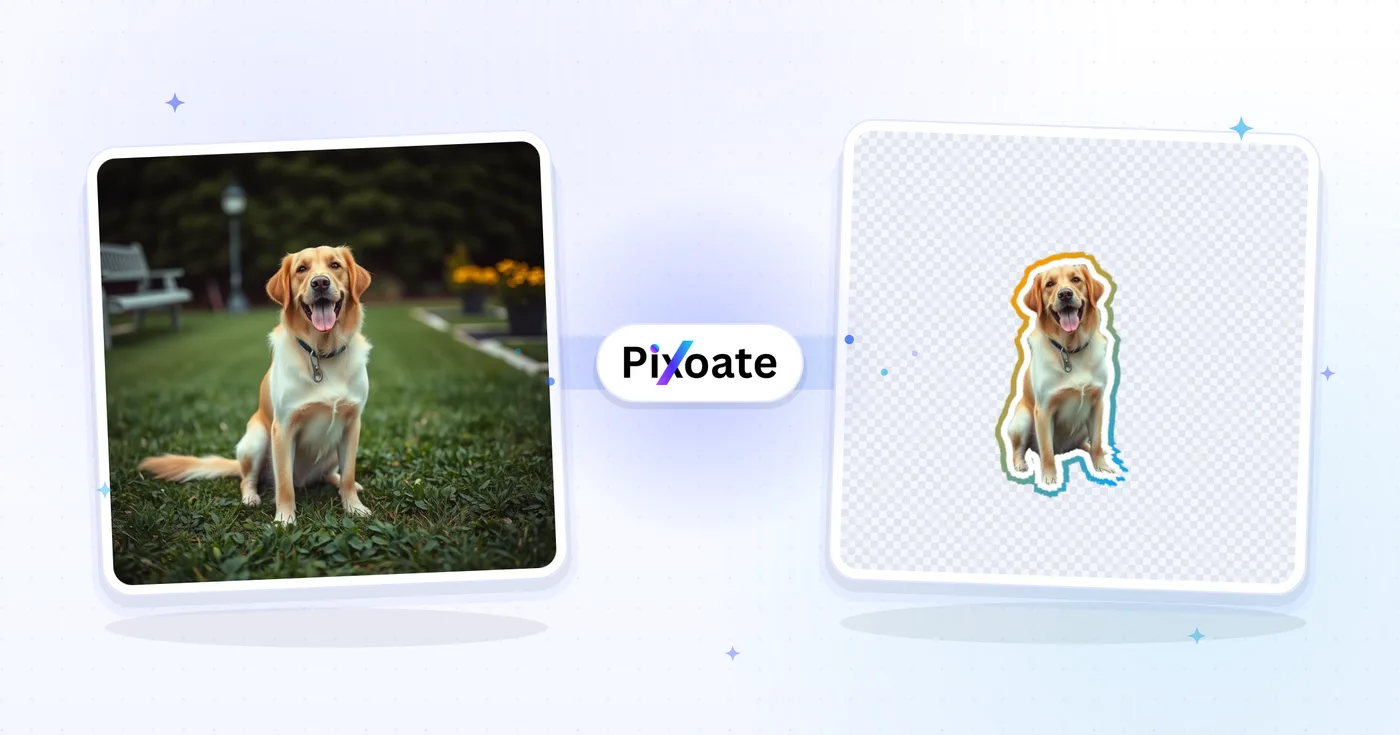
WhatsApp Sticker Maker — Turn Any Photo Into a Sticker
Remove a photo background, add an outline and export a sticker for supported messaging formats.
How to turn a photo into a sticker for WhatsApp or Telegram
This sticker maker turns a JPG or any other photo into a sticker image. It cuts out the subject, adds an outline in any color and an optional drop shadow, and exports a transparent PNG or a 512×512 WebP for WhatsApp and Telegram. The same steps work from an Android or iPhone browser.
Create sticker from photo: upload, outline and download
To create a sticker, upload a photo of a person, a pet or an object. The Outline tab sets how thick the outline is, from 0 to 40 pixels, and what color it is, and the Effects tab holds the format and the drop shadow. Select Create sticker and the tool removes the background and draws the outline. If you change a setting afterward, create the sticker again so the result matches the preview.
- Upload a photo with a clear main subject.
- Set Outline thickness and Outline color.
- Select Create sticker and wait for the cutout.
- Select See result, then use Download.
Export a 512×512 WebP for WhatsApp or Telegram
For a JPG to WhatsApp sticker, choose WhatsApp / Telegram · 512px WebP under Format in the Effects tab. It exports a 512×512 transparent WebP, the size and type the messaging apps import, so the same file works as an image to Telegram sticker. Use the default Transparent PNG when the sticker is for iMessage, a design or print. The tool creates the image file, so adding it to a pack happens in the messaging app you use.
How to make WhatsApp stickers without white border, or restyle the outline
Drag Outline thickness to 0 for a sticker with no border at all, or raise it for a bolder die-cut edge. Switch Outline color from Solid to Gradient to blend 2 colors at an angle, or pick a preset such as Sunset, Ocean or Candy. Drop shadow adds the peel-off look, and Horizontal, Vertical, Blur, Opacity and Shadow color shape how it falls.
Prepare the photo for a cleaner sticker
A crowded full-body shot makes a small sticker, so cut out only the face and hair when a head is enough. For an illustrated look, cartoonize the photo first. A heart, a star or another geometric edge comes from cropping the picture to a shape, and a plain cutout without an outline is a job for the background remover. For a toy-figure look instead of a sticker, try the Action-Figure Packaging effect.
Before you download
- Choose a photo where the subject stands out from the background, because soft or low-contrast edges are harder to cut cleanly.
- Zoom in on the preview and check hair, fur and fingers before you save.
- Pick the 512×512 WebP for WhatsApp and Telegram, and the transparent PNG for everything else.
- The free PNG is web-size; Premium or a credit unlocks a larger download, while the WebP is a fixed 512×512 export.
Making a better sticker
When a full-body shot leaves the sticker crowded, cut out only the face and hair; for an illustrated sticker, cartoonize the photo first.
A heart, star, or other outline instead of a die-cut edge comes from cropping the picture to a shape.
What you can do with Image to Sticker
Review the main capabilities before you begin.
- Turn a supported photo into a printed-style sticker
- Add a customizable white outline around cutouts
- Make stickers for WhatsApp, Telegram and iMessage
- Automatically remove the background from your subject
- Add a drop shadow for a peel-off sticker look
- Adjust outline thickness and color to taste
Settings reference
15 settings
Available controls for Image to Sticker.
- Processing modePresets
- Process one input, or switch to Premium batch mode to process multiple inputs with shared settings. Available input types depend on the tool.Options: Single imageBatch
Outline
- Outline thicknessSliderRange: 0–40px · Default: 12px
- Sets how wide the die-cut border drawn around your cutout subject is, from no outline at 0 up to 40px; around 8-15px reads clearly at chat-sticker sizes.
- Outline stylePresets
- Chooses between a single-color border and a smooth two-color gradient border; one-tap preset pairs like Sunset and Ocean give sticker packs a premium look without any color theory.Options: SolidGradient
- Outline colorColor picker
- Picks the color of the sticker's border — the default white gives the classic sticker look; in gradient mode you choose the two colors the border fades between.
- AngleSliderRange: 0–360° · Default: 180°
- Sets the direction of the gradient border: 180° fades top to bottom, 90° left to right; the preview bar shows the exact fill the finished sticker will use.
- Gradient presetsPresets
- Set both gradient colors with one tap. These presets appear when the gradient border or outline style is selected.Options: SunsetOceanVioletGoldLimeCandy
- Gradient start colorColor picker
- Choose the first outline color when Gradient is selected.
- Gradient end colorColor picker
- Choose the second outline color when Gradient is selected.
Effects
- FormatPresets
- Chooses the export format: a transparent PNG (the default) that drops onto any background, or a 512×512 transparent WebP that WhatsApp and Telegram import directly. Premium or a credit unlocks the PNG at the original resolution for print and larger designs.Options: Transparent PNGWhatsApp / Telegram · 512px WebP
- Drop shadowOn / Off
- Adds a soft shadow behind the outlined cutout for a printed die-cut sticker look; turn it off for a perfectly flat sticker edge.
- HorizontalSliderRange: -100–100px · Default: 0px
- Moves the shadow left or right of the sticker. Leaving it at 0 keeps the light directly overhead; offsetting it implies a light source off to one side.
- VerticalSliderRange: -100–100px · Default: 12px
- Moves the shadow up or down. A positive value drops it below the cutout, which is what reads as the sticker lifting off the page.
- BlurSliderRange: 0–100 · Default: 12
- Sets how soft the shadow's edge is: 0 gives a hard cut-paper offset, higher values spread it into a gentle haze under the cutout.
- OpacitySliderRange: 0–100% · Default: 35%
- Sets how strong the shadow is. Around 35% grounds the sticker without competing with it; 0% is the same as turning the shadow off.
- Shadow colorColor picker
- Picks what the shadow casts in — black for a normal shadow, white to lift a sticker off a dark background, or a bright color for a neon glow around the outline.
Related tools for Image to Sticker
Tools for common next steps after Image to Sticker.

Background Studio
Remove Background
Remove a photo background and download a transparent PNG. Review hair and edges before use.
Try it now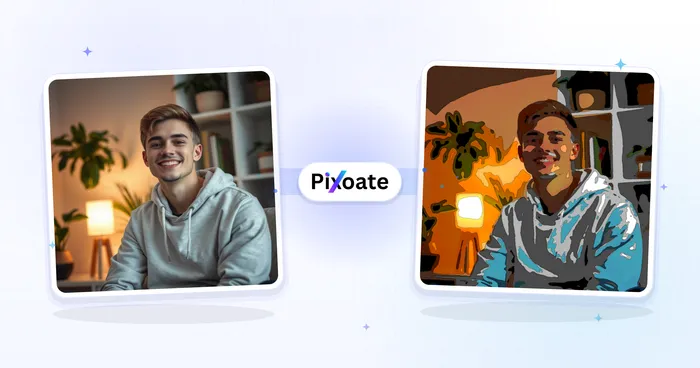
Creative & Design
Photo to Cartoon
Turn a photo into classic, storybook, sticker, watercolor, or custom cartoon artwork with editable AI directions.
Try it now
Creative & Design
Add Text to Image
Add styled text with custom fonts, colors and outlines to supported image formats, then download the edited image.
Try it nowFrequently Asked Questions
How Image to Sticker helps you get it done
Real problems it solves every day — for businesses, creators, and everyday tasks. Find the use case that fits you and start.
WhatsApp Reaction Stickers
Turn group chat photos into the inside-joke reaction stickers everyone loves. Friends' faces, pets, food shots — anything makes a sticker that's 10x more fun than emoji.
Telegram Sticker Packs
Build a custom sticker pack for your community, brand or fandom. Each photo becomes a sticker with consistent outline styling for a cohesive pack look.
iMessage Sticker Drops
iOS sticker drops from photos let you peel-and-place reactions onto messages. Convert a great selfie or pet photo into a permanent sticker in your iMessage library.
Discord Server Emotes
Discord allows custom emotes and stickers per server. Turn community memes, mascot art and inside-joke screenshots into properly-sized PNG stickers for upload.
Pet Influencer Content
Pet account creators turn every cute pose into a stickerised version for fan engagement and merchandise design. Stickers are also great for crowdfunding rewards (printable die-cut stickers).
Wedding & Event Memorabilia
Generate sticker-versions of wedding photos for save-the-date inserts, thank-you cards or guestbook embellishments. Brides love them and they print beautifully on adhesive paper.
Print-on-Demand Sticker Shop Listings
Turn customer photos or pet portraits into product mockups for an Etsy or Redbubble sticker shop — choose transparent PNG, then use Premium or a credit for the original-resolution file needed for sharp die-cut printing.
Branded Packaging & Thank-You Stickers
Small shops turn a logo or mascot photo into a die-cut sticker for order packaging inserts, picking a brand-color outline so every shipment feels on-brand.
Slack & Microsoft Teams Custom Emoji
Coworkers turn a team photo or inside joke into a custom reaction emoji for workplace chat, with the outline thickness kept thin so it still reads clearly at tiny emoji size.
Laptop & Water Bottle Decal Designs
Turn a favorite photo into a decal-style sticker for laptops, water bottles or planners — export a transparent PNG, with the original-resolution file available through Premium or a credit for printing on adhesive vinyl.
Guides for this tool
Watch each transformation land
Every photo crosses the slash untouched and comes out the other side finished.























