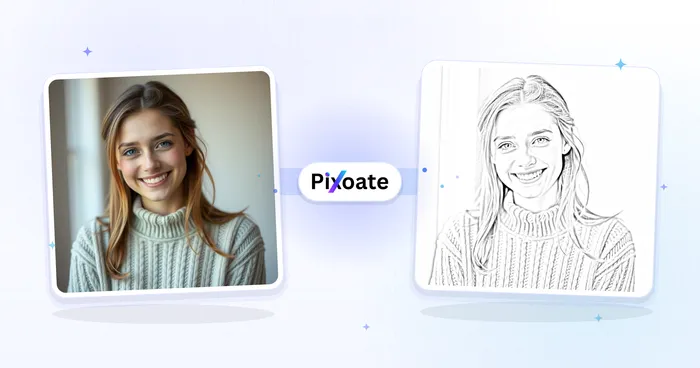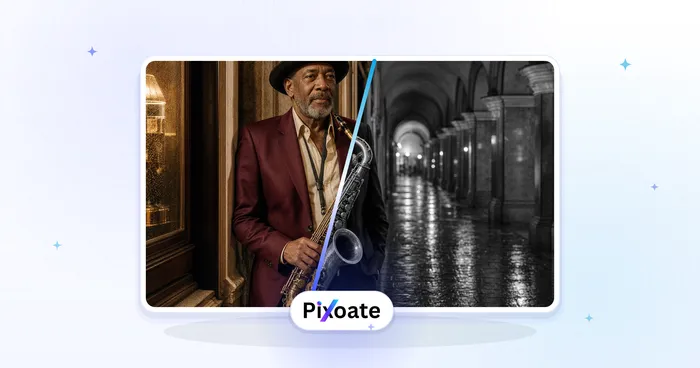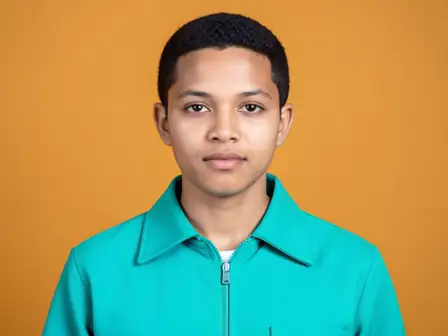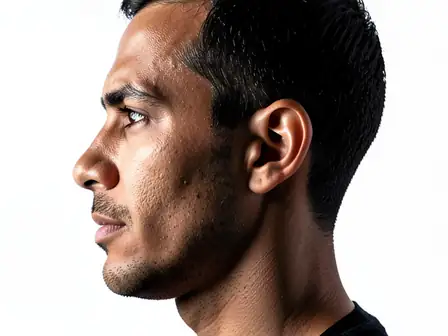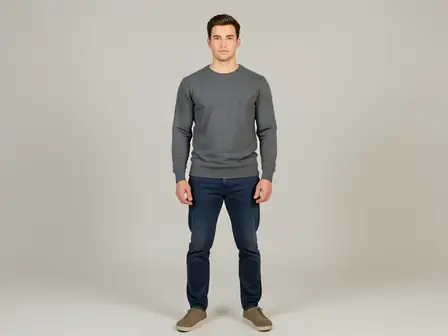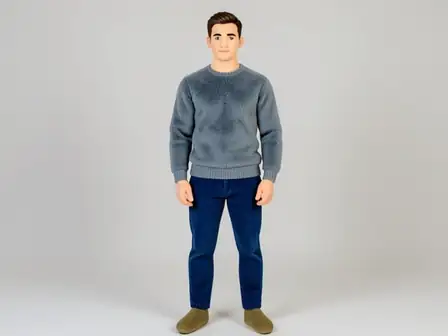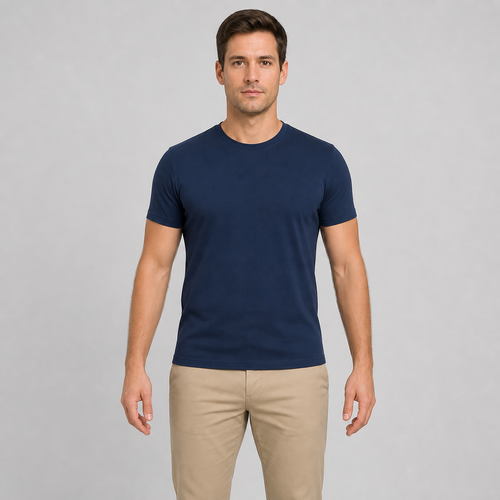
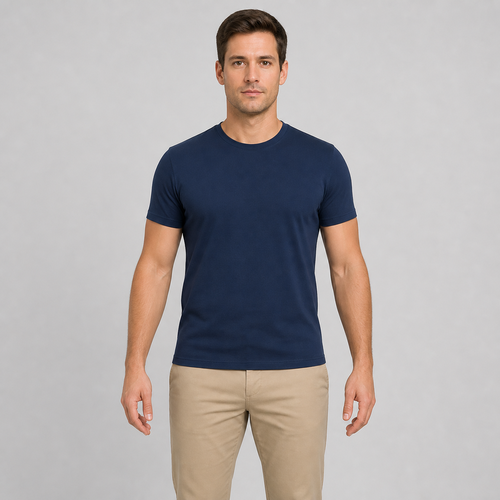
The same source image before and after applying Arm Adjust.
Arm Adjust applied to the same source image
Original source image before Arm Adjust

Arm Adjust — Slim Verified Arms Without Regenerating the Portrait

Slim only two verified, separated arm bands with existing source pixels while keeping the face, shoulders, torso, hands, and every pixel outside both bounded envelopes unchanged.

Upload a photo for the Arm Adjust effect

What you can do with the Arm Adjust effect

Review the available effect capabilities before you begin.

  • Apply the Arm Adjust effect to any photo
  • Fine-tune the effect strength to taste
  • Preview your photo live as you edit
  • Download your edited photo in high quality
  • Apply Arm Adjust to many photos at once

How it works

Arm Adjust does not send the portrait through a full-frame generator. It requires one clear person and cross-checks mirrored MoveNet Thunder shoulder, elbow, wrist, and hip landmarks against separate face detection. Six-class portrait segmentation must then isolate both arms as separate near-vertical silhouettes with verified background immediately beside each edge. Two independent horizontal source-pixel meshes narrow only the safe middle portions of those arm bands—up to a restrained 14% per side at maximum intensity—while fading to zero below the shoulders, before the wrists, and at every side boundary. Existing skin, sleeve, and nearby background pixels are redistributed only inside the measured envelopes; the face, shoulders, central torso, hands, lower body, and every pixel outside both bands are copied unchanged into a lossless PNG. Bent, touching, occluded, cropped, transparent, or ambiguous arms are refused instead of guessed.

Processing

Arm Adjust uses an AI action. Any separate allowance is shown before this effect starts processing.

Best for

sharp opaque front-facing photos of one person with a clear face, shoulders, elbows, wrists, and hips visible, straight relaxed arms held away from the torso, and clean background on both sides of each arm.

Less suited to: group photos, side poses, bent or crossed arms, hands on hips, arms touching the torso, loose or flared sleeves, cropped joints, transparent cutouts, motion blur, and busy backgrounds that merge with an arm edge.

Ways to use Arm Adjust

  • Apply a restrained arm-width adjustment without regenerating facial identity, anatomy, clothing, or the whole portrait.
  • Keep the shoulders, torso, hands, lower body, and distant background source-exact while narrowing two isolated arm bands.
  • Use intensity to choose a subtle or more defined arm adjustment within a fixed safety limit.

Arm Adjust questions

What parts does Arm Adjust change?
It narrows only the safely segmented middle portions of two separated arm silhouettes using pixels already in the photo. The warp reaches zero before the shoulders and wrists, while the face, central torso, hands, lower body, and all pixels outside both envelopes remain exact.
Why must both arms be straight and away from the torso?
A localized arm warp needs an unambiguous arm edge and verified background on both sides. When an arm bends, touches the torso, crosses another limb, or loses an edge in clutter, reshaping it could bend the body or background, so the tool stops safely.

More Portrait & Beauty effects

See the featured effects in motion

The strongest effect picks lead this belt before the rest of the catalog.