How it works
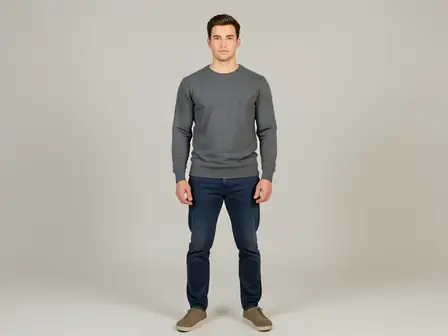
The renderer first applies Dehaze, then introduces for Portrait, and finally uses Soft Finish. Each stage has a distinct role in the lighting and detail recipe, while the intensity control blends the completed recipe against the source.


Start with Dehaze, shape it with Portrait, and close with Soft in one adjustable lighting and detail recipe.
Review the available effect capabilities before you begin.
The renderer first applies Dehaze, then introduces for Portrait, and finally uses Soft Finish. Each stage has a distinct role in the lighting and detail recipe, while the intensity control blends the completed recipe against the source.
Upload a photo, adjust the Dehaze · for Portrait · Soft Finish intensity, compare its processed preview with the source, and download the finished result.
Use the intensity control to balance the Dehaze · for Portrait · Soft Finish treatment with the detail and character of your original photo.
A reduced Dehaze · for Portrait · Soft Finish preview keeps adjustments responsive. Free downloads are clean and web-size; Premium or a credit unlocks the original resolution.
Dehaze · for Portrait · Soft Finish uploads are processed on secure servers and automatically removed under the normal Pixoate retention policy.
The renderer first applies Dehaze, then introduces for Portrait, and finally uses Soft Finish. Each stage has a distinct role in the lighting and detail recipe, while the intensity control blends the completed recipe against the source.
Dehaze · for Portrait · Soft Finish uses an AI action. Any separate allowance is shown before this effect starts processing.
The exact Dehaze, for Portrait, and Soft Finish recipe works best for product photos that need controlled highlight definition, interiors with bright windows, and night scenes that need readable detail.
Less suited to: Dehaze, for Portrait, and Soft Finish needs extra care with heavily clipped highlights, crushed source files, or flat illustrations that contain little recoverable tonal information.
Tools for common next steps after Photo Effects.
Creative & Design
Turn a photo into classic, storybook, sticker, watercolor, or custom cartoon artwork with editable AI directions.
Try it nowCreative & Design
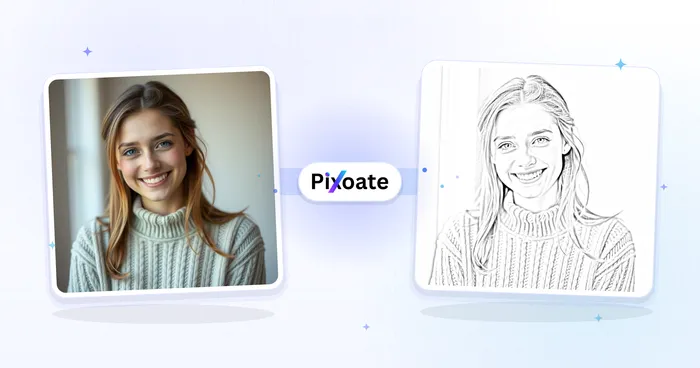
Convert a photo into a pencil-sketch style image and adjust the shadow depth before download.
Try it nowPhoto Editing & Utilities
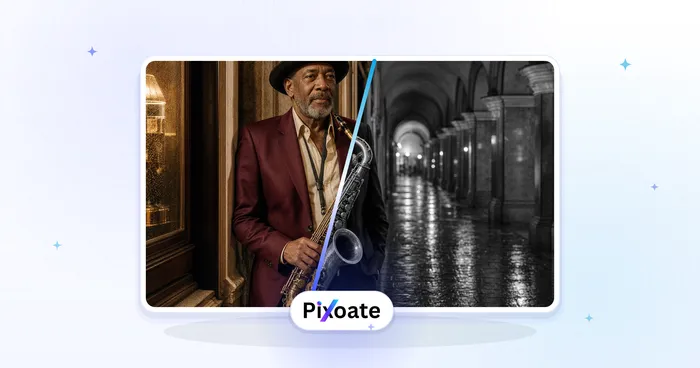
Convert an image to black and white. Adjust the intensity and preview the result.
Try it nowThe strongest effect picks lead this belt before the rest of the catalog.