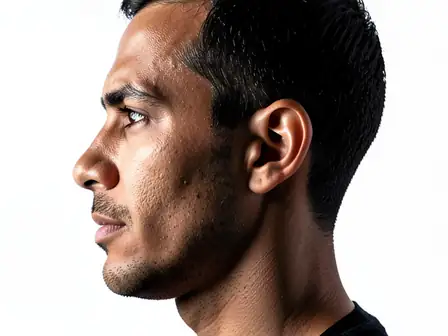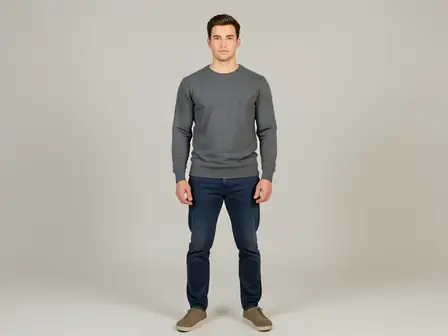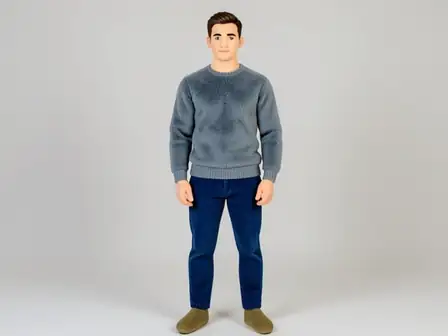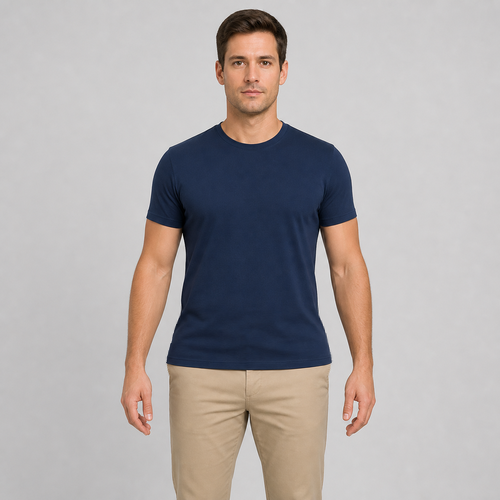
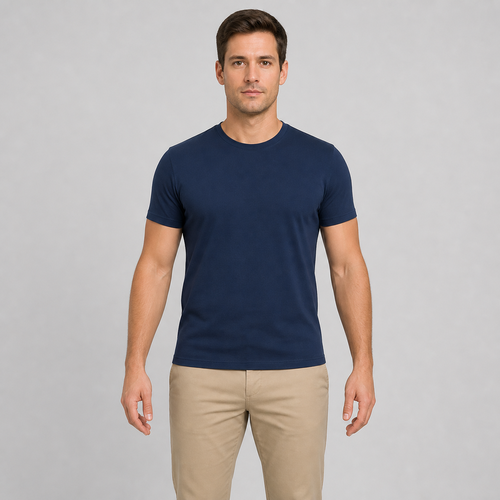
The same source image before and after applying Hip Adjust.
Hip Adjust applied to the same source image
Original source image before Hip Adjust

Hip Adjust — Broaden a Verified Hip Band Without Regenerating the Portrait

Broaden one verified lower hip and pelvis clothing band with existing source pixels while keeping the face, waist, hands, legs, and every pixel outside the bounded warp unchanged.

Upload a photo for the Hip Adjust effect

What you can do with the Hip Adjust effect

Review the available effect capabilities before you begin.

  • Apply the Hip Adjust effect to any photo
  • Fine-tune the effect strength to taste
  • Preview your photo live as you edit
  • Download your edited photo in high quality
  • Apply Hip Adjust to many photos at once

How it works

Hip Adjust does not regenerate the portrait or send it through a full-frame image model. It first requires one clear front-facing person and cross-checks mirrored MoveNet Thunder shoulder and hip landmarks against separate face detection. Six-class portrait segmentation must then isolate a continuous lower hip and pelvis clothing silhouette and independently confirm clean background gaps before both arms or hands. One horizontal source-pixel mesh begins below the natural waist, reaches its maximum near the hip line, and fades out just below it. At maximum intensity, the verified clothing outline can broaden by up to a restrained 12% per side; nearby verified background is redistributed only inside the measured gap, and displacement tapers to zero at every boundary. The face, upper body, natural waist, arms, hands, lower legs, distant background, and every pixel outside the local envelope are copied unchanged into a lossless PNG. Bare or hidden hip outlines, loose clothing, touching hands, cropped bodies, transparent cutouts, and ambiguous poses are refused instead of guessed.

Processing

Hip Adjust uses an AI action. Any separate allowance is shown before this effect starts processing.

Best for

sharp opaque front-facing photos of one person with a clear face, both shoulders and hips visible, fitted clothing across the hip outline, arms and hands held away from both sides, and clean background in the gaps.

Less suited to: group photos, side or seated poses, bare or hidden hip outlines, skirts or loose clothing, jackets covering the pelvis, hands or objects touching the hips, cropped bodies, busy backgrounds, transparent cutouts, and motion blur.

Ways to use Hip Adjust

  • Preview a restrained increase in visible hip width without changing facial identity, hands, legs, or the full portrait.
  • Broaden only the lower hip and pelvis band while keeping the natural waist and upper body source-exact.
  • Use intensity to choose a subtle or more defined result within a fixed 12%-per-side safety limit.

Hip Adjust questions

Will Hip Adjust change my waist, hands, or legs?
No. The mesh starts below the natural-waist band, fades out just below the hips, and is allowed to run only inside verified background gaps before the arms or hands. Those protected regions and all pixels outside the measured envelope are copied from the source.
Why can Hip Adjust refuse loose clothing or hands near the hips?
The tool requires one continuous clothing outline plus clean semantic background on both sides. Loose fabric, bare or hidden contours, touching hands, and nearby objects make the true hip boundary ambiguous, so the tool stops rather than bending the wrong pixels.

More Portrait & Beauty effects

See the featured effects in motion

The strongest effect picks lead this belt before the rest of the catalog.