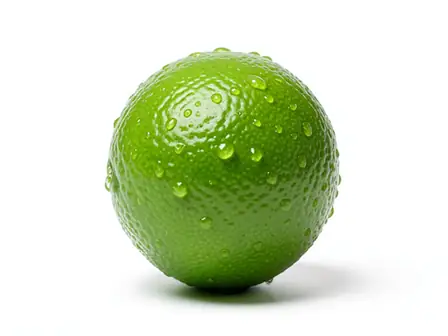
The same source image before and after applying Liquify Ripple · Spiral · Frozen Signal.
Liquify Ripple · Spiral · Frozen Signal applied to the same source image
Original source image before Liquify Ripple · Spiral · Frozen Signal

Liquify Ripple + Spiral + Frozen Glitch Effect

Start with Liquify Ripple, shape it with Spiral, and close with Frozen in one adjustable glitch-and-distortion recipe.

Upload a photo for the Liquify Ripple · Spiral · Frozen Signal effect

What you can do with the Liquify Ripple · Spiral · Frozen Signal effect

Review the available effect capabilities before you begin.

  • Apply the Liquify Ripple · Spiral · Frozen Signal effect to any photo
  • Fine-tune the effect strength to taste
  • Preview your photo live as you edit
  • Download your edited photo in high quality
  • Apply Liquify Ripple · Spiral · Frozen Signal to many photos at once

How it works

The renderer first applies Liquify Ripple, then introduces Spiral, and finally uses Frozen Signal. Each stage has a distinct role in the glitch-and-distortion recipe, while the intensity control blends the completed recipe against the source.


Processing

Liquify Ripple · Spiral · Frozen Signal runs as a classic image effect and does not use an AI action.

Best for

The exact Liquify Ripple, Spiral, and Frozen Signal recipe works best for gaming and technology visuals, motion-inspired social posts, and abstract transformations of simple silhouettes.

Less suited to: Liquify Ripple, Spiral, and Frozen Signal needs extra care with legal documents, small typography, group portraits, or images whose important details already sit close to the frame edge.

Ways to use Liquify Ripple · Spiral · Frozen Signal

  • Use the Liquify Ripple foundation with Spiral and Frozen for gaming and technology visuals.
  • Apply the Liquify Ripple, Spiral, and Frozen Signal combination to motion-inspired social posts.
  • Choose Frozen when preparing abstract transformations of simple silhouettes through the Liquify Ripple and Spiral recipe.

Liquify Ripple · Spiral · Frozen Signal questions

How does the Liquify Ripple · Spiral · Frozen Signal recipe work?
Liquify Ripple provides the starting structure, Spiral supplies the middle treatment, and Frozen Signal determines the final rendering character. Intensity blends all three stages together against the source photo.
When should I use Liquify Ripple with Spiral and Frozen Signal?
Use the Liquify Ripple, Spiral, and Frozen Signal combination for gaming and technology visuals, motion-inspired social posts, or abstract transformations of simple silhouettes. Reduce its intensity when the source contains legal documents, small typography, group portraits, or images whose important details already sit close to the frame edge.

More Distortion & Glitch effects

See the featured effects in motion

The strongest effect picks lead this belt before the rest of the catalog.