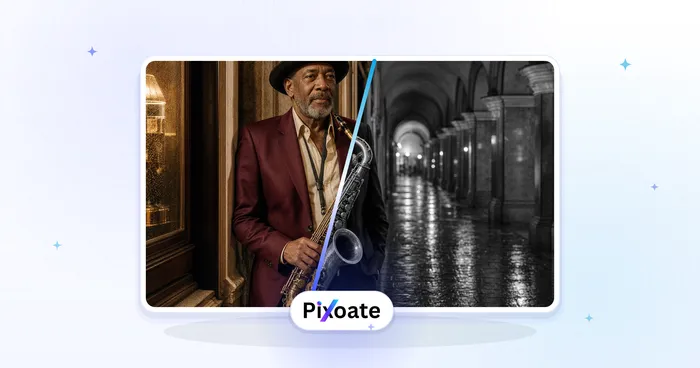
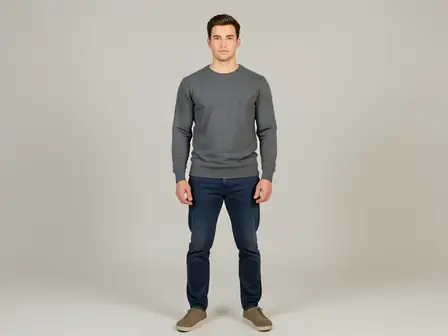
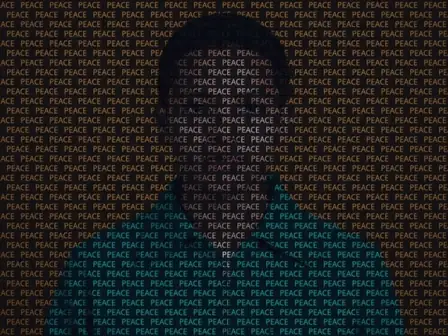
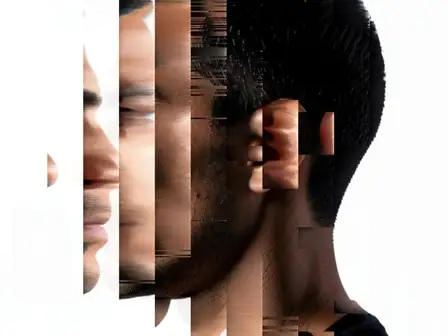
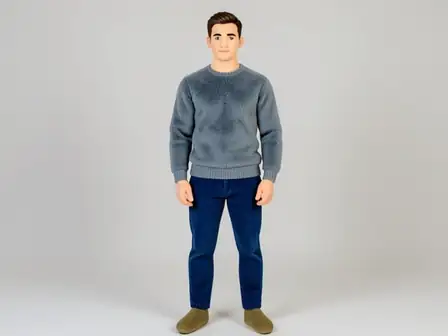
The same source image before and after applying Mood Continuity · Nostalgic Intent · Identity-Locked Policy.
Mood Continuity · Nostalgic Intent · Identity-Locked Policy applied to the same source image
Original source image before Mood Continuity · Nostalgic Intent · Identity-Locked Policy

Mood Continuity + Nostalgic Intent + Identity-Locked Intelligent Photo Effect

Start with Mood Continuity, shape it with Nostalgic Intent, and close with Identity-Locked in one adjustable signature-intelligence recipe.

Upload a photo for the Mood Continuity · Nostalgic Intent · Identity-Locked Policy effect

What you can do with the Mood Continuity · Nostalgic Intent · Identity-Locked Policy effect

Review the available effect capabilities before you begin.

  • Apply the Mood Continuity · Nostalgic Intent · Identity-Locked Policy effect to any photo
  • Fine-tune the effect strength to taste
  • Preview your photo live as you edit
  • Download your edited photo in high quality
  • Apply Mood Continuity · Nostalgic Intent · Identity-Locked Policy to many photos at once

How it works

The renderer first applies Mood Continuity, then introduces Nostalgic Intent, and finally uses Identity-Locked Policy. Each stage has a distinct role in the signature-intelligence recipe, while the intensity control blends the completed recipe against the source.
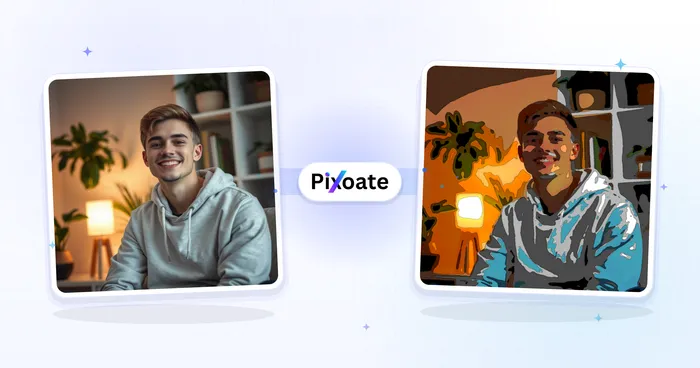
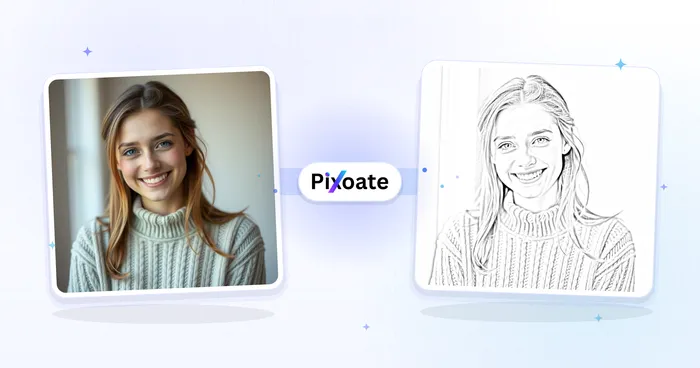
Processing

Mood Continuity · Nostalgic Intent · Identity-Locked Policy uses an AI action. Any separate allowance is shown before this effect starts processing.

Best for

The exact Mood Continuity, Nostalgic Intent, and Identity-Locked Policy recipe works best for product images with protected colors, social campaigns with a shared mood, and brand-consistent image series.

Less suited to: Mood Continuity, Nostalgic Intent, and Identity-Locked Policy needs extra care with unrelated source images, missing subject detail, conflicting policy goals, or files whose embedded color and exposure are already irrecoverably clipped.

Ways to use Mood Continuity · Nostalgic Intent · Identity-Locked Policy

  • Use the Mood Continuity foundation with Nostalgic Intent and Identity-Locked for product images with protected colors.
  • Apply the Mood Continuity, Nostalgic Intent, and Identity-Locked Policy combination to social campaigns with a shared mood.
  • Choose Identity-Locked when preparing brand-consistent image series through the Mood Continuity and Nostalgic Intent recipe.

Mood Continuity · Nostalgic Intent · Identity-Locked Policy questions

How does the Mood Continuity · Nostalgic Intent · Identity-Locked Policy recipe work?
Mood Continuity provides the starting structure, Nostalgic Intent supplies the middle treatment, and Identity-Locked Policy determines the final rendering character. Intensity blends all three stages together against the source photo.
When should I use Mood Continuity with Nostalgic Intent and Identity-Locked Policy?
Use the Mood Continuity, Nostalgic Intent, and Identity-Locked Policy combination for product images with protected colors, social campaigns with a shared mood, or brand-consistent image series. Reduce its intensity when the source contains unrelated source images, missing subject detail, conflicting policy goals, or files whose embedded color and exposure are already irrecoverably clipped.

More PixOate Originals effects

See the featured effects in motion

The strongest effect picks lead this belt before the rest of the catalog.