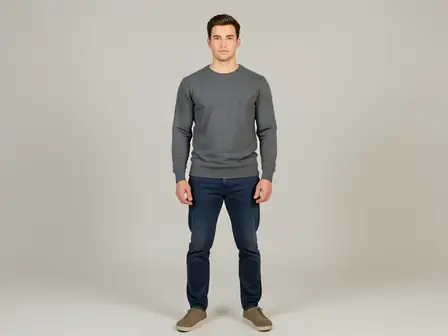
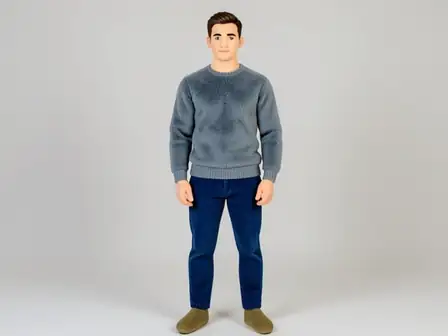
The same source image before and after applying Waist Adjust.
Waist Adjust applied to the same source image
Original source image before Waist Adjust

Waist Adjust — Shape a Verified Waist Without Regenerating the Portrait

Shape one verified natural-waist band with existing source pixels while keeping the upper body, face, hips, and every pixel outside the bounded envelope unchanged.

Upload a photo for the Waist Adjust effect

What you can do with the Waist Adjust effect

Review the available effect capabilities before you begin.

  • Apply the Waist Adjust effect to any photo
  • Fine-tune the effect strength to taste
  • Preview your photo live as you edit
  • Download your edited photo in high quality
  • Apply Waist Adjust to many photos at once

How it works

Waist Adjust makes a restrained change to a natural waist you can clearly see, and leaves the rest of the photo exactly as you shot it. It locates each person by their face, shoulders and hips, then separates a natural waist from the background, hair, skin and clothing before anything moves. The adjustment eases off to nothing at every edge of that area, and nearby background is filled in behind the new outline so no gaps appear. The face and every pixel outside the adjusted area are copied straight into a lossless PNG. In a group photo you pick who to change, or switch on "Apply to everyone" in Settings. Anyone standing too close for their neighbour to stay untouched is left alone rather than guessed at. If the photo is unclear, cut off, transparent or ambiguous, it stops instead of guessing.

Processing

Waist Adjust uses an AI action. Any separate allowance is shown before this effect starts processing.

Best for

sharp, opaque, front-facing photos with a clear face, both shoulders and hips visible, and some background around the waist — including group photos where each person has clear space around them.

Less suited to: people packed shoulder to shoulder with no gap between them, side or seated poses, crossed arms or hands resting on the waist, cropped hips, loose or layered garments, transparent cutouts, motion blur, and bodies touching the image edge.

Ways to use Waist Adjust

  • Apply a restrained waist-width adjustment without regenerating facial identity, clothing texture, or the whole portrait.
  • Keep the chest, shoulders, face, hips, legs, and distant background source-exact while shaping one local band.
  • Use intensity to choose a subtle or more defined waist adjustment within a fixed safety limit.

Waist Adjust questions

What is different between Waist Adjust and Body Slim?
Waist Adjust concentrates its warp in a shorter band around the natural waist and reaches zero before the upper torso and hip line. Body Slim uses a broader torso profile. Both reuse source pixels and preserve the face and outside frame exactly.
Why can Waist Adjust refuse a photo?
A safe adjustment needs a clear face, both shoulders, both hips, a waist it can tell apart from the background, and clean space beside it — including space between this person and anyone standing next to them. It stops when loose clothing, something in the way, cropping, transparency or an angled pose makes that boundary unreliable.

More Portrait & Beauty effects

See the featured effects in motion

The strongest effect picks lead this belt before the rest of the catalog.