
Kia Auto Dealer Photo Studio
Generative output can vary; review the full result before publishing
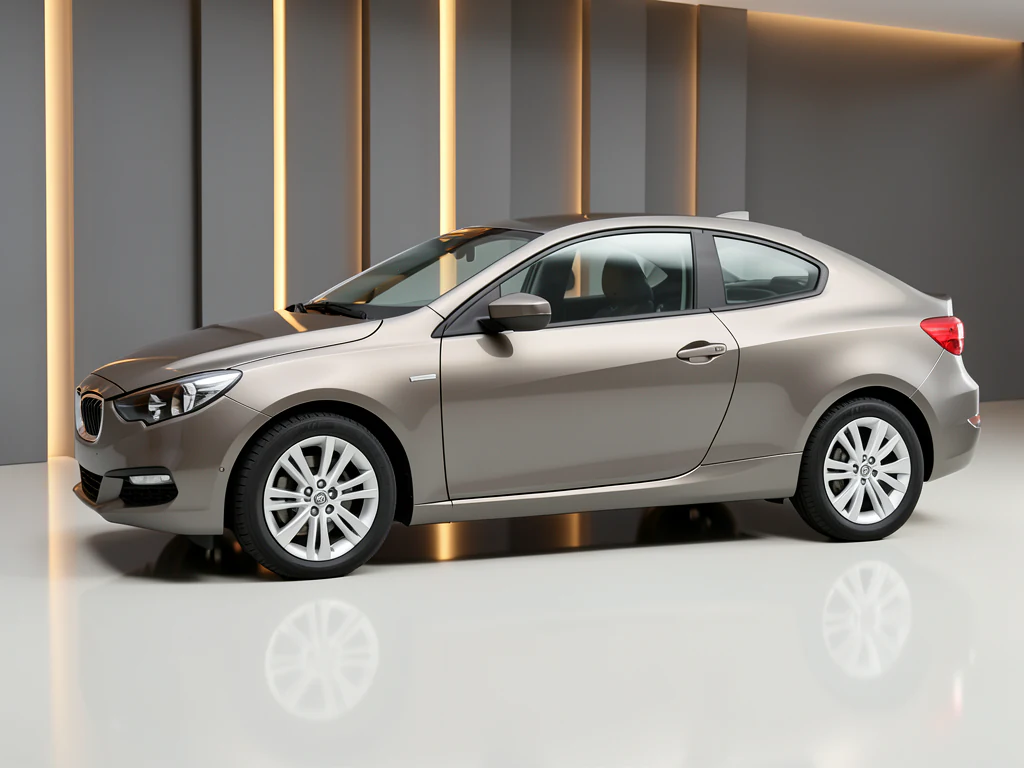
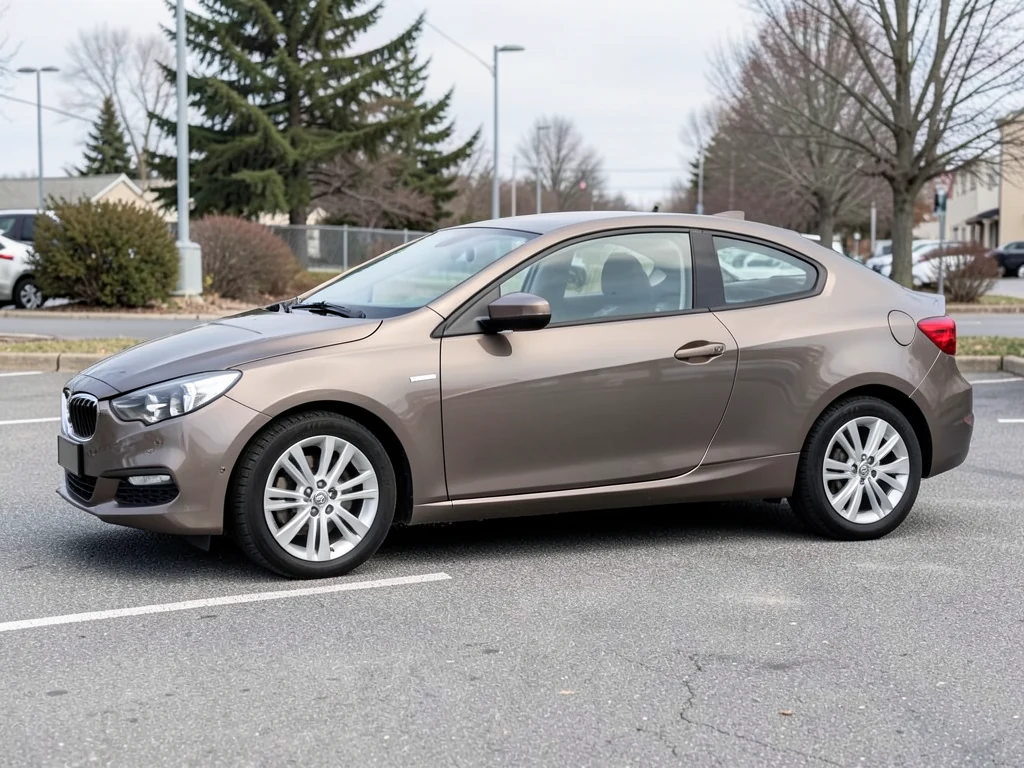
Kia's design era deserves listings that keep up — bold surfaces, tiger-nose confidence, EVs that photograph like concepts. This direction stages your actual Kia unit photos at that energy: modern dramatic-clean grounds, badges kept as photographed, presentation as current as the sheet metal.
- Prepared Kia direction
- Editable prompt
- Source-detail review required
Choose a source image for Kia
JPG, PNG, WebP, HEIC, and other supported formats. Free up to 20 MB; Premium and higher up to 50 MB for this tool.
Kia listing photos: the newer logo, lighting signatures and GT-Line details
Kia changed its badge design in recent years, so used stock may carry either version. Whichever is on the car, it must stay that way in the result; an AI that tidies a badge into the newer style would misrepresent the model year. Check the front and rear badges against the original at full size.
Many Kia trims are told apart by small cues: GT-Line badges, different wheel designs, gloss-black trim. Photograph those close up and compare them after processing. On electric models such as the EV6, add the charge port and screen to the gallery, and keep them as photographed so the range shown is real.
Kia's newer designs suit modern settings with clean, even light; Plain backdrop works for listings and City street for social posts. If the car is dark gray or black, shoot in open shade to keep the side panels free of hard reflections. For a quick listing-ready file, compress the gallery before upload on a slow connection.
Kia details to confirm
- Badge style matches the model year
- GT-Line or trim markings unchanged
- Wheel design matches the original
- Charge port and screen shots left as photographed
Set up for Kia Auto Dealer Photo Studio
Prepared settings
- Starting point
- Upload one source image
- The page opens on the correct edit workflow; upload is the only required setup step.
- Prepared workflow
- Prepared Kia background direction
- Kia Auto Dealer Photo Studio opens with the Kia direction preselected, so there is no need to find the operation manually.
- Output shape
- Same as your upload
- The result keeps the shape of the image you upload.
- Review rule
- Preserve the source subject and verify factual details
- Generated imagery can vary; the final result stays under the user's approval before download.
Best-fit uses
- Design-era unit presentation
- EV-model concept-grade staging
- Dealer-gallery modernization
Frequently asked questions
- What presentation matches new-era Kia?
- Modern drama — gradient grounds, directional light on the surfacing, confidence in the framing. The brand moved upmarket visually; listings shot like economy cars undersell the metal.
- Does staging respect the exact trim?
- Yes — the detected vehicle keeps its own pixels, so GT-Line badges and trim distinctions stay as photographed. Trim is money; check the edges before publishing.
- What should I review in a Kia result?
- Check the subject, product geometry, colors, labels, logos, identity-relevant details, shadows, and edges against the source. Reject any output that changes a factual detail.
- What rights checks apply to a Kia client project?
- Use only source material and references you have rights to, follow the destination platform rules, and obtain any required person or property permissions. Generated output still needs a human accuracy and rights review.
What you can do with AI Product Scene Generator
Review the main capabilities before you begin.
- Build a scene around your product from a single photo
- Create editorial, ecommerce, and social campaign concepts
- Generate coherent props, surfaces, lighting, and shadows
- Ask the AI to keep the product as photographed
Settings reference
4 settings
Available controls for AI Product Scene Generator.
Workflow
- Single image or Batch imagesPresets
- Process one image, or use Premium Batch images to apply the same automatic recipe to a set and download one ZIP.Options: Single imageBatch images
Scenes
- One-tap presetsPresets
- Pick a ready-made direction with one tap; generation uses the selected preset automatically.Options: Bathroom counterKitchen lifestyleOutdoor lifestyleEditorial podiumSocial ad
- Custom instructions (optional)Text input
- Describe the requested change, relevant materials, lighting, perspective, and details that must remain unchanged.
Selection
- Selection brush sizeSliderRange: 4–160px · Default: 32px
- The subject area is found automatically. This brush appears only if that automatic area could not be found; paint the area to edit, then generate again.
Related tools for Kia Auto Dealer Photo Studio
Tools for common next steps after Kia Auto Dealer Photo Studio.

Background Studio
Remove Background
Remove a photo background and download a transparent PNG. Review hair and edges before use.
Try it now
Background Studio
Background Changer
Replace a background with a photo, color, gradient or library design. Choose from 21,000+ backgrounds.
Try it now
Photo Enhancement
AI Photo Enhancer
Adjust noise, sharpness, color and scale in one enhancement workflow, then compare the result with the original.
Try it nowWatch each transformation land
Every photo crosses the slash untouched and comes out the other side finished.























