
Auto Dealer Photo Studio
Generative output can vary; review the full result before publishing
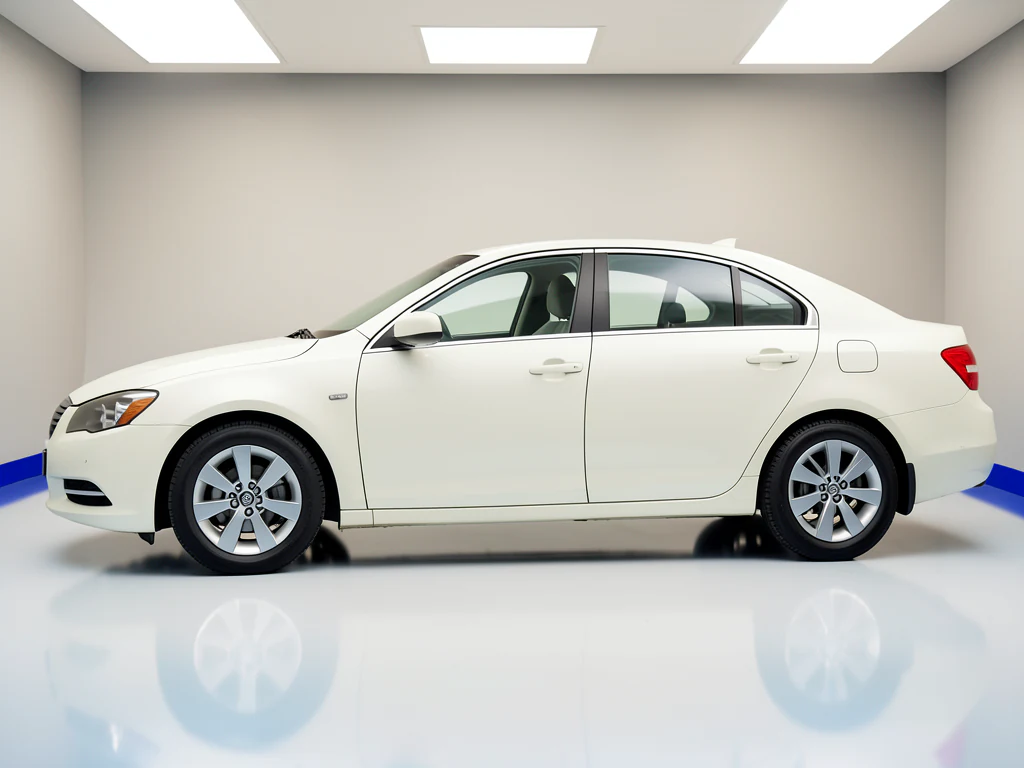
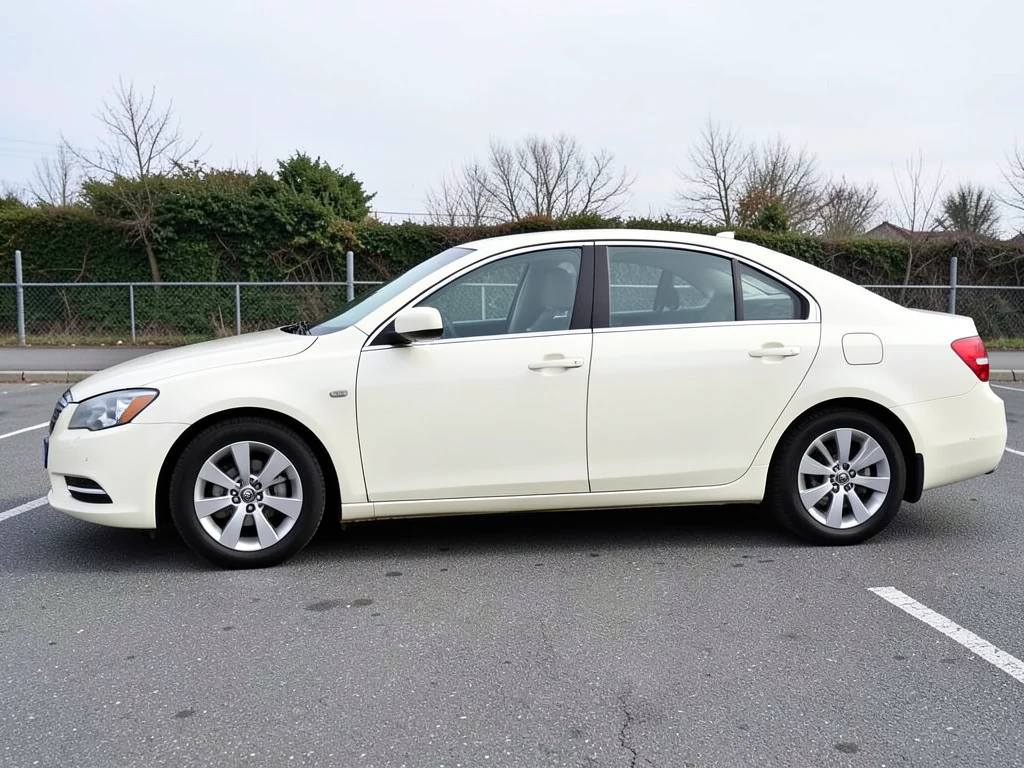
A dealership lot is a photographic problem: parked cars in the background, a service bay door, weather that changes between Monday and Thursday, and inventory that consequently looks inconsistent across a listing page. This direction puts every vehicle on the same clean backdrop while preserving the vehicle itself, condition included.
- Prepared Auto Dealer Photo Studio direction
- Editable prompt
- Source-detail review required
Choose a source image for Auto Dealer Photo Studio
JPG, PNG, WebP, HEIC, and other supported formats. Free up to 20 MB; Premium and higher up to 50 MB for this tool.
Running a whole lot's inventory through one consistent backdrop
Consistency on a listing page comes from the capture routine more than the backdrop. Pick one angle set, such as front three-quarter, side profile, rear three-quarter and dashboard, and shoot every unit from the same distance with the camera near headlight height. Pull each car a few lengths away from its neighbors and leave space around the bumpers, because the vehicle is detected automatically and needs visible ground and background around it to separate cleanly.
The four buttons under the prompt (Showroom floor, Plain backdrop, Golden hour and City street) each describe one complete setting. Choose one for the whole inventory and leave it alone; mixing settings across units undoes the point. With Premium batch mode, up to 60 photos (or 200 on Pro) run with the same direction and come back as one ZIP, so a morning's shoot can be processed in a single pass.
The vehicle's own pixels are protected, which means its paint and glass still carry the original surroundings. Check windows for cars parked behind, and look at the doors for a reflected service bay. Before the photos go live, read the VIN from the door label into your records and shrink each file for your website's upload form.
Inventory shoot routine
- Same angle set and distance for every unit
- Front wheels turned slightly toward the camera
- Overcast light or open shade instead of noon sun
- Known defects photographed in separate close-ups
Give car and vehicle listing photos a clean studio background
This auto dealer photo studio swaps the surroundings of a vehicle photo for a showroom floor, a plain backdrop, a golden-hour road or a city street. Dealers, private sellers and car photographers use this vehicle photo studio as a car photography studio on screen, to make inventory look consistent without a studio visit or a good-weather day. The vehicle is found automatically and placed back from your original photo, so dents, scratches and wear stay visible.
Make a car photo studio image in 5 steps
The page works on exterior photos with the whole vehicle in view and some ground and sky around it. Each run returns one image in the shape of your upload, so crop the photo the way the listing needs it first.
- Upload an exterior photo of the vehicle with the whole car in frame.
- Under Styles, choose Showroom floor, Plain backdrop, Golden hour or City street.
- Select Generate Product background.
- Check the windows, wheels and paint for reflections of the original surroundings.
- Download the PNG and repeat with the same look for the next vehicle.
Use one look for listings and another for promotion
Showroom floor and Plain backdrop suit listing pages, where buyers compare cars on equal terms. Golden hour and City street give atmosphere, which suits social posts, a homepage banner or a just-arrived announcement. Keeping the 2 uses apart means 2 similar cars on one listing page do not sit in different places for no reason.
When the car fills the frame or sits far away
The page finds the vehicle on its own and needs ground and background around it to do that cleanly. A car that fills nearly the whole frame, a car that is a speck in a wide lot photo, or one that blends into the cars around it can leave no safe area to change. The page then says it could not identify a safe automatic edit area and opens a painting view, where you brush the area to replace. Standing a few steps back usually avoids the problem.
Add your dealership name and price after generating
Keep the generated image clean and brand it afterward. Place a price or a just-arrived line by adding text to the image and stamp your dealership logo with a watermark that sets position and opacity. To put the car on your own photographed showroom or a banner, cut the car out onto a transparent background and place it on that image.
Set up for Auto Dealer Photo Studio
Prepared settings
- Starting point
- Upload one source image
- The page opens on the correct edit workflow; upload is the only required setup step.
- Prepared workflow
- Prepared Auto Dealer Photo Studio background direction
- Auto Dealer Photo Studio opens with the Auto Dealer Photo Studio direction preselected, so there is no need to find the operation manually.
- Output shape
- Same as your upload
- The result keeps the shape of the image you upload.
- Review rule
- Preserve the source subject and verify factual details
- Generated imagery can vary; the final result stays under the user's approval before download.
Best-fit uses
- One consistent backdrop across a whole inventory feed
- Removing lot clutter and neighboring vehicles from listings
- Keeping listing imagery consistent regardless of weather
Frequently asked questions
- How do I photograph inventory for consistent listings?
- Standardize what you control at capture: the same angle set for every vehicle, the same distance, camera at roughly headlight height, whole vehicle in frame. The backdrop is what gets rebuilt afterwards. Consistent angles matter more than a consistent location.
- Will it hide damage or wear on a used vehicle?
- No. The vehicle keeps its photographed pixels, so dents, scratches, curbed wheels and paint defects remain visible — which is what you want, because misrepresenting condition on a vehicle listing is a serious problem in most markets. Photograph known defects deliberately in separate close-ups.
- Can I remove reflections from the paintwork?
- Reflections sit on the vehicle surface, and the vehicle is the part that keeps its photographed pixels, so they stay — including reflections of the original location. Control them at capture instead — overcast light or open shade is far kinder to automotive paint than direct sun, which bakes in hard reflections and blown highlights.
- Do I need to disclose an edited background?
- Advertising standards for vehicle sales differ by market and some are explicit about image editing. The safe position is that condition and specification must never be misrepresented. Check what applies in your jurisdiction, and keep any background change obviously a presentation choice.
- Does it work for motorcycles, vans and pickup trucks?
- Yes. The page is prepared for vehicles in general, and the site has pages for sedans, SUVs, hatchbacks, pickup trucks, motorcycles, vans, luxury cars and electric cars. Photograph the whole vehicle with space around it, and check thin parts such as mirrors, antennas and handlebars in the result.
- Can I use a photo of my own showroom as the background?
- The setting here is generated from a written description, and there is no option to upload a background image. Describe the space in the instructions, for example a bright showroom with white walls and a concrete floor, or place a cut-out car on your own photo with the background remover.
- Can I get a transparent background for a car photo?
- Results here are opaque PNG files with the new setting included, so a transparent background comes from the car background remover instead. Cut the car out there, then place the cutout on a banner or a design of your own.
- Can I use the studio looks on interior or dashboard photos?
- They are meant for exterior shots, since each look replaces the surroundings of a vehicle. For interior, dashboard and engine bay photos, improve the light with the Photo Enhancer instead, and keep these looks for the outside of the vehicle.
What you can do with AI Product Scene Generator
Review the main capabilities before you begin.
- Build a scene around your product from a single photo
- Create editorial, ecommerce, and social campaign concepts
- Generate coherent props, surfaces, lighting, and shadows
- Ask the AI to keep the product as photographed
Settings reference
4 settings
Available controls for AI Product Scene Generator.
Workflow
- Single image or Batch imagesPresets
- Process one image, or use Premium Batch images to apply the same automatic recipe to a set and download one ZIP.Options: Single imageBatch images
Scenes
- One-tap presetsPresets
- Pick a ready-made direction with one tap; generation uses the selected preset automatically.Options: Bathroom counterKitchen lifestyleOutdoor lifestyleEditorial podiumSocial ad
- Custom instructions (optional)Text input
- Describe the requested change, relevant materials, lighting, perspective, and details that must remain unchanged.
Selection
- Selection brush sizeSliderRange: 4–160px · Default: 32px
- The subject area is found automatically. This brush appears only if that automatic area could not be found; paint the area to edit, then generate again.
Related tools for Auto Dealer Photo Studio
Tools for common next steps after Auto Dealer Photo Studio.

Background Studio
Remove Background
Remove a photo background and download a transparent PNG. Review hair and edges before use.
Try it now
Background Studio
Background Changer
Replace a background with a photo, color, gradient or library design. Choose from 21,000+ backgrounds.
Try it now
Photo Enhancement
AI Photo Enhancer
Adjust noise, sharpness, color and scale in one enhancement workflow, then compare the result with the original.
Try it nowWatch each transformation land
Every photo crosses the slash untouched and comes out the other side finished.























