Enhance Dark, Grainy Family Photos Without Overdoing It
Improve a dark or grainy family photo with adjustable AI enhancement. Compare faces and texture, recognise recovery limits and keep the original safe.
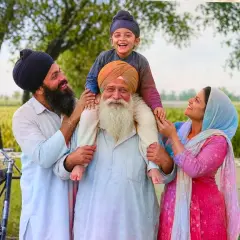
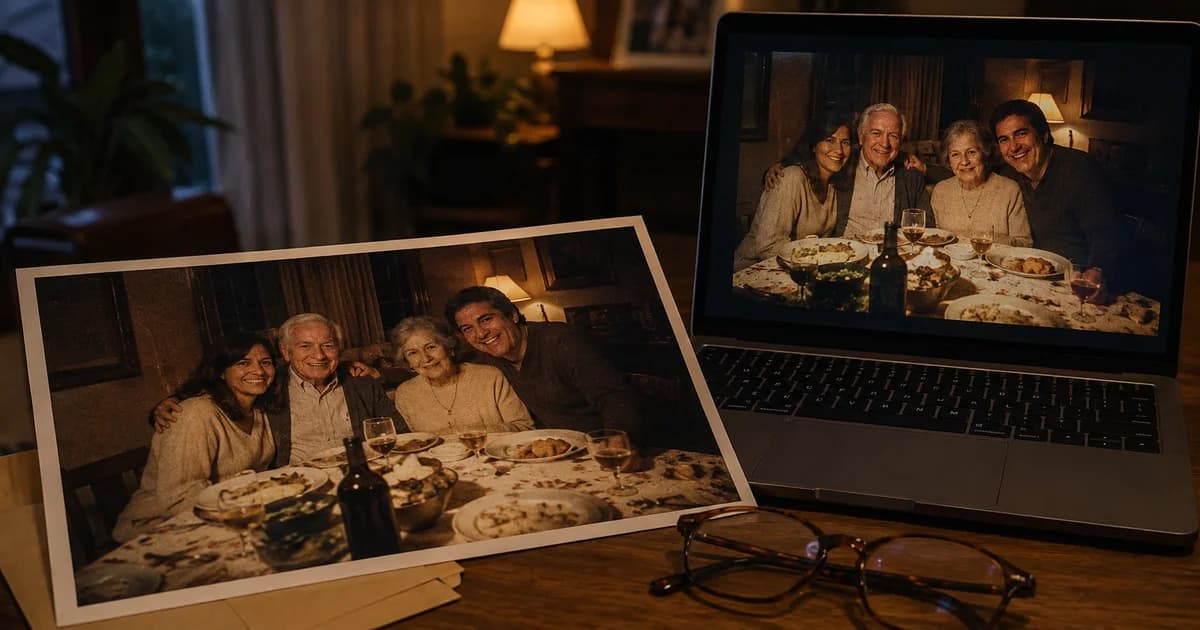
The birthday photograph has the expression you wanted, but it was taken in a dim restaurant. Another family photo is slightly soft because someone moved at the last moment. You cannot retake the occasion, so the useful question is how much the existing file can be improved without changing the people in it.
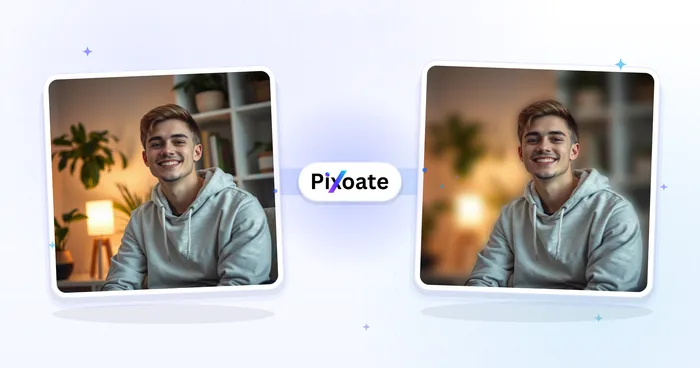
Pixoate's AI image enhancer for dark and grainy photos combines noise reduction, sharpening, colour adjustment and a resolution boost. It gives you a preview and strength control so you can decide whether the result is worth keeping.
Find the best available source
Ask for the original photo before working on a screenshot or message attachment. The original may contain more detail and fewer compression artefacts. Save a copy before uploading so experimentation does not replace the family record.
Decide what is wrong with the image. Darkness, colour cast, noise and blur are different problems, even when they appear together. A photo with a slightly dull face may benefit from modest enhancement; a face hidden by severe motion blur may not have recoverable detail.
For a US holiday gathering or UK birthday meal, the goal is usually a recognisable, natural photograph rather than the sharpest possible image.
How to enhance the photo with Pixoate
- Open the Pixoate AI photo enhancer and upload the largest original available.
- Run the enhancement and inspect the preview.
- Start with a subtle strength for portraits, then adjust only if the result needs it.
- Compare faces, hair, clothing texture and the background with the original.
- Download the version you prefer, reopen the export and keep it beside the source.
Check the available output settings and any plan requirements before choosing a high-resolution result. A preview is part of the decision; the final file is what you will share or print.
Look for the point where improvement becomes alteration
Noise reduction can smooth skin or erase fine texture. Sharpening can create bright edges around hair, glasses or clothing. Generated detail can make an image look clearer while changing an eye, tooth or facial line.
Compare at normal viewing size as well as zoomed in. An improvement that looks impressive at a glance may feel unnatural in a print. Ask someone familiar with the person to look at the result if likeness matters and you are unsure.
If a stronger setting changes the face, lower the strength or keep the original. There is no need to rescue every photograph at the cost of authenticity.
Choose separate tools for separate tasks
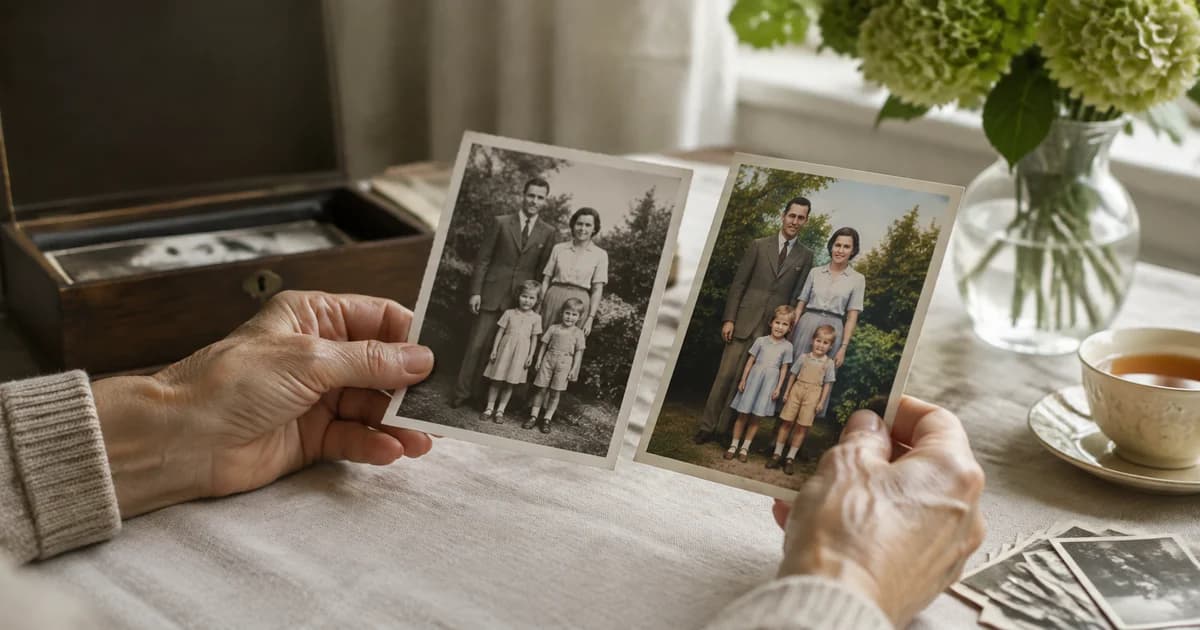
If the image is clear but simply too small for its intended placement, an AI image upscaler addresses enlargement more directly. If a scanned print is black and white, photo colorization is a separate creative interpretation.
Avoid running every available tool in sequence just because it exists. Each processing step can introduce changes and make it harder to see where a problem began. Save versions at the point where you approve a result.
Make the photograph easier to enjoy
An older relative may prefer a larger, straightforward print over a heavily stylised collage. Ask what viewing size works for them and keep the image uncluttered. When sharing digitally, send an appropriate-quality file through the family's agreed channel rather than another screenshot of the preview.
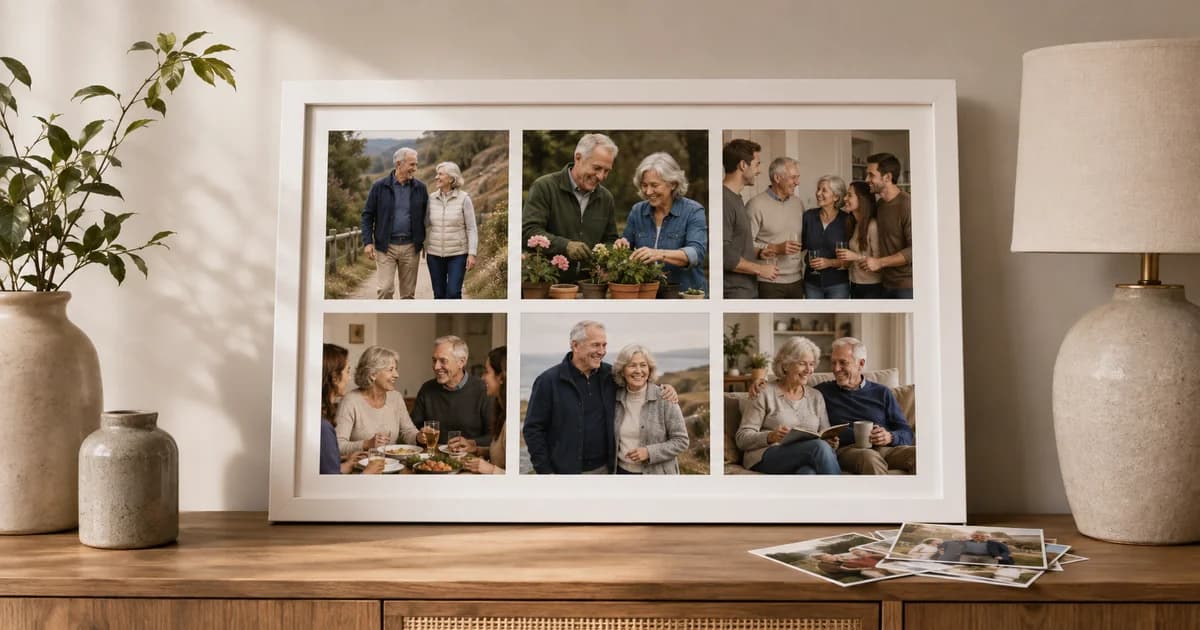
If the picture is going into a celebration collage, review it at the size of its actual panel. Tiny faces may remain difficult to see even after enhancement because the layout, rather than the source, is now the limiting factor.
Know when a new photograph is the better answer
For a product you still own, retaking the image in better light can be more dependable than recovering a severely blurred source. For a family moment that cannot be repeated, a modest improvement or the unchanged original may be the right outcome.
Do not use AI enhancement to establish missing documentary detail, identify someone from an unclear image or read safety-critical information that was not legible in the original.
Can AI fix every blurry face?
No. Severe blur and missing detail limit what can be recovered. Generated sharpness is not proof of accurate facial detail.
Should I always choose the strongest setting?
No. Use the lowest strength that gives a useful improvement while preserving a natural appearance.
Try enhancing one dark family photo, compare it carefully and keep the version that still feels like the moment you remember.