realestate.com.au Photo Upload Rejected? What to Check
Check dimensions, file type, RGB colour and file size when realestate.com.au rejects a listing photo. Separate file problems from image-content rules.
Pixoate publishes practical guides to image and document workflows. This guide links to the destination's documentation and explains what to check in your own files.
A property photograph can have the expected dimensions and still be refused during upload. Check format, colour mode, byte size and content separately so you fix the actual failure instead of repeatedly shrinking the same file.
Keep the original photograph. The preparation below produces a delivery copy for your normal Australian property-listing workflow; it does not guarantee platform acceptance.
Start with the error and the original file
Record the exact upload error, the file that produced it and whether other images in the same set work. Compare a failing image with a successful one. The difference may be a phone format, a colour mode from a design application or an unusually large export.
Avoid changing several properties at once. Converting, cropping and heavily compressing in one pass makes it harder to know what solved the problem and which change damaged the image.
Check the technical requirements
The REA image requirements, checked on 9 September 2026, recommend 2000 × 1500 pixels and specify RGB colour and a maximum 20MB per image. Accepted formats include JPEG, PNG and static GIF, with separate restrictions on floorplan GIFs. Review the source again when preparing a new campaign.
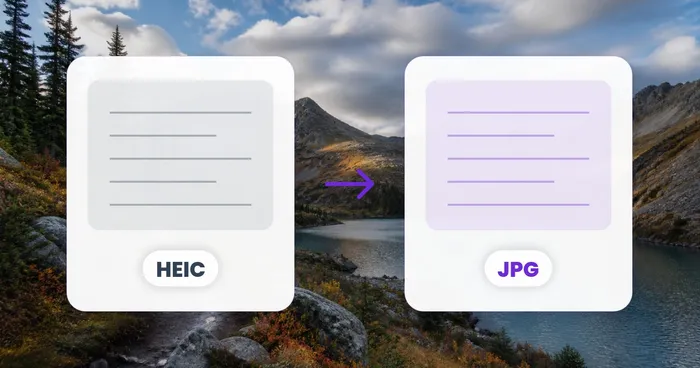
If a phone supplied HEIC files, use HEIC to JPG and open the converted file. Do not rely on a renamed extension. For a colour-mode mismatch, obtain or export a verified RGB copy through a suitable editor; changing pixel dimensions alone does not establish the colour mode.
Resize only when dimensions are the issue
Use Resize Image for the intended canvas. Keep the room's proportions and inspect the crop. Changing a tall source to a landscape canvas can remove useful features if you do not plan the composition first.
If the byte size exceeds the actual limit, use Compress Image on a copy. Inspect distant features and fine details at a useful zoom. Do not force every image down to an arbitrary small KB target when the upload accepts a larger, clearer file.
Separate content review from file repair
The REA guide also restricts certain overlays and listing-photo collages. Technical preparation does not make disallowed content acceptable. Review the entire official guide and remove a problematic export from the delivery set until the issue is resolved.
| Check result | Next action |
|---|---|
| File does not open locally | Recheck the source and transfer |
| File opens but has an unsupported format | Create a compatible copy |
| File is above the allowed byte size | Compress and inspect a copy |
| Technical properties match but upload fails | Review the error, content and publishing workflow |
After a successful upload, inspect the gallery and image order. Preserve the approved export settings with the listing record so the next update starts from a known result.
Follow the Australian property-photo workflow for the complete preparation sequence.