How to Convert Handwritten Job Notes into Editable Text and Client PDFs
Turn handwritten job notes into editable text and client PDFs with Pixoate. Preserve service details, clarify uncertain words and keep source evidence.
A contractor returns from a visit with measurements, a customer request and a reminder written on the same page. The information is useful, but the person preparing the quotation was not there and cannot confidently read every word.
Pixoate's handwriting OCR for photographed job notes can produce editable text from supported handwriting. Use it to prepare a reviewed draft, then turn the confirmed information into a clear document for the next person.
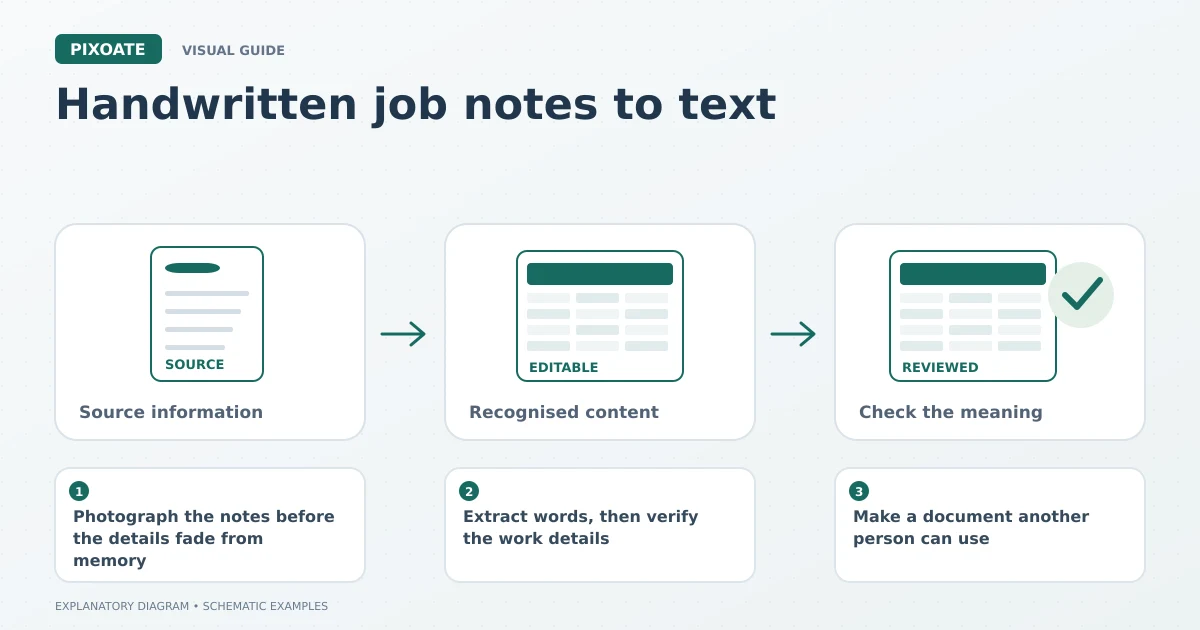
Original explanatory graphic. The scenes and sample records are schematic illustrations, not screenshots or measured tool results.
Photograph the notes before the details fade from memory
Flatten the page, use even lighting and keep the camera square to the writing. Include the date, job reference and any arrows or labels that explain where a note belongs. A close image of an isolated number may be readable but meaningless without its context.
Capture separate pages individually rather than squeezing a notebook spread into one distant photograph. If a fold or stain hides a measurement, ask the person who wrote it while they still remember the job.
Extract words, then verify the work details
Upload the photograph to Handwriting OCR, choose the supported language and reader options, and run extraction. Compare the draft with the original line by line where the information affects the work.
Pay particular attention to names, addresses, quantities, units and measurements. “15” and “1.5” are not interchangeable, and a recognised number without its unit is incomplete. OCR cannot supply the writer's intended meaning when the handwriting or context is ambiguous.
For a note containing a sketch, retain the sketch as an image alongside the reviewed wording. The text alone may not explain which wall, pipe or shelf the writer meant.
Make a document another person can use
Use image-to-Word text extraction when you want an editable document. Choose the OCR/text option rather than the option that places the original picture inside a Word file.
In your document editor, organise the verified material under practical headings: job reference, observations, customer requests, confirmed measurements and questions awaiting clarification. Keep observations separate from commitments that have not been agreed.
When the wording is ready, convert the Word document to PDF for sharing. Review the exported pages on a phone as well as at a readable desktop size. A technically correct PDF can still be difficult to use if the text is tiny or a table runs off the page.
Small details worth keeping
| Original note | What the reviewed document should preserve |
|---|---|
| A circled question mark | The value or instruction remains unresolved. |
| A crossed-out measurement | The earlier value should not silently become current. |
| An arrow beside a sketch | The association between the text and the pictured area. |
| A customer's requested change | Who requested it and whether it was approved. |
| A unit written once above a column | The unit applying to the values below it. |
These details are why a reviewed transcription is more useful than a tidy-looking block of unverified text.
Will OCR understand shorthand?
It may recognise letters without knowing your team's abbreviations. Expand shorthand only after confirming its meaning with the author or an agreed glossary.
Should I delete the notebook photo afterward?
Keep the source when it is needed for your recordkeeping process. A transcription can omit visual context, and the original helps resolve later questions.
Start with one clear page in Pixoate Handwriting OCR. Verify the details that matter, then create a readable PDF instead of forwarding another difficult-to-decipher photo.