How to Convert Image Text to PDF: Searchable Pages or Editable Text
Turn image text into a searchable PDF or an editable document. Compare both Pixoate workflows and choose the right output for your paperwork.
Someone asks you to send the text in a photograph as a PDF. That sounds like one job, but there are two useful outcomes: a PDF that looks like the photographed page and can be searched, or a newly arranged document containing the extracted words.
Choose the outcome before uploading. It determines whether you should make a searchable PDF from an image or extract editable text first. Simply putting a JPG on a PDF page does not, by itself, create selectable text.
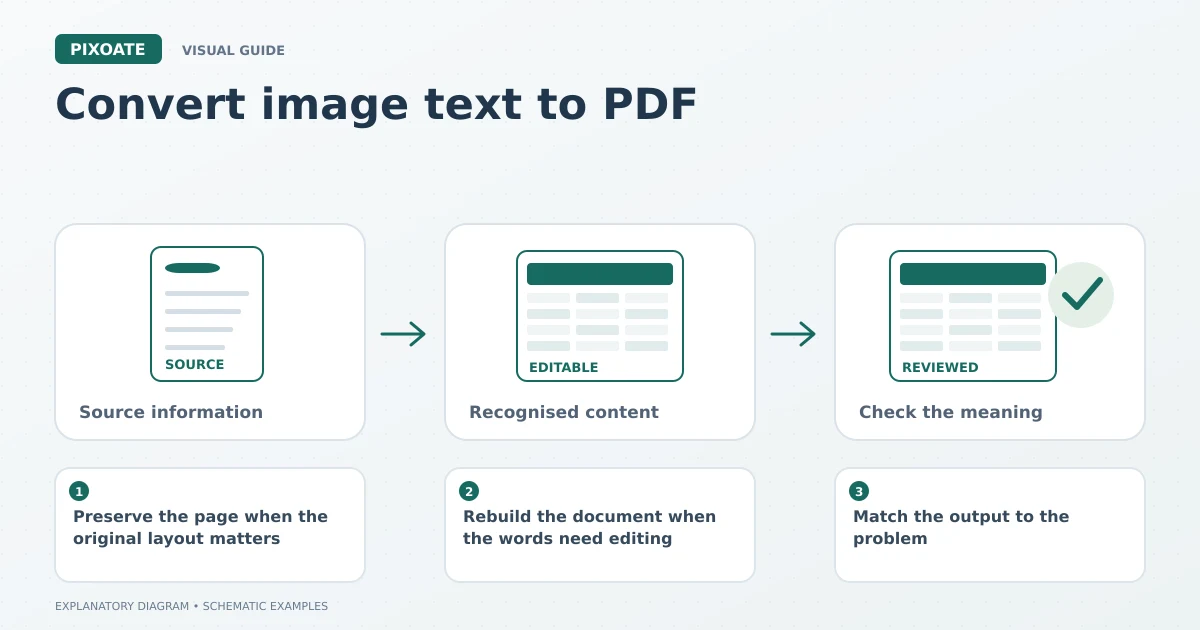
Original explanatory graphic. The scenes and sample records are schematic illustrations, not screenshots or measured tool results.
Preserve the page when the original layout matters
A photographed letter, signed delivery sheet or old instruction page often needs to remain recognisable. Pixoate's searchable-PDF workflow keeps the image visible and adds recognised text for searching, selection and copying.
Use this route when a colleague needs to find an invoice number, search a name or copy a short passage while still seeing the source page. The original image remains important because the recognised text can contain mistakes.
- Gather the image files in the intended reading order.
- Open Searchable PDF and select the images.
- Choose the document language.
- Review page order, orientation and page settings.
- Generate the PDF and search for several known words in the downloaded file.
Check a name, a number and a word near the bottom of a page. Those spot checks are more informative than confirming that the file opens. Existing PDFs need a PDF-specific OCR workflow; this image-input route is for images.
Rebuild the document when the words need editing
Suppose a community organiser photographs a notice but needs to change the venue, enlarge the text and remove an outdated paragraph. Keeping the notice as an image would make those changes awkward.
Use image-to-Word OCR for editable paragraphs, selecting the text-extraction option rather than placing the picture inside Word. Review the wording in a compatible document editor, make the required changes and then convert the Word document to PDF.
This route is especially useful for turning image text into a clean PDF handout. It also lets you correct line breaks, choose readable type and replace ambiguous dates with a written month.
Match the output to the problem
| The person receiving the file needs to… | Useful route |
|---|---|
| See the original page and find words | Searchable PDF from the images |
| Edit the wording and rearrange paragraphs | Image to Word, edit, then Word to PDF |
| Receive pictures together as one document | Ordinary Image to PDF |
| Calculate figures from a photographed table | Image to Excel before any PDF export |
For tables, a PDF is usually the sharing copy rather than the best working format. Extract a photographed table into Excel if the numbers need sorting or calculation.
Small details that cause confusing results
A folded corner can hide a word. A dark shadow can reduce contrast. A page photographed sideways may still appear readable to you while producing poor text recognition. Improve the source and review the output rather than assuming an OCR layer is accurate because it exists.
Names, email addresses, decimal points and reference numbers deserve particular attention. When two languages appear on one page, check whether the chosen reader supports the relevant text; available language choices depend on the reader.
Does searchable mean fully accessible?
Searchable text is useful, but a fully accessible document can also require correct reading order, headings, tags and other work. Do not describe an OCR conversion alone as complete accessibility remediation.
Can the extracted wording replace the original record?
Keep the original when it matters to the task. OCR is an interpretation of visible text, and a newly edited document is a different document from the photographed source.
Choose Pixoate Searchable PDF for findable source pages, or Image to Word when the next step is rewriting and formatting.